
1. Киришүү
This manual provides essential information for setting up, operating, and maintaining your KTC H34S5 34-inch UWQHD Curved Gaming Monitor. Please read this manual thoroughly before using the product to ensure proper function and longevity.

Сүрөт 1: Алдыңкы view of the KTC H34S5 34-inch UWQHD Curved Gaming Monitor.
2. Пакеттин мазмуну
Төмөндө тизмеленген нерселердин баары пакетиңизге камтылганын текшериңиз:
- 34 Inch Curved Monitor (x1)
- Monitor Base (x1)
- Тез баштоо боюнча колдонмо (QSG) (x1)
- DisplayPort (DP) кабели (x1)
- Кубат адаптери (x1)
- 3-Pin Power Cord (x1)

Figure 2: Illustration of monitor dimensions and included accessories.
3. Орнотуу
3.1 Мониторду чогултуу
- Carefully remove the monitor and its base from the packaging.
- Attach the monitor base to the stand column. Ensure it clicks securely into place.
- Attach the assembled stand to the back of the monitor. Align the mounting points and press firmly until it locks.
3.2 Түзмөктөргө туташуу
Монитор бир нече туташуу параметрлерин сунуш кылат:
- DisplayPort (DP 1.4): Use the provided DP cable for resolutions up to 3440x1440 at 180Hz. Connect one end to the monitor's DP input and the other to your computer's DP output.
- HDMI (HDMI 2.0): Use an HDMI cable (not included) for resolutions up to 3440x1440 at 100Hz. Connect one end to the monitor's HDMI input and the other to your device's HDMI output.
- USB 2.0: Бул порт микропрограммалык камсыздоону жаңыртуу үчүн гана.
- Аудио чыгышы: Connect external speakers or headphones to this port.
After connecting, power on your monitor and connected device. Select the correct input source using the monitor's On-Screen Display (OSD) menu.

Figure 3: Monitor rear panel with input ports labeled.
4. Иштөө нускамалары
4.1 Экрандагы дисплей (OSD) менюсу
The OSD menu allows you to adjust various monitor settings. Refer to the Quick Start Guide for detailed instructions on navigating the OSD using the monitor's control buttons.
4.2 Picture-in-Picture (PIP) and Picture-by-Picture (PBP) Modes
The monitor supports PIP and PBP modes, allowing you to display content from multiple input sources simultaneously. These modes enhance multitasking efficiency.
- Сүрөттөгү сүрөт (PIP): Displays a smaller window from a secondary input source over the main display.
- Сүрөт боюнча (PBP): Divides the screen into multiple sections, each displaying content from a different input source.
Access these settings through the OSD menu to configure and activate them according to your needs.

Figure 4: Monitor demonstrating Picture-in-Picture and Picture-by-Picture modes.
5. Өзгөчөлүктөрү
5.1 Display Performance
- 34-Inch UWQHD Curved Display: The 3440 x 1440 resolution with a 21:9 aspect ratio and 1500R curvature provides an expansive and immersive viewтажрыйбасы.
- Жандуу түстөр: Enjoy accurate and vivid colors with 125% sRGB color gamut area, 1.07 billion colors, and 300cd/m² brightness. The HVA panel with a 4000:1 contrast ratio and HDR support delivers detailed visuals.
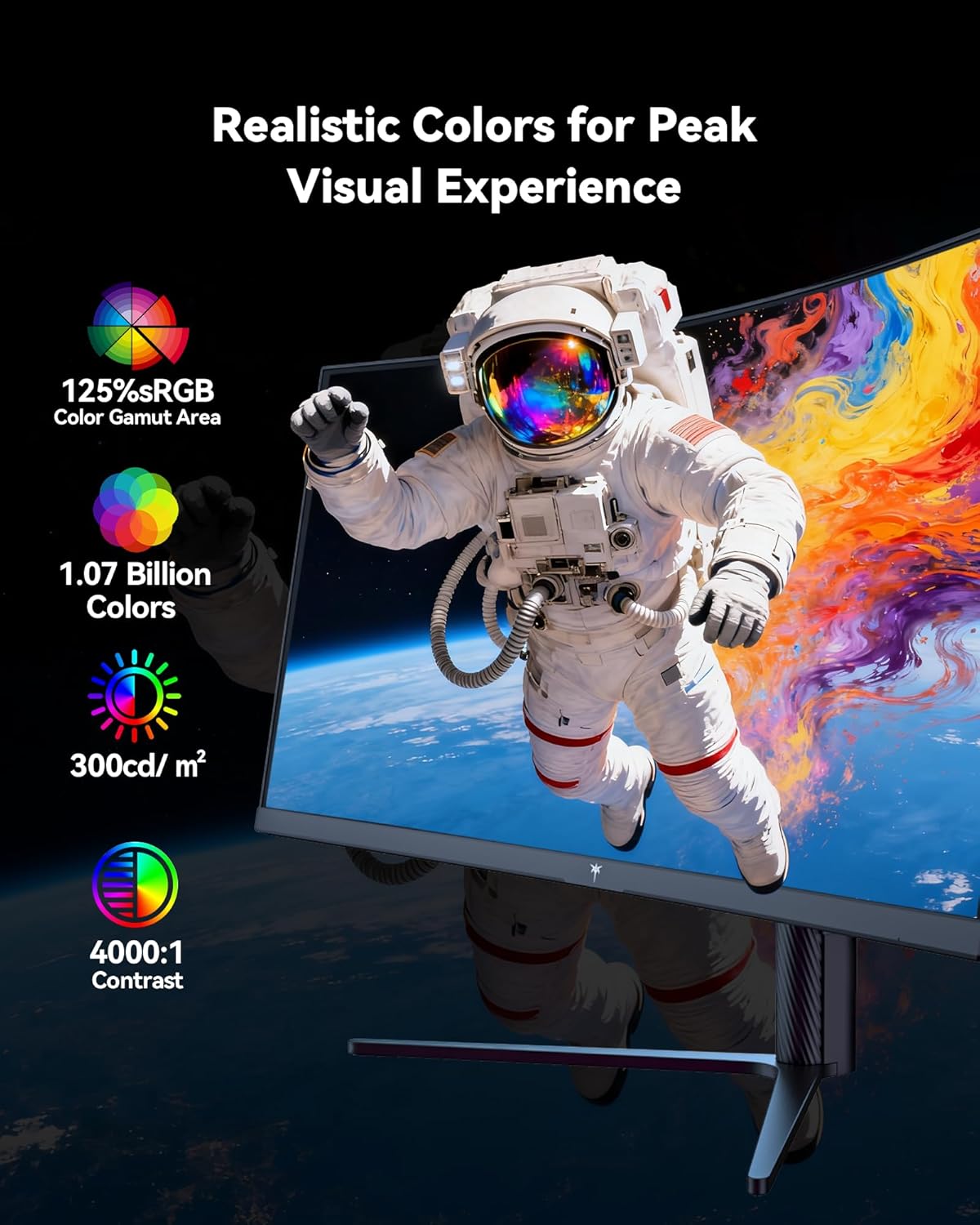
Figure 5: Visual representation of the monitor's color and contrast capabilities.
5.2 Оюн функциялары
- High Refresh Rate & Fast Response Time: A 180Hz refresh rate and 1ms MPRT (Moving Picture Response Time) ensure smooth, fluid motion and minimize ghosting during fast-paced gaming.
- Adaptive Sync технологиясы: This feature synchronizes the monitor's refresh rate with your graphics card's frame rate, eliminating screen tearing and stuttering for a seamless gaming experience.

Figure 6: Comparison of display with Adaptive Sync ON versus OFF.
5.3 Эргономикалык дизайн
The monitor's stand allows for various adjustments to optimize your viewсооронуч:
- Россия: -5°тан 20°ка чейин
- Айлануучу: ±45°
- Пивот: ±5°
- Бийиктигин тууралоо: Up to 110mm (±5mm)
The monitor is also VESA compatible (100mm x 100mm) for alternative mounting solutions.

Figure 7: Ergonomic adjustment capabilities and physical dimensions.
6. Техникалык шарттар
| Өзгөчөлүк | Спецификация |
|---|---|
| Продукциянын өлчөмдөрү | 6.22 x 27.99 x 20.4 дюйм |
| Элемент Салмагы | 16.75 фунт |
| Модель номери | H34S5 |
| Screen Size | 34 дюйм |
| Аспект катышы | 21:9 |
| Резолюция | 3440 x 1440 пиксел (UWQHD) |
| Жаңыртуу ылдамдыгы | 180Hz (DP 1.4), 100Hz (HDMI 2.0) |
| Жооп убактысы | 1 мс MPRT |
| Ийрилик | 1500R |
| Сүрөттүн жарыктыгы | Бир чарчы метрге 300 Кандела |
| Контраст катышы | 4000:1 |
| Screen Surface | Мт |
| VESA шайкештиги | 100мм x 100мм |
| Байланыш | HDMI 2.0 x 2, DP 1.4 x 2, USB 2.0 (for upgrade), Audio Out |
7. Техникалык тейлөө
To ensure optimal performance and longevity of your monitor, follow these maintenance guidelines:
- Тазалоо: Экранды жумшак, түксүз чүпүрөк менен акырын сүртүңүз. Кежир тактар үчүн, экранга түз эмес, кездемеге колдонулган монитор үчүн атайын тазалоочу эритмени колдонуңуз.
- Вентиляция: Ensure adequate airflow around the monitor by keeping vents clear of obstructions.
- Сактагыч: Узак мөөнөткө колдонулбаганда, мониторду салкын, кургак жерде, эң жакшысы баштапкы таңгагында сактаңыз.
- Күч: Use only the provided power adapter and cord. Disconnect power during electrical storms or when leaving the monitor unattended for long periods.
8. Кыйынчылыктарды
Эгерде сиз мониторуңузда көйгөйлөргө туш болсоңуз, төмөнкү жалпы көйгөйлөрдү чечүү кадамдарын караңыз:
- Кубат жок: Ensure the power cord is securely connected to both the monitor and a working power outlet. Check the power adapter connection.
- Сигнал жок: Verify that the video cable (DP or HDMI) is correctly connected to both the monitor and your computer. Ensure the correct input source is selected in the OSD menu. Try a different video cable or port if available.
- Дисплей көйгөйлөрү (жылмалоо, бурмаланган сүрөт): Check your computer's display settings to ensure the resolution and refresh rate are compatible with the monitor's specifications. Update your graphics card drivers. If Adaptive Sync is enabled, try disabling it to see if the issue persists.
- Өлүк пикселдер: While rare, a small number of dead pixels may be present on LCD panels. If you notice a significant number or they interfere with your viewing experience, contact customer support.
Кошумча жардам алуу үчүн Кепилдик жана колдоо бөлүмүн караңыз.
9. Кепилдик жана колдоо
KTC provides a three-year warranty for this monitor. For any issues or technical support, please contact KTC customer service. They aim to respond within 12 hours.
You can typically find contact information on the KTC official webсайт же сатып алуу платформасы аркылуу.
10. Продукт видеосу
Көрүү үчүн расмий продукт видеосун көрүңүзview of the KTC H34S5 34-Inch Curved Gaming Monitor's features and design.
Видео 1: Расмий бүттүview of the KTC 34-Inch Curved Gaming Monitor (H34S5).