
1. Киришүү
This manual provides essential information for setting up, operating, and maintaining your Zwide i3 CPU N305 2-in-1 Tablet Laptop. Please read this guide thoroughly before using the device to ensure optimal performance and longevity. Keep this manual for future reference.
2. Продукт бүтүп калдыview
2.1 Негизги өзгөчөлүктөрү
- Ар тараптуу 2-бирде дизайн: Operates as a laptop or tablet with a 360-degree rotatable 8-inch touchscreen.
- Операция системасы: Pre-installed with Windows 11 Pro for a comprehensive computing experience.
- Жогорку өндүрүмдүү CPU: Equipped with an upgraded Intel N305 CPU (8 cores, 8 threads, up to 3.8GHz) for enhanced multi-tasking and performance.
- AmpЭстутум жана сактоо: Features 16GB LPDDR5 RAM and a 1TB SSD for efficient operation and storage. Storage is expandable up to 1TB via TF card.
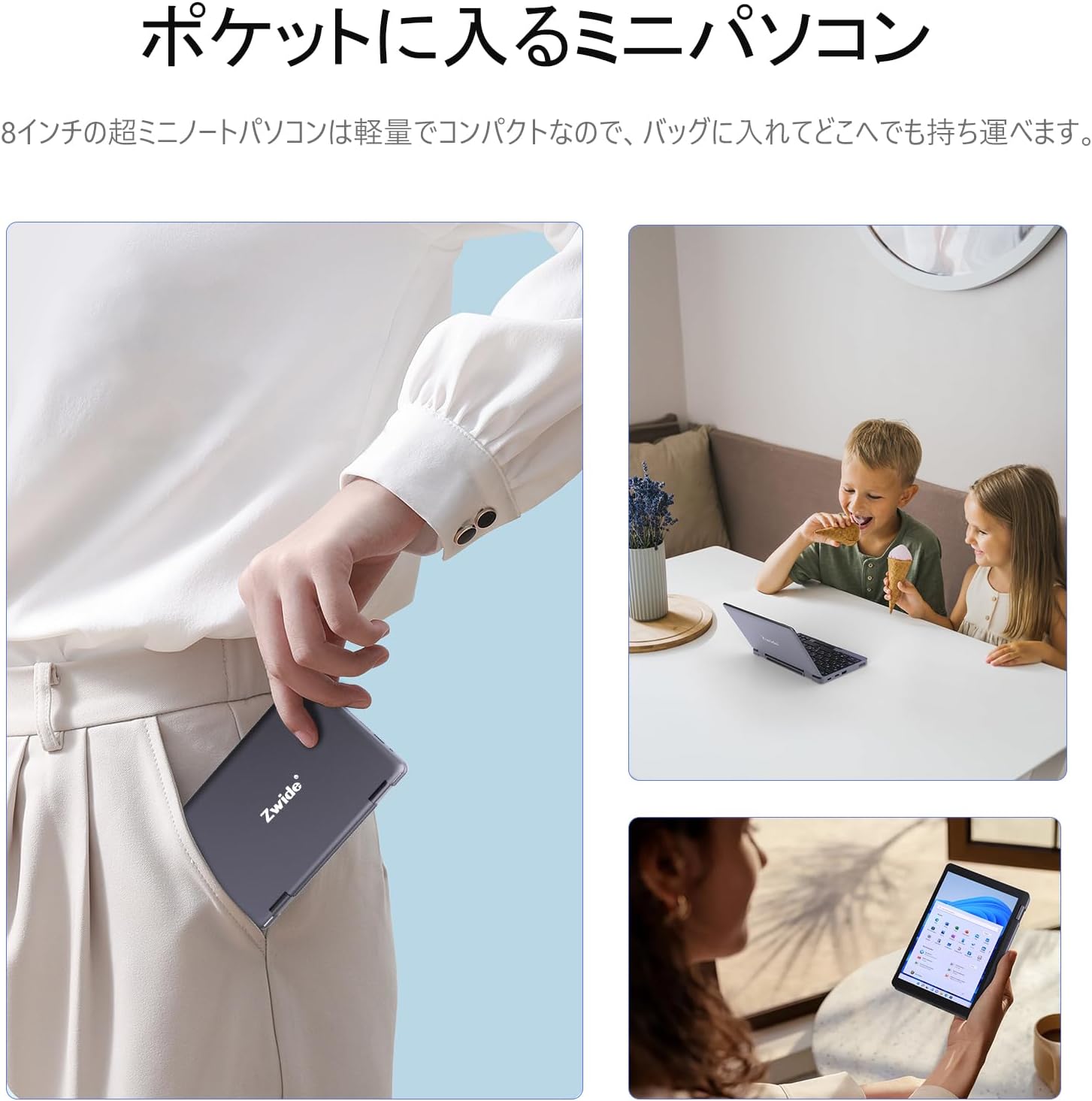
- Компакттуу жана көчмө: Ultra-compact size (20 x 13 x 1.8 cm) and lightweight design for easy portability.
- Коопсуз кирүү: Integrated fingerprint authentication on the power button for quick and secure access.
- Жогорку чечим дисплей: 8.4-inch HD display with 1920x1200 FHD resolution for clear visuals.
- Байланыш: Supports Bluetooth 5.2 for efficient wireless connections and Wi-Fi.
- Japanese Keyboard: Features a Japanese keyboard layout for localized input.
2.2 Түзмөктүн жайгашуусу жана порттору
Familiarize yourself with the physical components and connection ports of your Zwide 2-in-1 Tablet Laptop.
Сүрөт: каптал view of the Zwide 2-in-1 Tablet Laptop highlighting its various ports.
- USB 3.0 порттору: For connecting USB devices such as external storage, mice, or keyboards.
- Mini HD Port: Тышкы дисплейлерге же проекторлорго туташуу үчүн.
- TF карта уячасы: For expanding storage with a TF (microSD) card.
- Гарнитура уячасы: Наушниктерди же тышкы динамиктерди туташтыруу үчүн.
- Заряддоо порту: Түзмөктү кубаттоо үчүн кубат адаптерин туташтыруу үчүн.
- LAN порту: Зымдуу тармак туташуусу үчүн.
- Thunderbolt Port (Type-C): Жогорку ылдамдыктагы маалыматтарды берүү, видео чыгаруу жана электр энергиясын жеткирүү үчүн.
3. Орнотуу
3.1 Алгачкы заряддоо
Before first use, fully charge your Zwide 2-in-1 Tablet Laptop. Connect the provided power adapter to the charging port and plug it into a power outlet. The charging indicator light will show the charging status.
3.2 Күйгүзүү/өчүрүү
- Күйгүзүү үчүн: Press and hold the power button for a few seconds until the screen lights up.
- Өчүрүү үчүн: Go to the Start Menu in Windows, select Power, and then choose Shut down. Alternatively, press and hold the power button for approximately 10 seconds to force a shutdown (use only when necessary).
3.3 Windowsту баштапкы орнотуу
Upon first power-on, you will be guided through the Windows 11 Pro setup process. Follow the on-screen instructions to configure language, region, network settings, and user accounts.
3.4 Перифериялык түзүлүштөрдү туташтыруу
You can connect various peripherals to your device:
- USB түзмөктөрү: Plug USB mice, external keyboards, or storage devices into the USB 3.0 ports.
- Тышкы дисплей: Use a Mini HD cable to connect to an external monitor or TV.
- TF картасы: Insert a TF card into the designated slot for additional storage.
4. Иштөө нускамалары
4.1 2-бирде режимдери
Your device supports multiple modes thanks to its 360-degree hinge:
- Ноутбук режими: Терүү жана өндүрүмдүүлүк үчүн стандарттык блокнот конфигурациясы.
- Планшет режими: Fold the keyboard back completely for a full tablet experience with touchscreen interaction.
- Чатыр режими: Stand the device in an inverted 'V' shape for media consumption or presentations.
- Туруу режими: Position the keyboard face down to use the screen as a display stand.

Image: Zwide 2-in-1 Tablet Laptop in traditional laptop mode.

Image: Zwide 2-in-1 Tablet Laptop converted to tablet mode.
4.2 Сенсордук экранды жана клавиатураны колдонуу
- Сенсордук экран: Use multi-touch gestures for navigation, zooming, and interaction in tablet mode or when the screen is accessible.
- Баскычтоп: The integrated Japanese keyboard features a backlight for use in low-light conditions. A trackpoint is also available for precise cursor control.
4.3 Fingerprint Login
To set up fingerprint authentication, navigate to Windows Settings > Accounts > Sign-in options. Follow the instructions to register your fingerprint. Once set up, you can securely log in by touching the power button with your registered finger.
4.4 Зымсыз байланыш
- Wi-Fi: Wi-Fi тармагына туташуу үчүн, тапшырмалар тилкесиндеги Wi-Fi сүрөтчөсүн чыкылдатып, каалаган тармагыңызды тандап, суралса, сырсөздү киргизиңиз.
- Bluetooth: To pair Bluetooth devices, go to Windows Settings > Devices > Bluetooth & other devices. Ensure Bluetooth is enabled on both your laptop and the device you wish to pair.
4.5 External Display Output
Connect an external display to the Mini HD port or Thunderbolt (Type-C) port. Once connected, press the Windows key + P to open the project menu and select your preferred display mode (e.g., Duplicate, Extend, Second screen only).
5. Техникалык тейлөө
5.1 Аппаратты тазалоо
- Экранды жана сырткы беттерди тазалоо үчүн жумшак, түксүз чүпүрөктү колдонуңуз.
- өжөр белгилери үчүн, бир аз гampкездемени суу же экранды коргоочу тазалоочу каражат менен сүртүңүз.
- Катуу химиялык заттарды, абразивдерди же эриткичтерди колдонуудан алыс болуңуз.
5.2 Батареяга кам көрүү
- Батареянын иштөө мөөнөтүн узартуу үчүн, бат-баттан батарейканы толук зарядсыздандырбаңыз.
- Аппаратты узак убакыт бою колдонбогондо салкын, кургак жерде сактаңыз.
- Аппаратты экстремалдуу температурага дуушар кылбаңыз.
5.3 Программалык камсыздоо жаңыртуулары
Системаңызда эң акыркы коопсуздук жаңыртуулары жана иштин натыйжалуулугун жакшыртуулар бар экенине ынануу үчүн Windows жаңыртууларын үзгүлтүксүз текшерип жана орнотуп туруңуз. Орнотуулар > Windows жаңыртуу бөлүмүнө өтүңүз.
5.4 Сактагычты башкаруу
Мезгил-мезгили менен керексиз тазалоо files and applications to maintain optimal performance. Utilize cloud storage or external drives for large files to free up internal SSD space.
6. Кыйынчылыктарды
If you encounter issues with your Zwide 2-in-1 Tablet Laptop, refer to the following common solutions:
| Көйгөй | Мүмкүн чечим |
|---|---|
| Түзмөк күйбөйт | Ensure the device is charged. Connect the power adapter and try again. If unresponsive, perform a hard reset by holding the power button for 10-15 seconds. |
| Screen is blank or flickering | Restart the device. Check external display connections if applicable. Adjust display settings in Windows. |
| Wi-Fi or Bluetooth not connecting | Ensure Wi-Fi/Bluetooth is enabled in Windows settings. Restart the device and your router/Bluetooth device. Update network drivers. |
| Жай аткаруу | Керексиз тиркемелерди жабыңыз. Фондук процесстерди текшериңиз. жетиштүү бош орун камсыз кылуу. Кесепеттүү программа үчүн системаны сканерлеңиз. |
| Манжа изинин сенсору иштебей жатат | Ensure your finger is clean and dry. Re-register your fingerprint in Windows settings. |
If the problem persists, please contact Zwide customer support for further assistance.
7. Техникалык шарттар
| Өзгөчөлүк | Деталь |
|---|---|
| Бренд | Zwide |
| Модель аты | NA08H |
| Screen Size | 8 дюйм |
| Түс | Боз |
| Катуу дисктин кубаттуулугу | 1 TB (SSD) |
| CPU модели | Intel N305 |
| CPU ылдамдыгы | 3.8 ГГц чейин |
| Орнотулган RAM өлчөмү | 16 ГБ (LPDDR5) |
| Операция системасы | Windows 11 Pro |
| Графикалык карта | Интеграцияланган (Intel UHD Graphics) |
| Bluetooth версиясы | 5.2 |
| Display Resolution | 1920x1200 пиксел (FHD) |
| Дисплей түрү | LCD |
| Max Display Brightness | 350 кд/м² |
| Зымсыз түрү | Wi-Fi |
| Элементтин өлчөмдөрү (LxWxH) | 20 x 13 x 2 см |
| Форма фактору | Convertible |
| Webcam | Фронт |
| Keyboard Description | Backlit, Japanese Layout |
| Башкаруу ыкмасы | Touch, Trackpoint |
| Модель жылы | 2025 |
| Камтылган компоненттер | Баскычтоп |
8. Расмий продукт Videos
8.1 Zwide 8-inch Mini Notebook PC Overview
Video: This video demonstrates the compact size, 360-degree rotation, and various usage modes of the Zwide 8-inch mini notebook PC, including tablet and laptop configurations, touch screen interaction, and port usage.
8.2 Zwide Pocket Handheld Mini Laptop Portability
Video: This video showcases the Zwide mini laptop's portability, demonstrating how it fits into a pocket and its use in various on-the-go scenarios.
8.3 Zwide 2-in-1 Tablet 8-inch Mini PC Functionality
Video: This video illustrates the 2-in-1 tablet functionality of an 8-inch mini PC, demonstrating its versatility and touch screen capabilities. Note: This video features an N100 CPU model, while the product is N305.
9. Кепилдик жана колдоо
9.1 Кепилдик маалыматы
Your Zwide 2-in-1 Tablet Laptop comes with a 1-year domestic warranty in Japan. This warranty covers manufacturing defects and hardware malfunctions under normal use. Please retain your proof of purchase for warranty claims.
9.2 Кардарларды колдоо
For technical assistance, warranty claims, or any other inquiries, please contact Zwide customer support through the official website or your retailer. Provide your model number (NA08H) and a detailed description of the issue for faster service.