
1. Киришүү
This manual provides essential information for the NIMO 15.6" Gaming Laptop (Model N159). It covers product features, setup procedures, operating instructions, maintenance guidelines, troubleshooting tips, and detailed specifications. Please read this manual thoroughly before using your new laptop to ensure optimal performance and longevity.

Image: The NIMO 15.6" Gaming Laptop, showcasing its display and key features like fingerprint unlock, Type-C PD charger, and backlit keyboard.
2. Кутуда эмне бар
Таңгакта бардык буюмдар бар экенин текшериңиз:
- 1 x NIMO N159 Laptop
- 1 x Type-C 100W PD Fast Charger
- 1 х Колдонуучунун колдонмосу (бул документ)
- Windows 11 Home Operating System (pre-installed)
- Warranty Information (2 Years Warranty, 90 Days Return)
3. Продукт бүтүп калдыview
3.1 Негизги өзгөчөлүктөрү
- Процессор: AMD Ryzen 7 7735HS (8 Cores, 16 Threads, up to 4.75GHz)
- Графика: Integrated AMD Radeon 680M GPU
- Дисплей: 15.6" Full HD (1920x1080) IPS Anti-Glare Display
- Эстутум: 16 ГБ DDR5 RAM (жакшыртуучу)
- Сактагыч: 1TB PCIe 4.0 SSD (upgradeable)
- Заряддоо: 100W Type-C PD Fast Charger
- Коопсуздук: Fingerprint Reader for secure unlock
- Баскычтоп: Backlit Keyboard with Numeric Keypad
- Аудио: Dual 2W stereo speakers, dual beamforming microphones
- Webкамера: 2MP with physical camera shutter
- Операция системасы: Windows 11 Home

Image: An illustration detailing the AMD Ryzen 7 7735HS processor, highlighting its 8 cores, 16 threads, and integrated Radeon 680M graphics for balanced performance.
3.2 Порттор жана туташтыргычтар
Familiarize yourself with the available ports on your NIMO laptop:

Image: A detailed diagram illustrating the location and type of ports on the NIMO laptop, including USB 2.0, USB 3.2 Gen1, Type-C Gen2 (multifunction), HDMI 2.0, Audio Jack, Micro SD Reader, and Kensington Lock.
- USB 2.0 порт: Эски USB түзмөктөрүн туташтыруу үчүн.
- USB 3.2 Gen1 Ports (x4): Шайкеш келген USB түзмөктөрү менен жогорку ылдамдыктагы маалыматтарды өткөрүп берүү үчүн.
- Type-C Gen2 Ports (x2, Multifunction): Supports data transfer, video output, and power delivery (100W PD fast charging).
- HDMI 2.0 порту: Тышкы дисплейлерге же телевизорлорго туташтыруу үчүн.
- Аудио Jack: Наушниктерди же тышкы динамиктерди туташтыруу үчүн.
- Микро SD окугуч: Micro SD эс тутум карталарын окуу үчүн.
- Kensington Lock Slot: Ноутбугуңузду шайкеш кулпу менен камсыз кылуу үчүн.
4. Орнотуу
4.1 Баштапкы күйгүзүү
- Ноутбукту жана бардык аксессуарларды кутудан чыгарыңыз.
- Connect the 100W Type-C PD Fast Charger to one of the Type-C ports on the laptop and then to a power outlet.
- Ноутбуктун капкагын ачыңыз. Ноутбук автоматтык түрдө күйүшү мүмкүн же сиз кубат баскычын басышыңыз керек болушу мүмкүн.
- Windows 11 Home орнотуусун аяктоо үчүн экрандагы көрсөтмөлөрдү, анын ичинде тилди тандоону, тармакка туташууну жана колдонуучу аккаунтун түзүүнү аткарыңыз.
4.2 Батареяны заряддоо
Before first use, it is recommended to fully charge the laptop battery. The 100W Type-C PD Fast Charger can provide approximately 5 hours of usage time with just 1 hour of charging.

Image: A visual representation of the 100W Type-C lightning-fast charger connected to the NIMO laptop, demonstrating its ability to charge quickly and efficiently.
5. Иштөө нускамалары
5.1 Күйгүзүү/өчүрүү жана Уйку режими
- Күйгүзүү: Баскычтопто жайгашкан кубат баскычын басыңыз.
- Өчүрүү: Windows'тун Start баскычын чыкылдатып, андан кийин Кубат > Өчүрүү дегенди тандаңыз.
- Уйку режими: "Старт" баскычын чыкылдатыңыз, андан кийин "Кубат" > "Уйку" режимин тандаңыз же ноутбуктун капкагын жабыңыз.
5.2 Using the Fingerprint Unlock
The fingerprint reader is integrated into the touchpad for quick and secure access.
- During Windows setup or later in Windows Settings, configure your fingerprint for login.
- To unlock, simply place your registered finger on the fingerprint reader on the touchpad.
5.3 Adjusting the Backlit Keyboard
The keyboard backlight can be adjusted for comfortable typing in various lighting conditions.

Image: A visual guide demonstrating the fingerprint unlock feature on the touchpad and the functionality of the backlit keyboard, including how to cycle through brightness settings using the F9 key.
- басыңыз F9 key to cycle through backlight settings:
- 1 Tap: Light (Temporary)
- 2 Taps: Light (Temporary)
- 3 Taps: Light (Constant)
- 4 Taps: Off
5.4 колдонуу Webcam Shutter
For privacy, the laptop includes a physical camera shutter.
- Slide the shutter to the left to open the camera.
- Slide the shutter to the right to close and cover the camera lens.

Image: A visual guide demonstrating the physical camera shutter, showing both the 'Camera Open' and 'Camera Close' statuses for enhanced privacy.
6. Техникалык тейлөө
6.1 Ноутбукту тазалоо
- Always power off the laptop and disconnect the charger before cleaning.
- Бир аз жумшак, түксүз кездемени колдонуңуз dampдисплей үчүн суу же экран тазалоочу менен жабылган.
- Баскычтоп жана шасси үчүн жумшак, кургак чүпүрөктү колдонуңуз. Катуу химиялык заттардан же абразивдүү материалдардан алыс болуңуз.
- Use compressed air to clear dust from vents periodically.
6.2 Батареяга кам көрүү
- Батареяны бат-баттан толук кубаттап калуудан алыс болуңуз.
- Ноутбукту узак убакыт бою колдонбосо, салкын, кургак жерде сактаңыз.
- Ноутбукту өтө жогорку температурага дуушар кылбаңыз.
6.3 Программалык камсыздоо жаңыртуулары
Оптималдуу аткарууну жана коопсуздукту камсыз кылуу үчүн операциондук системаны жана драйвер жаңыртууларын дайыма текшерип, орнотуп алыңыз.
7. Кыйынчылыктарды
| Көйгөй | Мүмкүн себеп | Чечим |
|---|---|---|
| Ноутбук күйбөйт. | Батареянын аздыгы же кубат адаптери көйгөйү. | Connect the charger and wait a few minutes before attempting to power on. Ensure the charger is properly connected to both the laptop and the power outlet. |
| Экран бош же кара. | Ноутбук уйку режиминде, дисплей жөндөөлөрүндө көйгөй же жабдык көйгөйү. | Press any key or the power button to wake from sleep. Try connecting an external monitor to check if the display output works. Restart the laptop. |
| Баскычтоптун жарыгы иштебейт. | Backlight turned off or at lowest setting. | басыңыз F9 key repeatedly to cycle through brightness levels and turn on the backlight. |
| Fingerprint unlock not working. | Finger not properly placed, or sensor issue. | Ensure your finger is clean and dry and covers the sensor completely. Re-register your fingerprint in Windows Settings if the issue persists. |
| Жай аткаруу. | Too many applications running, insufficient storage, or outdated drivers. | Close unnecessary applications. Check available storage space. Update Windows and device drivers. |
If you encounter issues not listed here or require further assistance, please contact NIMO customer support.
8. Техникалык шарттар
| Бренд | NIMO |
| Модель аты | NIMO N159B |
| Screen Size | 15.6 дюйм |
| Screen Resolution | 1920 x 1080 пиксел (FHD IPS) |
| Процессор | AMD Ryzen 7 7735HS (8 Cores, 4.75 GHz Max Turbo) |
| RAM | 16 ГБ DDR5 (4800 МГц) |
| Катуу диск | 1024 GB SSD (PCIe 4.0) |
| Графикалык сопроцессор | AMD Radeon 680M (интеграцияланган) |
| Операция системасы | Windows 11 Home |
| Зымсыз түрү | 802.11a/b/g/n/ac |
| USB 2.0 порттору | 1 |
| USB 3.0 порттору | 4 |
| Батареянын орточо иштөө мөөнөтү | 5 Hours (54Wh, 11.4V/4700mAh) |
| Элемент Салмагы | 3.8 фунт |
| Продукциянын өлчөмдөрү | 14.07 x 8.98 x 0.76 дюйм |
| Түс | Көк |
| Арткы Webcam Resolution | 2 депутат |
| Өзгөчөлүктөр | Арткы жарык клавиатура, манжа изин окугуч, HD аудио, сандык баскычтоп |
9. Кепилдик жана колдоо
9.1 Өндүрүүчүнүн кепилдиги
Your NIMO N159 laptop is covered by a comprehensive 2 жылдык Өндүрүүчүнүн Кепилдиги from Nimo Direct Inc. This warranty covers defects in materials and workmanship under normal use. For warranty claims, please contact customer support.
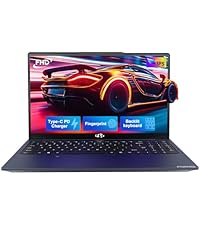
Image: A technician working on a laptop's internal components, representing the 2-year support provided for Nimo products.
9.2 Кайтаруу саясаты
Nimo Direct Inc. offers a 90-Day Hassle-Free Return Policy. You may return any Nimo product for any reason within 90 days of purchase. Please refer to your purchase documentation for specific return procedures.
Image: A delivery person handing a package to a customer, illustrating the 90-day return policy for Nimo products.
9.3 Кардарларды колдоо
For any product-related questions, technical assistance, or warranty claims, please contact our professional after-sales service team. Our dedicated support team is available to resolve issues or facilitate replacements.
- Электрондук почта: service@nimopc.com
- Онлайн: Visit the official NIMO website or product page for contact options.
Image: Customer service representatives wearing headsets, indicating professional customer assistance available via phone and live chat.