
1. Киришүү
This manual provides essential information for the setup, operation, maintenance, and troubleshooting of your NIMO N159 15.6-inch IPS FHD Gaming Laptop. This device is equipped with an AMD Ryzen 7 7735HS processor, 32GB DDR5 RAM, and a 1TB PCIe SSD, designed for balanced performance in productivity and light gaming tasks. Please read this manual thoroughly to ensure proper usage and to maximize the lifespan of your laptop.
2. Кутуда эмне бар
Таңгакта бардык буюмдар бар экенин текшериңиз:
- 1 x NIMO N159 Laptop
- 1 x Type-C 100W PD Fast Charger
- 1 х Колдонуучунун колдонмосу (бул документ)
- Windows 11 Home (pre-installed)
3. Продукт бүтүп калдыview
Familiarize yourself with the components and features of your NIMO N159 laptop.

Сүрөт 3.1: Алдыңкы view of the NIMO N159 laptop, showcasing its 15.6-inch display and overall design.
3.1 Негизги өзгөчөлүктөрү
- Процессор: AMD Ryzen 7 7735HS with 8 Cores and 16 Threads, up to 4.75GHz.
- Графика: Integrated AMD Radeon 680M GPU.
- Эстутум: 32GB DDR5 RAM for efficient multitasking.
- Сактагыч: 1TB PCIe 4.0 SSD for fast boot times and data access.
- Дисплей: 15.6-inch Full HD (1920x1080) IPS Anti-Glare Display.
- Заряддоо: 100W Type-C PD Fast Charger.
- Коопсуздук: Fingerprint Unlock integrated into the touchpad.
- Киргизүү: Backlit Keyboard with Numeric Keypad.

Figure 3.2: ашыкview of the AMD Ryzen 7 7735HS processor and its integrated Radeon 680M graphics.
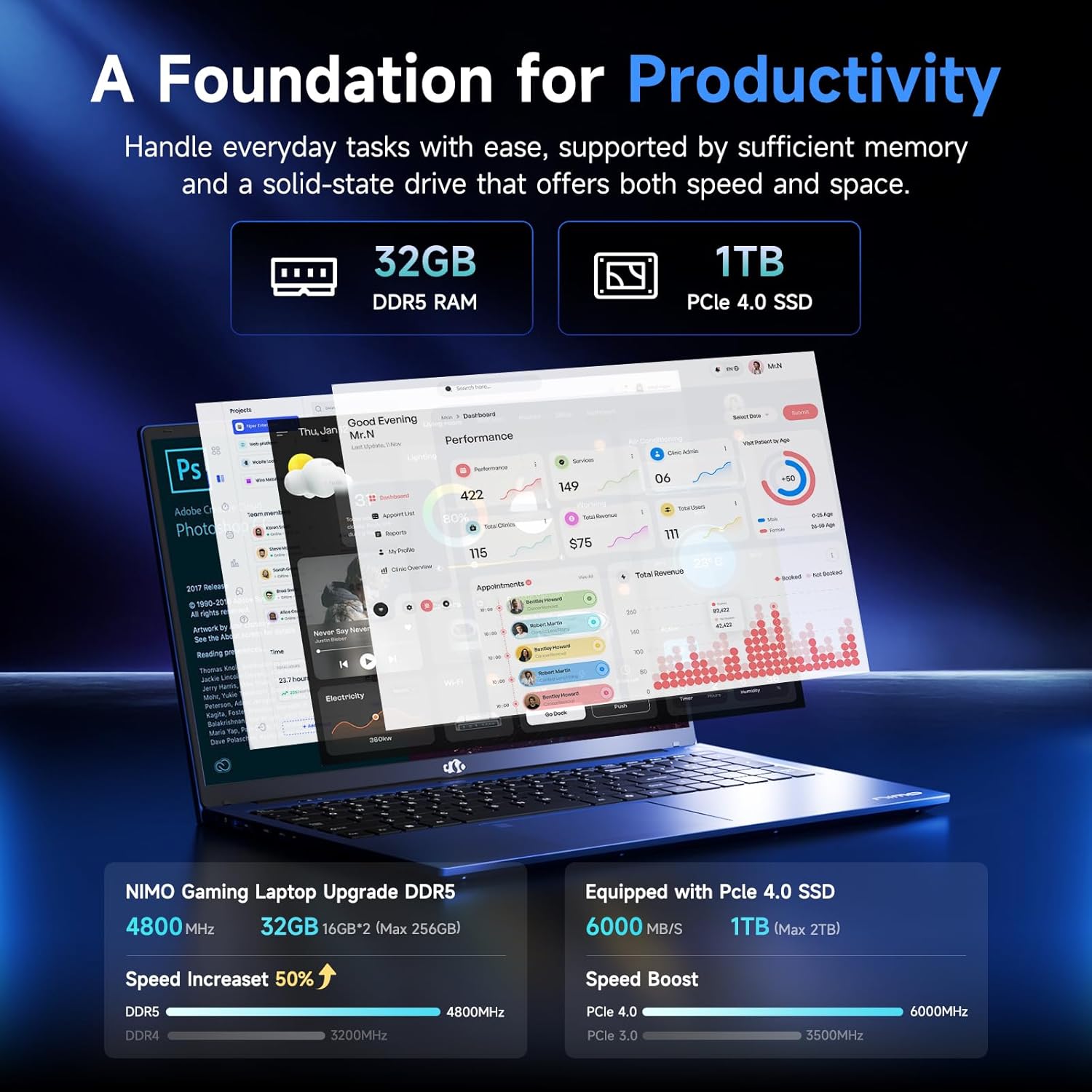
Figure 3.3: Illustration of the 32GB DDR5 RAM and 1TB PCIe 4.0 SSD, highlighting their speed and capacity.
3.2 Порттор жана туташтыргычтар
The NIMO N159 laptop provides a variety of ports for connectivity:

3.4-сүрөт: Детальдуу view of the laptop's ports and their functions.
- Сол жагы: Kensington Lock, Audio Jack, USB 3.2 Gen 1, USB 2.0, Micro SD Reader.
- Оң жагы: Type-C Gen2 (Multifunction), USB 3.2 Gen 1, HDMI 2.0, Type-C Gen2 (Multifunction).
3.3 Кубат жана Батарея

Figure 3.5: Battery and charging capabilities of the NIMO N159 laptop.
The laptop is equipped with a 54Wh smart battery. It supports fast charging via the included 100W Type-C PD charger, providing approximately 5 hours of usage from a 1-hour charge.
3.4 Keyboard and Fingerprint Unlock
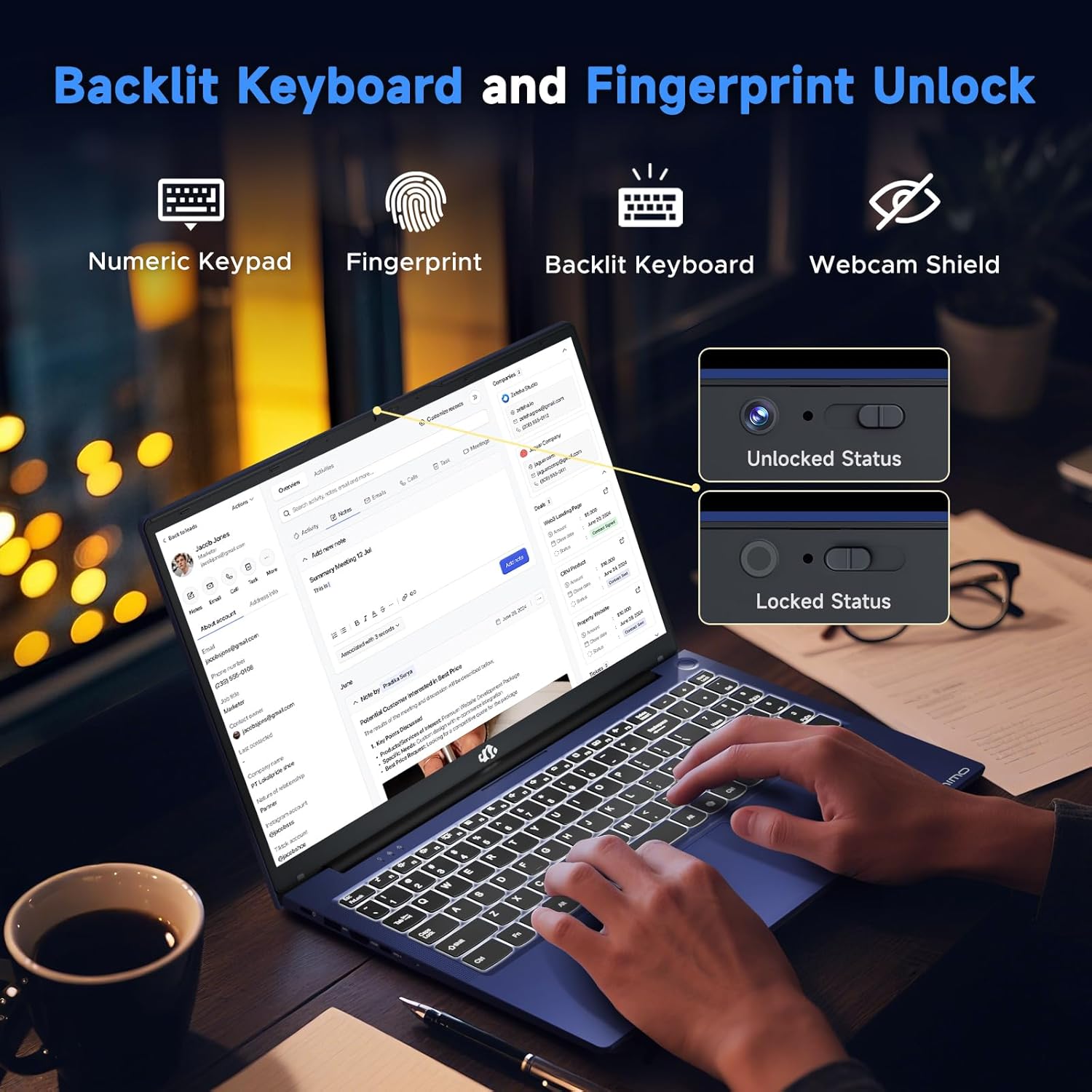
Figure 3.6: Features of the backlit keyboard, numeric keypad, fingerprint unlock, and webcam shield.
The keyboard features backlighting for use in low-light conditions and includes a numeric keypad. The fingerprint reader is integrated into the touchpad for secure and quick access.
3.5 Дисплей
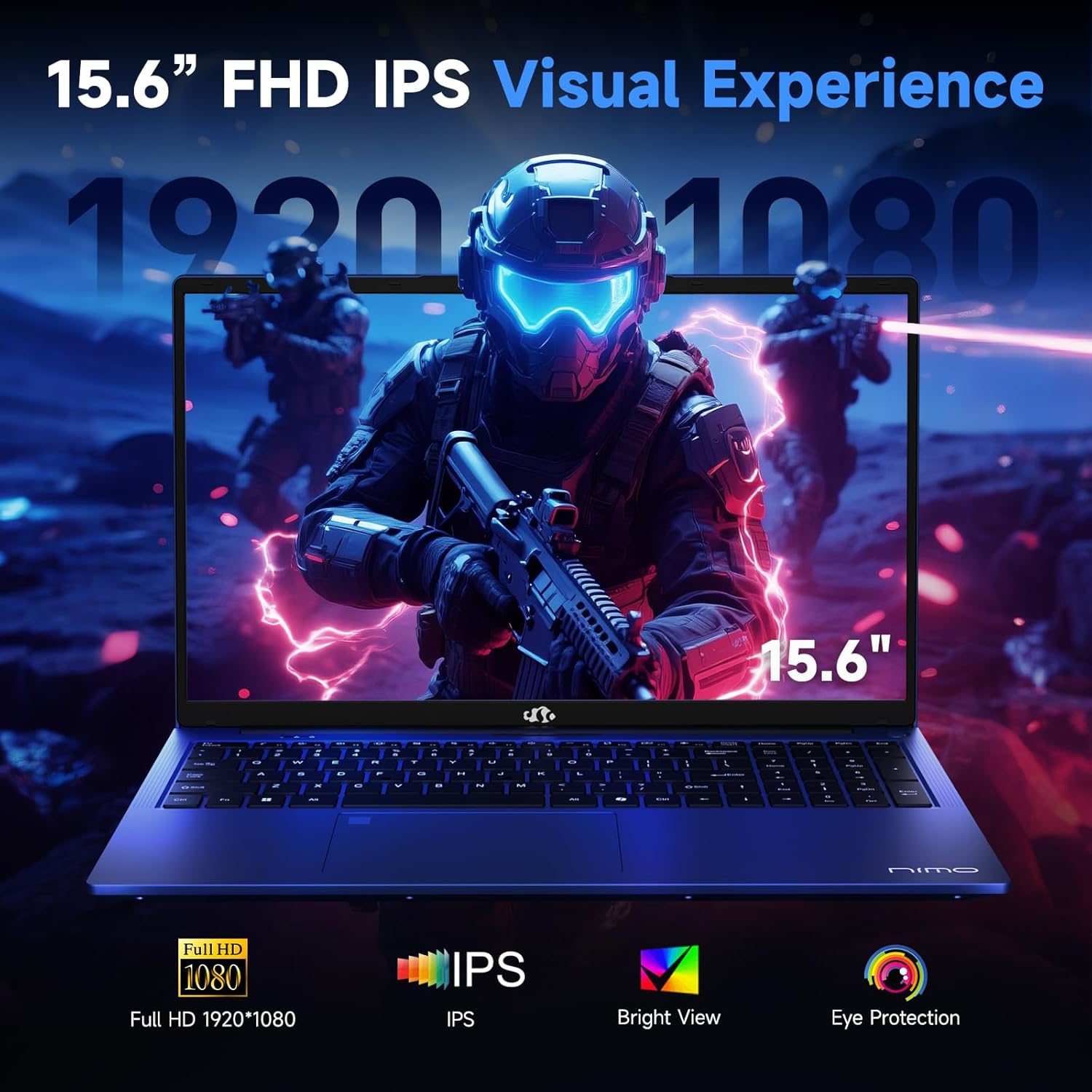
Figure 3.7: Visual representation of the 15.6-inch FHD IPS display quality.
The 15.6-inch Full HD (1920x1080) IPS Anti-Glare Display offers vibrant visuals and a wide viewing angle, suitable for various tasks from work to entertainment.
4. Орнотуу
4.1 Баштапкы күйгүзүү
- Таңылганын ачуу: Ноутбукту жана бардык аксессуарларды таңгактан этияттык менен алып салыңыз.
- Туташуу кубаты: Plug the Type-C 100W PD Fast Charger into a power outlet and connect the Type-C connector to one of the multifunction Type-C ports on the laptop.
- Биринчи жүктөө: Ноутбуктун капкагын ачып, адатта клавиатуранын жогорку оң жагында же капталында жайгашкан кубат баскычын басыңыз.
- Windows орнотуулары: Windows 11 Home орнотуусун аяктоо үчүн экрандагы нускамаларды аткарыңыз, анын ичинде тил, аймак, тармак туташуусу жана колдонуучу каттоо эсебин түзүү.
4.2 Тармакка туташуу
- Wi-Fi: During Windows setup or later, select your Wi-Fi network from the available list and enter the password.
- Зымдуу (милдеттүү эмес): If an Ethernet adapter (not included) is used with a USB port, connect an Ethernet cable to the adapter and then to your router/modem.
5. Иштөө нускамалары
5.1 Күйгүзүү/өчүрүү
- Күйгүзүү: Кубат баскычын басыңыз.
- Өчүрүү: Windows'то "Баштоо" баскычын, андан кийин "Күтүү" > "Жабуу" баскычын чыкылдатыңыз.
- Уйку: Капкагын жабыңыз же "Баштоо" баскычын, андан кийин "Күчүн жана Уйку режимин" чыкылдатыңыз.
5.2 Баскычтопту колдонуу
- Жарыкты башкаруу: Press the designated function key (e.g., F9) to cycle through backlight brightness levels (off, low, medium, high).
- Функция баскычтары: Use the Fn key in combination with F1-F12 for various shortcuts (e.g., volume, brightness, Wi-Fi toggle).
5.3 Using the Touchpad and Fingerprint Sensor
- Сенсордук такта: Навигация үчүн көп тийүү жаңсоолорун колдойт. Ыңгайлаштыруу үчүн Windows орнотууларына кайрылыңыз.
- Манжа ачуу: Enroll your fingerprint through Windows Hello settings for secure login. Place your registered finger on the sensor located on the touchpad to unlock the device.
5.4 Тышкы түзмөктөрдү туташтыруу
Use the available USB-A, USB-C, and HDMI ports to connect peripherals such as external monitors, USB drives, mice, and keyboards. The Type-C Gen2 ports support multifunctionality, including data transfer and video output.
6. Техникалык тейлөө
6.1 Тазалоо
- Экран: Жумшак, түксүз кездемени жеңил колдонуңуз dampсуу же экран тазалоочу менен бүттү. Суюктукту экранга түз чачпаңыз.
- Баскычтоп жана шасси: Жумшак, кургак чүпүрөктү колдонуңуз. өжөр кир үчүн, бир аз гamp тешиктерге эч кандай суюктук кирбеши үчүн, кездемени колдонсо болот.
- Порттор: Порттордогу чаңды акырын тазалоо үчүн кысылган абаны колдонуңуз.
6.2 Батареяга кам көрүү
- Батареяны бат-баттан толук кубаттап калуудан алыс болуңуз.
- Store the laptop in a cool, dry place if not used for extended periods, with the battery charged to around 50-60%.
- Use only the provided NIMO charger or a compatible 100W Type-C PD charger.
6.3 Программалык камсыздоо жаңыртуулары
Regularly check for and install Windows updates and driver updates to ensure optimal performance and security. These can typically be found in Windows Settings > Windows Update.
7. Кыйынчылыктарды
This section addresses common issues you might encounter with your NIMO N159 laptop.
| Көйгөй | Мүмкүн себеп | Чечим |
|---|---|---|
| Ноутбук күйбөйт. | Low battery, power adapter issue, or hardware fault. | Ensure the charger is properly connected and the outlet is working. Try charging for at least 30 minutes. If the issue persists, contact support. |
| Экран бош же кара. | Display settings, external monitor conflict, or driver issue. | Press Fn + F7 (or relevant display toggle key) to cycle display modes. Disconnect any external monitors. Restart the laptop. |
| Wi-Fi туташуу маселелери. | Incorrect password, router issue, or Wi-Fi adapter disabled. | Verify Wi-Fi password. Restart your router. Check Windows settings to ensure Wi-Fi is enabled. |
| Ноутбук жай иштеп жатат. | Too many applications open, low storage, or outdated drivers. | Close unnecessary applications. Check available storage. Update Windows and drivers. Run a malware scan. |
| Манжа изинин сенсору иштебей жатат. | Манжа таза эмес, сенсор кир же программалык камсыздоодо көйгөй бар. | Ensure your finger and the sensor are clean and dry. Re-enroll your fingerprint in Windows Hello settings. |
8. Техникалык шарттар
Detailed technical specifications for the NIMO N159 laptop:
| Өзгөчөлүк | Деталь |
|---|---|
| Бренд | NIMO |
| Модель аты | NIMO N159B |
| Screen Size | 15.6 дюйм |
| Screen Resolution | 1920 x 1080 пиксел (FHD IPS) |
| Процессор | AMD Ryzen 7 7735HS (8 Cores, up to 4.75 GHz) |
| RAM | 32 ГБ DDR5 (4800 МГц) |
| Катуу диск | 1024 GB SSD (PCIe 4.0) |
| Графикалык сопроцессор | AMD Radeon 680M (интеграцияланган) |
| Операция системасы | Windows 11 Home |
| Зымсыз түрү | 802.11a/b/g/n/ac |
| USB 2.0 порттору | 1 |
| USB 3.0 порттору | 4 |
| Type-C порттору | 2 (Gen2, Multifunction) |
| HDMI порту | 1 2.0 (HDMI XNUMX) |
| Батареянын орточо иштөө мөөнөтү | 5 Hours (54Wh) |
| Элемент Салмагы | 3.8 фунт |
| Продукциянын өлчөмдөрү | 14.07 x 8.98 x 0.76 дюйм |
| Түс | Көк |
| Өзгөчөлүктөр | Арткы жарык клавиатура, манжа изин окугуч, HD аудио, сандык баскычтоп |
9. Кепилдик жана колдоо
NIMO is committed to providing quality products and customer satisfaction.
- Өндүрүүчүнүн Кепилдиги: Your NIMO N159 laptop is covered by a 2-Year Manufacturer's Warranty from Nimo Direct Inc. This warranty covers defects in materials and workmanship under normal use.
- Кайтаруу саясаты: A 90-Day Hassle-Free Return Policy is offered by Nimo Direct Inc. from the date of purchase.
9.1 Колдоо кызматы менен байланышуу
For technical assistance, warranty claims, or product-related inquiries, please contact NIMO customer support:
- Электрондук почта: service@nimopc.com
- Онлайн: Visit the official NIMO website for further support options and FAQs.
Our dedicated support team is available to assist you with any issues or replacements.