
1. Киришүү
This manual provides detailed instructions for the setup, operation, maintenance, and troubleshooting of your REALFORCE R4 Hybrid Full 30g Japanese Layout Black Keyboard. Please read this manual thoroughly before using the product to ensure proper functionality and longevity.
Негизги өзгөчөлүктөрү:
- Electrostatic Capacitive Non-Contact Method: Equipped with Topre switches, offering superior reliability and durability without physical contact points.
- Bluetooth 5.0 & Wired Connection: Connects to up to 5 devices, allowing flexible usage based on your situation.
- Тынч операция: Maintains the signature typing feel while significantly reducing typing noise, ideal for office or home environments.
- Атайын программалык камсыздоо: Offers key remapping and various other customizable functions.
- APC (Actuation Point Change) Function: Adjust the key actuation point from 0.8mm to 3.0mm in 0.1mm increments for optimized response speed.
- Жакындык сенсору: Features a proximity sensor around the keyboard for power saving during inactivity and automatic reconnection when hands approach.
- Mouse Function: Control the mouse cursor and clicks directly from the keyboard, enhancing efficiency and serving as an alternative when a mouse is unavailable.
2. Орнотуу
2.1 Пакеттин мазмуну
Пакетте бардык буюмдар бар экенин текшериңиз:
- REALFORCE R4 Keyboard Unit
- AAA Alkaline Batteries x 3 (for operation check)
- USB Cable (Type-C to Type-A, approx. 1.8m)
- Instruction Manual
2.2 Батареяны орнотуу
Insert the three AAA alkaline batteries into the battery compartment located on the underside of the keyboard. Ensure correct polarity.
2.3 Күйгүзүү/өчүрүү
Locate the power switch on the side of the keyboard. Slide it to the 'ON' position to power on the device. Slide it to 'OFF' to power off.
2.4 Туташуу ыкмалары
The REALFORCE R4 keyboard supports both wired and wireless (Bluetooth) connections.
2.4.1 Зымдуу туташуу
- Connect the USB Type-C end of the provided cable to the keyboard.
- Кабелдин USB Type-A учунун компьютериңиздеги жеткиликтүү USB портуна туташтырыңыз.
- Клавиатура сиздин операциялык системаңыз тарабынан автоматтык түрдө таанылат.
2.4.2 Bluetooth байланышы
The keyboard can connect to up to 5 Bluetooth devices.
- Баскычтоп күйгүзүлгөнүн текшериңиз.
- Түзмөгүңүздө (компьютер, планшет, смартфон) Bluetooth'ду иштетиңиз жана жаңы түзмөктөрдү издеңиз.
- Select "REALFORCE R4" from the list of available devices.
- Жупташтыруу процессин аяктоо үчүн экрандагы көрсөтмөлөрдү аткарыңыз.
- To switch between paired devices, use the dedicated function keys on the keyboard. Refer to the keyboard layout for specific key combinations.

Сүрөт: Жогорку view of the REALFORCE R4 keyboard, showcasing its full layout and keycaps.
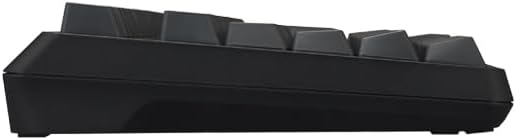
Сүрөт: Артка view of the REALFORCE R4 keyboard, showing the product label and adjustable feet.

Сүрөт: каптал view of the REALFORCE R4 keyboard, highlighting the power switch and USB-C port.
3. Иштөө нускамалары
3.1 APC (Actuation Point Change) Function
The APC function allows you to customize the key actuation point for each key. This can be adjusted between 0.8mm and 3.0mm in 0.1mm increments using the dedicated software. This feature optimizes key response speed to suit individual typing styles or specific application requirements.

Image: Diagram illustrating the adjustable actuation points (0.8mm to 3.0mm) for the APC function.
3.2 Чычкан функциясы
The keyboard includes a mouse function, enabling cursor movement and clicks via specific key inputs. This is useful for quick navigation without reaching for a mouse, or as a backup when a mouse is unavailable. Refer to the software or quick guide for key assignments.

Image: Diagram showing how keyboard keys can be used to control mouse cursor movement and clicks.
3.3 Жакындык сенсору
A proximity sensor is integrated into the keyboard. During periods of inactivity, the keyboard enters a power-saving standby mode. When your hands approach the keyboard, the sensor detects movement and automatically reconnects, ensuring seamless operation.

Image: Illustration of the proximity sensor detecting hands near the keyboard for automatic power management.
3.4 Silent Switch
The REALFORCE R4 features silent switches that reduce the noise generated during typing while preserving the distinct Topre typing feel. This makes the keyboard suitable for environments where noise reduction is important.

Image: Visual representation comparing standard key sound waves with silent key sound waves, showing reduced noise.
3.5 Dedicated Software
Utilize the dedicated REALFORCE software to customize various keyboard settings, including key remapping, APC settings, and heatmaps to analyze typing patterns. This allows for a personalized typing experience.

Image: Screenshot of the REALFORCE software interface, showing options for APC settings, key remapping, and heatmap analysis.
4. Техникалык тейлөө
To ensure the longevity and optimal performance of your REALFORCE R4 keyboard, follow these maintenance guidelines:
- Тазалоо: Regularly clean the keycaps and keyboard surface with a soft, dry cloth. For deeper cleaning, you may use a slightly damp клавиатурага суюктуктун кирбешин камсыз кылуу үчүн жумшак самындуу чүпүрөктү сүртүңүз.
- Клавиатура материалы: The keycaps are made of durable PBT material, which is resistant to shine and wear over time.
- Суюктуктардан алыс болуңуз: Do not spill liquids on the keyboard. In case of accidental spills, immediately disconnect the keyboard and allow it to dry completely before re-use.
- Сактагыч: Клавиатураны күн нурунан жана экстремалдык температурадан алыс, салкын, кургак жерде сактаңыз.
5. Кыйынчылыктарды
If you encounter issues with your REALFORCE R4 keyboard, refer to the following common problems and solutions:
5.1 Баскычтоп жооп бербейт
- Зымдуу туташуу: USB кабелинин клавиатурага да, компьютерге да бекем туташтырылганын текшериңиз. Башка USB портун же кабелин колдонуп көрүңүз.
- Bluetooth байланыш: Check if Bluetooth is enabled on your device and the keyboard. Ensure the keyboard is paired correctly. Try re-pairing the device. Verify that the keyboard batteries are not depleted.
- Күч: Confirm the keyboard is powered on and batteries are correctly installed and charged.
5.2 Accidental Key Presses (Ghosting)
Some users may experience unintended key presses, especially with lighter key loads. This can be due to resting fingers on keys. Consider adjusting the APC settings to a higher actuation point (e.g., 2.0mm or 3.0mm) or opting for a model with a heavier key load (e.g., 45g) if this issue persists.

Image: Diagram illustrating the concept of key load and how it affects typing feel and potential for accidental presses.
5.3 Keys Not Visible in Low Light
The black keycaps with black legends can be difficult to see in low-light conditions. This design choice prioritizes a minimalist aesthetic. If visibility is an issue, consider using an external light source or exploring alternative keycap sets (sold separately) with higher contrast legends.
5.4 Башка маселелер
For any other issues not covered here, please refer to the official REALFORCE webсайтка же кардарларды колдоо менен байланышыңыз.
6. Техникалык шарттар
| Өзгөчөлүк | Спецификация |
|---|---|
| Бренд | REALFORCE |
| Модел | R4HA13 |
| Туташуу технологиясы | Bluetooth 5.0 & Wired |
| Keyboard Description | R4 |
| Өзгөчөлүктөр | APC function, Mouse function, Proximity sensor, PBT keycaps, Dye-sublimated legends, No Kana characters, 30g key load, Switch life 100 million+ cycles, Made in Japan, Electrostatic Capacitive Non-Contact Method |
| Стиль | FULL 30g Black |
| Камтылган компоненттер | Keyboard unit, AAA Alkaline Batteries x 3, USB Type-C to Type-A cable, Instruction Manual |
| Которуу түрү | Mechanical (Topre Electrostatic Capacitive) |
| Number of Buttons/Keys | 112 |
| Өндүрүүчү | Topre Corporation |
| Келип чыккан өлкө | Жапония |
7. Кепилдик жана колдоо
7.1 Кепилдик маалыматы
This product comes with a 1-year manufacturer's warranty. For warranty service, please contact the REALFORCE Customer Center. Please note that products purchased outside the official REALFORCE Store may not be eligible for free repair under warranty.
7.2 Кардарларды колдоо
For technical assistance, troubleshooting, or any inquiries regarding your REALFORCE R4 keyboard, please visit the official REALFORCE webсайтка же түздөн-түз кардарларды колдоо менен байланышыңыз.
8. Продукт видеосу бүттүview
Видео: Кыскачаview showcasing the design and key features of the REALFORCE R4 keyboard.