
Introduction
This manual provides essential information for the NIMO 15.6-inch Light Gaming Laptop N15A. It covers setup, operation, maintenance, troubleshooting, and product specifications. Please read this manual thoroughly before using your new laptop to ensure proper function and longevity.

Image: NIMO 15.6-inch Light Gaming Laptop N15A, showcasing its full display and keyboard.
Пакеттин мазмуну
Verify that all items listed below are present in your product packaging. If any items are missing or damaged, please contact NIMO customer support.
- 1 x NIMO N15A Laptop
- 1 x Type-C 100W PD Fast Charger
- 1 x User Manual
- Windows 11 Home Operating System (pre-installed)
Продукт бүттүview
The NIMO N15A laptop is designed for balanced performance, featuring an AMD Ryzen 7 Pro 6850U processor, 32GB LPDDR5 RAM, and a 1TB PCIe 4.0 SSD. It includes a 15.6-inch Full HD IPS display, a backlit keyboard, and an integrated fingerprint reader for secure access.
Негизги өзгөчөлүктөрү:
- Процессор: AMD Ryzen 7 Pro 6850U with 8 Cores and 16 Threads, up to 4.7GHz.
- Графика: Integrated AMD Radeon 680M GPU.
- Эстутум: 32GB LPDDR5 RAM for efficient multitasking.
- Сактагыч: 1TB PCIe 4.0 SSD for fast boot times and data access.
- Дисплей: 15.6-inch Full HD (1920x1080) IPS Anti-Glare Display.
- Заряддоо: 100W USB-C Power Delivery fast charging.
- Коопсуздук: Integrated fingerprint reader for secure login.
- Баскычтоп: Backlit keyboard for use in various lighting conditions.
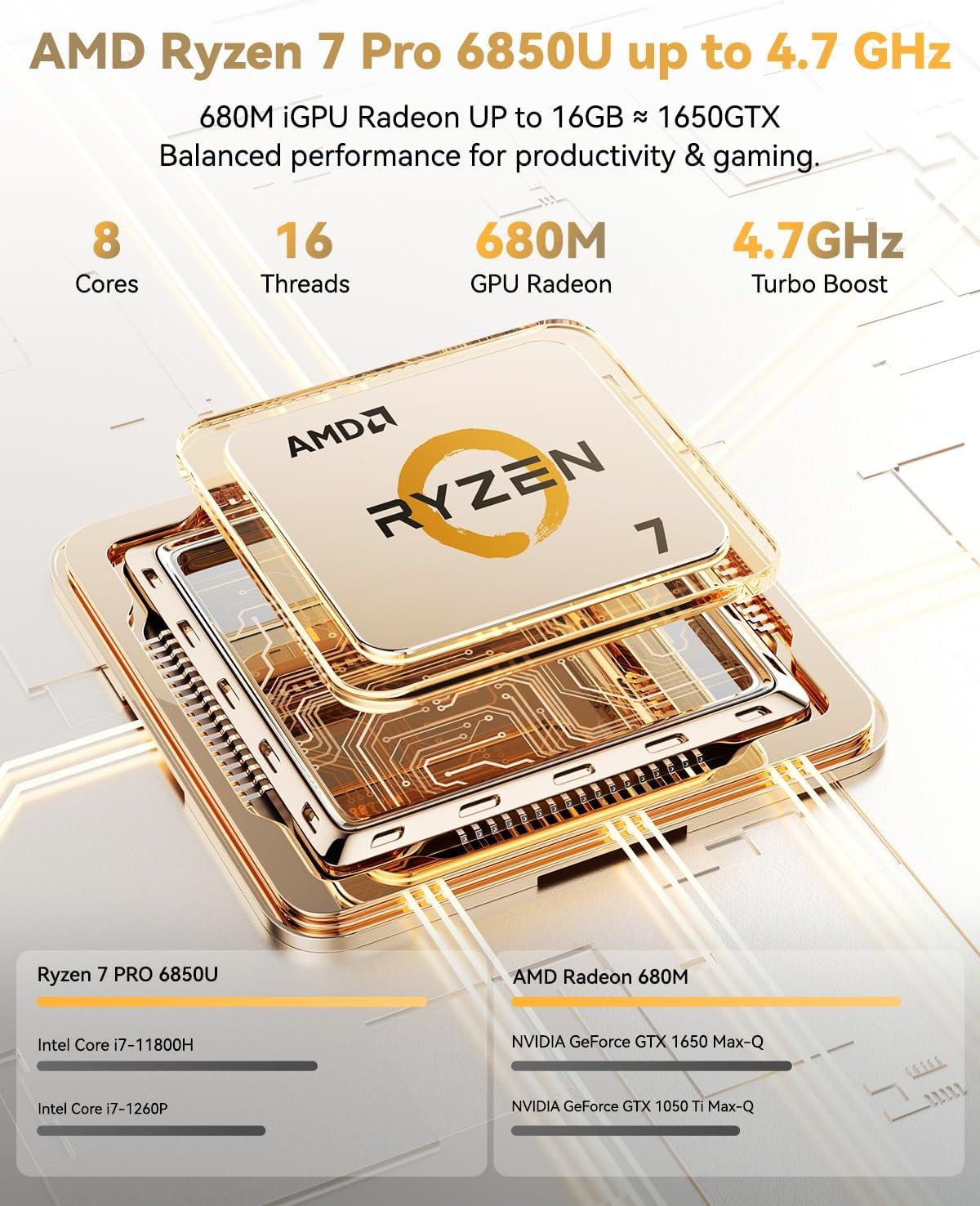
Image: Visual representation of the AMD Ryzen 7 Pro 6850U processor's core and thread count, and turbo boost speed.
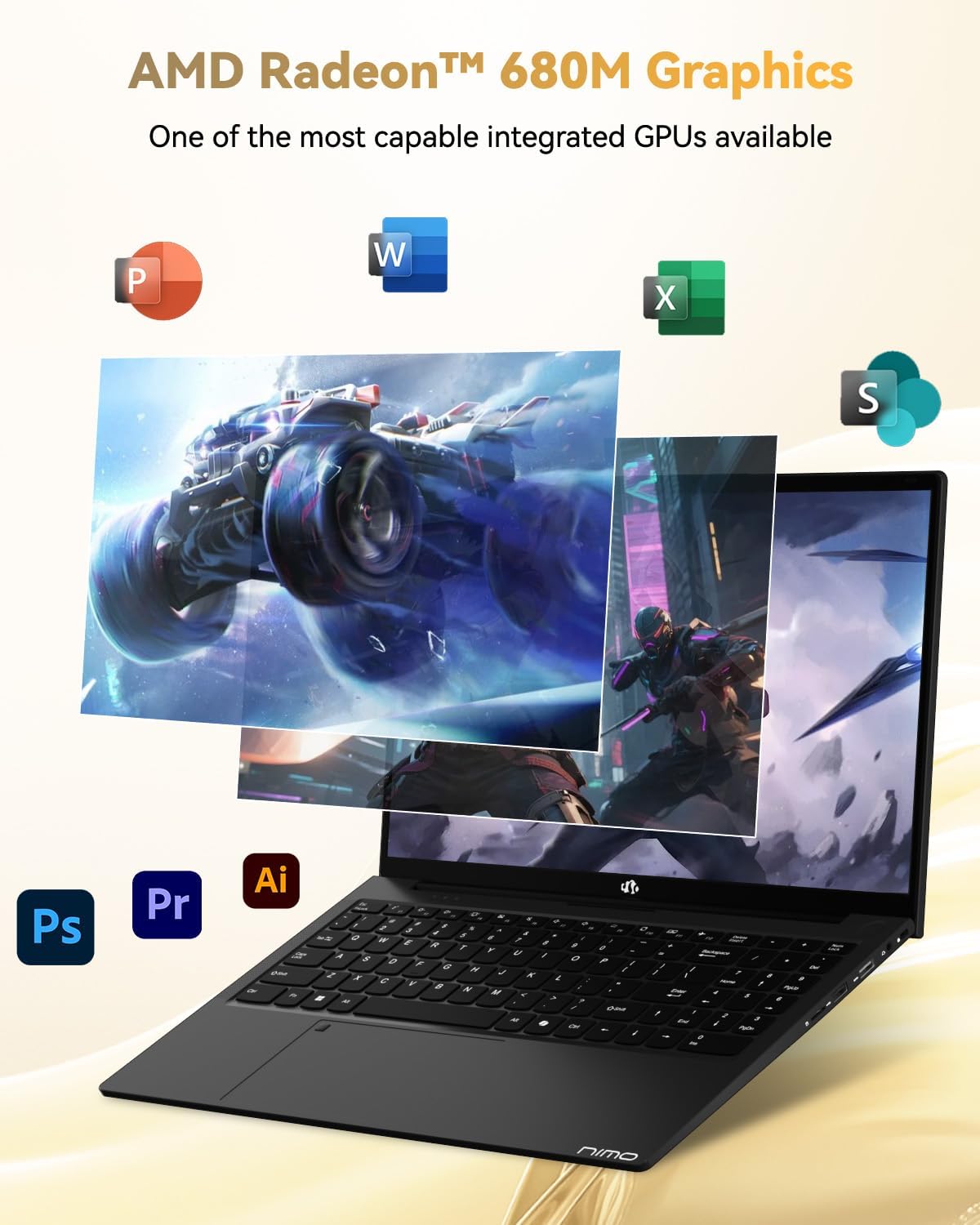
Image: Illustration highlighting the capabilities of the AMD Radeon 680M integrated graphics for various applications.

Image: Diagram showing the 32GB LPDDR5 RAM and 1TB PCIe 4.0 SSD for seamless multitasking and ample сактагыч.
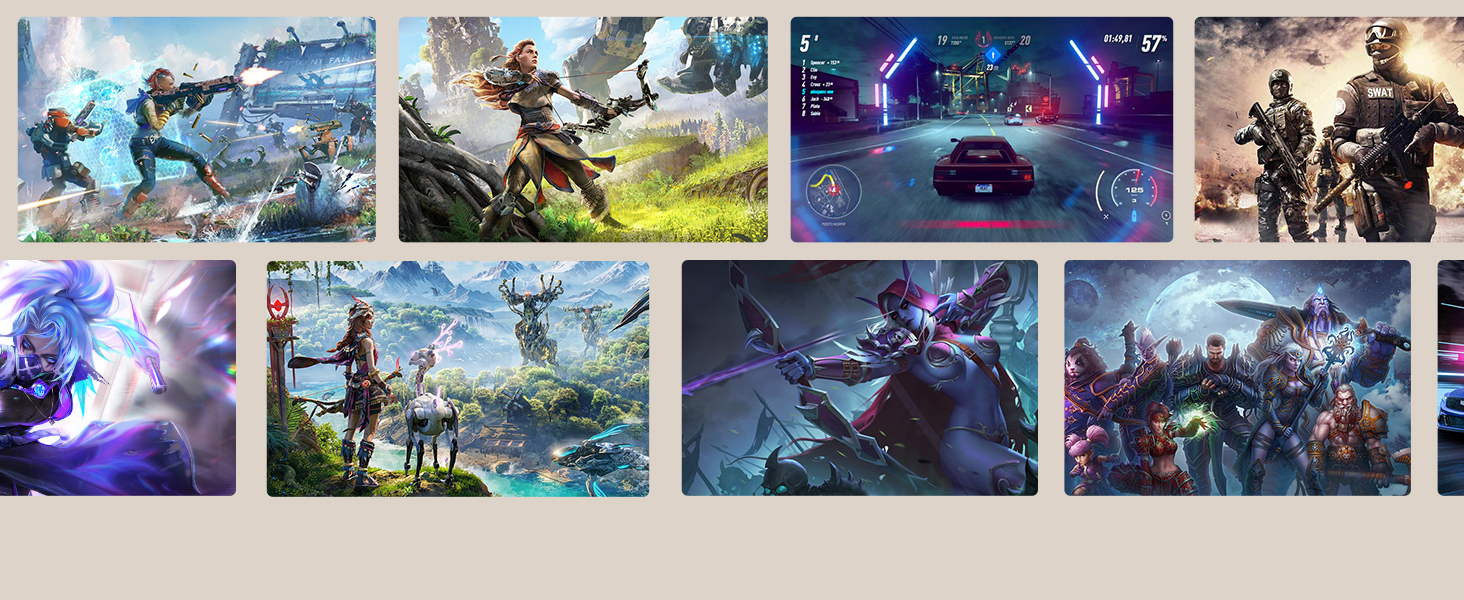
Image: The NIMO N15A laptop displaying a vibrant image on its 15.6-inch Full HD IPS screen.
Порттор жана туташуу:

Image: Diagram illustrating the various ports on the NIMO N15A laptop, including USB, HDMI, and Type-C.
- Micro SD Reader
- USB 2.0 порту
- USB 3.2 Ports (multiple)
- Наушник уясы
- Kensington Lock Slot
- Type-C (Multifunction) Ports (supporting charging and data transfer)
- HDMI порту
Жайгашуу
1. Initial Charging and Power On:
- Connect the provided 100W Type-C PD Fast Charger to the laptop's Type-C charging port and a power outlet.
- Allow the laptop to charge for at least 30 minutes before initial use, or until the charging indicator shows sufficient battery.
- Ноутбукту күйгүзүү үчүн клавиатурада жайгашкан кубат баскычын басыңыз.

Image: Illustration of the NIMO N15A laptop being charged with the 100W Type-C PD Fast Charger.
2. Windows 11 Initial Setup:
Follow the on-screen prompts to complete the Windows 11 setup process. This typically includes:
- Аймагыңызды жана клавиатураңызды тандоо.
- Wi-Fi тармагына туташууда.
- Microsoft каттоо жазуусу менен кирүү же жергиликтүү каттоо жазуусун түзүү.
- PIN же сырсөз орнотуу.
- Купуялык жөндөөлөрү конфигурацияланууда.
Иштөө нускамалары
Энергияны башкаруу:
- Күйгүзүү: Кубат баскычын басыңыз.
- Уйку режими: Капкакты жабыңыз же кубат баскычын кыскача басыңыз.
- Өчүрүү: "Баштоо" баскычын, андан кийин "Күчүн" баскычын, андан кийин "Өчүрүү" баскычын чыкылдатыңыз.
- Кайра баштоо: "Баштоо" баскычын, андан кийин "Күч" баскычын, андан кийин "Өчүрүп күйгүзүү" баскычын чыкылдатыңыз.
Баскычтоп жана сенсордук такта:

Сүрөт: Жакын план view of the NIMO N15A laptop's backlit keyboard and the integrated fingerprint reader on the touchpad.
- Арткы жарык клавиатура: Use the dedicated function key (usually Fn + Fx) to toggle the keyboard backlight on/off and adjust brightness levels.
- Манжа изин окугуч: The fingerprint reader is integrated into the touchpad. During Windows setup, you can configure your fingerprint for secure, quick login.
- Тактык сенсордук тактасы: Навигация үчүн көп тийүү жаңсоолорун колдойт. Ыңгайлаштыруу үчүн Windows орнотууларына кайрылыңыз.
Перифериялык түзүлүштөрдү туташтыруу:
Utilize the various ports to connect external devices such as monitors, printers, external storage, and audio devices.
- USB түзмөктөрү: Plug USB devices into the available USB 2.0 or USB 3.2 ports.
- Тышкы дисплей: Connect an external monitor or TV using the HDMI port or a compatible Type-C adapter.
- Аудио: Use the 3.5mm headphone jack for headphones or external speakers.
Камеранын купуялыгы:
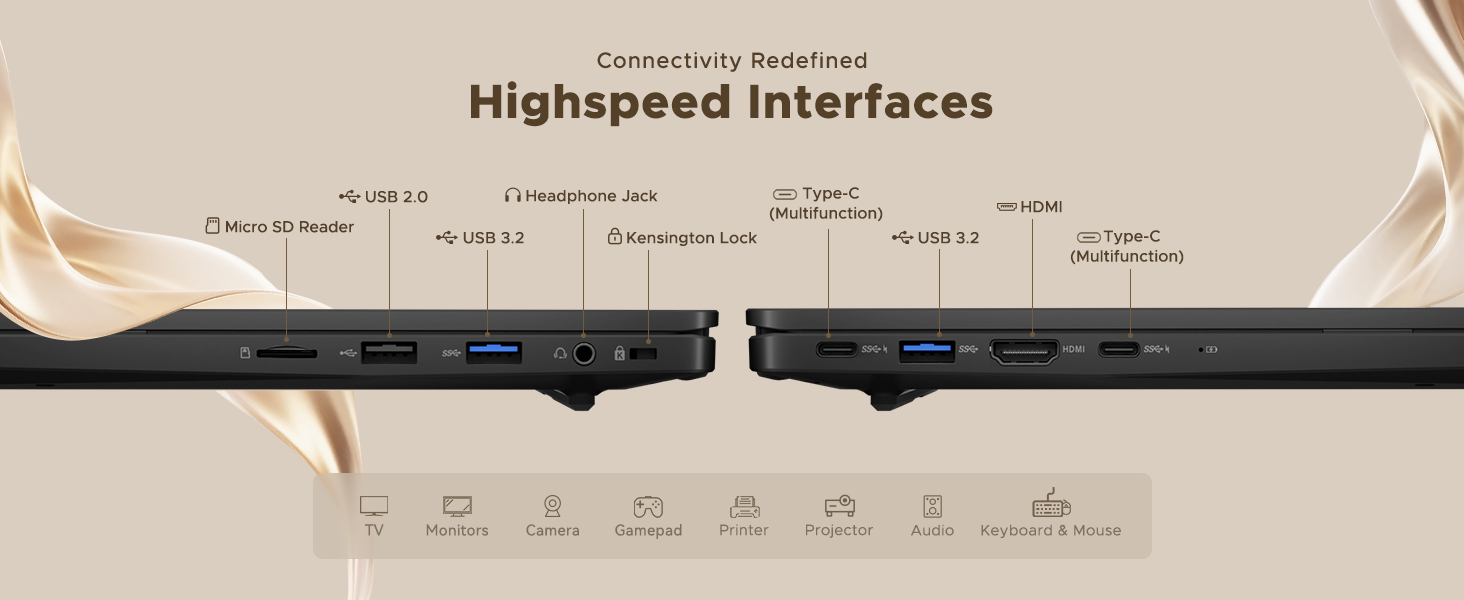
Image: Illustration of the NIMO N15A laptop's built-in privacy camera switch, allowing users to easily disable the webкамера
The NIMO N15A laptop features a built-in privacy camera switch. This allows you to physically disable the 2.0MP webcam when not in use, ensuring your privacy.
Техникалык тейлөө
Ноутбукту тазалоо:
- Power off the laptop and disconnect the charger before cleaning.
- Бир аз жумшак, түксүз кездемени колдонуңуз dampдисплей үчүн суу же экран тазалоочу менен жабылган.
- Баскычтоп жана шасси үчүн жумшак кездеме колдонуңуз. Катуу химиялык заттардан же абразивдүү материалдардан алыс болуңуз.
- Клавиатура баскычтарындагы жана желдеткичтердеги чаңды тазалоо үчүн кысылган абаны колдонуңуз.
Батареяга кам көрүү:
- Батареяны бат-баттан толук кубаттап калуудан алыс болуңуз.
- Store the laptop in a cool, dry place if not used for extended periods, with the battery charged to around 50-70%.
- Use only the original NIMO 100W Type-C PD Fast Charger.
Программалык камсыздоо жаңыртуулары:
- Системанын туруктуулугун жана коопсуздугун камсыз кылуу үчүн Windows жаңыртууларын дайыма текшерип, орнотуп алыңыз.
- Keep device drivers updated, especially for graphics and chipset, by checking the NIMO support webсайт же Windows Update.
Проблемаларды чечүү
| Көйгөй | Мүмкүн чечим |
|---|---|
| Ноутбук күйбөйт. | Ensure the charger is properly connected and the power outlet is functional. Allow the battery to charge for at least 30 minutes. If the issue persists, contact support. |
| Дисплей бош же бүлбүлдөп турат. | Try connecting an external monitor to check if the issue is with the laptop's display. Adjust display brightness. Restart the laptop. |
| Жай аткаруу. | Close unnecessary applications. Check for background processes consuming high resources. Ensure sufficient free storage space. Run a system scan for malware. |
| Баскычтоптун жарыгы иштебейт. | Press the dedicated function key combination (e.g., Fn + Fx) to toggle or adjust the backlight. Check keyboard settings in Windows. |
| Fingerprint reader not responding. | Ensure your finger is clean and dry. Re-register your fingerprint in Windows settings. Restart the laptop. |
For issues not listed here or if solutions do not resolve the problem, please refer to the Warranty and Support section for assistance.
Техникалык шарттар
| Өзгөчөлүк | Деталь |
|---|---|
| Бренд | NIMO |
| Модель аты | NIMO N15AL (N15A) |
| Screen Size | 15.6 дюйм |
| Screen Resolution | 1920 x 1080 пиксел (Full HD) |
| Процессор | AMD Ryzen 7 Pro 6850U (8 Cores, up to 4.7 GHz) |
| RAM | 32 ГБ LPDDR5 (6400 МГц) |
| Катуу диск | 1024 GB SSD (PCIe 4.0, Solid State) |
| Графикалык сопроцессор | AMD Radeon 680M (интеграцияланган) |
| Операция системасы | Windows 11 |
| Зымсыз түрү | 802.11a/b/g/n/ac |
| USB 2.0 порттору | 1 |
| USB 3.0/3.2 Ports | 4 |
| Батареянын орточо иштөө мөөнөтү | 9 саат |
| Элемент Салмагы | 3.75 фунт |
| Продукциянын өлчөмдөрү | 14.07 x 8.98 x 0.76 дюйм |
| Түс | Кара |
| Арткы Webcam Resolution | 2 депутат |
| Өзгөчөлүктөр | Арткы жарык клавиатура, манжа изин окугуч, HD аудио, сандык баскычтоп |
Кепилдик жана колдоо
NIMO provides comprehensive support for your laptop.
- Кепилдик: Your NIMO N15A laptop comes with a 2-year manufacturer's warranty.
- Кайтаруу саясаты: A 90-day hassle-free return policy is offered from the date of purchase.
- Кардарларды колдоо: For technical assistance, warranty claims, or product-related inquiries, please contact NIMO customer support.
Contact information for support is typically available on the official NIMO website or through the product's packaging.
Коопсуздук маалыматы
Маанилүү: Read and follow these safety guidelines to prevent damage to your device or personal injury.
- Use only original chargers and regularly inspect cables for damage.
- Handle the laptop by its base and consider using a protective case. Avoid placing heavy objects on it.
- Place the laptop on a hard, flat surface to ensure proper ventilation and prevent overheating. Keep it away from extreme temperatures and moisture.
- Do not overcharge the battery. Discontinue use if the battery shows signs of swelling or damage.
- Set strong passwords, keep software updated, use antivirus software, and regularly back up your data.
- In case of liquid spills, immediately unplug the laptop and allow it to dry completely before attempting to power it on.
- For any issues, consult qualified professionals. Do not attempt to disassemble or repair the device yourself.
Юридикалык баш тартуу
This NIMO laptop is provided "as is," without express or implied warranties, except for any applicable manufacturer's limited warranty. Implied warranties of merchantability or fitness for a specific purpose are disclaimed. NIMO is not liable for damages resulting from misuse (e.g., non-approved chargers, unauthorized repairs), physical damage, or failure to adhere to safety guidelines, including data loss or business interruption. Users are responsible for regularly backing up their data. This disclaimer does not exclude liability for manufacturing defects or violations of mandatory local laws. By using this laptop, you accept these terms, which are governed by the laws of the applicable jurisdiction.