
1. Киришүү
This manual provides essential information for setting up, operating, and maintaining your NIMO 15.6-inch Light-Gaming Laptop, Model N15A. Designed for productivity, content creation, and light gaming, this laptop features an 8-core AMD Ryzen 7 Pro 6850U processor, AMD Radeon 680M integrated GPU, 16GB LPDDR5 RAM, and a 1TB PCIe 4.0 SSD. Enjoy vibrant visuals on its 15.6-inch Full HD IPS anti-glare display, secure login with an integrated fingerprint touchpad, and convenient typing with a backlit keyboard. The device also supports 100W USB-C fast charging for quick power-ups.
2. Кутуда эмне бар
- 1 x NIMO N15A Laptop
- 1 x Type-C 100W PD Fast Charger
- 1 x User Manual
- Windows 11 Home (Pre-installed)
- 2 Years Warranty, 90 Days Return Information
3. Орнотуу
3.1 Баштапкы күйгүзүү жана заряддоо
Before first use, ensure your NIMO laptop is fully charged. Connect the provided 100W Type-C PD fast charger to the laptop's USB-C port and a power outlet. The charging indicator light will illuminate.
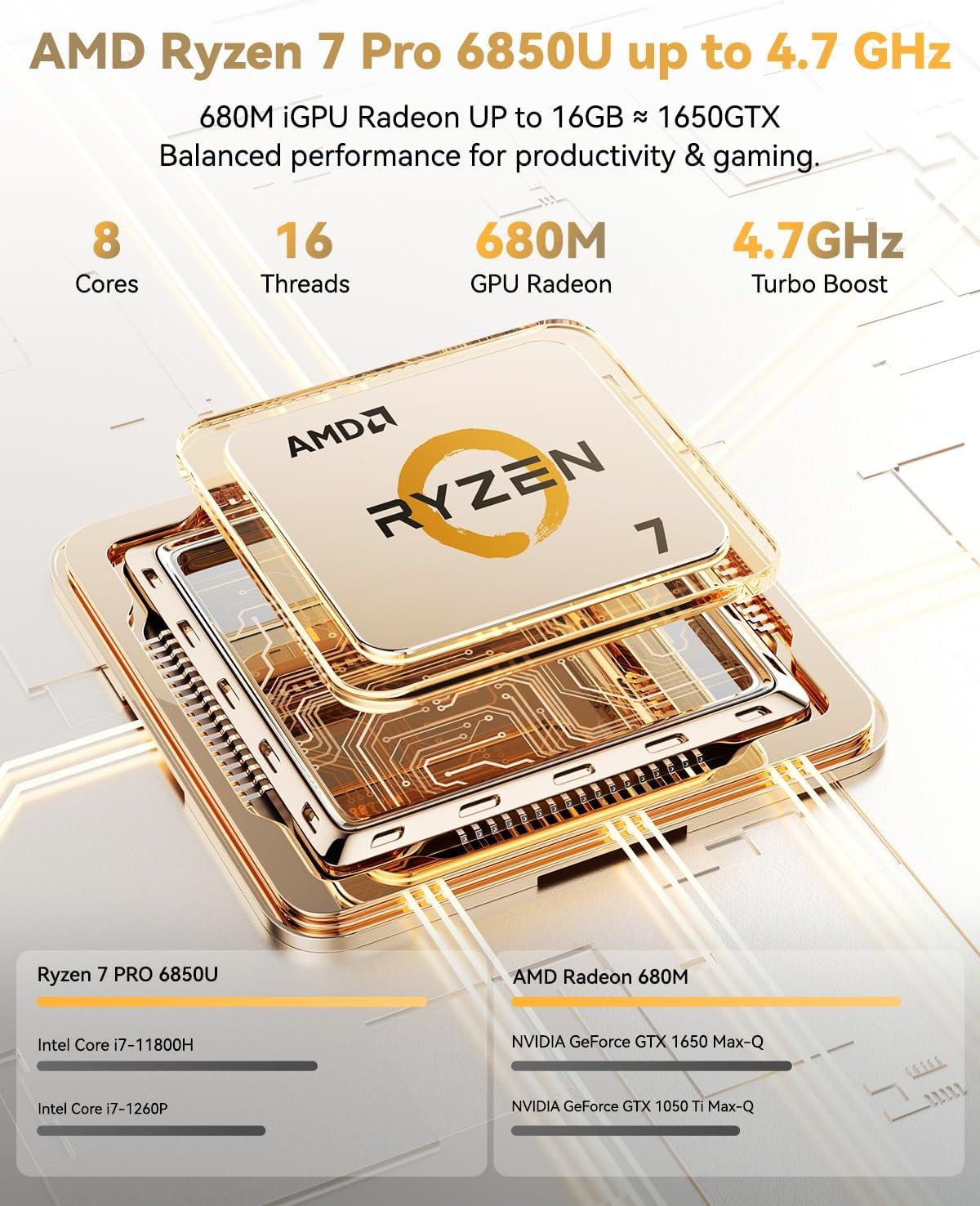
Image: NIMO 15.6-inch laptop displaying the Windows 11 setup screen.
Press the power button located on the top-right of the keyboard to turn on the laptop. Follow the on-screen instructions to complete the initial Windows 11 Home setup, including language selection, network connection, and user account creation.
3.2 Манжа изин орнотуу
During the Windows setup, you will have the option to set up the integrated fingerprint reader for secure and instant login. Follow the prompts to register your fingerprint. This feature allows you to bypass password entry for quick access.
3.3 Тармакка туташуу
During setup, select your Wi-Fi network from the list and enter the password. The laptop supports Wi-Fi 6 for fast and stable wireless connectivity.
3.4 Unboxing and Initial Overview
Видео: Бүттүview of the NIMO 15.6-inch laptop, demonstrating its physical features, ports, and initial setup process, including the backlit keyboard and fingerprint reader.
4. Operating Your NIMO Laptop
4.1 Күйгүзүү/өчүрүү
- Күйгүзүү үчүн: Кубат баскычын басыңыз.
- Өчүрүү үчүн: Click the Start menu, then Power, and select 'Shut down'. Alternatively, press and hold the power button for a few seconds.
4.2 Дисплей
The NIMO N15A features a 15.6-inch Full HD (1920x1080) IPS anti-glare display. This screen provides clear, vibrant visuals with an 85% screen-to-body ratio, ideal for work, streaming, and light gaming.

Image: The NIMO laptop's 15.6-inch Full HD IPS display showcasing vivid colors and sharp details.
4.3 Баскычтоп жана сенсордук такта
The laptop is equipped with a backlit keyboard and a numeric keypad for enhanced productivity in various lighting conditions. The precision gesture touchpad allows for smooth navigation, and the integrated fingerprint touchpad provides secure, instant login.

Image: Close-up of the NIMO laptop's backlit keyboard and the fingerprint sensor on the touchpad.
4.4 Байланыш жана порттор
The NIMO N15A offers a variety of ports for versatile connectivity:
- USB-C (Multi-function): Supports 100W Power Delivery (PD) fast charging and data transfer.
- USB 3.2: Жогорку ылдамдыктагы маалыматтарды өткөрүп берүү.
- USB 2.0: Стандарттык USB туташуу.
- HDMI: Тышкы дисплейлерди туташтыруу үчүн.
- Микро SD картаны окугуч: Сактагычты кеңейтүү же өткөрүп берүү үчүн files.
- Гарнитура уячасы: Аудио чыгаруу үчүн.
- Кенсингтон кулпусу: Физикалык коопсуздук үчүн.
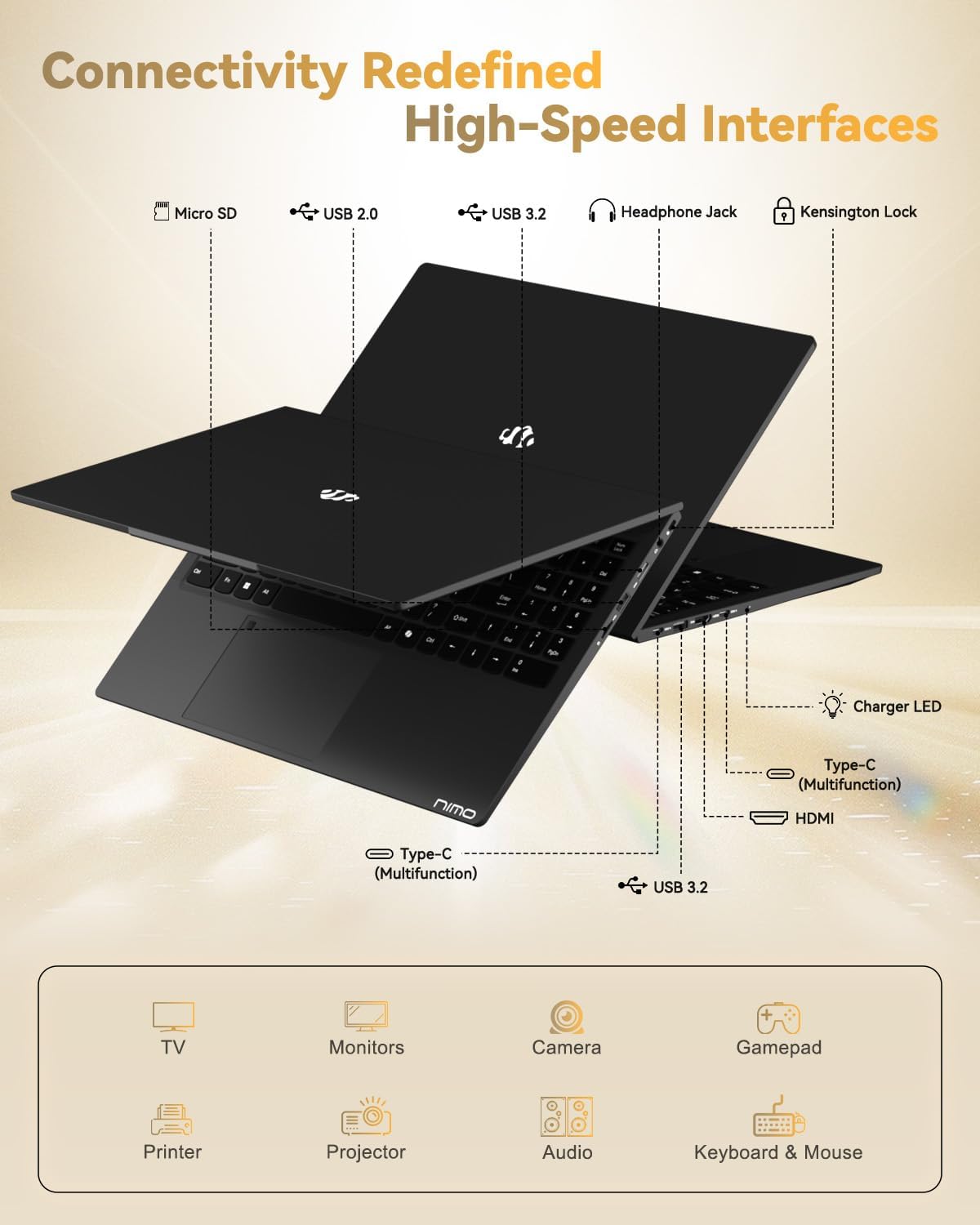
Image: The left and right sides of the NIMO laptop, highlighting the available ports for external devices.
4.5 Webcam
The laptop includes a 2.0 MP front-facing webcam with a physical privacy shutter, ensuring your privacy during video calls and online meetings.

Image: The NIMO laptop's integrated webcam, demonstrating the physical privacy shutter mechanism.
4.6 Аткаруу көрсөткүчү жогоруview
Powered by the AMD Ryzen 7 Pro 6850U processor with 8 cores and 16 threads (up to 4.7GHz), and an AMD Radeon 680M GPU, this laptop delivers smooth multitasking and responsive performance for professional workloads, content creation, and light gaming. It comes with 16GB LPDDR5 RAM and a 1TB PCIe 4.0 SSD for rapid data access and storage.
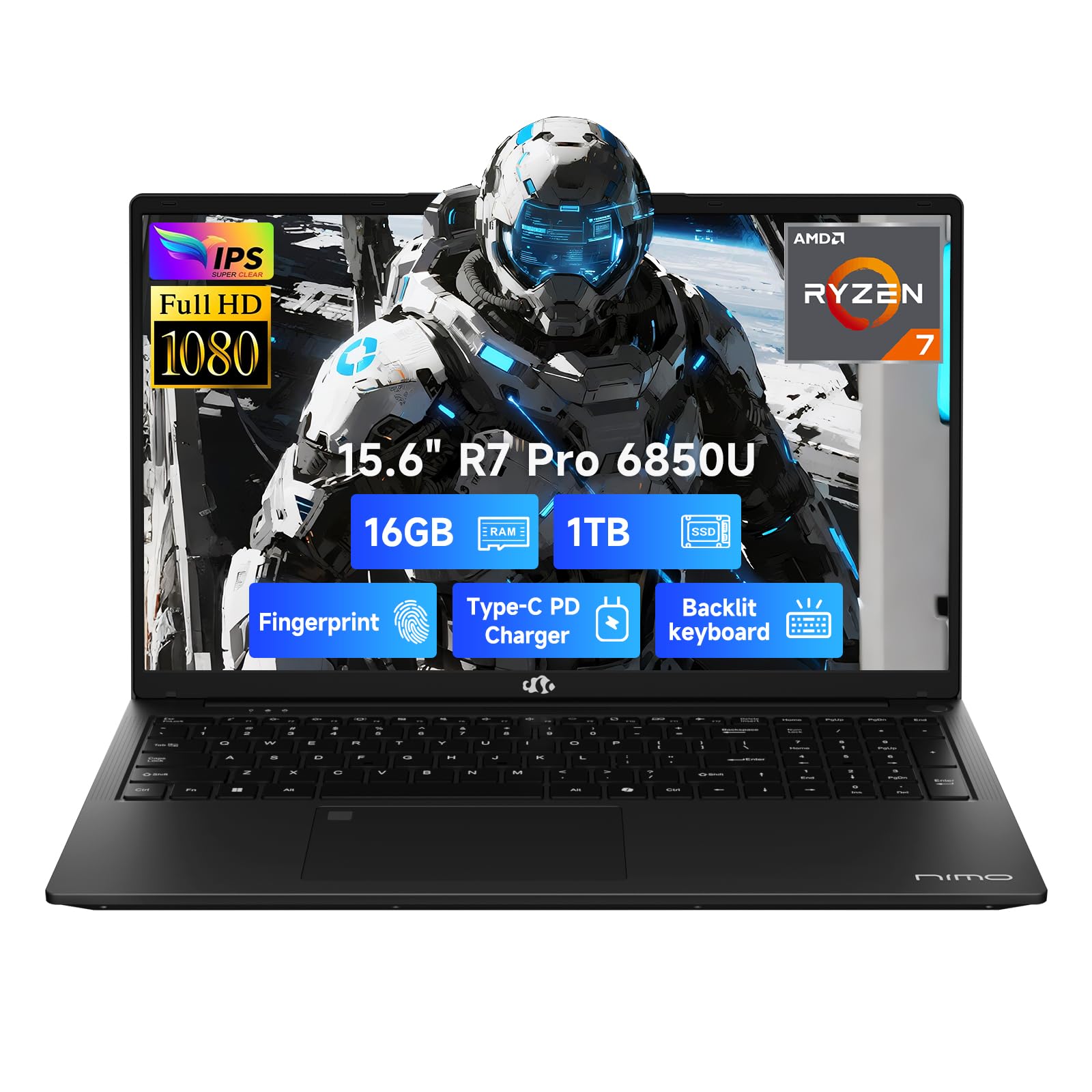
Image: Visual representation of the AMD Ryzen 7 Pro 6850U processor's core specifications.
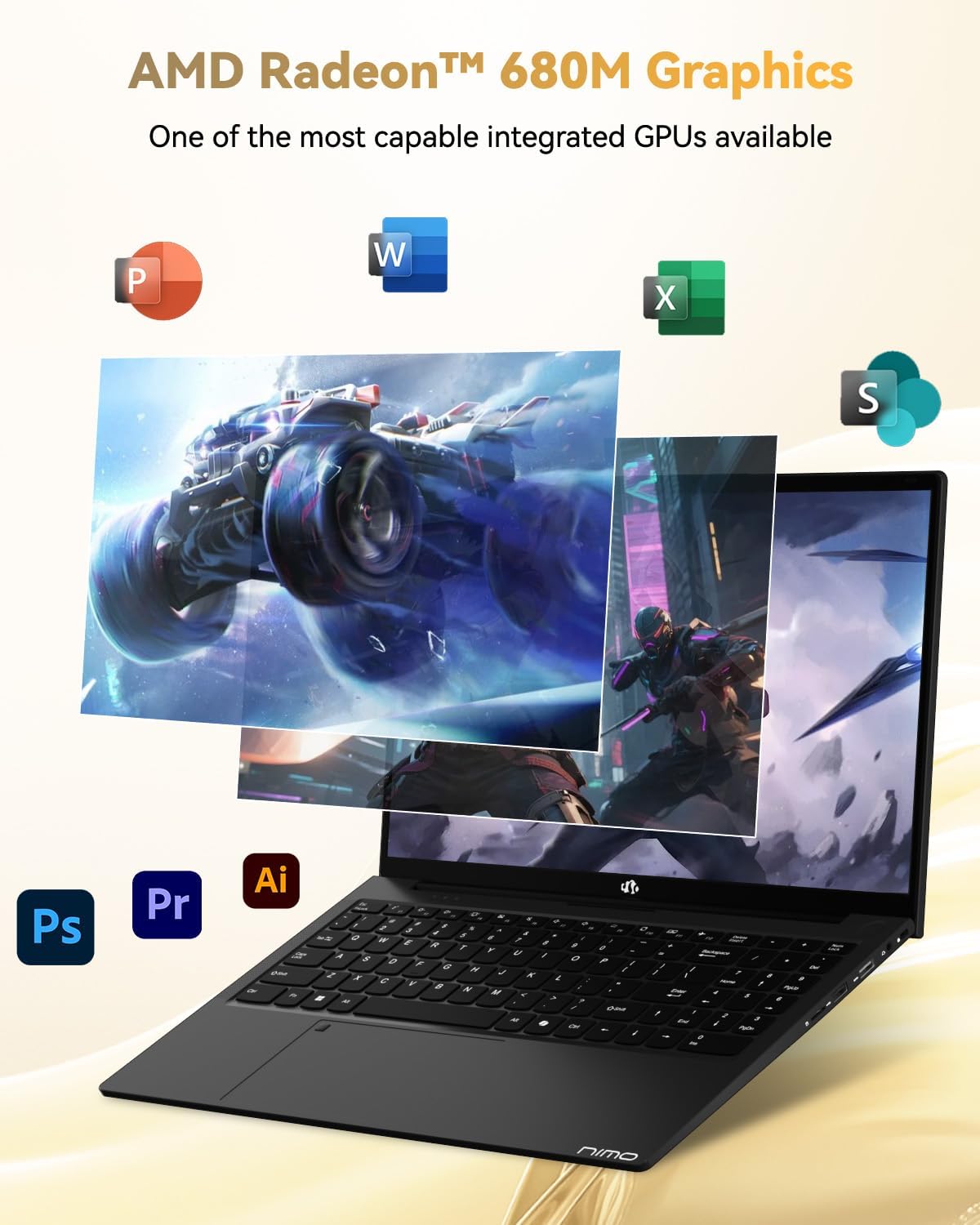
Image: The NIMO laptop showcasing its AMD Radeon 680M graphics performance with various applications.

Image: The NIMO laptop illustrating its capability for seamless multitasking and ample сактагыч.
4.7 Батарея жана заряддоо
The laptop is powered by a 53.58 Watt-hour Lithium Polymer battery, offering up to 9 hours of battery life. The included 100W USB-C PD fast charger can provide up to 2 hours of use with just a 15-minute charge, making it ideal for users on the go.

Image: The NIMO laptop connected to its 100W Type-C fast charger.
4.8 General Usage and Features
Видео: Жарнамалык роликasing the NIMO 15.6-inch FHD laptop's various features and use cases, including its display, performance, and portability.
Video: A video highlighting the Nimo Student Laptop's features, including its suitability for students and general use, emphasizing its design and functionality.
5. Техникалык тейлөө жана кам көрүү
To ensure the longevity and optimal performance of your NIMO laptop, follow these maintenance guidelines:
- Заряддагычты колдонуу: Always use the original 100W Type-C PD fast charger and regularly inspect cables for damage.
- Физикалык иштетүү: Hold the laptop by its base, use a protective case, and avoid placing heavy items on it.
- Вентиляция: Place the laptop on a hard, flat surface to ensure proper airflow and prevent overheating. Avoid using it on soft surfaces like beds or couches.
- Экологиялык шарттар: Keep the laptop away from extreme temperatures, direct sunlight, and moisture.
- Батареяга кам көрүү: Avoid overcharging the battery. If the battery shows signs of swelling, discontinue use immediately and contact support.
- Коопсуздук: Set strong passwords, keep your operating system and software updated, and use antivirus software. Regularly back up your data to prevent loss.
- Суюктуктар: In case of a liquid spill, immediately unplug the laptop and allow it to dry completely before attempting to power it on.
- Ремонттор: For any issues or repairs, consult qualified professionals. Do not attempt to disassemble the laptop yourself, as this may void your warranty.
6. Кыйынчылыктарды
If you encounter any issues with your NIMO laptop, consider the following basic troubleshooting steps:
- Кубат жок: Ensure the charger is securely connected and the power outlet is functional. Try a different outlet or charger if available.
- Дисплей маселелери: If the screen is blank, try connecting an external monitor to check if the display output is working. Adjust brightness settings.
- Жай аткаруу: Close unnecessary applications, check for background updates, or restart the laptop. Ensure sufficient free space on the SSD.
- Туташуу көйгөйлөрү: For Wi-Fi issues, restart your router and the laptop. For Bluetooth, ensure the device is discoverable and within range.
- Fingerprint Reader Not Working: Манжаңыздын таза жана кургак экенине ынаныңыз. Маселе чечилбесе, манжа изиңизди Windows жөндөөлөрүнөн кайра каттаңыз.
- Аудио көйгөйлөр: Check volume levels, ensure headphones are properly connected, and verify audio drivers are up to date.
For persistent problems or issues not covered here, please refer to the Warranty and Support section for contact information.
7. Техникалык шарттар
| Өзгөчөлүк | Спецификация |
|---|---|
| Бренд | NIMO |
| Модель аты | NIMO N15A |
| Screen Size | 15.6 дюйм |
| Display Resolution | 1920 x 1080 пиксел (FHD) |
| Дисплей технологиясы | IPS |
| CPU модели | AMD Ryzen 7 Pro 6850U |
| Процессордун ылдамдыгы | 4.7 ГГц чейин |
| Процессор Cores | 8 |
| RAM эстутум орнотулган өлчөмү | 16 ГБ LPDDR5 |
| Memory Clock Speed | 6400 МГц |
| Катуу дисктин өлчөмү | 1024 GB (1TB PCIe 4.0 SSD) |
| Графикалык сопроцессор | AMD Radeon 680M |
| Операция системасы | Windows 11 Home |
| Өзгөчөлүктөр | Арткы жарык клавиатура, манжа изин окугуч, HD аудио, сандык баскычтоп |
| Байланыш технологиясы | Bluetooth, Wi-Fi (802.11a/b/g/n/ac) |
| Жалпы USB порттору | 5 |
| Video Output | HDMI |
| Батареянын иштөө мөөнөтү | 9 Hours (Average) |
| Элемент Салмагы | 3.75 фунт |
| Элементтин өлчөмдөрү (L x W x Калыңдыгы) | 14.07"L x 8.98"W x 0.76"Mh |
8. Кепилдик жана колдоо
NIMO stands by the quality of its products. Your NIMO N15A laptop comes with a 2 жылдык өндүрүүчүнүн кепилдиги жана а 90-day hassle-free return policy. Our laptops undergo rigorous testing to ensure top-tier quality and reliability.

Image: NIMO's commitment to after-sales services, including support and returns.
Колдоо кызматы менен байланышуу
Our dedicated support team is ready to provide quick, effective assistance for a worry-free experience. For any product-related questions or warranty claims, please contact us:
- Электрондук почта: service@nimopc.com
- Онлайн: Visit the official NIMO website or product page for chat support during business hours.

Image: Professional customer assistance available to help with product inquiries.