
Introduction
This manual provides instructions for the OMOTON Illuminated Keyboard. Designed with extra-large fonts, this keyboard offers enhanced visibility, making it suitable for users who benefit from clearer visual experiences, including seniors, students, and office workers. It aims to reduce eye fatigue and typing errors. The keyboard features a wired 2-in-1 USB-A/C interface for broad compatibility and includes multimedia keys for efficient control of various functions.
Продукт өзгөчөлүктөрү
- Large Font Keys: Keys feature oversized characters for improved readability, minimizing typing errors.
- Мультимедиа функциялары: Dedicated multimedia keys provide quick access to functions such as music, video playback, and volume control.
- Dual USB A/C Compatibility: Equipped with a 2-in-1 USB-A/C cable, allowing connection to a wide range of devices.
- Эргономикалык дизайн: Features a user-friendly, ergonomic design with an adjustable kickstand for comfortable typing positions, reducing strain during extended use.
- Windows шайкештиги: Specifically designed for seamless operation with Windows operating systems.
Жайгашуу
The OMOTON Illuminated Keyboard is designed for simple plug-and-play setup.
- Баскычтопту туташтыруу: Locate an available USB-A or USB-C port on your computer.
- Плагин: Connect the keyboard's 2-in-1 USB cable to the chosen port. The keyboard will be automatically recognized by your operating system (Windows).
- Байланышты текшерүү: Once connected, the keyboard should be ready for use. The backlight will illuminate.

Image: The keyboard features a versatile 2-in-1 USB-A/C cable for easy connection to various devices, including laptops and desktop PCs.
Иштөө нускамалары
Арткы жарыкты башкаруу
The keyboard features an adjustable white backlight. Use the following key combinations to control it:
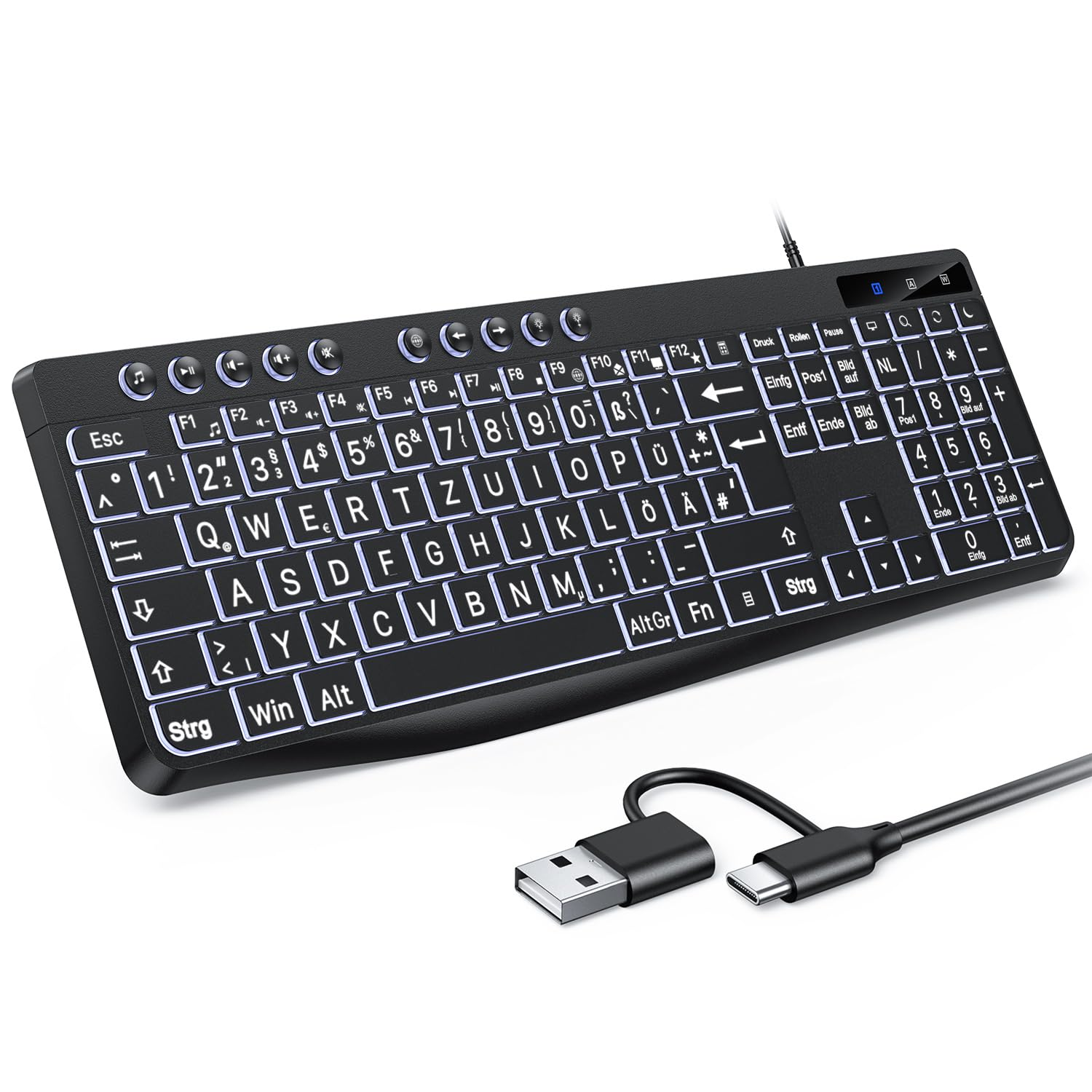
Image: Visual guide for backlight control functions.
- Fn + Print Screen (Druck): Toggles the backlight on or off.
- Fn + Scroll Lock (Rollen): Switches between constant illumination mode and 'breathing' mode.
- In Constant Illumination Mode:
- Fn + Өйдө жебе: Арткы жарыктын жарыктыгын жогорулатат.
- Fn + Төмөн жебе: Арткы жарыктын жарыктыгын азайтат.
- In 'Breathing' Mode:
- Fn + Left Arrow: Adjusts breathing frequency (slower).
- Fn + Right Arrow: Adjusts breathing frequency (faster).
Мультимедиа ачкычтары
The keyboard includes dedicated multimedia keys (F1-F12) that provide quick access to various functions when pressed in combination with the Fn ачкыч.

Image: The multimedia keys (F1-F12) offer convenient shortcuts for common tasks.
- Fn + F1-F12: Access functions such as volume control, media playback, email, web browser, and calculator. Refer to the icons on the F-keys for specific functions.
Техникалык тейлөө
To ensure the longevity and optimal performance of your OMOTON Illuminated Keyboard, follow these maintenance guidelines:
- Тазалоо: Regularly clean the keyboard with a soft, dry, lint-free cloth. For stubborn dirt, slightly dampчүпүрөктү суу же жумшак тазалоо эритмеси менен жууп салыңыз. Катуу химиялык заттардан же абразивдүү материалдардан алыс болуңуз.
- Чаңды тазалоо: Баскычтардын ортосундагы чаңды жана калдыктарды тазалоо үчүн кысылган абаны колдонуңуз.
- Суюктуктар: Эгерде суюктук төгүлүп кетсе, клавиатураны компьютериңизден дароо ажыратыңыз. Суюктукту агызып салуу үчүн аны оодарып, кайра туташтыруудан мурун толугу менен кургатыңыз.
- Сактагыч: Клавиатураны күн нурунан жана экстремалдык температурадан алыс, салкын, кургак жерде сактаңыз.
Проблемаларды чечүү
If you encounter issues with your OMOTON Illuminated Keyboard, refer to the following common troubleshooting steps:
- Баскычтоп жооп бербейт:
- USB кабели клавиатурага жана компьютерге бекем сайылганын текшериңиз.
- Баскычтопту компьютериңиздин башка USB портуна туташтырууга аракет кылыңыз.
- Компьютериңизди өчүрүп күйгүзүңүз.
- USB хабын колдонсоңуз, клавиатураны түздөн-түз компьютерге туташтырууга аракет кылыңыз.
- Арткы жарык иштебейт:
- Басыңыз Fn + Басып чыгаруу экраны арткы жарык өчүп эмес экенин камсыз кылуу үчүн.
- жардамы менен жарыктыгын тууралаңыз Fn + Өйдө/Төмөн жебе ачкычтар.
- Ачкычтар туура иштебейт:
- Check for any physical obstructions or debris under the keys.
- Ensure your operating system drivers are up to date (though typically plug-and-play for keyboards).
Техникалык шарттар
| Бренд | ОМОТОН |
| Шайкеш түзмөктөр | PC |
| Байланыш технологиясы | USB-A/C |
| Keyboard Description | Мультимедиа |
| Продукт үчүн сунушталган колдонуу | Күнүмдүк колдонуу |
Кепилдик жана колдоо
OMOTON products are designed for reliability and performance. For specific warranty details regarding your Illuminated Keyboard, please refer to the warranty card included with your purchase or visit the official OMOTON webсайт.
If you require technical assistance or have questions not covered in this manual, please contact OMOTON customer support through their official channels. Contact information can typically be found on the product packaging or the brand's webсайт.