
1. Киришүү
The Cudy AX300 WU300 Wi-Fi 6 Nano USB Adapter provides a compact and efficient solution for adding Wi-Fi 6 connectivity to your desktop or laptop computer. Designed for ease of use, this adapter offers fast and stable 2.4GHz wireless performance, making it ideal for everyday internet activities such as streaming, browsing, and online communication. Its nano size ensures it remains discreetly plugged into your USB port.
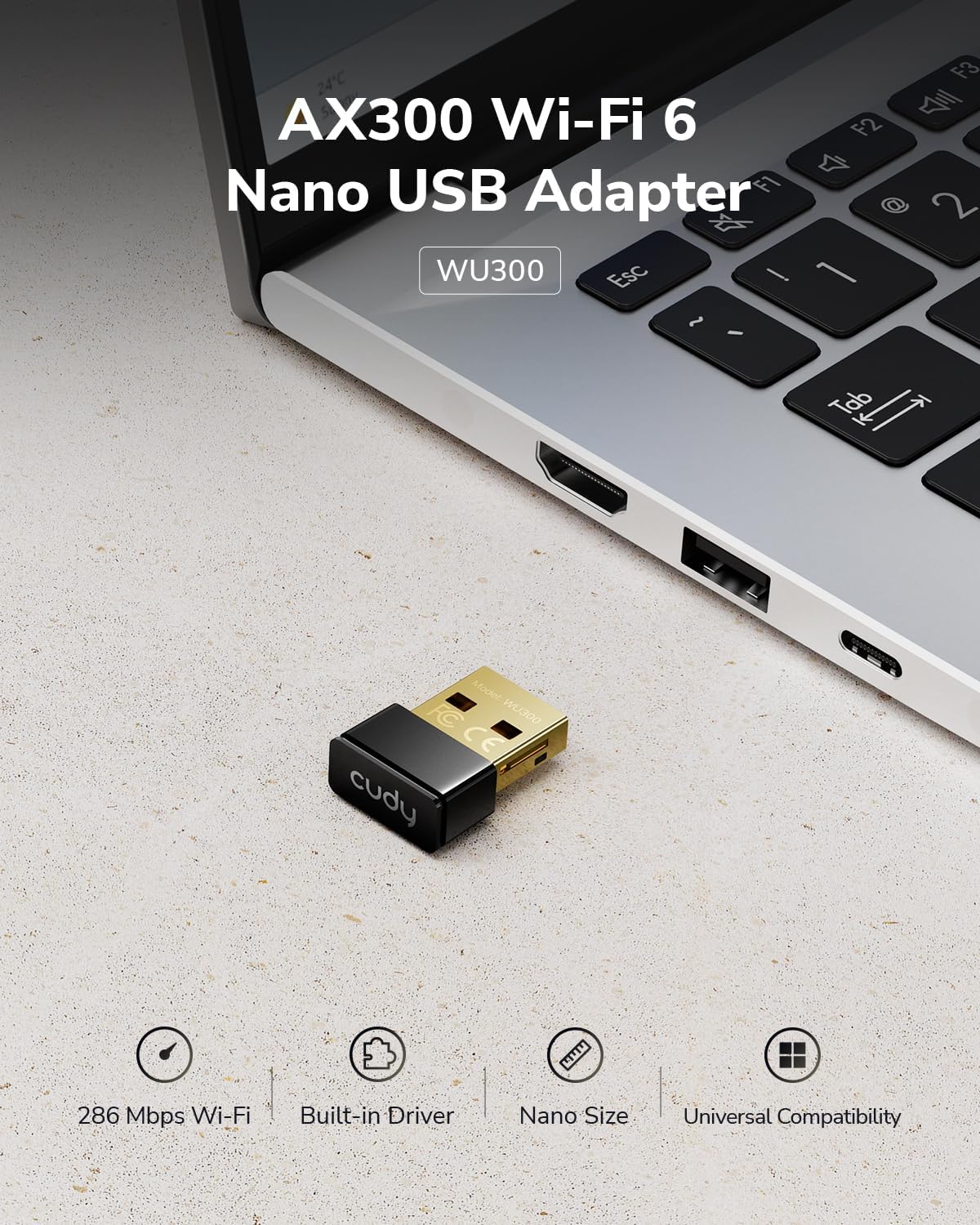
Image: The Cudy AX300 WU300 Nano USB Adapter shown plugged into a laptop's USB port, highlighting its small form factor.
2. Продукт бүтүп калдыview
Негизги өзгөчөлүктөрү:
- Ультра тез Wi-Fi 6 ылдамдыгы: Experience wireless speeds up to 286 Mbps on the 2.4GHz band for smooth online activities.
- Компакт нано дизайн: The ultra-small dimensions (20 × 15 × 8 mm) allow for discreet integration into your device without obstructing other ports.
- Flexible Soft AP Mode: Convert your computer's wired internet connection into a Wi-Fi hotspot to share with other devices.
- Universal USB 2.0 Compatibility: Works with standard USB 2.0 ports, ensuring broad compatibility with various devices.
- Broad System Support: Compatible with Windows 7, Windows 10, Windows 11, and Linux operating systems.
Кутуда эмне бар:
- Cudy AX300 WU300 Wi-Fi 6 Nano USB Adapter

Image: The compact design of the Cudy AX300 WU300 adapter, illustrating its small physical dimensions.
3. Орнотуу
The Cudy AX300 WU300 adapter features a built-in driver for convenient installation.
Орнотуу кадамдары:
- Адаптерди салыңыз: Plug the Cudy AX300 WU300 Nano USB Adapter into an available USB 2.0 port on your computer.
- Драйверди орнотуу:
- Windows 10/11 үчүн: The adapter is typically plug-and-play. Your operating system should automatically detect the device and install the necessary drivers.
- For Windows 7 and Linux: Manual driver installation may be required. The adapter functions as a small flash drive containing the driver installer. Navigate to 'My Computer' or 'This PC', locate the adapter's drive, and run the installer executable. Follow the on-screen prompts to complete the installation.
- Wi-Fi'га туташуу: Once the drivers are installed, you can connect to your Wi-Fi network through your operating system's network settings.

Image: The Cudy AX300 WU300 adapter illustrating its easy setup process with a built-in driver, eliminating the need for a physical CD.
4. Иштөө нускамалары
Wi-Fi тармагына туташуу:
- After driver installation, click on the Wi-Fi icon in your system tray (Windows) or network manager (Linux).
- Жеткиликтүү тармактардын тизмесинен каалаган Wi-Fi тармагын тандаңыз.
- Суралган болсо, тармактын коопсуздук ачкычын (сырсөз) киргизиңиз.
- Click 'Connect'. Your computer should now be connected to the Wi-Fi network.
Using Soft AP Mode:
Soft AP (Access Point) mode allows your computer to act as a Wi-Fi hotspot, sharing its internet connection with other wireless devices.
- Компьютериңизде активдүү интернет байланышы бар экенин текшериңиз (мисалы, Ethernet аркылуу).
- Open your operating system's network settings.
- Look for an option like 'Mobile hotspot', 'Wi-Fi hotspot', or 'Soft AP'.
- Configure the network name (SSID) and password for your new hotspot.
- Enable the hotspot feature. Your other devices can now connect to this new Wi-Fi network.

Image: A user demonstrating the Soft AP mode, sharing a laptop's internet connection with a smartphone.
5. Техникалык тейлөө
To ensure optimal performance and longevity of your Cudy AX300 WU300 Wi-Fi 6 Nano USB Adapter, follow these general maintenance guidelines:
- Тазалыкты сактоо: Адаптерди мезгил-мезгили менен жумшак, кургак чүпүрөк менен тазалап туруңуз. Суюк тазалоочу каражаттарды же эриткичтерди колдонуудан алыс болуңуз.
- Физикалык зыянды болтурбоо: Handle the adapter carefully. While compact, excessive force or bending can damage the USB connector or internal components.
- Оптималдуу чөйрө: Use the adapter in a dry environment, away from extreme temperatures, direct sunlight, and humidity.
- Программалык камсыздоонун жаңыртуулары: Check the official Cudy website periodically for any available firmware or driver updates to ensure the best performance and security.
6. Кыйынчылыктарды
If you encounter issues with your Cudy AX300 WU300 adapter, refer to the following troubleshooting tips:
Adapter Not Recognized / Drivers Not Installing:
- Башка USB портун колдонуп көрүңүз: Some USB ports may have power delivery issues or compatibility problems. Try plugging the adapter into another USB port on your computer.
- Драйверлерди кайра орнотуу: If automatic installation fails (especially on Windows 7 or Linux), manually run the driver installer from the adapter's virtual drive. Ensure you have administrator privileges.
- Түзмөк башкаргычын текшерүү (Windows): Open Device Manager and look for any unknown devices or devices with warning signs. Right-click and select 'Update driver' or 'Uninstall device' and then restart your computer.
Wi-Fi тармагына туташпай жатат:
- Verify Network Band: The Cudy AX300 WU300 adapter supports 2.4 ГГц Wi-Fi тармактары гана. Ensure your router's 2.4GHz band is enabled and that you are attempting to connect to a 2.4GHz network.
- Туура сырсөз: Туура Wi-Fi сырсөзүн киргизип жатканыңызды эки жолу текшериңиз.
- WPA3 Compatibility: This adapter does not support WPA3 security. If your network is configured for WPA3-only, you may need to adjust your router settings to allow WPA2 connections or create a separate WPA2 SSID.
- Роутердин аралыгы: Ensure you are within a reasonable range of your Wi-Fi router.
- Restart Router/PC: Sometimes, a simple restart of your router and computer can resolve connectivity issues.
Жай Wi-Fi ылдамдыгы:
- Интерференция: Other electronic devices (microwaves, cordless phones, Bluetooth devices) can interfere with 2.4GHz signals. Try to minimize these or move closer to your router.
- Маршрутизатордун жайгашуусу: Ensure your router is centrally located and not obstructed by large objects.
- Тармактын тыгыны: If many devices are using the 2.4GHz network, speeds may be reduced.
Boot Issues (Advanced Users):
- Some users have reported that the adapter's built-in storage for drivers can cause boot issues on certain systems if BIOS settings are not configured correctly. If you experience boot problems with the adapter plugged in, try adjusting your BIOS settings to prioritize your primary boot drive or disable USB boot options.
7. Техникалык шарттар
| Модел | WU300 |
| Аппараттык интерфейс | USB 2.0 түрү А |
| Wi-Fi стандарты | Wi-Fi 6 (802.11ax) |
| Frequency Band | 2.4 ГГц гана |
| Маалыматтарды өткөрүү ылдамдыгы | 286 Мбит/сек чейин |
| Шайкеш операциялык системалар | Windows 7 / 10 / 11, Linux |
| Продукциянын өлчөмдөрү (L x W x Y) | 0.79" x 0.59" x 0.31" (20 x 15 x 8 мм) |
| Элемент Салмагы | 1.13 унция |

Image: Visual representation of the Cudy AX300 WU300 adapter's compatibility with Windows 11, Windows 10, Windows 7, and Linux operating systems.
8. Кепилдик жана колдоо
Cudy products are designed for reliability and performance. For warranty information, technical support, or further assistance, please visit the official Cudy webсайтына кириңиз же алардын кардарларды колдоо кызматына кайрылыңыз. Кепилдик боюнча дооматтар үчүн сатып алуу дүмүрчөгүңүздү сактап коюңуз.
Cudy Official Webсайт: www.cudy.com


