
1. Киришүү
Thank you for choosing the suevery All-in-One PC. This manual provides essential information for setting up, operating, and maintaining your new computer. The suevery All-in-One PC is designed for productivity, entertainment, and various applications, featuring a 21.5-inch Full HD display, Intel Core i5 processor, 16GB RAM, and a 256GB SSD. It comes equipped with a built-in HD webcam, Wi-Fi 6, and includes a keyboard and mouse for a complete out-of-the-box experience.
2. Кутуда эмне бар
Пакетиңиздин мазмунун текшериңиз. Эгерде кандайдыр бир нерселер жок болсо же бузулса, кардарларды колдоо менен байланышыңыз.
- suevery 21.5-inch All-in-One PC
- Кубаттуу адаптер
- Баскычтоп
- Чычкан
- Колдонуучунун Колдонмосу (бул документ)
3. Продукт бүтүп калдыview
3.1 Фронт View жана Дисплей
The All-in-One PC features a 21.5-inch Full HD (1920x1080) IPS Anti-glare display, providing clear and vibrant visuals. The display is tiltable for ergonomic adjustment.

Сүрөт 3.1: Алдыңкы view of the suevery All-in-One PC, showcasing анын 21.5 дюймдук дисплейи.
3.2 Built-in Audio-Video Components
The PC integrates a high-definition camera, microphone, and speakers, eliminating the need for external peripherals for video communication.

Figure 3.2: Illustration of the integrated speaker, camera, and microphone for video communication.
3.3 Порттор жана интерфейстер
The device provides various ports for connectivity. Refer to the diagram below for port locations and types.
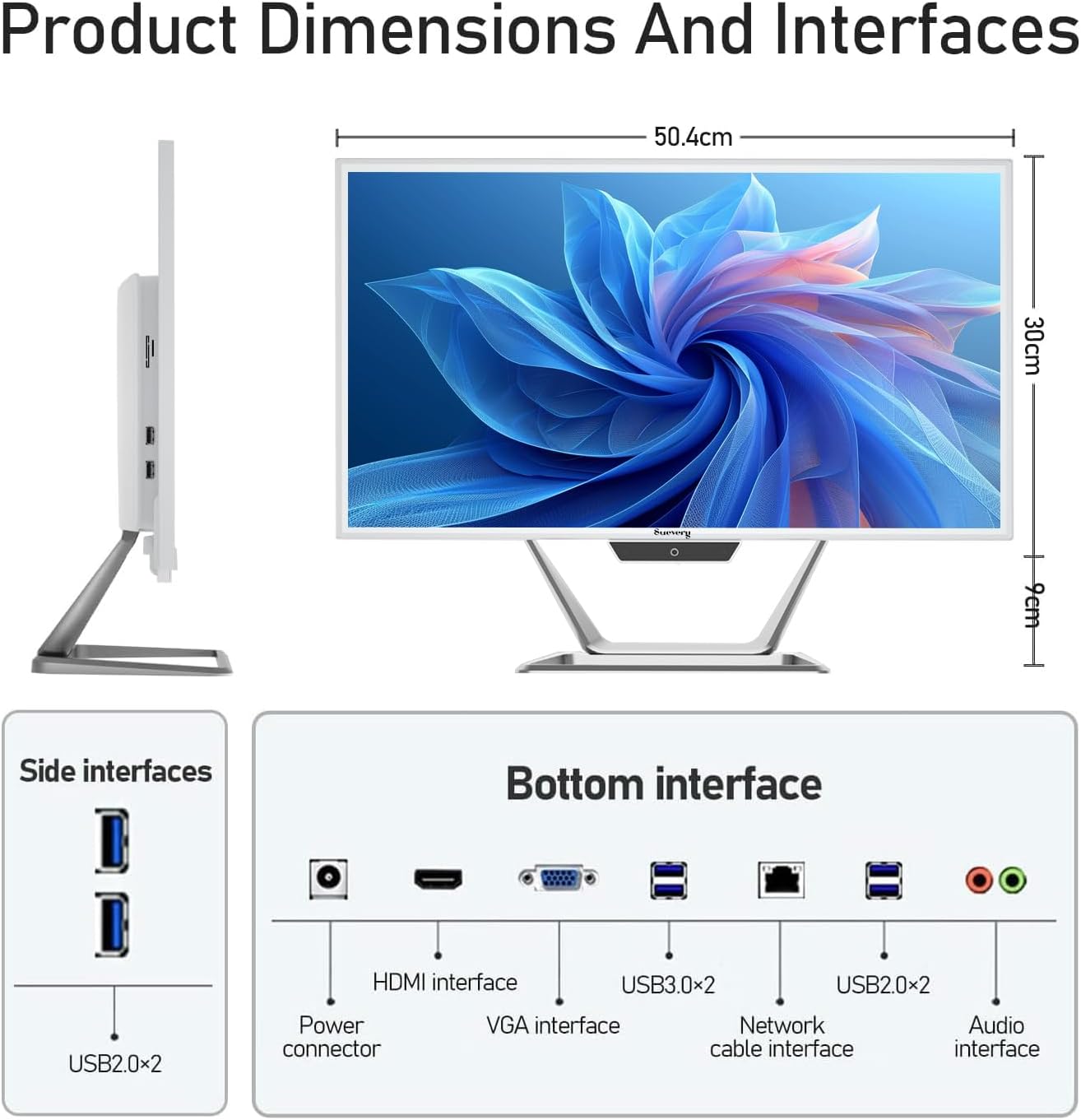
Figure 3.3: Product dimensions and interface layout. Includes USB 2.0, USB 3.0, HDMI, VGA, Network, Audio, and Power ports.
- Кубат туташтыргычы: Кубат адаптерин туташтыруу үчүн.
- HDMI интерфейси: Тышкы дисплейлерге туташуу үчүн.
- VGA Interface: Эски тышкы дисплейлерге туташуу үчүн.
- USB 3.0 x 2: High-speed data transfer ports.
- USB 2.0 x 4: Standard data transfer ports (2 on side, 2 on bottom).
- Network Cable Interface: Зымдуу Ethernet туташуусу үчүн.
- Аудио интерфейси: Тышкы кулакчындарды же динамиктерди туташтыруу үчүн.
4. Орнотуу колдонмосу
Follow these steps to set up your suevery All-in-One PC.
- Компьютерди таңгактан чыгарыңыз: Carefully remove the All-in-One PC and all accessories from the packaging. Place the PC on a stable, flat surface.
- Баскычтоп менен чычканды туташтыруу: Connect the included keyboard and mouse to the available USB ports on the back or side of the PC.
- Туташуу кубаты: Connect the power adapter to the power connector on the PC, then plug the power cord into a wall outlet.
- Күйгүзүү: Press the power button, usually located on the bottom bezel or side of the display. The PC will boot up.
- Initial Operating System Setup: Your PC comes with DOS pre-installed. You will need to install your preferred operating system (e.g., Windows, Linux) following its specific installation instructions. This typically involves booting from a USB drive or DVD.
- Тармакка туташуу: Once the OS is installed, connect to your network via Wi-Fi 6 or an Ethernet cable.
5. Иштөө нускамалары
5.1 Негизги операция
- Күйгүзүү/өчүрүү: Press the power button to turn the PC on. To turn off, use the operating system's shutdown function. A short press on the power button can put the PC to sleep.
- Дисплейди тууралоо: The display can be tilted from -5 to 25 degrees to achieve an optimal viewing angle. Gently adjust the top or bottom edge of the screen to tilt it.

Figure 5.1: The display supports tilt angle adjustment for ergonomic viewing.
5.2 Using Integrated Peripherals
- Webкамера: The built-in 5MP HD webcam is ready for video calls and conferences. Ensure your operating system and applications have permission to access the camera.
- Микрофон: The integrated microphone captures audio for calls and voice commands. Adjust microphone levels in your operating system's sound settings.
- Баяндамачылар: The built-in speakers provide audio output. Adjust volume using your operating system's sound controls or external keyboard media keys.
5.3 Байланыш
- Wi-Fi 6: Connect to wireless networks for internet access. Configure Wi-Fi settings through your operating system.
- Ethernet: For a stable wired connection, plug an Ethernet cable into the network port.
- USB порттору: Use the USB 2.0 and USB 3.0 ports to connect external devices such as USB drives, printers, or additional peripherals.
- HDMI/VGA: Connect an external monitor or projector using the HDMI or VGA port for extended display options.
6. Техникалык тейлөө
Proper maintenance ensures the longevity and optimal performance of your PC.
- Экранды тазалоо: Бир аз жумшак, түксүз кездемени колдонуңуз dampened with water or a screen cleaner specifically designed for electronics. Do not spray cleaner directly onto the screen.
- Шассиди тазалоо: Сырткы беттерди жумшак, кургак чүпүрөк менен сүртүңүз. Абразивдүү тазалагычтардан же эриткичтерден качыңыз.
- Вентиляция: Ensure the ventilation openings on the back and sides of the PC are not blocked to prevent overheating.
- Программалык камсыздоо жаңыртуулары: Коопсуздукту жана майнаптуулукту камсыз кылуу үчүн операциялык тутумуңузду жана драйверлериңизди үзгүлтүксүз жаңыртыңыз.
- Маалыматтын камдык көчүрмөсү: Маанилүү маалыматтардын камдык көчүрмөсүн мезгил-мезгили менен тышкы дискке же булут сактагычына сактап туруңуз.
7. Кыйынчылыктарды
Эгер көйгөйлөргө туш болсоңуз, төмөнкү жалпы көйгөйлөрдү жана аларды чечүү жолдорун караңыз.
| Көйгөй | Мүмкүн чечим |
|---|---|
| PC күйбөйт. | Check if the power adapter is securely connected to both the PC and the wall outlet. Ensure the power outlet is functional. |
| Экранда дисплей жок. | Ensure the PC is powered on. If an external monitor is connected, check its power and cable connection. Try restarting the PC. |
| Баскычтоп же чычкан жооп бербей жатат. | Check USB connections. Try plugging them into different USB ports. If wireless, ensure batteries are charged and dongle is connected. |
| No internet connection (Wi-Fi/Ethernet). | For Wi-Fi, check if Wi-Fi is enabled in your OS settings and if you're connected to the correct network. For Ethernet, ensure the cable is properly connected to both the PC and the router/modem. Restart your router/modem. |
| Webcam or microphone not working. | Check privacy settings in your operating system to ensure applications have permission to access the camera and microphone. Ensure drivers are up to date. |
8. Техникалык шарттар
Detailed technical specifications for the suevery All-in-One PC (Model: I22X W1-99).
| Өзгөчөлүк | Деталь |
|---|---|
| Бренд | сувери |
| Модель номери | I22X W1-99 |
| Операция системасы | DOS (User-installable OS) |
| CPU модели | Intel Core i5 7300U |
| CPU ылдамдыгы | 2.6 ГГц (3.5 ГГц Турбо чейин) |
| Орнотулган RAM эс тутуму | 16 ГБ DDR3 |
| RAM эс максималдуу өлчөмү | 32 ГБ |
| Эстутум сактоо сыйымдуулугу | 256 GB SSD (PCIE x 2) |
| Графикалык сопроцессор | Intel HD Graphics 620 (Интеграцияланган) |
| Screen Size | 21.5 дюйм |
| Дисплейдин максималдуу чечилиши | 1920x1080 пиксел (Толук HD) |
| Дисплей түрү | LED IPS Anti-glare |
| Байланыш технологиясы | Ethernet, Wi-Fi 6 |
| Видео чыгаруу интерфейси | Сапаттуу, VGA |
| Жалпы USB порттору | 6 (2x USB 3.0, 4x USB 2.0) |
| Камтылган медиа | Webcam (5MP), Speakers, Microphone |
| Энергияны керектөө | 90 Ватт |
| Түс | Ак |
9. Кепилдик маалыматы
The suevery All-in-One PC comes with a 1 жылдык Чектелген Кепилдик from the date of purchase. This warranty covers manufacturing defects and workmanship under normal use. It does not cover damage caused by misuse, accidents, unauthorized modifications, or external factors. Please retain your proof of purchase for warranty claims.
10. Кардарларды колдоо кызматы
For technical assistance, troubleshooting beyond this manual, or warranty inquiries, please contact suevery customer support through the retailer where you purchased the product or refer to the official suevery webбайланыш маалыматы үчүн сайт.
Please have your product model number (I22X W1-99) and proof of purchase ready when contacting support.