
1. Киришүү
Thank you for choosing the GooDee AC321 Video Projector. This manual provides essential information for setting up, operating, and maintaining your device to ensure optimal performance and longevity. Please read this manual thoroughly before using the projector.

Image: The GooDee AC321 Video Projector, a compact device with a lens on the front, resting on its adjustable stand.
2. Кутуда эмне бар
Таңгакта бардык буюмдар бар экенин текшериңиз:
- GooDee AC321 Projector
- Электр кабели
- HDMI кабели
- Алыстан башкаруу
- Колдонуучунун Колдонмосу (бул документ)

Image: A visual representation of the items included with the GooDee AC321 projector: the projector unit, remote control, power cable, lens cover, and a 90-degree HDMI cable.
3. Орнотуу
3.1 Кубат туташтыруу
- Электр шнурун проектордун электр киргизүү портуна туташтырыңыз.
- Электр шнурунун экинчи учун ылайыктуу электр розеткасына сайыңыз.
- Аппаратты күйгүзүү үчүн проектордун же пульттун кубат баскычын басыңыз.
3.2 жайгаштыруу жана жайгаштыруу
The GooDee AC321 features a flexible hovering stand, allowing for versatile placement options:
- Үстөл үстүндөгү проекция: Place the projector on a flat surface and adjust the stand to direct the image onto a wall or screen.
- Шыпка проекциясы: The projector can be tilted upwards to project onto a ceiling, ideal for comfortable viewing while lying down.
- Tripod орнотуу: Utilize the 1/4-inch screw holes at the bottom of the projector to mount it on a tripod for stable and precise positioning.

Image: The GooDee AC321 projector demonstrating its flexible stand, capable of adjusting the projection angle up to 120 degrees for various viewing positions, including ceiling projection.
3.3 Initial Power On and Focus
Upon powering on, the projector will automatically perform autofocus and keystone correction to provide a clear and rectangular image. Further adjustments can be made via the remote control.
Video: A demonstration of the GooDee Mini Projector's initial setup, showing the power-on sequence, automatic focus adjustment, and the main user interface with various streaming apps.
4. Иштөө нускамалары
4.1 Навигация жана колдонуучу интерфейси
The GooDee AC321 runs on Movin 2.0 OS, providing a smart TV experience with pre-installed streaming applications. Use the included remote control to navigate the interface:
- Багыттоочу такта: Use the arrow buttons to move between apps and menu options.
- OK баскычы: Бир нерсени тандаңыз же аракетти ырастаңыз.
- Үй баскычы: Негизги башкы экранга кайтуу.
- Артка баскычы: Мурунку экранга кайтыңыз.
- Үн баскычтары: Аудио чыгаруу деңгээлин тууралаңыз.
- Колдонмонун атайын баскычтары: Quickly access Netflix, YouTube, and Prime Video.

Image: The GooDee AC321 projector's home screen, showcasing a variety of pre-installed streaming applications like Netflix, YouTube, and Prime Video, ready for selection.
4.2 App Access and Streaming
The projector comes pre-licensed with major streaming platforms. Connect to your Wi-Fi network to access over 10,000 streaming channels and a built-in app store for additional content.
4.3 Экранды чагылдыруу
The GooDee AC321 supports various casting protocols including DLNA, AirPlay, and Miracast, allowing seamless screen mirroring from iOS, Android, and Windows devices.

Image: The GooDee AC321 projector casting content from a mobile device to a large screen, illustrating its screen mirroring capabilities across different operating systems.
5. Байланыш
Проектор бир нече туташуу параметрлерин сунуштайт:
- HDMI: Connect to computers, gaming consoles, TV boxes, or DVD players.
- USB: Play media directly from USB storage devices.
- 3.5 мм аудио уячасы: Тышкы динамиктерди же гарнитураны туташтырыңыз.
- Wi-Fi 6: For high-speed wireless internet and streaming.
- Bluetooth 5.4: For stable connection to external audio devices like speakers or headphones.
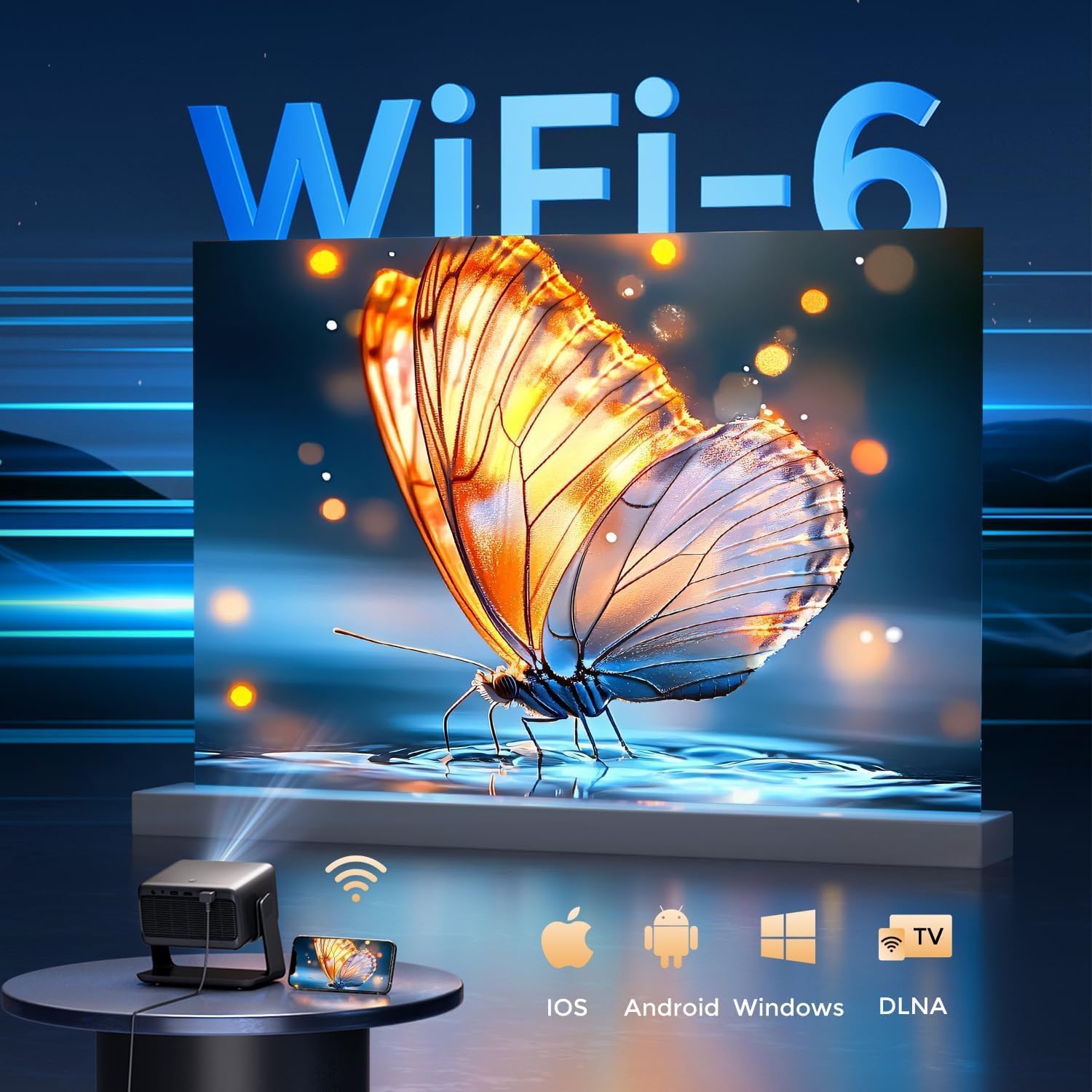
Image: The rear panel of the GooDee AC321 projector, highlighting its connectivity ports including a 3.5mm audio jack, USB port, HDMI input, and power connector.
6. Display & Audio Features
6.1 Visual Performance
Experience an immersive visual feast with the following display capabilities:
- Түпкү резолюция: 1080p (1920 x 1080) for sharp and clear images.
- 4K Video Decoding: Supports 4K video input for smooth playback of high-definition content.
- Жарыктык: 1200 ANSI lumens ensures clear picture quality even in ambient light conditions.
- AI Image Quality Optimization: Utilizes deep learning algorithms to analyze and optimize picture pixels in real-time, enhancing HDR10+ color and 25000:1 contrast ratio.
- Large Screen Zooming: Project images from 60 to 200 inches, with adjustable zoom from 50-100%.
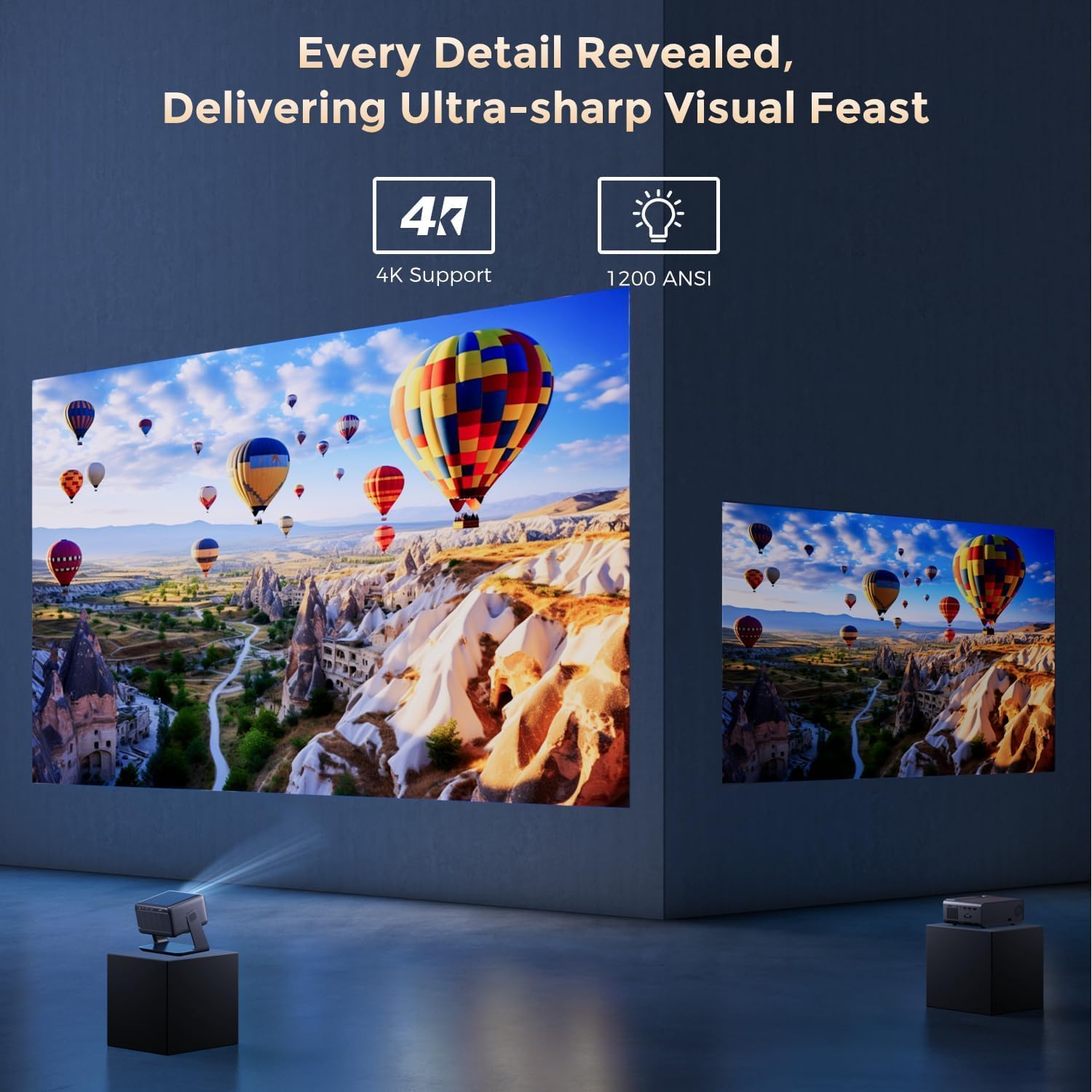
Image: The GooDee AC321 projector showcasing its visual capabilities with a bright, detailed image, emphasizing 4K support and 1200 ANSI lumens for superior clarity.
6.2 Аудио тажрыйбасы
The projector is equipped with built-in features for an immersive audio experience:
- Dolby Audio: Integrated Dolby Audio speakers provide rich and immersive sound.
- Bluetooth 5.4: Connect wirelessly to external Bluetooth speakers or soundbars for enhanced audio.
7. Өркүндөтүлгөн функциялар
The GooDee AC321 incorporates intelligent features for effortless setup and optimal viewing:
- Auto Focus: Automatically adjusts the image clarity in seconds.
- Автоматтык негизги ташты оңдоо: Intelligently corrects vertical and horizontal trapezoidal distortion, ensuring a perfectly rectangular image even from an angled projection.
- Auto Screen Alignment: Automatically fits the projected image to your screen.
- Автоунаа тоскоолдуктарынан качуу: Проекциялоо жолундагы тоскоолдуктардан качуу үчүн проекцияны аныктайт жана тууралайт.

Сүрөт: Ачык view of the GooDee AC321 projector, illustrating its AI 3D ToF Technology for automatic keystone correction, obstacle avoidance, focus, and screen fitting.
Video: A demonstration of the GooDee Mini Smart Projector's automatic keystone correction and focus features, showing how the image quickly adjusts to a perfect rectangle and sharp clarity.
8. Техникалык шарттар
| Өзгөчөлүк | Description |
|---|---|
| Модель номери | AC321 |
| Бренд | GooDee |
| Display Resolution | 1920 x 1080 (Негизги) |
| Видеону чечмелөө | 4K колдоого алынат |
| Жарыктык | 1200 ANSI челинин |
| Байланыш технологиясы | 3.5mm Jack, Bluetooth 5.4, HDMI, USB, Wi-Fi 6 |
| Өзгөчөлүктөр | Auto Focus, Auto Keystone, Auto Screen Alignment, Auto Obstacle Avoidance, Built-In Cooling System, Built-In Speaker, Smart TV OS (Movin 2.0), Dolby Audio |
| Элемент Салмагы | 4.66 фунт |
| Продукциянын өлчөмдөрү | 8.1 x 6.1 x 7.1 дюйм |
| Номиналдуу кубаттуулук | 65 Вт |
9. Техникалык тейлөө
To ensure the longevity and optimal performance of your GooDee AC321 projector, follow these maintenance guidelines:
- Линзаны тазалоо: Оптикалык линзалар үчүн атайын жасалган жумшак, түксүз кездемени колдонуңуз. Чаңды же тактарды кетирүү үчүн линзаны акырын сүртүңүз. Абразивдүү материалдарды же катуу химиялык заттарды колдонуудан алыс болуңуз.
- Cleaning the Vents: Regularly check and clean the air intake and exhaust vents to prevent dust buildup, which can hinder cooling and affect performance. Use a soft brush or compressed air.
- Сактагыч: When not in use for extended periods, store the projector in a cool, dry place, away from direct sunlight and extreme temperatures. Use the provided lens cover to protect the lens.
- Туура өчүрүү: Always power off the projector using the designated power button and allow it to complete its shutdown cycle before unplugging.
10. Кыйынчылыктарды
If you encounter any issues with your GooDee AC321 projector, refer to the following common troubleshooting steps:
- Сүрөт жок:
- Электр шнуру бекем туташтырылганын жана проектор күйүп турганын текшериңиз.
- Check the input source (HDMI, USB) and ensure it is correctly selected.
- Туташкан түзмөктүн (ноутбук, консоль) күйүп турганын жана сигнал чыгарып жатканын текшериңиз.
- Үн жок:
- Adjust the volume on both the projector and the connected source device.
- Эгер тышкы динамиктерди колдонсоңуз, алардын Bluetooth же 3.5 мм аудио уяча аркылуу туура туташканын текшериңиз.
- Check the audio output settings on the connected source device.
- бүдөмүк сүрөт:
- Allow the auto-focus function to complete its cycle.
- Проектордун линзасы таза экенин текшериңиз.
- Adjust the projector's distance from the screen/wall.
- Сүрөт бурмаланган (трапеция формасы):
- Allow the auto-keystone correction to complete.
- Manually adjust keystone settings via the remote control if needed.
- Wi-Fi/Bluetooth туташуу көйгөйлөрү:
- Проектор Wi-Fi роутериңиздин же Bluetooth түзмөгүңүздүн диапазонунда экенин текшериңиз.
- Restart the projector and your router/Bluetooth device.
- Check Wi-Fi password and network settings.
11. Кепилдик жана колдоо
The GooDee AC321 Video Projector comes with a 12 айлык кепилдик. For any product-related inquiries, technical assistance, or warranty claims, please contact GooDee customer support.
GooDee offers 24/7 Live чатты колдоо to assist you with any issues. You can also visit the official GooDee website for more information and to register your product for warranty activation.
- Webсайт: www.top-goodee.com
- Кардарларды тейлөө: Кызмат адамында көрсөтүлгөн байланыш маалыматына кайрылыңыз webсайтында же продуктунун таңгагында.