
1. Киришүү
This manual provides detailed instructions for the installation, operation, and maintenance of your darkFlash DS900 Air ATX Mid-Tower PC Gaming Case. Please read this manual thoroughly before beginning assembly to ensure proper setup and safe usage. The DS900 Air is designed to offer a clear view of your components with its 270° full-view tempered glass and provides excellent cooling capabilities for high-performance systems.

Figure 1.1: darkFlash DS900 Air ATX Mid-Tower PC Gaming Case with internal components and RGB lighting.
2. Коопсуздук маалыматы
Орнотуу жана эксплуатациялоо учурунда ар дайым төмөнкү коопсуздук чараларын сактаңыз:
- Компоненттерди орнотуудан же алып салуудан мурун электр кубатын розеткадан ажыратыңыз.
- Сезимтал компоненттердин электростатикалык разряддан (ЭСД) жабыркашын алдын алуу үчүн антистатикалык билек боону тагыныңыз.
- Handle tempered glass panels with care. Avoid impacts or dropping them, as they can shatter.
- Майда тетиктерди жана бурамаларды балдардан алыс кармаңыз.
- Ашыкча ысып кетүүнүн алдын алуу үчүн корпустун айланасында туура желдетүүнү камсыз кылыңыз.
- Do not attempt to modify the case structure, as this may void the warranty and pose safety risks.
3. Техникалык шарттар
| Өзгөчөлүк | Спецификация |
|---|---|
| Модель аты | DS900 Air |
| Иштин түрү | ATX Mid-Tower |
| Motherboard Support | ATX, Micro ATX, Mini ITX |
| GPU Length Clearance | 425 мм чейин |
| CPU муздаткычынын бийиктигинин аралыгы | 170 мм чейин |
| PSU түрү | ATX (Bottom-mounted) |
| Drive Bays | 2x 3.5" HDD or 2x 2.5" SSD, 2x 2.5" SSD |
| Кеңейтүү уячалары | 7 PCIe уячалары |
| I/O порттору | 1x USB-C, 1x USB 3.0, Audio (HD Audio) |
| Күйөрмандардын колдоосу | Bottom: 3x 120mm; Top: 3x 120mm or 2x 140mm; Rear: 1x 120mm; Right Side: 2x 120mm |
| Радиатор колдоо | Top: Up to 360mm; Side: Up to 240mm |
| Материалдар | Болот, чыңдалган айнек |
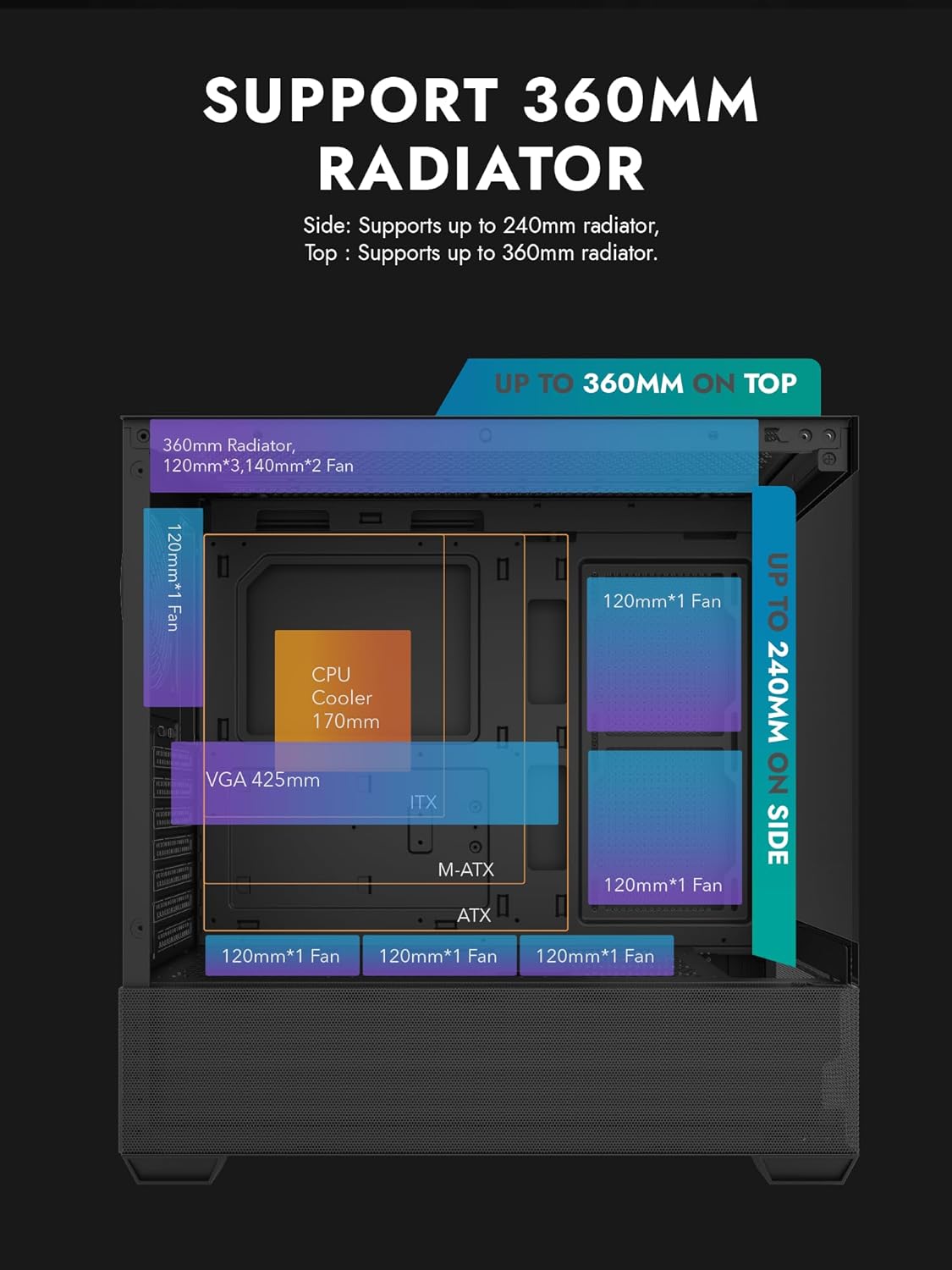
Figure 3.1: Radiator and fan support diagram for the DS900 Air case, illustrating maximum component dimensions.
4. Орнотуу жана орнотуу
Follow these steps to assemble your PC components within the darkFlash DS900 Air case.
4.1. Ишти даярдоо
- Каптал панелдерин алып салуу: The DS900 Air features a tool-free clamshell side panel. Gently pull the top edge of the tempered glass side panel to unlatch it, then lift it off. Repeat for the other side panel if necessary.
- Аксессуар кутусу: Бурамалар, кабель байлагычтар жана башка бекитүүчү жабдыктар камтылган кутучанын ичиндеги аксессуарлар кутучасын табыңыз.
4.2. Motherboard орнотуу
- Киргизүү/чыгаруу калканчын корпустун арткы тешигине орнотуңуз.
- Align your ATX, Micro-ATX, or Mini-ITX motherboard with the standoffs inside the case. Ensure the I/O ports align with the I/O shield.
- Берилген бурамалар менен энелик тактаны бекитиңиз.
4.3. Электр менен камсыздоо блогун (PSU) орнотуу
- The DS900 Air has a dedicated bottom PSU chamber. Slide your ATX power supply into the chamber from the rear of the case.
- PSUну корпустун артындагы бурамалар менен бекитиңиз.
- Route necessary power cables through the cutouts into the main compartment.
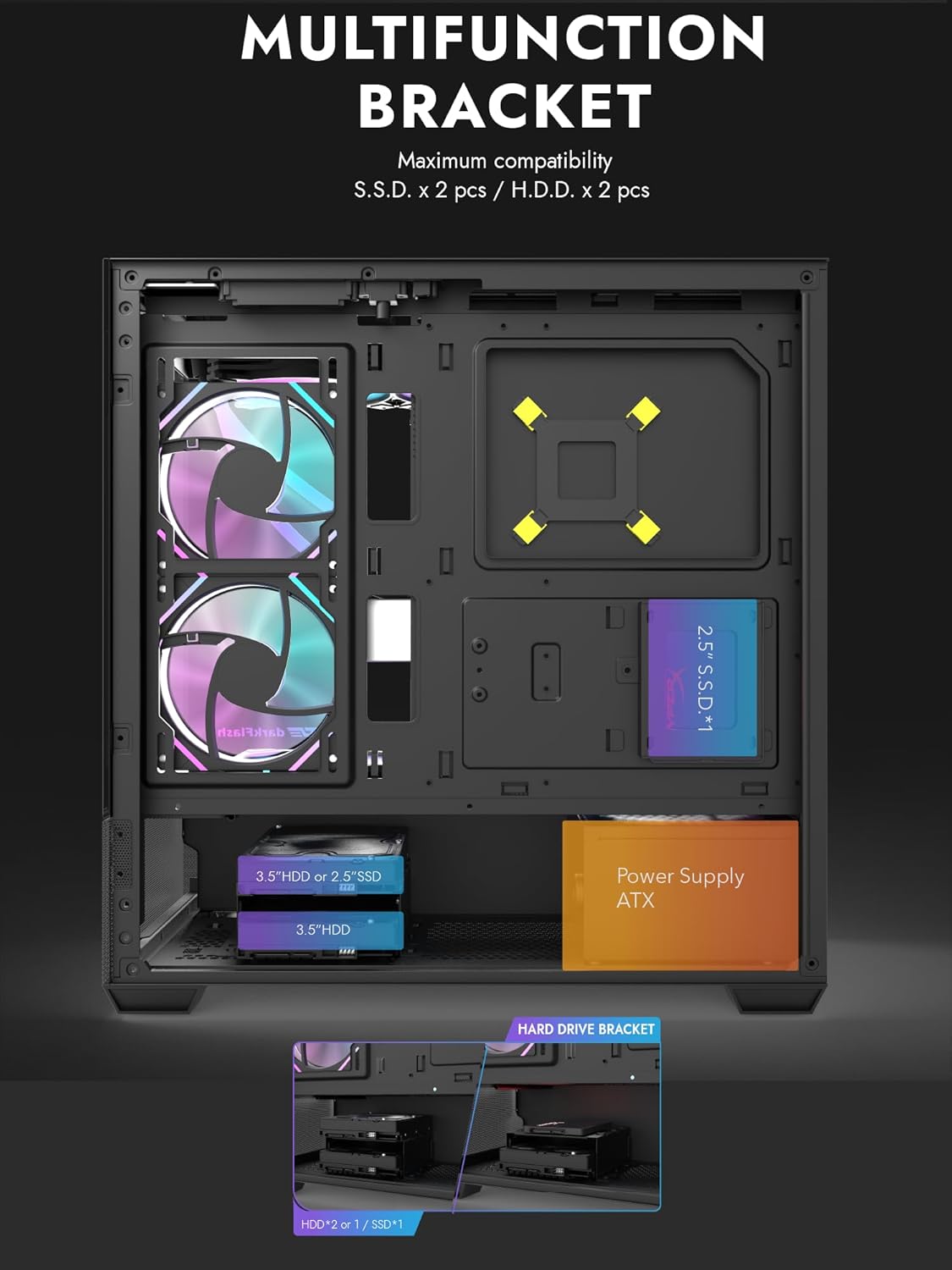
Figure 4.1: Internal layout showing the multifunction drive bracket and the bottom-mounted PSU chamber.
4.4. Сактагыч түзмөктү орнотуу
The case supports up to two 3.5" HDDs or 2.5" SSDs in the hard drive bracket, and two additional 2.5" SSDs on the multifunction bracket.
- 3.5" HDD / 2.5" SSD: Install drives into the removable hard drive bracket located in the PSU chamber. Secure with screws.
- 2.5 дюймдук SSD: Mount 2.5" SSDs onto the multifunction bracket located on the motherboard tray. Secure with screws.
4.5. Графикалык картаны (GPU) орнотуу
- Керектүү PCIe уячасынын капкактарын корпустун арткы бөлүгүнөн алып салыңыз.
- Графикалык картаңызды энелик платадагы тиешелүү PCIe уячасына салыңыз.
- Secure the graphics card with screws. The case supports GPUs up to 425mm in length.
4.6. Муздатуу системасын орнотуу (вентиляторлор/радиаторлор)
The DS900 Air offers extensive cooling options:
- Жогорку: Supports up to 3x 120mm fans or 2x 140mm fans, or a 360mm radiator.
- Төмөнкү: Supports up to 3x 120mm fans.
- Арткы: 1x 120мм желдеткичти колдойт.
- Оң жагы: Supports 2x 120mm fans or a 240mm radiator.
Install fans and radiators using the appropriate screws and mounting points. Ensure correct airflow direction for optimal cooling.

Figure 4.2: Fan support locations and quantities within the DS900 Air chassis.

Figure 4.3: Airflow diagram demonstrating optimal cooling paths through the case.
4.7. Connecting Front I/O Cables
Connect the front panel cables (USB-C, USB 3.0, HD Audio, Power, Reset, LED) to their corresponding headers on your motherboard. Refer to your motherboard manual for exact header locations.

Figure 4.4: Top-right I/O panel featuring USB-C and USB 3.0 ports.
4.8. Кабелдик башкаруу
Кабелдерди башкаруу үчүн энелик плата лотогунун артындагы кабелдерди өткөрүү кесиктерин жана байлоочу чекиттерди колдонуңуз. Бул аба агымын жана эстетиканы жакшыртат.
5. Компьютериңизди иштетүү
Once all components are installed and cables are connected, replace the side panels. Connect your monitor, keyboard, mouse, and power cable. Press the power button on the case to start your system. Ensure all fans are spinning and components are receiving power.
6. Техникалык тейлөө
Үзгүлтүксүз тейлөө сиздин PC компоненттеринин оптималдуу иштешин жана узак иштөөсүн камсыз кылууга жардам берет.
- Чаңды тазалоо: Periodically clean dust filters and internal components using compressed air. The DS900 Air features mesh panels that help filter dust.
- Аба агымы: Ensure no obstructions block the intake or exhaust vents of the case.
- Кабелдик башкаруу: Re-evaluate cable routing periodically to ensure no cables are interfering with fan blades or airflow.
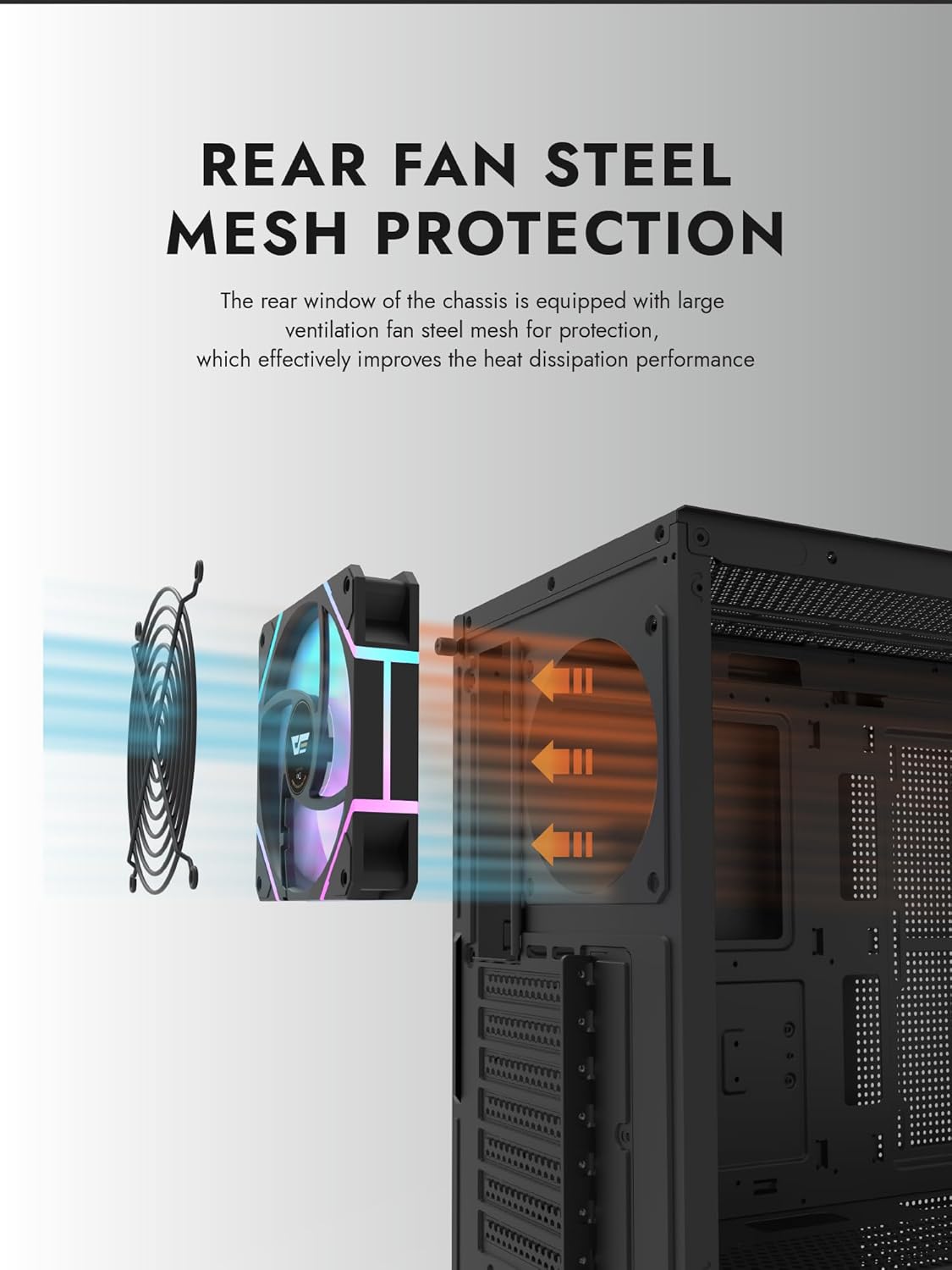
Figure 6.1: Rear fan steel mesh protection, designed to improve heat dissipation.
7. Кыйынчылыктарды
Эгерде сиз компьютериңизди түзүүдө көйгөйлөргө туш болсоңуз, төмөнкү жалпы көйгөйлөрдү чечүү кадамдарын карап көрүңүз:
- Кубат жок: Check all power connections, including the PSU to the wall, PSU to motherboard, and front panel power switch cable to the motherboard.
- Дисплей жок: Ensure your monitor is connected to the graphics card (not the motherboard I/O unless using integrated graphics). Reseat the graphics card and RAM.
- Ашыкча ысып кетүү: Verify all fans are spinning correctly and are oriented for proper airflow. Check CPU cooler installation.
- Компонент аныкталган жок: Reseat the component (e.g., RAM, GPU, storage drive) and check its power and data connections.
8. Кепилдик жана колдоо
darkFlash products are manufactured to high-quality standards. For warranty information or technical support, please refer to the official darkFlash webсайтка же сатуучуга кайрылыңыз. Кепилдик дооматтар үчүн сатып алганыңыздын далилин сактаңыз.