
1. Киришүү
This manual provides detailed instructions for the setup, operation, maintenance, and troubleshooting of your GMKtec Nucbox G10 Mini PC. The Nucbox G10 is a compact and powerful desktop computer designed for various applications, from office tasks to multimedia entertainment, featuring an AMD Ryzen 5 3500U processor, 16GB DDR4 RAM, and a 1TB NVMe SSD.
2. Пакеттин мазмуну
Төмөндө тизмеленген нерселердин баары пакетиңизде бар экенин текшериңиз:
- GMKtec Nucbox G10 AMD Ryzen 5 3500U Mini PC Computer
- Power Supply & Cable
- HDMI кабели
- VESA Mount and Screws
- Колдонуучунун Колдонмосу (бул документ)

Image: Retail Boxed Packaging. This image displays the GMKtec Nucbox G10 Mini PC, power supply, HDMI cable, VESA mount, screws, and user manual, illustrating the complete contents of the product package.
3. Продукт бүтүп калдыview
3.1 Негизги өзгөчөлүктөрү
- Процессор: AMD Ryzen 5 3500U (4 Cores, 8 Threads, up to 3.70GHz Turbo Boost)
- Графика: Integrated AMD Radeon Vega 8 Graphics (1200 MHz)
- Эстутум: 16GB Dual Channel DDR4 RAM (expandable up to 64GB)
- Сактагыч: 1TB M.2 2280 NVMe SSD (expandable up to 16TB via dual M.2 2280 PCIe 3.0 slots)
- Тармак: 2.5GbE Ethernet, WiFi 5, Bluetooth 5.0
- Дисплей чыгаруу: Triple 4K display support via HDMI 2.1, DisplayPort 1.4, and Full Function USB-C
- Муздатуу: Silent Turbo Cooling Fan system

Image: Nucbox G10 Feature Overview. This image provides a visual summary of the mini PC's core components including the AMD Ryzen 5 3500U CPU, Radeon Vega 8 Graphics, DDR4 RAM, M.2 SSD, 2.5GbE LAN, WiFi 5, Bluetooth 5.0, triple display support, and cooling system.
3.2 Порттор жана туташтыргычтар
The Nucbox G10 features a comprehensive set of ports for connectivity:
- Алдыңкы: 1x CTIA Audio Jack, 2x USB 3.2 (5Gbps), 1x Power Button
- Арткы: 1x Type-C (PD Only), 1x USB 2.0, 1x 2.5G Giga LAN, 1x HDMI 2.1 (4K@60Hz), 1x DP 1.4 (4K@60Hz), 1x Full Function USB-C (PD/DP/Data), 1x Kensington Lock slot

Image: Front Panel Ports. This image shows the front of the Nucbox G10, highlighting the power button, two USB 3.2 ports, and the CTIA audio jack.

Image: Rear Panel Ports. This image illustrates the rear of the Nucbox G10, detailing the USB-C (PD Only), USB 2.0, 2.5G LAN, HDMI 2.1, DisplayPort 1.4, Full Function USB-C, and Kensington Lock slot.
4. Орнотуу колдонмосу
4.1 Перифериялык түзүлүштөрдү туташтыруу
- Монитор: Connect your monitor(s) to the Mini PC using the HDMI, DisplayPort, or USB-C ports. The Nucbox G10 supports up to three 4K displays simultaneously.
- Баскычтоп жана чычкан: USB клавиатураңызды жана чычканыңызды жеткиликтүү USB портторуна туташтырыңыз.
- Тармак: For a wired connection, connect an Ethernet cable from your router/modem to the 2.5GbE LAN port. For wireless, ensure your WiFi network is available.
- Аудио: Connect speakers or headphones to the 3.5mm audio jack on the front panel if needed.
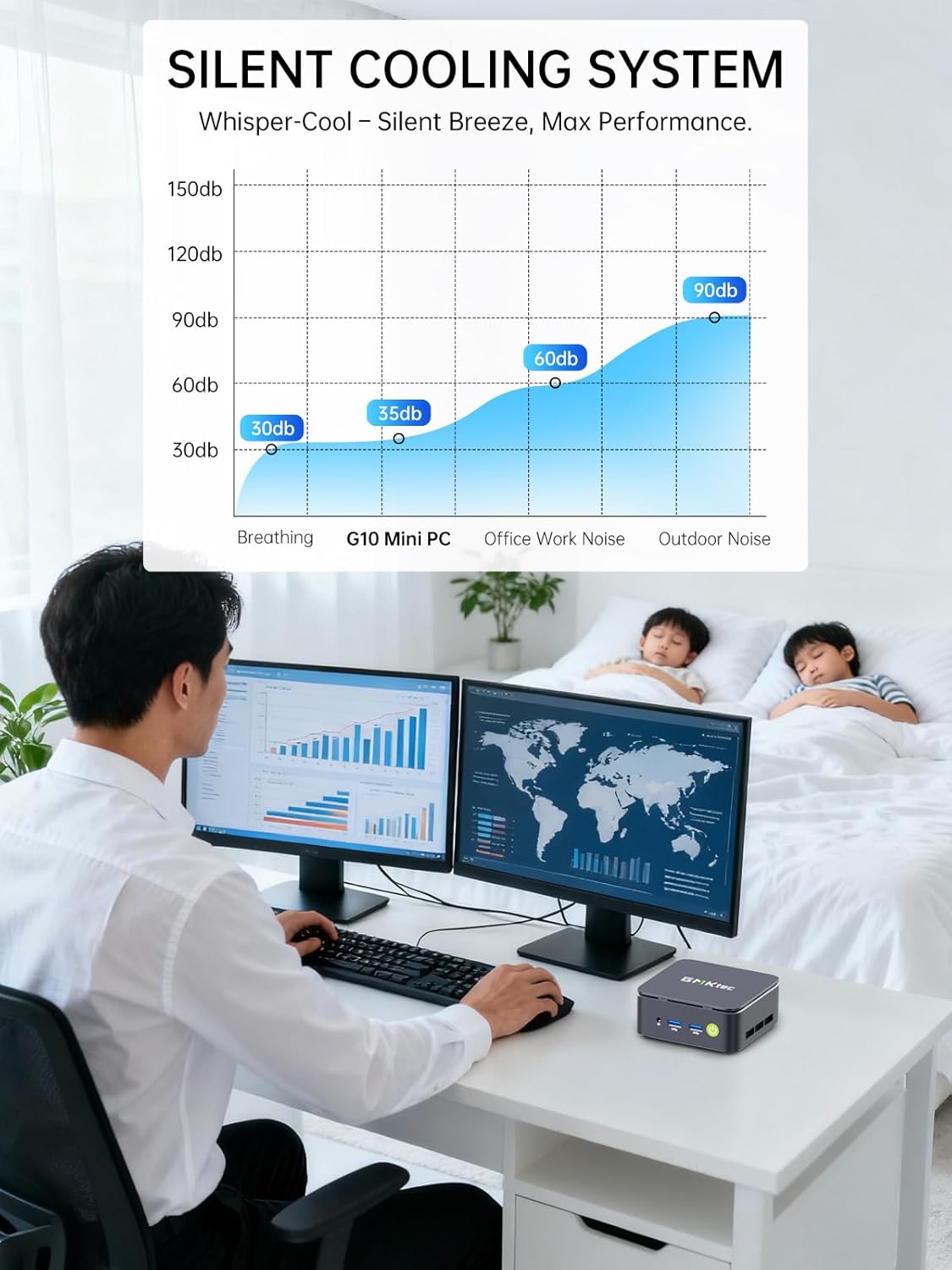
Image: Triple Display Setup. This image demonstrates the Nucbox G10 connected to two vertical monitors and a tablet, showcasing its triple display capability for enhanced productivity.
4.2 Кубат туташтыруу
Connect the provided power adapter to the DC-in port on the Mini PC, then plug the power cable into a wall outlet. The Mini PC is designed for low power consumption.
4.3 Баштапкы жүктөө
Press the power button on the front panel. The Mini PC will boot into the pre-installed Windows 11 Pro operating system. Follow the on-screen instructions for initial Windows setup.
5. Иштөө нускамалары
5.1 Күйгүзүү/өчүрүү
- Күйгүзүү: Кубат баскычын бир жолу басыңыз.
- Өчүрүү: From Windows, go to Start > Power > Shut down. Alternatively, press and hold the power button for 5 seconds to force a shutdown (use only when necessary).
5.2 Операциондук система
Your Nucbox G10 comes with Windows 11 Pro pre-installed. Ensure you keep your operating system updated for optimal performance and security.
5.3 Тармакка туташуу
- Зымдуу (Ethernet): Once the Ethernet cable is connected, the system should automatically detect the network.
- Зымсыз (Wi-Fi): In Windows, click the Wi-Fi icon in the taskbar, select your network, enter the password, and connect.
- Bluetooth: Bluetooth түзмөктөрүн туташтыруу үчүн, Windows Орнотуулары > Bluetooth жана түзмөктөр бөлүмүнө өтүп, түзмөгүңүздү жупташтырыңыз.
6. Техникалык тейлөө
6.1 Тазалоо
Regularly clean the exterior of the Mini PC with a soft, dry cloth. Ensure ventilation openings are free from dust to maintain optimal cooling performance. Do not use liquid cleaners directly on the device.

Image: Ultra Efficient Cooling System. This image provides an internal view of the Nucbox G10, highlighting the silent turbo cooling fan designed for efficient heat dissipation.
6.2 Программалык камсыздоо жаңыртуулары
Keep your Windows operating system and drivers updated to ensure system stability, security, and performance. Windows Update can be accessed via Settings > Windows Update.
6.3 Сактоо жана эс тутумду кеңейтүү
The Nucbox G10 supports memory expansion up to 64GB DDR4 RAM and storage expansion up to 16TB via its dual M.2 2280 PCIe 3.0 slots. Consult a qualified technician for hardware upgrades to avoid voiding your warranty or damaging the device.
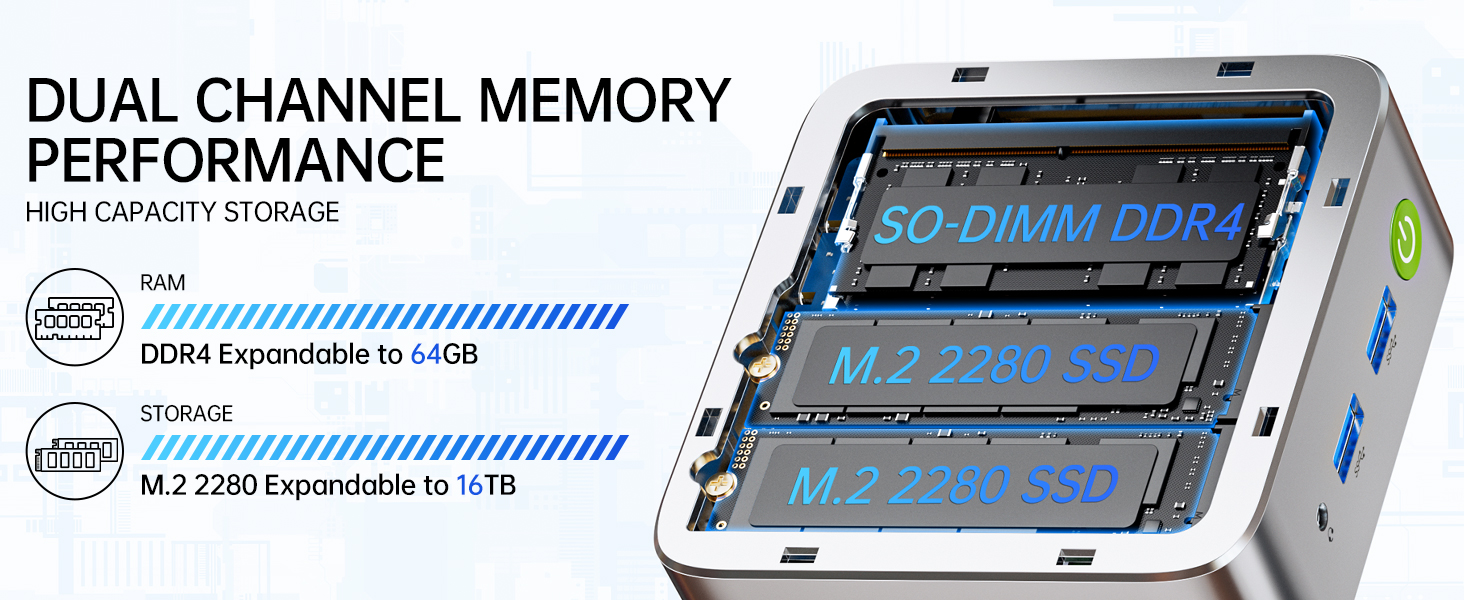
Image: Dual Channel Memory Performance and High Capacity Storage. This diagram illustrates the internal layout for SO-DIMM DDR4 RAM and M.2 2280 SSDs, indicating their expandability.
7. Кыйынчылыктарды
If you encounter issues with your Mini PC, refer to the following common problems and solutions:
- Кубат жок:
- Кубат адаптери Мини компьютерге жана иштеген электр розеткасына бекем туташып турганын текшериңиз.
- Башка аспапка сайып, розетка иштеп жатканын текшериңиз.
- Дисплей жок:
- Check that the HDMI, DisplayPort, or USB-C cable is firmly connected to both the Mini PC and the monitor.
- Монитордун күйгүзүлгөнүн жана туура киргизүү булагына коюлганын текшериңиз.
- Башка дисплейге туташып көрүңүз же башка кабелди колдонуңуз.
- Тармакка туташуу маселелери:
- текст: Ethernet кабелинин туташуусун текшериңиз. Роутериңизди/модемиңизди өчүрүп-күйгүзүңүз.
- Зымсыз: Ensure Wi-Fi is enabled in Windows settings. Verify your Wi-Fi password. Restart your router.
- Жай аткаруу:
- Фондо иштеп жаткан керексиз тиркемелерди жабыңыз.
- Ensure the system has adequate ventilation and is not overheating.
- Күтүүдөгү Windows жаңыртууларын же драйвер жаңыртууларын текшериңиз жана орнотуңуз.
- Сактоо ордун бошотуу үчүн дискти тазалоону иштетиңиз.
8. Техникалык шарттар
| Өзгөчөлүк | Спецификация |
|---|---|
| Бренд | GMKtec |
| Модель аты | G10 |
| Операция системасы | Windows 11 Pro |
| CPU модели | AMD Ryzen 5 3500U |
| CPU ылдамдыгы | 3.7 GHz (Boost) |
| Процессордун саны | 4 |
| Графикалык сопроцессор | AMD Radeon Vega 8 Graphics 1200 MHz |
| Орнотулган RAM эс тутуму | 16 ГБ DDR4 |
| RAM эс максималдуу өлчөмү | 64 ГБ |
| Memory Speed | 2400 MT/s |
| Эстутум сактоо сыйымдуулугу | 1 ТБ NVMe SSD |
| Hard Disk Description | Dual Slot M.2 2280 PCIE Max. 16TB |
| Байланыш технологиясы | HDMI 2.1, RJ45 2.5GbE LAN, USB 3.2, USB-C (DP/DATA/PD), WIFI5/ BT 5.0 |
| Зымсыз шайкештик | 802.11a/b/g/n/ac (WiFi 5), Bluetooth 5.0 |
| Video Output | HDMI 2.1, DisplayPort, Type-C (Triple Display) |
| Дисплейдин максималдуу чечилиши | 4096 × 2160 Pixels (4K) |
| Жалпы USB порттору | 4 (2x USB 3.2, 1x USB 2.0, 1x USB-C Full Function) |
| Энергияны керектөө | 25 Watts (Typical) |
| Элементтин өлчөмдөрү | 4.1 x 3.8 x 1.7 дюйм |
| Элемент Салмагы | 0.95 килограмм |
| Муздатуу ыкмасы | Dual Cooling Fan |
| Кошумча функциялар | RTC Wake, Auto Power On, Wake On LAN, PXE Boot |
9. Кепилдик жана колдоо
9.1 Кепилдик маалыматы
GMKtec offers a 1 жылдык чектелген кепилдик for each Mini PC, starting from the date of purchase. This warranty covers defects due to design and workmanship. Please retain your proof of purchase for warranty claims.
9.2 Кардарларды колдоо
For technical assistance, warranty claims, or any questions regarding your GMKtec Nucbox G10 Mini PC, please contact GMKtec customer support. You can typically find contact information on the official GMKtec website or through the seller's contact page where you purchased the product (e.g., GMKtec-Direct on Amazon).


