
1. Киришүү
This manual provides comprehensive instructions for the iVANKY 80Gbps 16K DisplayPort 2.1 Cable. This cable is engineered to facilitate high-bandwidth video and audio transmission between DisplayPort-enabled devices, supporting advanced resolutions and refresh rates for an optimal visual and auditory experience.

Image: iVANKY 80Gbps 16K DisplayPort 2.1 Cable, showcasing its ability to deliver ultra-high precision visuals for future display possibilities.
2. Негизги өзгөчөлүктөрү
- VESA Certified 80Gbps Bandwidth: This iVANKY 16K DisplayPort 2.1 cable is VESA certified, ensuring maximum performance for next-generation displays. It supports an ultra-high bandwidth of 80Gbps, enabling resolutions up to 16K@60Hz, 8K@120Hz, 4K@240Hz, and 2K@360Hz. It is backward compatible with DisplayPort 2.0, 1.4, and 1.2, and supports uncompressed 7.1/5.1/2.0 channel audio passthrough.
- Advanced Gaming Performance: This 16K DisplayPort cable supports VRR (Variable Refresh Rate), ALLM (Auto Low Latency Mode), and Adaptive-Sync, minimizing latency and eliminating screen tearing for smooth gameplay. It is compatible with G-Sync and FreeSync technologies and supports Dynamic HDR for vivid contrast and vibrant graphics.
- Туруктуу курулуш: The cable features tinned copper conductors and multi-layer shielding to effectively block electromagnetic interference, ensuring stable signal transmission over long periods. Its nylon braided exterior offers 10 times greater durability than PVC, and 24K gold-plated connectors prevent corrosion, guaranteeing a secure connection.
- Кеңири шайкештик: This monitor cable connects seamlessly with DisplayPort-enabled monitors, GPUs (e.g., RTX 5090, AMD RX 7900XTX high-end models), and laptops (including gaming displays from Alienware, BenQ, Odyssey series). It supports MST (Multi-Stream Transport), enabling multi-monitor workflows and enhanced productivity.

Image: DisplayPort 2.1 bandwidth performance is three times higher than previous versions, reaching 80Gbps.
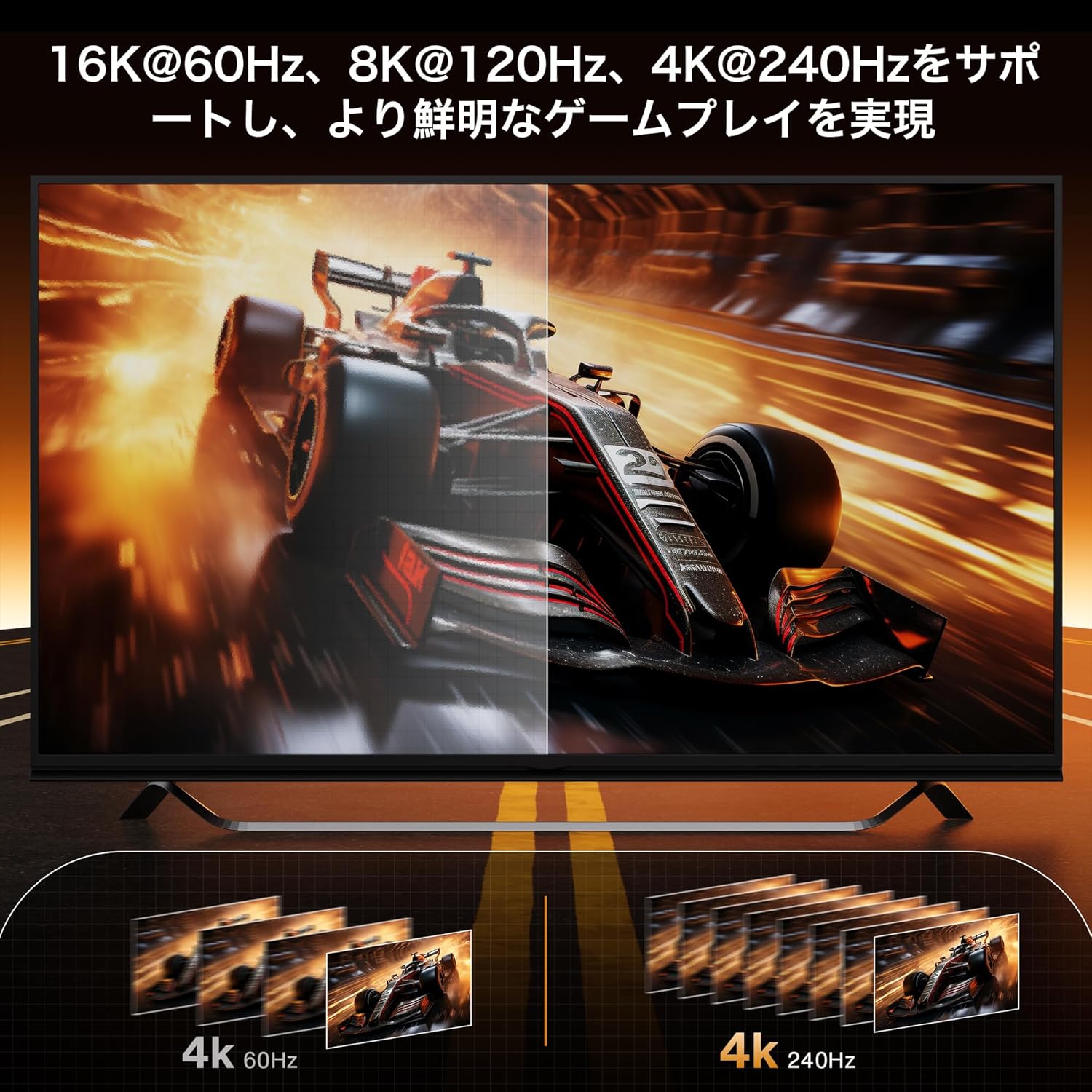
Image: The cable supports 16K@60Hz, 8K@120Hz, and 4K@240Hz, enabling clearer gameplay.

Image: High-quality construction details including aluminum alloy casing, durable nylon braiding, and gold-plated connectors.
3. Орнотуу нускамалары
- Портторду аныктоо: Locate the DisplayPort output on your source device (e.g., computer, graphics card) and the DisplayPort input on your display device (e.g., monitor, TV).
- Кабелди туташтыруу: Insert one end of the iVANKY DisplayPort 2.1 cable into the DisplayPort output of your source device.
- Коопсуз туташуу: Insert the other end of the cable into the DisplayPort input of your display device. Ensure both connectors are fully seated and secure. The DisplayPort connectors typically have a latching mechanism; press the release button on the connector before unplugging.
- Күйгүзүү: Power on both your source device and your display device.
- Киргизүүнү тандоо: Your display should automatically detect the signal. If not, use your display's on-screen menu to manually select the correct DisplayPort input.
4. Иштөө нускамалары
- Негизги операция: Once connected, the cable will transmit video and audio signals between your devices. No additional software or drivers are typically required for basic functionality.
- Дисплей орнотууларын тууралоо: To utilize the cable's full capabilities (e.g., 16K@60Hz, 8K@120Hz, 4K@240Hz, HDR, G-Sync/FreeSync), adjust the resolution, refresh rate, and other display settings through your operating system's display settings or your graphics card's control panel.
- Multi-Monitor Setup (MST): For connecting multiple monitors to a single DisplayPort output (if supported by your graphics card and monitors), configure the display modes (Extended, Mirrored, or Multi-Stream Transport) via your operating system's display settings.

Image: The cable supports various display configurations including Extended Mode, Mirror Mode, and Multi-screen Composite Mode for enhanced productivity and immersive experiences.
5. Техникалык тейлөө
- Сактагыч: Store the cable in a cool, dry place away from direct sunlight and extreme temperatures when not in use.
- Колдонуу: Avoid sharp bends, kinks, or excessive pulling on the cable to prevent internal wire damage. Always grasp the connector housing when plugging or unplugging the cable.
- Тазалоо: Periodically clean the connectors with a dry, lint-free cloth to remove dust or debris that could interfere with signal transmission. Do not use liquid cleaners directly on the connectors.
6. Кыйынчылыктарды
- Сигнал жок / Кара экран:
- Ensure both ends of the DisplayPort cable are securely connected to the source and display devices.
- Verify that the correct input source (DisplayPort) is selected on your monitor or TV.
- Test the cable with another DisplayPort-enabled device or try a different DisplayPort cable to isolate the issue.
- Графикалык карта драйверлерин эң акыркы версияга жаңыртыңыз.
- Flickering / Intermittent Signal:
- Check the cable and connectors for any visible physical damage.
- Reduce the display resolution or refresh rate in your operating system settings to see if the issue resolves.
- Ensure your graphics card and monitor fully support the selected resolution and refresh rate.
- Route the DisplayPort cable away from power cables or other electronic devices that might cause electromagnetic interference.
- Аудио жок:
- Confirm that DisplayPort audio is enabled in your operating system's sound settings.
- Ensure your display device has built-in speakers or is connected to external audio output devices.
- Check the audio output settings on your source device to ensure DisplayPort is selected as the output.
7. Техникалык шарттар
| Өзгөчөлүк | Description |
|---|---|
| Бренд | iVANKY |
| Модель номери | VBC94 |
| Туташтыргыч түрү | DisplayPort Male to Male |
| Кабелдин узундугу | 2 Meters (2M) |
| DisplayPort версиясы | 2.1 (Backward compatible with 2.0, 1.4, 1.2) |
| өткөрүү жөндөмдүүлүгү | 80Gbps |
| Колдоого алынган токтомдор | 16K@60Hz, 8K@120Hz, 4K@240Hz, 2K@360Hz |
| Аудио колдоо | Uncompressed 7.1/5.1/2.0 Channel Audio Passthrough |
| Advanced Features | VESA Certified, DSC1.2a, HBR20, FreeSync, G-Sync, Dynamic HDR, VRR, ALLM, Adaptive-Sync, MST (Multi-Stream Transport) |
| Кабель материалы | Nylon braided jacket, Tinned copper conductors, Multi-layer shielding |
| Туташтыргыч материал | 24K Gold-plated, Aluminum alloy case |
| Шайкеш түзмөктөр | DisplayPort-enabled devices including Monitors, GPUs, Laptops, TVs, Projectors |

Image: Detailed specifications for the iVANKY DisplayPort 2.1 cable, highlighting its capabilities and compatibility.
8. Кепилдик жана колдоо
iVANKY is committed to providing high-quality hardware and excellent customer support. Each iVANKY DisplayPort cable undergoes rigorous testing to meet the highest quality standards.
- Кардарларды колдоо: A friendly support team is available to assist you within 24 hours.
- Техникалык колдоо: Professional technical support is provided to all customers.
- Кепилдик: Under certain conditions, customers can benefit from a customer support period of up to 54 months. Please refer to iVANKY's official website or product packaging for specific warranty terms and conditions.