
1. Продукт бүтүп калдыview
The Teamgee KX2 is a 14-inch ultra-light portable screen extender designed to enhance your productivity by providing an additional display for your laptop. Its plug-and-play functionality ensures easy setup without the need for drivers or docking stations. Featuring a 14-inch Full HD (1920x1080) IPS anti-glare panel with 1000:1 contrast and 100% sRGB, it delivers clear and vibrant visuals while reducing eye strain during prolonged use. The device is compatible with laptops ranging from 13 to 17 inches and supports various operating systems including macOS (M1/2/3/4/Pro/Max), Windows, Linux, Chrome, as well as smartphones and gaming consoles.
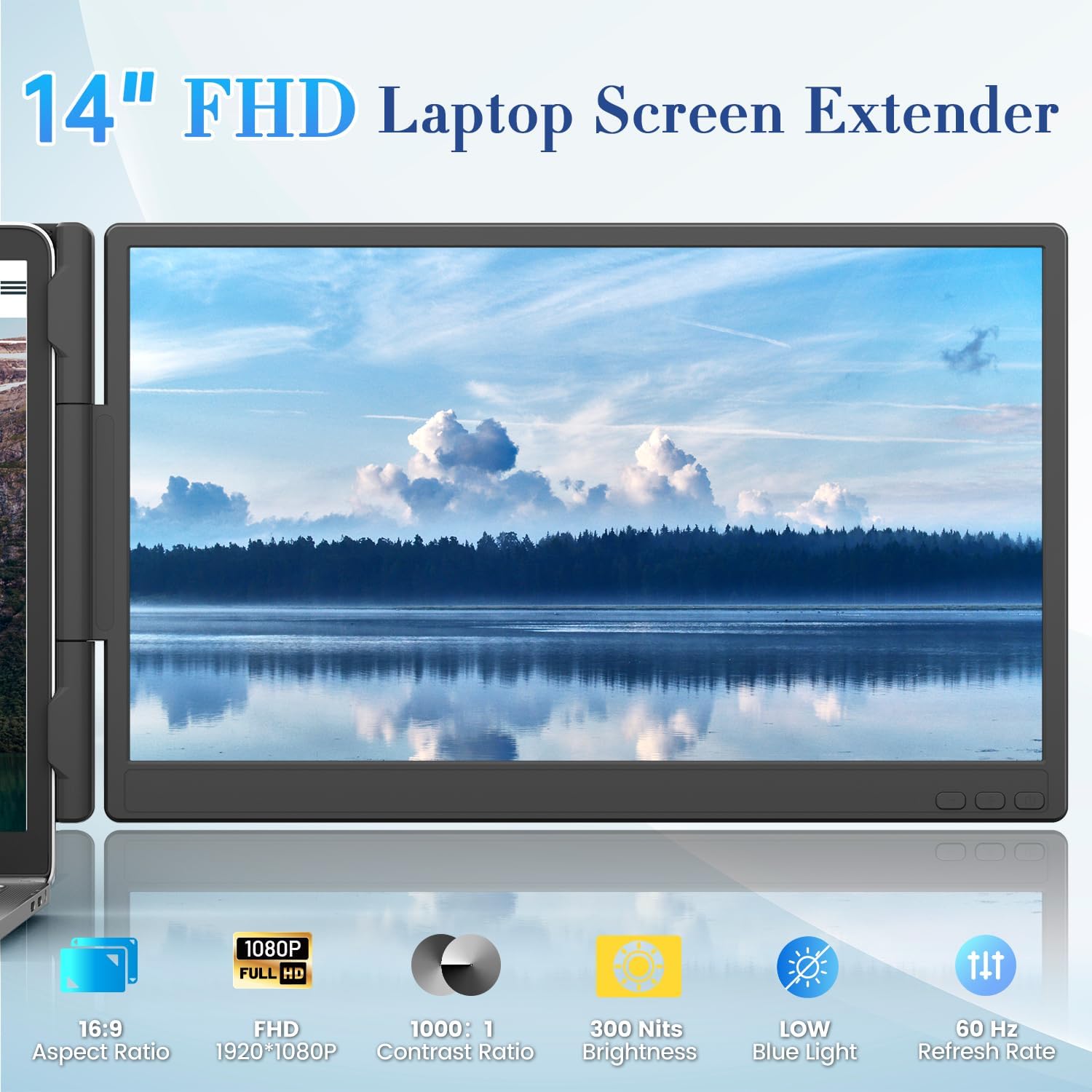
Image 1.1: Teamgee 14-inch Portable Screen Extender KX2, showcasing its sleek design and display quality.
The KX2 is engineered for portability, weighing only 1.94 lbs (0.89 kg) and measuring 0.39 inches (8mm) thick, making it ideal for travel and mobile work. It includes a complete set of USB-C, USB-A, and HDMI cables for direct connection, eliminating the need for additional adapters.

Image 1.2: The ultra-slim profile of the Teamgee KX2, highlighting its portability.
2. Пакеттин мазмуну
Пакетиңизде бардык буюмдар бар экенин текшериңиз:
- Teamgee 14-inch Portable Screen Extender (Model KX2)
- USB-C - USB-C кабели
- USB-A - USB-C кабели
- Mini HDMI - HDMI кабели
- User Manual
3. Орнотуу жана туташуу
3.1 Attaching the Screen Extender to Your Laptop
The Teamgee KX2 is designed for laptops between 13 and 17 inches. It features an upgraded spring hinge and non-slip clamps for secure attachment.
- Gently pull the sliding arms/double top hooks to extend them.
- Position the extender on top of your laptop screen, ensuring the non-slip clamps securely grip the top edge of your laptop display.
- Adjust the integrated kickstand at the back to provide stable support and balance the weight of the extender. The kickstand is adjustable up to 90 degrees.

Image 3.1: The Teamgee KX2 securely attached to a laptop, demonstrating its fit for 13-17 inch models.

Image 3.2: Close-up of the adjustable kickstand and non-slip top clamps for secure mounting.
3.2 Түзмөгүңүзгө туташуу
The Teamgee KX2 offers flexible connection options:
Option 1: Full-Functioned USB-C Connection (Single Cable)
If your laptop has a full-functioned USB-C port (supporting power, data, and video transfer), you can connect the extender using a single USB-C to USB-C cable. This cable will provide both power and video signal.

Image 3.3: Connection diagram for a single full-functioned USB-C cable.
Option 2: USB-A + HDMI Connection (Two Cables)
If your laptop does not have a full-functioned USB-C port, you will need two cables: one USB-A to USB-C cable for power and one Mini HDMI to HDMI cable for the video signal. Connect the USB-A cable first, then the HDMI cable.

Image 3.4: Connection diagram for USB-A (power) and HDMI (video) cables.
3.3 Identifying Full-Featured USB-C Ports
To utilize the single-cable USB-C connection, your laptop's USB-C port must support data, video (DisplayPort Alt Mode), and power delivery. Refer to your laptop's manual or the port icons to confirm compatibility:
- Full-featured USB-C: Often indicated by a Thunderbolt symbol (lightning bolt), a 'D' for DisplayPort, or a combination of data transfer and video icons.
- Not full-featured USB-C: May only support data transfer (USB symbol) or charging (battery symbol). These ports will require the USB-A + HDMI connection.

Image 3.5: Visual guide for distinguishing full-featured USB-C ports from limited functionality ports.
4. Иштөө нускамалары
4.1 Экран режимдери
Once connected, your operating system should automatically detect the external display. You can configure the display mode through your system settings:
- Узартуу режими: Expands your desktop across both screens, allowing for increased workspace.
- MirrorMode: Duplicates your primary display onto the extender, showing the same content on both screens.
- Портрет режими: The extender can be rotated and used in a vertical orientation for tasks like coding or document viewing. Adjust this in your operating system's display settings.

Сүрөт 4.1: Мисamples of Mirror, Extend, and Portrait display modes for versatile usage.
4.2 Башкаруу элементтери жана интерфейс
The Teamgee KX2 features intuitive controls and ports for easy management:
- Меню/кубат баскычы: Press and hold to power on/off. Short press to access the On-Screen Display (OSD) menu.
- Плюс баскычы (+): Navigate up in the OSD menu or increase values.
- Минус баскычы (-): Navigate down in the OSD menu or decrease values.
- Type-C1 Port: Multi-function USB-C port for power and video.
- Мини HDMI порту: Video input port.
- Type-C2 Port: Multi-function USB-C port for power and video.
- Баяндамачы: Интеграцияланган аудио чыгаруу.

Сүрөт 4.2: Детальдуу view of the user-friendly design, highlighting control buttons and connectivity ports.
4.3 Дисплей орнотууларын тууралоо
Use the Menu/Power, Plus, and Minus buttons to navigate the On-Screen Display (OSD) menu. Here you can adjust settings such as:
- Жарыктык жана контраст
- Түс температурасы
- Аспект катышы
- Көлөм
- Киргизүү булагын тандоо
5. Техникалык тейлөө
Proper care and maintenance will ensure the longevity of your Teamgee KX2 portable screen extender.
- Тазалоо: Экранды тазалоо үчүн жумшак, мамыксыз чүпүрөктү колдонуңуз. Өжөр тактар үчүн, бир аз сүртүңүзampчүпүрөктү суу же экранга коопсуз тазалоо эритмеси менен жабыңыз. Катуу химиялык заттардан же абразивдүү материалдардан алыс болуңуз.
- Сактагыч: When not in use, fold the extender carefully to protect the screen. Store it in a cool, dry place away from direct sunlight and extreme temperatures.
- Колдонуу: Avoid applying excessive pressure to the screen or hinges. Do not drop the device.
6. Кыйынчылыктарды
If you encounter issues with your Teamgee KX2, please refer to the following common solutions:
- Сигнал жок / Кара экран:
- Ensure all cables (USB-C or USB-A + HDMI) are securely connected to both the extender and your laptop.
- Verify that your laptop's USB-C port is full-featured if using a single USB-C cable (refer to Section 3.3).
- Try connecting the extender to a different port on your laptop or a different device to rule out port issues.
- Check your laptop's display settings to ensure the external display is detected and configured correctly (e.g., Extend or Mirror mode).
- Screen Flickering or Unstable Display:
- Ensure the power supply is stable. If using USB-A + HDMI, ensure the USB-A cable is providing sufficient power.
- Try a different cable to rule out a faulty cable.
- Reduce the refresh rate or resolution in your laptop's display settings if the issue persists.
- Not Compatible with Laptop Size (13-17 inches):
- The extender is designed for laptops with screen diagonals between 13 and 17 inches. Ensure your laptop falls within this range.
- Verify that the non-slip clamps are properly adjusted and secured to your laptop's screen bezel.
- Power Issues (Extender not turning on):
- Ensure the power cable (USB-C or USB-A) is correctly connected and receiving power from your laptop or an external power source (if applicable).
- Press the Menu/Power button to ensure the extender is turned on.
7. Техникалык шарттар
| Параметр | Нарк |
|---|---|
| Өндүрүүчү | Teamgee |
| Элемент моделинин номери | KX2 |
| Келип чыккан өлкө | Кытай |
| Screen Size | 14.1 дюйм |
| Резолюция | FHD 1080p (1920 x 1080) |
| Аспект катышы | 16:9 |
| Screen Surface Description | Жылтырак |
| Сүрөттүн карама-катышы | 1000:1 |
| Жооп убактысы | 1 миллисекунд |
| Жаңыртуу ылдамдыгы | 60 Гц |
| Өзгөчө өзгөчөлүк | Portable |
| Дисплей түрү | LCD |
| Дисплей технологиясы | LCD |
| Viewбурч | 178 градус |
| Жарыктык | чарчы метрге 300 шам |
| Image Quality Enhancement Technology | IPS, Eye Care |
| Элементтин өлчөмдөрү D x W x H | 2.3D x 34.3W x 20.7H сантиметр |
| Байланыш технологиясы | HDMI |
| Аппараттык байланыш | HDMI |
| Түс | Black and Silver |
| Жалпы чыгаруу порттору | 1 |
For detailed product information and energy efficiency ratings, please refer to the EPREL database:
8. Кепилдик жана колдоо
The Teamgee KX2 portable screen extender comes with a manufacturer's warranty.
- Кепилдик түрү: Өндүрүүчүнүн Кепилдиги
- Кепилдик мөөнөтү: 1 жыл
For technical support, compatibility questions, or warranty claims, please contact Teamgee customer service. We offer 24-hour personalized technical support to ensure your satisfaction.
Кепилдик тейлөө үчүн сатып алуу далилиңизди сактап коюңуз.