
1. Киришүү
This manual provides detailed instructions for the safe and efficient use of your MUNBYN MC240 Bluetooth Thermal Label Printer. Please read this manual thoroughly before operating the device and retain it for future reference. Proper use ensures optimal performance and longevity of your printer.

Figure 1.1: MUNBYN MC240 Printer in operation with accompanying labels and mobile application interface.
2. Продукт бүтүп калдыview
2.1. Негизги өзгөчөлүктөрү
- Smart Dual Connectivity: Connects wirelessly via the MUNBYN Print App (iOS/Android) or via USB to Windows, Mac, and Chromebook.
- Flexible Dual Printing Modes: Features a built-in paper bin for rolls up to 52mm wide (approx. 50–150 labels) and supports an external feed option for larger labels (1.57"–4.3" sizes).
- Portable Battery Design: Integrated rechargeable battery allows for printing 4x6 shipping labels without a power outlet.
- Кең энбелгилердин шайкештиги: Supports various thermal label sizes, including 1.97'' x 1.18'' (50mm x 30mm) labels.
2.2. Пакеттин мазмуну
Кутучаны ачканда, бардык буюмдардын бар экенин текшериңиз:
- MUNBYN MC240 термикалык этикетка принтери
- USB кабели
- Кубаттуу адаптер
- Quick Start Guide
- Sample жылуулук этикеткалары
3. Орнотуу
3.1. Loading Thermal Labels
The MUNBYN MC240 supports both internal roll loading and external fanfold label feeding.
- Open the printer cover by gently lifting it.
- For roll labels, place the label roll into the built-in paper bin. Ensure the labels feed smoothly through the printer's mechanism. The built-in bin accommodates rolls up to 52mm in width.
- For fanfold labels, feed them from the rear external slot.
- Принтердин капкагын бекем жабыңыз.

Figure 3.1: Loading labels into the MUNBYN MC240 printer, demonstrating both internal roll and external fanfold label options.
3.2. Принтерди туташтыруу
Принтер Bluetooth жана USB байланышын камсыз кылат.
3.2.1. Bluetooth байланышы (iOS/Android)
- жүктөп алыңыз MUNBYN Print App түзмөгүңүздүн колдонмолор дүкөнүнөн.
- Принтер күйгүзүлгөнүн жана мобилдик түзмөгүңүздө Bluetooth иштетилгенин текшериңиз.
- Open the MUNBYN Print App and follow the in-app instructions to pair with your MC240 printer.
3.2.2. USB Connection (Windows/Mac/Chromebook)
- Берилген USB кабелин колдонуп принтерди компьютериңизге туташтырыңыз.
- Install the appropriate printer drivers for your operating system. Drivers can typically be found on the official MUNBYN webсайт.
- Once drivers are installed, the printer should appear in your computer's list of available printers.

Figure 3.2: Connectivity options for the MUNBYN MC240 printer, including Bluetooth for mobile and USB for desktop devices.
4. Иштөө нускамалары
4.1. Күйгүзүү / Өчүрүү
- Күйгүзүү үчүн, индикатор жарыгы күйгөнгө чейин күйгүзүү баскычын басып, кармап туруңуз.
- Өчүрүү үчүн, индикатор жарыгы өчмөйүнчө кубат баскычын кайра басып, кармап туруңуз.
4.2. Printing from the MUNBYN Print App
- Ensure your printer is connected via Bluetooth to your mobile device.
- Open the MUNBYN Print App.
- Select or create your desired label design. The app offers over 2,000 templates and 3,500 pre-made elements for customization.
- Adjust print settings such as label size and quantity.
- Tap the 'Print' button to send the job to the printer.

Figure 4.1: The MUNBYN Print App interface for label customization and printing.
4.3. Компьютерден басып чыгаруу
- Ensure your printer is connected via USB to your computer and drivers are installed.
- Open the document or application from which you wish to print (e.g., shipping software, word processor).
- Колдонмонун менюсунан "Басып чыгарууну" тандаңыз.
- Choose the MUNBYN MC240 from the list of available printers.
- Adjust print settings, such as paper size (to match your labels) and orientation, as needed.
- Click 'Print' to send the job.
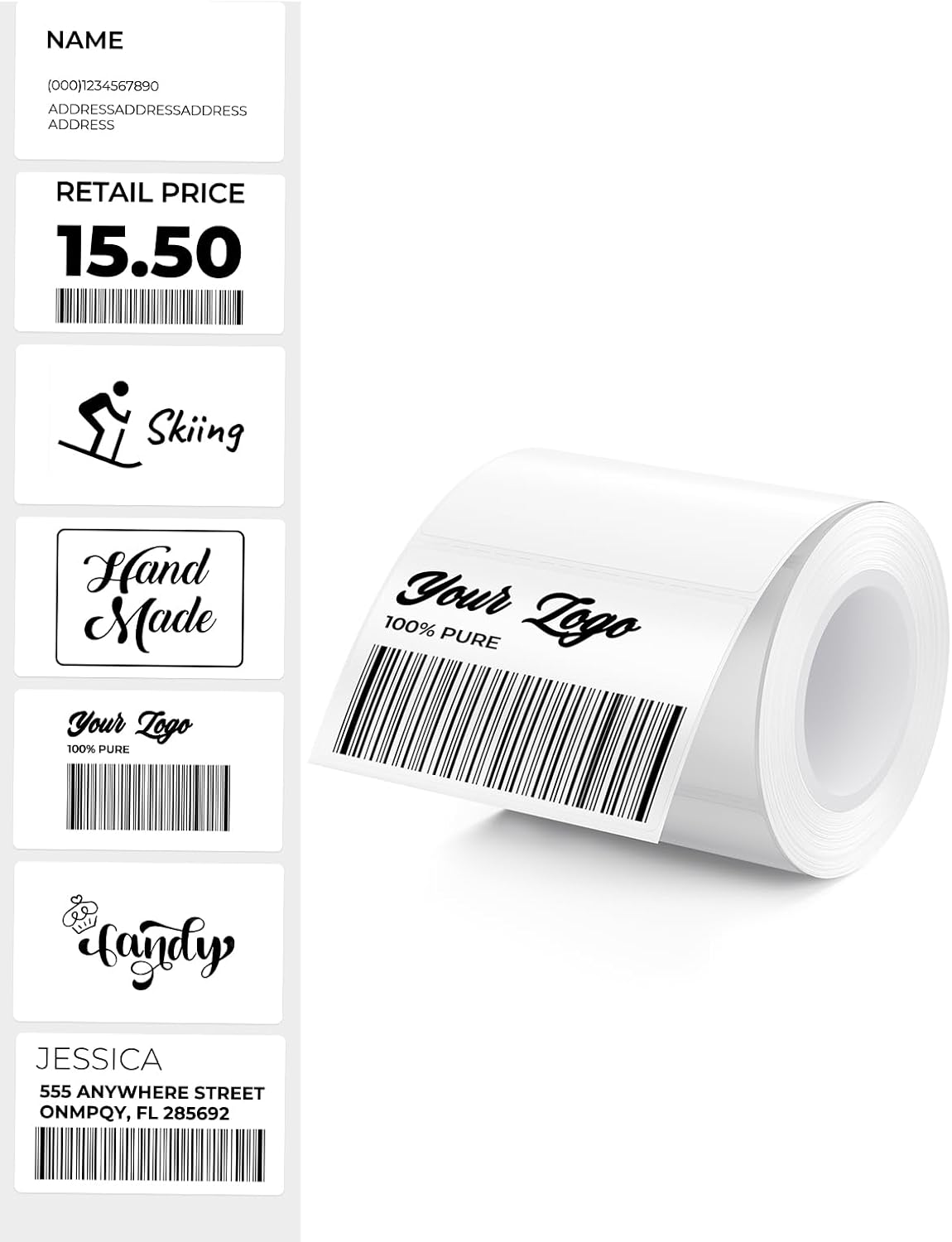
4.2-сүрөт: Мисamples of labels that can be printed with the MUNBYN MC240.
5. Техникалык тейлөө
5.1. Басып чыгаруу башын тазалоо
Regular cleaning of the print head ensures clear and consistent print quality.
- Принтерди өчүрүп, аны кубат булагынан ажыратыңыз.
- Принтердин капкагын ачыңыз.
- Басып чыгаруучу башты кебез таякча менен акырын сүртүңүзampизопропил спирти менен эритилген. Сууну же абразивдүү тазалоочу каражаттарды колдонбоңуз.
- Капкакты жаап, принтерди күйгүзүүдөн мурун басып чыгаруу башынын толук кургашына уруксат бериңиз.
5.2. Сактоо
Store the printer in a cool, dry place away from direct sunlight and extreme temperatures. When not in use for extended periods, ensure the printer is powered off and disconnected.
6. Кыйынчылыктарды
If you encounter issues with your MUNBYN MC240 printer, refer to the following common problems and solutions:
| Көйгөй | Мүмкүн себеп | Чечим |
|---|---|---|
| Принтер күйбөй жатат | Low battery or no power connection | Charge the printer or connect to a power source. |
| Энбелгилер туура эмес азыктандырылган | Labels improperly loaded or jammed | Ensure labels are loaded correctly and clear any jams. Refer to Section 3.1. |
| Басып чыгаруу сапаты начар | Dirty print head or incorrect label type | Clean the print head (Section 5.1). Ensure you are using direct thermal labels. |
| Bluetooth байланышы катасы | Printer not discoverable or app issue | Ensure printer is on and in pairing mode. Restart the app and your device's Bluetooth. Refer to Section 3.2.1. |
| USB printing not working | Missing or incorrect drivers | Install or update printer drivers from the MUNBYN website. Refer to Section 3.2.2. |
7. Техникалык шарттар
- Модел: MC240
- Басып чыгаруу ыкмасы: Түз жылуулук
- Байланыш: Bluetooth, USB
- Колдоого алынган OS: iOS, Android, Windows, Mac, Chromebook
- Label Width (Internal Bin): Up to 52mm (approx. 50-150 labels per roll)
- Label Width (External Feed): 1.57" – 4.3" (40mm – 110mm)
- Батарея: Rechargeable (Portable operation)
- Included Labels: 1.97'' x 1.18'' (50mm x 30mm), 230 labels/roll
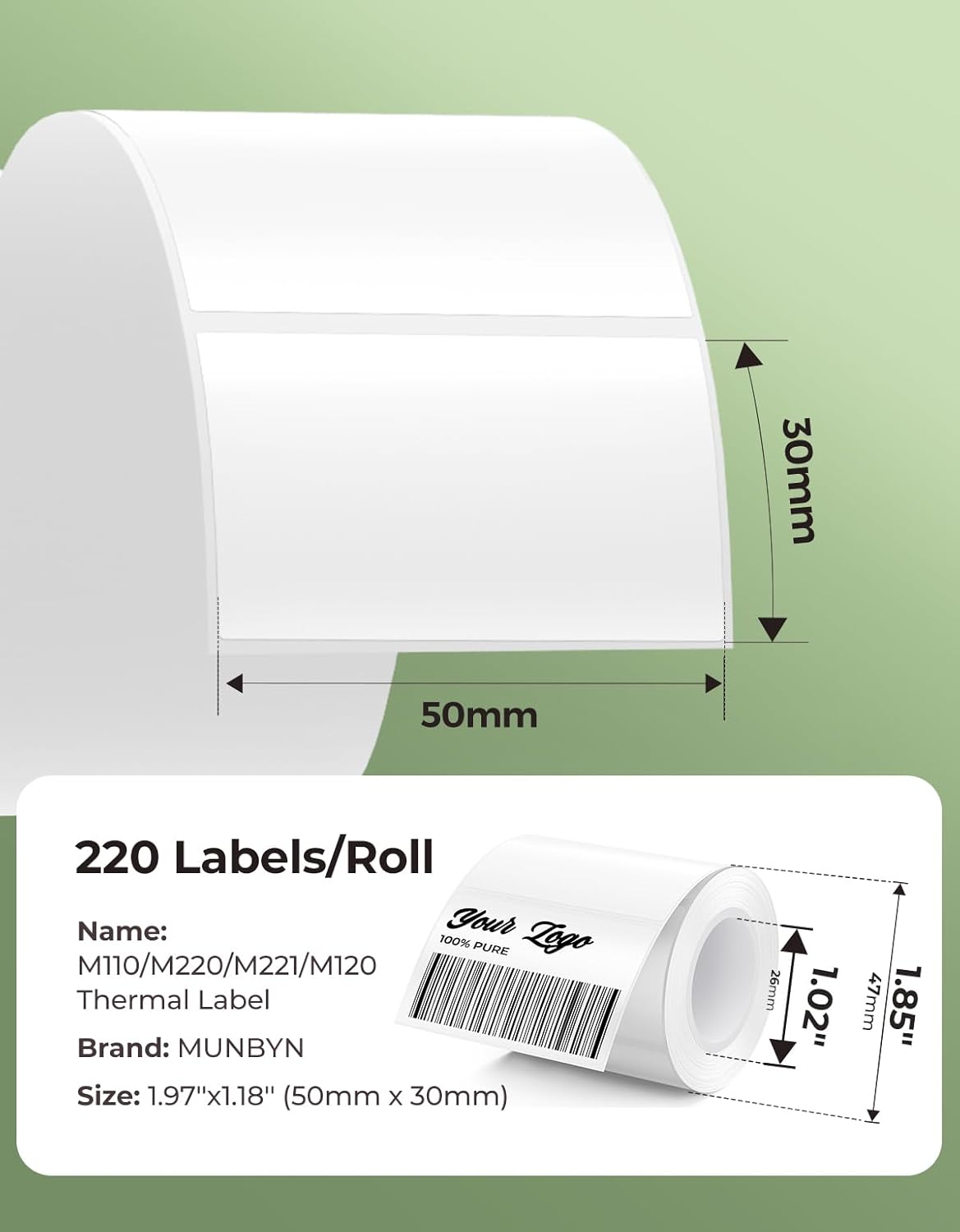
7.1-сүрөт: Мисample label dimensions compatible with the MUNBYN MC240 printer.
8. Кепилдик жана колдоо
The MUNBYN MC240 Bluetooth Thermal Label Printer comes with a standard manufacturer's warranty. For specific warranty terms, registration, or technical support, please visit the official MUNBYN webсайтка же кардарларды тейлөөгө кайрылыңыз. Сатып алганыңыздын далили катары сатып алуу дүмүрчөгүңүздү сактаңыз.
Онлайн колдоо: Visit www.munbyn.com for FAQs, driver downloads, and contact information.