
Introduction
This manual provides essential information for the safe and efficient operation of your GooDee 4K UHD Smart Projector. Please read it thoroughly before using the device and retain it for future reference. This projector integrates Google TV, AI voice control, advanced connectivity, and automatic image adjustments for a premium viewтажрыйбасы.
Кутуда эмне бар
Бардык буюмдар кутудан чыгарылганда бар экенин текшериңиз:
- Электр кабели
- HDMI кабели
- Проектор линзасынын капкагы
- Алыстан башкаруу
- User Manual
Продукт бүттүview
Familiarize yourself with the physical components and features of your projector.
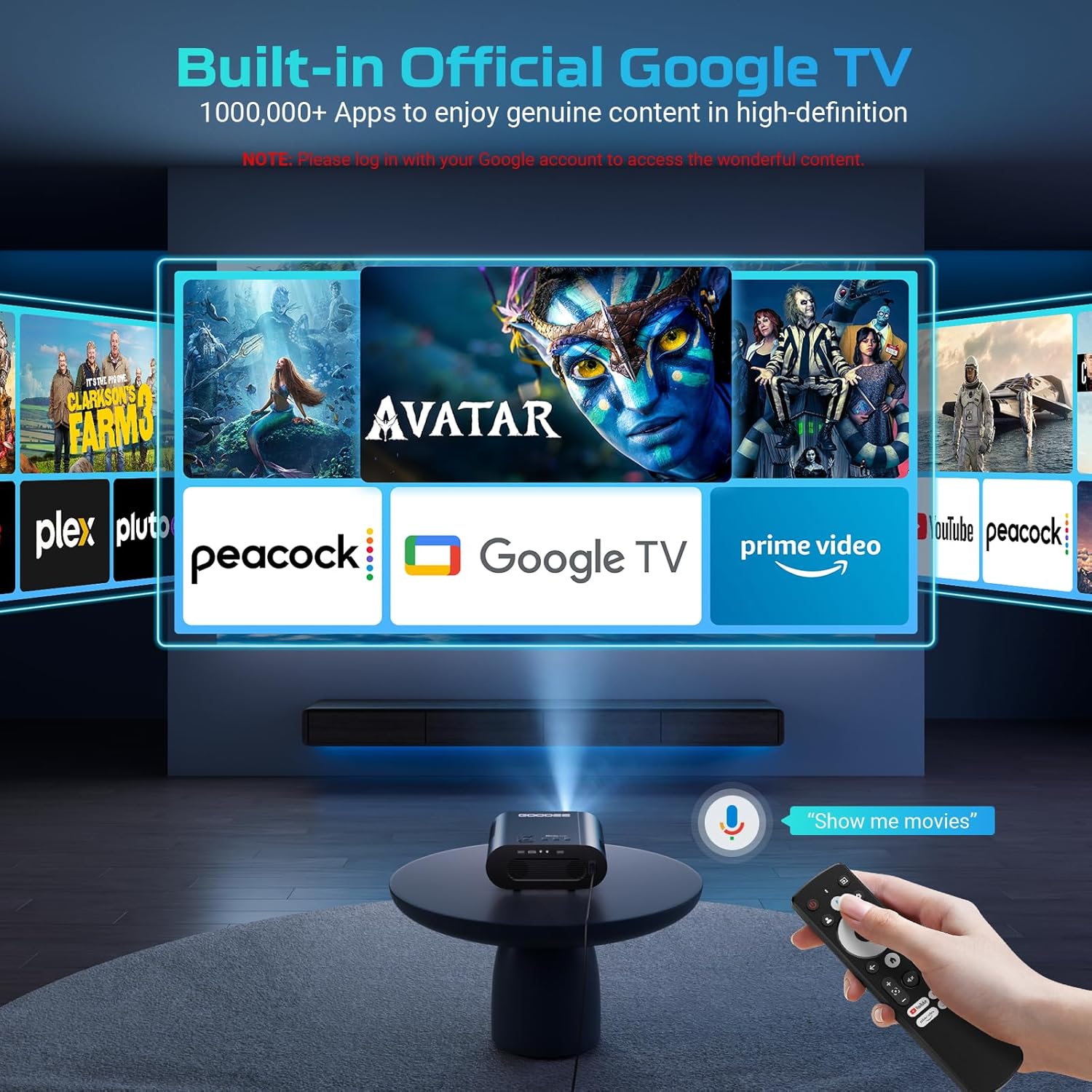
Сүрөт: The GooDee 4K UHD Smart Projector, showcasing its compact design and the Google TV interface projected onto a large screen, with the remote control visible in the foreground.
Порттор жана байланыштар

Сүрөт: А деталдуу view of the projector's rear panel, highlighting the HDMI, USB, and audio output ports for connecting external devices.
- HDMI киргизүү: Supports 4K resolution for connecting external media players, gaming consoles, or laptops.
- USB порттору (x2): For connecting USB flash drives to play media directly.
- Audio Output (3.5mm): Тышкы кулакчындарды же динамиктерди туташтыруу үчүн.
- AV киргизүү: AV кабелин колдонуп, эски түзмөктөрдү туташтыруу үчүн.
- Кубат киргизүү: Standard AC 100-240V, 50/60Hz.
Башкаруулар жана тууралоолор
- Manual Focus/Keystone Dials: Located on the top of the projector for fine-tuning image clarity and shape.
- Алыстан башкаруу: Full-function remote with dedicated buttons for popular streaming apps (Netflix, YouTube, Prime Video) and Google Assistant voice control.
- Монтаждык жип: A 1/4-inch thread on the bottom allows for tripod or ceiling mounting. An adjustable bolt is also present for desktop angle adjustment.
Орнотуу колдонмосу
Follow these steps for initial setup and configuration.
1. Баштапкы күйгүзүү
- Электр шнурын проекторго жана розеткага туташтырыңыз.
- Аппаратты күйгүзүү үчүн проектордун же пульттун кубат баскычын басыңыз.
- The projector will boot up and display the initial setup screen.
2. Wi-Fiга туташуу
- On the setup screen, select your preferred language.
- Navigate to the Wi-Fi settings and select your home network.
- Enter your Wi-Fi password using the on-screen keyboard and remote control.
- Once connected, the projector will guide you through Google TV setup, including signing in with your Google account.

Сүрөт: The projector displaying the Google TV home screen, showing popular streaming applications like YouTube, Prime Video, and Hulu, indicating successful Wi-Fi and Google TV setup.
3. Image Adjustment (Auto Focus & Keystone)
The projector features Smart AI Setup for automatic image correction.
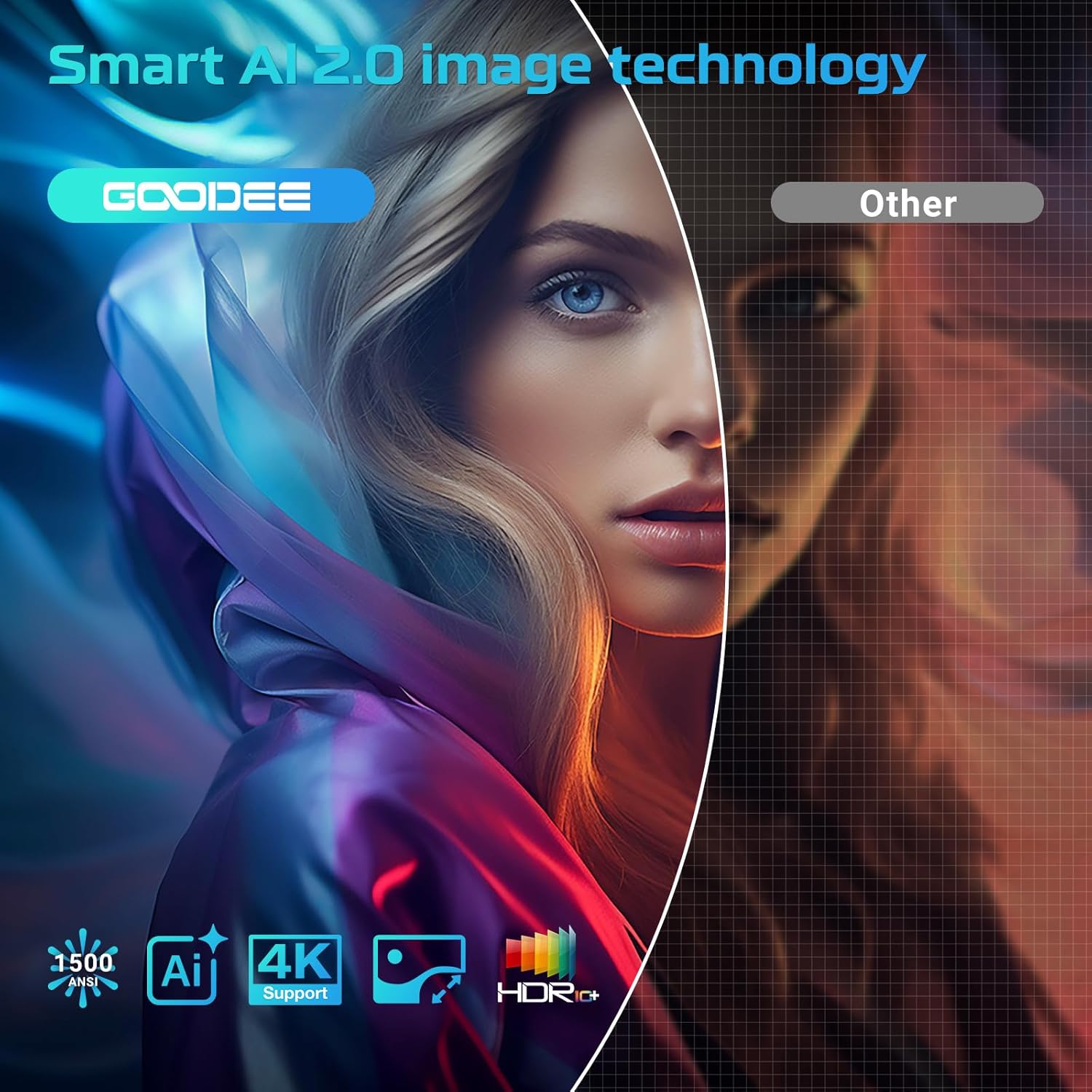
Сүрөт: The projector demonstrating its AI Auto Focus and Auto Keystone Correction features, ensuring a clear and perfectly shaped image on the screen.
- The projector will automatically detect and correct image distortion and focus upon startup or movement.
- For manual adjustments, use the focus and keystone dials on the projector or the corresponding buttons on the remote control.
- Zoom & Shift: Adjust the screen size from 50% to 100% and reposition the image using the remote control settings.
4. Тышкы түзмөктөрдү туташтыруу
- HDMI: Connect your device to the HDMI port. The projector will automatically switch to the HDMI input.
- USB: Insert a USB flash drive into a USB port. The media player app will usually launch automatically.
- Bluetooth: Navigate to the Bluetooth settings in the Google TV menu to pair with external Bluetooth speakers or headphones.
Иштөө нускамалары
Сиздин максималдуу viewing experience with the projector's smart features.
Google TV интерфейси
The projector comes with officially authorized Google TV, providing access to over 1,000,000 applications.
Видео: An official GooDee video demonstrating the Google TV interface and its seamless navigation, highlighting the integration of various streaming services and apps.
- The home screen displays recommended content and your installed apps.
- Navigate using the directional pad on the remote control.
- Access the App Store to download additional applications.
AI Smart Voice Assistant
Use your voice to control the projector and access content quickly.

Сүрөт: A user holding the remote control and speaking into it, demonstrating the AI Smart Voice Assistant feature to control the projector and search for content.
- Press and hold the voice control button (microphone icon) on your remote.
- Speak your command clearly, such as "Open Netflix," "Издөө movies," or "Adjust volume."
- The projector will execute the command or display relevant search results.
Streaming Applications
Enjoy a wide range of entertainment directly from your projector.
- Popular apps like YouTube, Prime Video, Hulu, and Disney+ are readily available.
- Ensure you are logged into your respective accounts for full access to content.
Image & Sound Settings
Сиздин жекелештирүү viewугуу жана угуу тажрыйбасы.
Сүрөт орнотуулары
- Access picture settings via the Google TV menu.
- Choose from preset modes: Standard, Vivid, Movie, or Game.
- Utilize the Custom mode to manually adjust Contrast, Saturation, Sharpness, Color Temperature, and Gamma.
Үн орнотуулары

Сүрөт: The projector highlighting its Bluetooth 5.2 and Dolby Audio capabilities, showing a cinematic setup with external speakers for an immersive sound experience.
- The projector features dual 15W speakers with Dolby Audio for 360° surround sound.
- Select from sound modes: Standard, Movie, Music, or Sport.
- Adjust advanced sound controls, including surround sound and expert settings.
Техникалык тейлөө
Туура тейлөө проекторуңуздун узак иштөөсүн жана оптималдуу иштешин камсыз кылат.
- Линзаны тазалоо: Use the provided lens cloth to gently wipe the projector lens. Avoid abrasive materials or harsh chemicals.
- Чаңды тазалоо: Regularly clean the air inlet and outlet vents to prevent dust buildup, which can affect performance and lead to overheating.
- Сактагыч: When not in use, cover the lens with the provided lens cap and store the projector in a cool, dry place.
Проблемаларды чечүү
Жалпы маселелерди чечүү үчүн бул бөлүмдү караңыз.
| Маселе | Мүмкүн чечим |
|---|---|
| бүдөмүк сүрөт | Adjust the focus manually using the dial or remote. Ensure the projector is placed at an optimal distance from the screen. |
| Бурмаланган сүрөт (трапеция) | Use the auto keystone correction feature or manually adjust keystone via the remote control settings. |
| Wi-Fi туташуусу жок | Check your Wi-Fi password and ensure the projector is within range of your router. Restart the projector and router if necessary. |
| Үн жок | Check volume levels on the projector and any connected external audio devices. Ensure correct audio output settings are selected. |
| Алыстан башкаруу жооп бербейт | Ensure batteries are correctly inserted and charged. Re-pair the remote control if necessary (refer to remote's specific instructions). |
Техникалык шарттар
| Өзгөчөлүк | Деталь |
|---|---|
| Продукциянын өлчөмдөрү | 16.9 x 31.6 x 12.7 дюйм |
| Элемент Салмагы | 4.24 фунт |
| Display Resolution | 1920 x 1080 (Native 1080P, 4K support) |
| Байланыш технологиясы | Dual-Band Wi-Fi 6, Bluetooth 5.2, HDMI, USB, AV |
| Өзгөчөлүктөр | Built-in Google TV, AI Smart Voice Assistant, Auto Focus, Auto Keystone Correction, Dolby Audio, 50%-100% Zoom |
| Сунушталган Колдонуулар | Home Cinema, Indoor/Outdoor Entertainment |
Кепилдик жана колдоо
For warranty information, technical support, or service inquiries, please refer to the contact details provided in your product packaging or visit the official GooDee webсайт.