
Introduction
Welcome to the Thunderobot Zero 16 Pro user manual. This document provides essential information for setting up, operating, maintaining, and troubleshooting your new gaming laptop. The Thunderobot Zero 16 Pro is engineered for high-performance gaming and demanding applications, featuring an Intel Core Ultra 9 275HX processor, NVIDIA GeForce RTX 5080 graphics, a 16-inch QHD+ 360Hz display, 32GB DDR5 RAM, and a 1TB PCIe M.2 SSD.
For optimal performance and longevity, please read this manual thoroughly before using your device.
Пакеттин мазмуну
Пакетиңизде бардык буюмдар бар экенин текшериңиз:
- Thunderobot Zero 16 Pro оюн ноутбугу
- Кубаттуу адаптер жана кабель
- Колдонуучунун Колдонмосу (бул документ)
- Кепилдик картасы
Жайгашуу
1. Баштапкы күйгүзүү
- Туташуу кубаты: Кубат адаптерин ноутбуктун кубат портуна, андан кийин розеткага сайыңыз.
- Ноутбукту ачуу: Этияттык менен ноутбуктун капкагын ачыңыз.
- Күйгүзүү: Демейде клавиатуранын үстүндө же капталында жайгашкан кубат баскычын басыңыз.
- Баштапкы орнотуу: Windows 11 Home орнотуусун аяктоо үчүн экрандагы нускамаларды аткарыңыз, анын ичинде тил, аймак, тармак туташуусу жана колдонуучу каттоо эсебин түзүү.
2. Перифериялык түзүлүштөрдү туташтыруу
The Thunderobot Zero 16 Pro offers various ports for connecting external devices:
- USB-A порттору: Connect mice, keyboards, external hard drives, and other USB accessories.
- USB-C Port (Thunderbolt 5): Жогорку ылдамдыктагы маалыматтарды берүү, тышкы дисплейлер жана кубаттуулукту жеткирүү үчүн.
- HDMI 2.1 порту: Кеңейтилген дисплей үчүн тышкы мониторлорго же телевизорлорго туташыңыз.
- RJ-45 Ethernet порту: Туруктуу зымдуу тармак туташуусу үчүн.
- 3.5 мм аудио уячасы: Наушниктерди же тышкы динамиктерди туташтырыңыз.
Сүрөт: каптал view of the Thunderobot Zero 16 Pro, highlighting the RJ-45, USB3.2 Gen2 Type-A, HDMI 2.1, Thunderbolt 5 Type-C, Power, USB3.2 Gen1 Type-A, and 3.5mm audio jack ports.

Image: Detailed diagram illustrating the location and type of ports available on the Thunderobot Zero 16 Pro, including USB, HDMI, Ethernet, and audio connections.
Иштөө нускамалары
1. Keyboard and Lighting
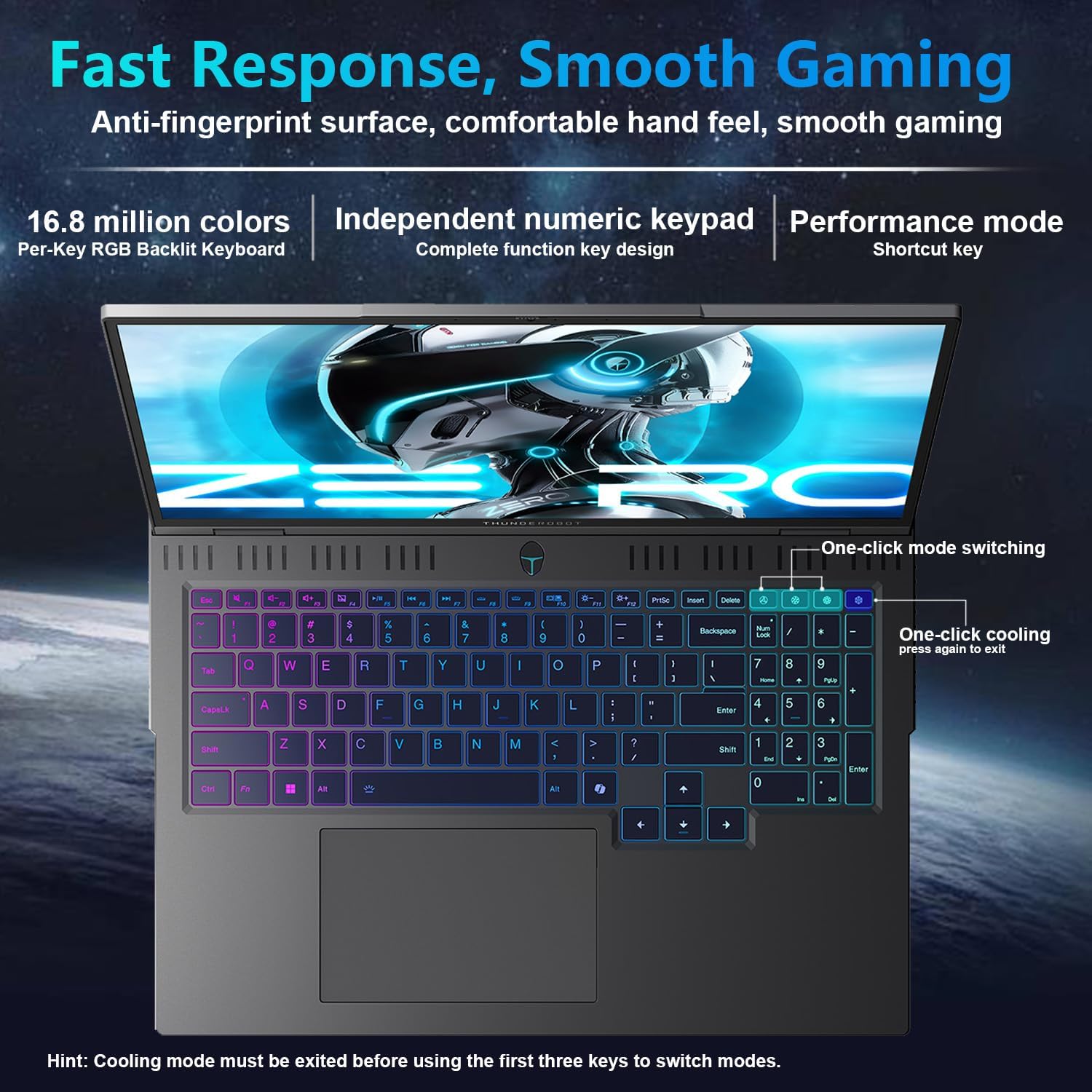
The laptop features a full-size, per-key RGB backlit keyboard with a numeric keypad. You can customize the RGB lighting effects through the Thunderobot Control Center software.
- Performance Mode Switching: Use dedicated shortcut keys to switch between performance profiles (e.g., Quiet, Balance, Turbo).
- One-Click Cooling: A dedicated key allows for instant activation of maximum cooling.
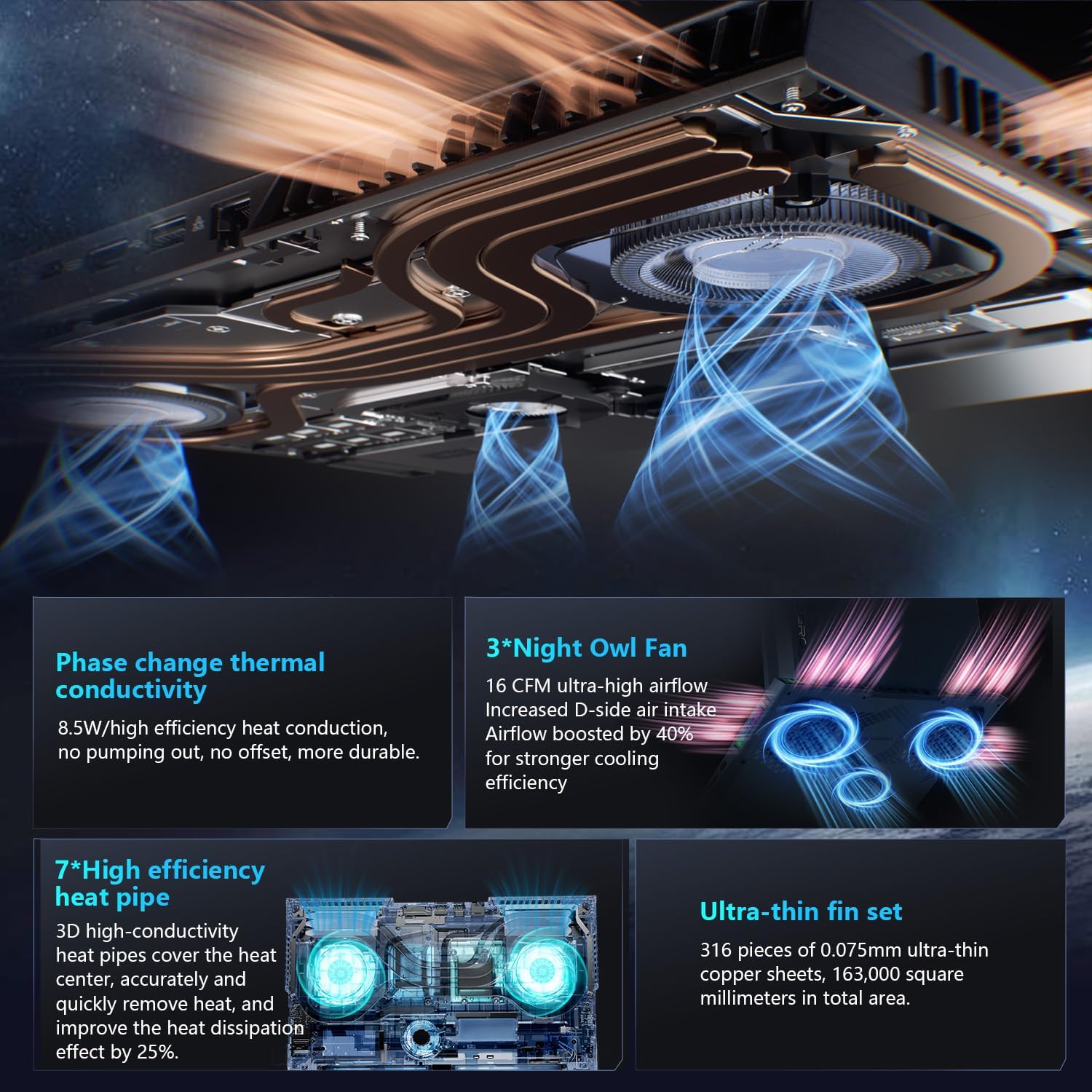
Image: The RGB backlit keyboard of the Thunderobot Zero 16 Pro, showing the full layout and numeric keypad.

Image: Visual guide to the keyboard's one-click mode switching and cooling activation keys.
Video: This video demonstrates the RGB lighting system and keyboard features of the Thunderobot Zero 16 Pro, including performance mode switching and one-click cooling.
2. Дисплей өзгөчөлүктөрү
The 16-inch QHD+ (2560x1600) display offers a 360Hz refresh rate and eye-care technology. To utilize the highest refresh rate, ensure the dedicated graphics direct connection mode is enabled in the Control Center.
- Anti-Glare & Anti-Reflection: Reduces distractions from ambient light.
- Көк жарыкка каршы: Узакка колдонууда көздүн чарчоосун азайтууга жардам берет.
- DC караңгылатуу: Provides flicker-free eye protection.
- Professional Color Calibration: Түстөрдүн так кайталанышын камсыз кылат.

Image: The 16-inch QHD+ display of the Thunderobot Zero 16 Pro, showcasing its high refresh rate and eye-care features.

Image: Infographic detailing the display's features such as 2.5K resolution, 360Hz refresh rate, 500 nits brightness, and various eye protection technologies.
3. Thunderobot Control Center
The AI Intelligent Control Center software allows for comprehensive management of your laptop's performance, lighting, and system settings. It is recommended to connect the device to a power source for full functionality of system mode switching.
- Аткаруу жөндөөсү: Adjust CPU and GPU settings for optimal performance or power saving.
- Акылдуу жарыкты жөндөө: Customize keyboard, strip, and logo RGB lighting.
- Комплекстүү тууралоо: Monitor system status, fan speeds, and manage other personalized settings.
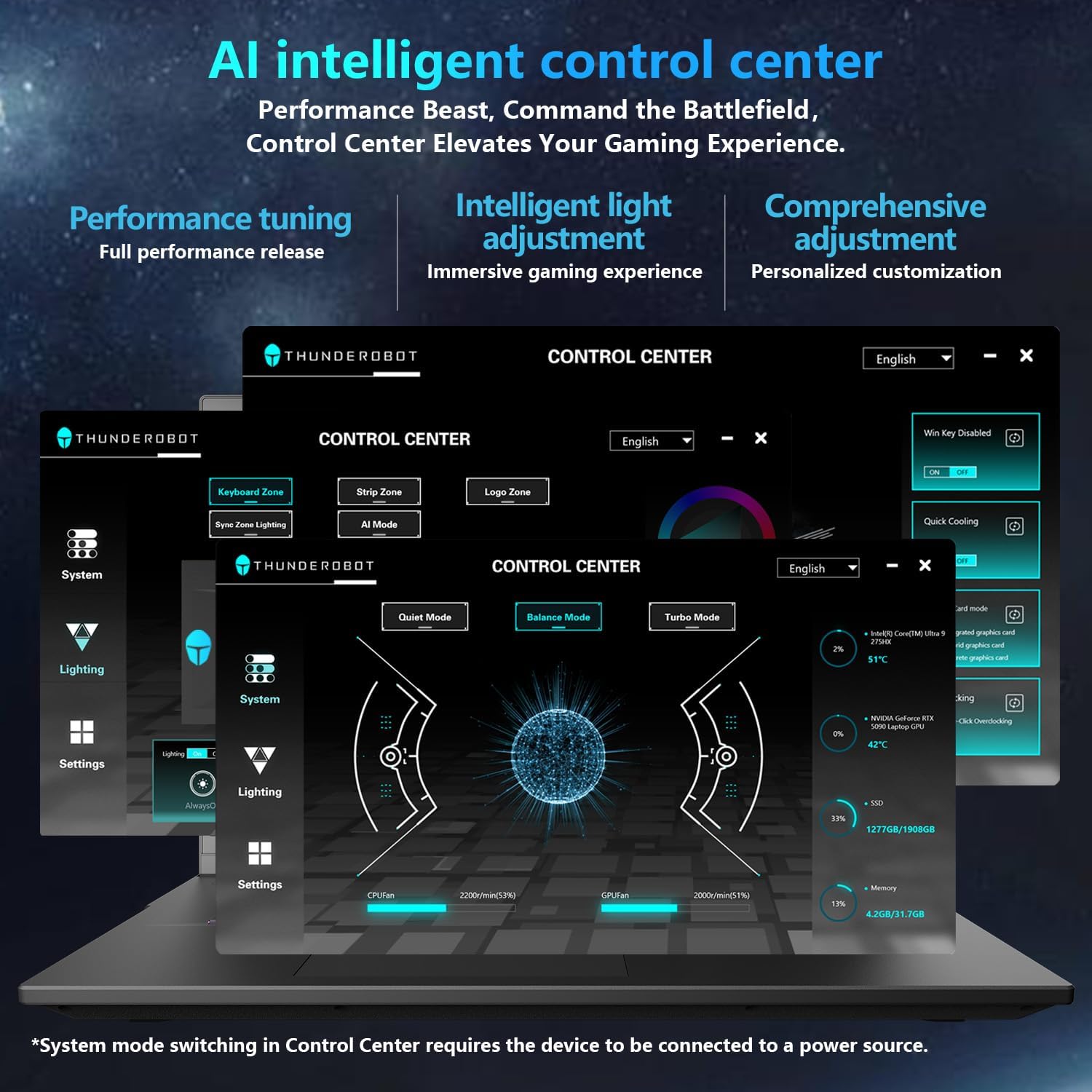
Image: A visual representation of the Thunderobot Control Center interface, showing options for system monitoring, lighting control, and performance settings.
Image: Infographic explaining the capabilities of the AI Intelligent Control Center, including performance tuning, intelligent light adjustment, and comprehensive system management.
4. Аудио системасы
The laptop is equipped with a Soundstage Full audio system, featuring 4 speakers and Nahimic high-quality sound effects for an immersive audio experience.

Image: A graphic illustrating the Soundstage Full audio system with sound waves, emphasizing the immersive experience.
Video: This video showcases the display quality and overall design of the Thunderobot Zero series, including the Zero 16 Pro.
Техникалык тейлөө
1. Муздатуу системасы
The Thunderobot Zero 16 Pro features a robust cooling system designed to maintain performance under heavy loads. This includes dual Night Owl fans, 7 enlarged heat pipes, and 316 ultra-thin copper fins.
- Желдетүүчү тешиктерди таза кармаңыз: Ensure that the air intake and exhaust vents are not obstructed to allow for proper airflow.
- үзгүлтүксүз тазалоо: Мезгил-мезгили менен кысылган абаны колдонуу менен желдеткичтердеги чаңды тазалап туруңуз.

Сүрөт: жарылган view of the laptop's internal cooling components, showing the dual fans, heat pipes, and fin set.

Image: Infographic explaining the Night Hawk fans, high-efficiency heat pipes, phase-change thermal conduction, and ultra-thin fin array.
2. Жалпы кам көрүү
- Тазалоо: Экранды жана корпусту тазалоо үчүн жумшак, мамыксыз чүпүрөктү колдонуңуз. Күчтүү химиялык заттардан алыс болуңуз.
- Экологиялык шарттар: Operate the laptop within recommended temperature ranges (-20°C to 60°C) and humidity (up to 90%).
- Батареянын узактыгы: To prolong battery life, avoid frequently discharging the battery completely and store the laptop with a partial charge if not used for extended periods.
Video: This video highlights the robust build quality and testing of Thunderobot gaming products, demonstrating their durability.
Проблемаларды чечүү
Жалпы маселелер жана чечимдер
| Маселе | Мүмкүн себеп | Чечим |
|---|---|---|
| Display not reaching 360Hz refresh rate. | Dedicated graphics direct connection mode is not enabled. | Enable the dedicated graphics direct connection mode in the Thunderobot Control Center. |
| Laptop performance is lower than expected. | Laptop is not connected to power, or is in a power-saving mode. | Connect the laptop to its power adapter. Adjust performance settings to "Turbo Mode" or "Performance Mode" in the Thunderobot Control Center. Ensure cooling vents are clear. |
| Keyboard RGB lighting is not working or customizable. | Lighting settings are disabled or not configured in the Control Center. | Open the Thunderobot Control Center and navigate to the "Lighting" section to enable and customize RGB effects. |
| Динамиктерден же наушниктерден үн чыкпайт. | Audio drivers are outdated, volume is muted, or incorrect output device selected. | Check volume levels and audio output settings in Windows. Update audio drivers if necessary. Ensure headphones are fully plugged into the 3.5mm jack. |
Техникалык шарттар
| Өзгөчөлүк | Деталь |
|---|---|
| Бренд | Тандеробот |
| Модель аты | ZERO 16 Pro |
| Screen Size | 16 дюйм |
| Резолюция | 2560x1600 pixels (QHD+) |
| Жаңыртуу ылдамдыгы | 360Hz |
| CPU модели | Intel Core Ultra 9 275HX (24 Cores, up to 5.4 GHz) |
| Графикалык сопроцессор | NVIDIA GeForce RTX 5080 (12 ГБ GDDR7) |
| RAM эстутум орнотулган өлчөмү | 32 ГБ DDR5 (4800 МГц) |
| Катуу дисктин өлчөмү | 1 TB SSD (PCIe x4) |
| Операция системасы | Windows 11 Home |
| Байланыш технологиясы | Wi-Fi 6E, Bluetooth, USB-A, USB-C (Thunderbolt 5), HDMI, Ethernet, Audio Jack |
| Жалпы USB порттору | 4 |
| HDMI порттору | 1 |
| Баскычтоп | Backlit, Full-size with Numeric Keypad |
| Webcam Capability | Ооба |
| Элементтин өлчөмдөрү (L x W x Калыңдыгы) | 14.09"L x 10.52"W x 1.03"Mh |
| Продукт үчүн атайын колдонуу | Оюндар |
Кепилдик жана колдоо
Кепилдик маалымат
Ар бир Thunderobot ноутбугунда төмөнкүлөр бар: 12 айлык кепилдик, оңдоо керек болгон учурда эксперттик колдоо, кылдат диагностика жана оригиналдуу тетиктерди сунуштайт. Мындан тышкары, 90 күндүк кепилдик бардык кепилдик алмаштыруучу тетиктерде камтылган, бул оңой оңдоону камсыз кылат. Сиздин толук канааттанууңуз - биздин милдеттенмебиз.
Кардарларды колдоо
For technical assistance, warranty claims, or product inquiries, please visit the official Thunderobot website or contact their customer support. Refer to the warranty card included in your package for specific contact details and terms.
Сиз да зыярат кылсаңыз болот Amazon'догу Thunderobot дүкөнү кошумча продукт маалымат жана колдоо ресурстар үчүн.