
1. Киришүү
This manual provides detailed instructions for the setup, operation, and maintenance of your HPRT iDPRT MT890 Portable Wireless Thermal Printer. Please read this manual thoroughly before using the printer to ensure proper function and longevity of the device.
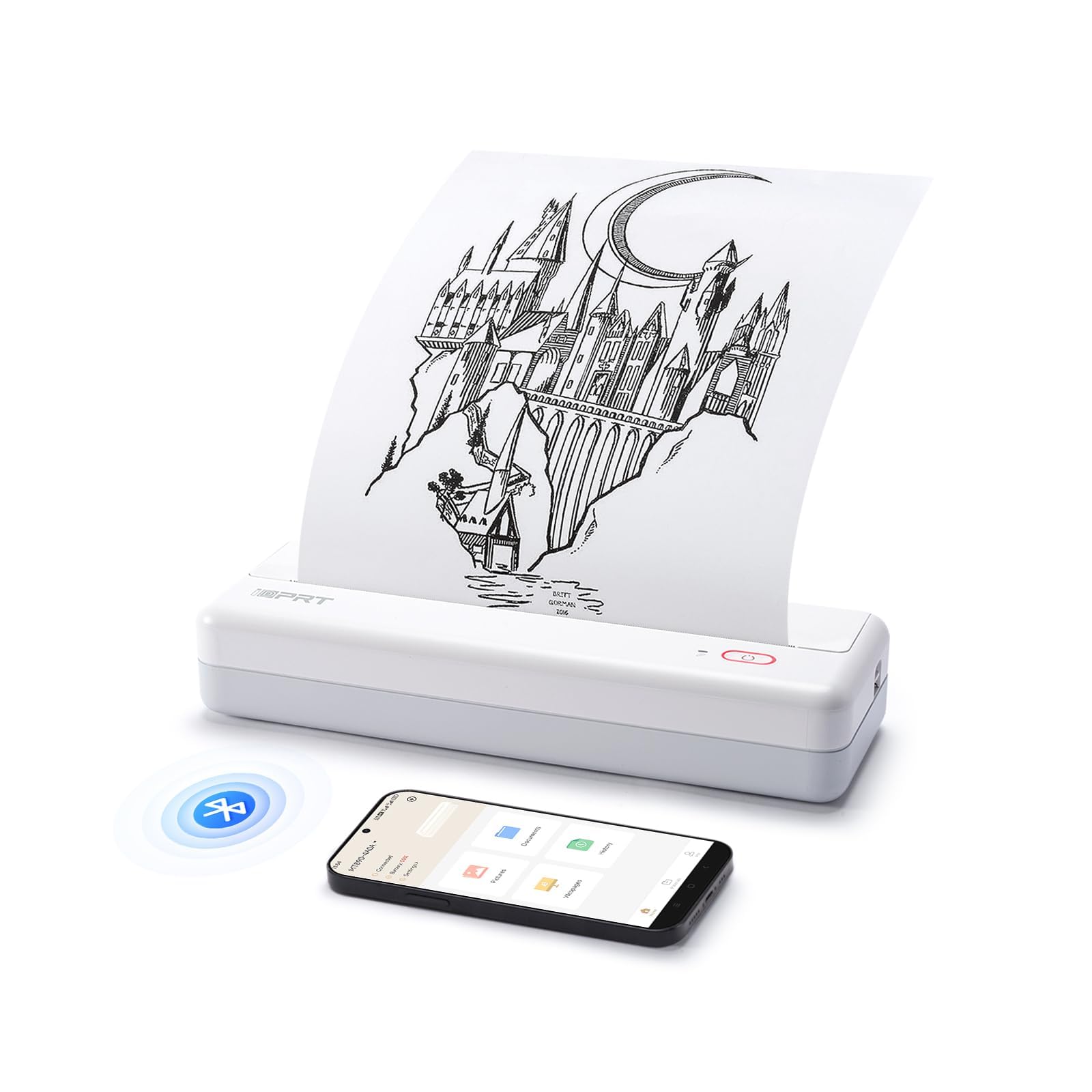
Image: The HPRT iDPRT MT890 Portable Wireless Printer shown in a professional meeting environment, highlighting its compact size and suitability for various scenarios.
2. Продукт бүтүп калдыview
2.1 Негизги өзгөчөлүктөрү
- Өркүндөтүлгөн сыясыз технология: Utilizes thermal printing, eliminating the need for ink cartridges. Achieves high-speed printing, completing an A4 page in 5-8 seconds.
- Инновациялык орнотулган рулон кагазынын дизайны: Supports thermal roll paper, allowing printing on various lengths as needed. Includes a serrated tearing knife for easy paper detachment.
- Ар тараптуу байланыш: Compatible with Laptop (Mac, Windows, Linux, Chrome OS) via USB and mobile phones (iOS, Android) via Bluetooth.
- "HerePrint" Mobile Application: A free application offering extensive functions for a creative printing experience on mobile devices.
- Компакт жана көчмө: Measuring 12.4 x 4.8 x 2.7 inches, this lightweight printer is designed for portability, fitting easily into briefcases, backpacks, or suitcases.

Image: An illustration highlighting the key features of the MT890 printer: Bluetooth/USB connectivity, inkless thermal printing, a 2500mAh battery capacity, and its lightweight design.
2.2 Кутуда эмне бар
Пакетке төмөнкүлөр кирет:
- HPRT iDPRT MT890 Portable Wireless Thermal Printer
- Көрсөтмө (бул документ)
- USB кабели (кубаттоо жана зымдуу туташуу үчүн)
- Thermal A4 Paper Roll (for initial use)
3. Орнотуу
3.1 Принтерди заряддоо
Before initial use, fully charge the printer. Connect the provided USB cable to the printer's charging port and a compatible USB power adapter (not included) or computer USB port. The charging indicator light will show the charging status.

Image: The MT890 printer connected to a wall adapter via its USB cable, indicating the charging process.
3.2 Термикалык кагазды жүктөө
- Кагаз бөлүктүн капкагын ачыңыз.
- Insert the thermal paper roll into the compartment, ensuring the printable side faces the print head.
- Pull a small amount of paper out of the compartment.
- Кагаз бөлүктүн капкагын бекем жабыңыз.
Note: Only use thermal paper. Regular A4 paper is not compatible with this printer. The printer supports various thermal paper sizes including US Letter, A4, and A5, as well as continuous roll paper.
Image: The MT890 printer with thermal paper being loaded, illustrating the support for multiple paper sizes like 8.5 inches (216mm), 8 inches (210mm), and 4 inches (110mm).
3.3 Программалык камсыздоону жана драйверди орнотуу
3.3.1 For Desktop Computers (Windows, Mac, Linux, Chrome OS)
To print from a desktop computer, you need to install the appropriate driver:
- Берилген USB кабелин колдонуп принтерди компьютериңизге туташтырыңыз.
- Visit the official iDPRT driver download page: https://www.idprt.com/Driver/
- Download and install the driver corresponding to your operating system.
- Орнотууну аяктоо үчүн экрандагы нускамаларды аткарыңыз.
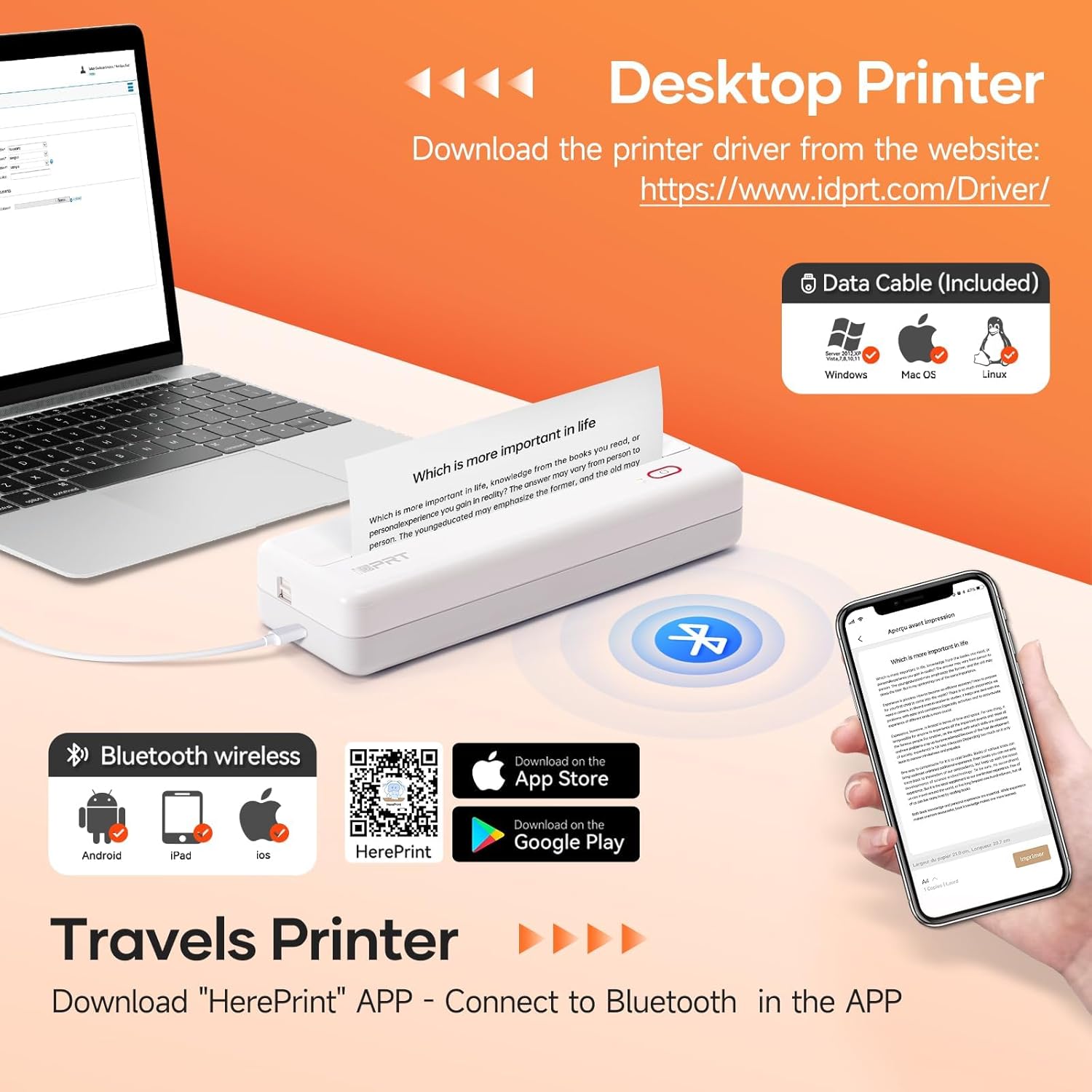
Image: The MT890 printer connected to a laptop, with an overlay indicating the driver download website for Windows, Mac OS, and Linux.
3.3.2 For Mobile Devices (iOS, Android)
To print from your smartphone or tablet, download the "HerePrint" application:
- Scan the QR code provided in the product packaging or search for "HerePrint" in your device's app store (Apple App Store for iOS, Google Play Store for Android).
- Alternatively, visit the app download link: https://hereprint.hprt.com/app/hereprint
- Install the "HerePrint" application on your mobile device.
Image: The MT890 printer with a smartphone displaying the "HerePrint" app interface, alongside QR codes and app store icons for downloading the application on Android and iOS devices.
3.4 Принтерге туташуу
3.4.1 USB Connection (for Desktop)
After installing the driver, connect the printer to your computer using the USB cable. The computer should recognize the printer automatically.
3.4.2 Bluetooth туташуусу (мобилдик түзмөктөр үчүн)
- Мобилдик түзмөгүңүздө Bluetooth иштетилгенин текшериңиз.
- Turn on the HPRT MT890 printer.
- Open the "HerePrint" application.
- Within the app, navigate to the device connection settings and select your MT890 printer from the list of available Bluetooth devices.
- Follow any on-screen prompts to pair the devices.

Image: A man working on a laptop, wirelessly printing a document to the compact HPRT MT890 printer placed on a table, demonstrating wireless connectivity and instant printing.
4. Иштөө нускамалары
4.1 Компьютерден басып чыгаруу
- Ensure the printer is powered on and connected via USB.
- Компьютериңизде басып чыгаргыңыз келген документти же сүрөттү ачыңыз.
- Колдонмонун менюсунан "Басып чыгарууну" тандаңыз (мисалы, File > Басып чыгаруу).
- Choose "HPRT MT890" as your printer.
- Керектүү түрдө басып чыгаруу жөндөөлөрүн (мисалы, кагаздын өлчөмү, багыты) тууралаңыз.
- Басып чыгаруу процессин баштоо үчүн "Басып чыгаруу" баскычын чыкылдатыңыз.

Image: A woman at an office desk, focused on her laptop, with the MT890 printer beside her, illustrating its use for business document printing.
4.2 Printing from a Mobile Device
- Ensure the printer is powered on and connected via Bluetooth to your mobile device through the "HerePrint" app.
- Open the "HerePrint" application.
- Select the document, image, or content you wish to print within the app.
- Adjust print settings as available in the app.
- Tap "Print" to initiate printing.
5. Техникалык тейлөө
5.1 Басып чыгаруу башын тазалоо
Басып чыгаруу сапатын сактоо үчүн, басып чыгаруу башын мезгил-мезгили менен тазалаңыз. Жумшак, түксүз кездемени жеңил колдонуңуз dampened with isopropyl alcohol. Gently wipe the print head surface. Ensure the printer is turned off and cooled down before cleaning.
5.2 Жалпы кам көрүү
- Keep the printer away from dust, direct sunlight, and extreme temperatures.
- Принтерди кулап же катуу таасирлерге дуушар кылуудан алыс болуңуз.
- Use only recommended thermal paper. Using incorrect paper types can damage the print head.
- When not in use for extended periods, store the printer in a dry, cool place.
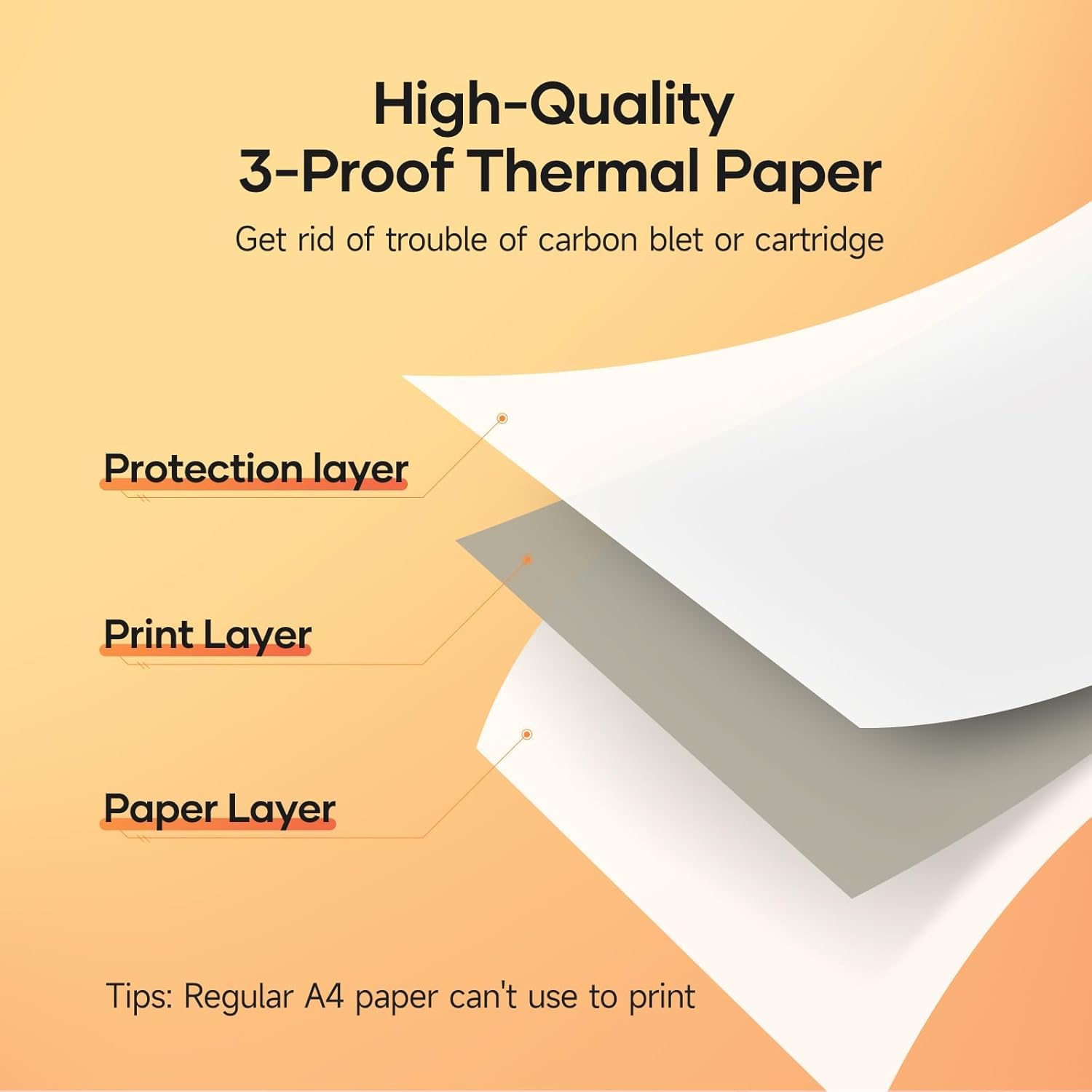
Image: A diagram illustrating the layered structure of high-quality 3-proof thermal paper, consisting of a protection layer, print layer, and paper layer. A note indicates that regular A4 paper cannot be used.
6. Кыйынчылыктарды
6.1 Принтер күйбөй жатат
- Принтердин толук заряддалганын текшериңиз. Аны кубат булагына туташтырып, кубаттоо индикаторунун күйүшүн күтүңүз.
- Кубат баскычын бир нече секунд басып туруңуз.
6.2 Басып чыгаруу жок / Бош барактар
- Термикалык кагаз туура жүктөлгөнүн жана басып чыгарылуучу тарабы басып чыгаруучу башты каратып турганын текшериңиз.
- Кадимки эмес, термокагаз колдонуп жатканыңызды текшериңиз.
- Verify the printer is connected and recognized by your device.
6.3 Басып чыгаруу сапатынын начардыгы
- Басып чыгаруучу башты "Техникалык тейлөө" бөлүмүндө сүрөттөлгөндөй тазалаңыз.
- Термикалык кагаздын сапаты жакшы экенине, мөөнөтү өтүп кетпегенине же бузулбаганына ынаныңыз.
- Check print settings in your application for density or darkness adjustments.
6.4 Bluetooth аркылуу туташуу мүмкүн эмес
- Принтер күйгүзүлүп турганын жана мобилдик түзмөгүңүзгө жетүү мүмкүнчүлүгүнүн аралыгында экенин текшериңиз.
- Мобилдик түзмөгүңүздө Bluetooth иштетилгенин текшериңиз.
- Принтерди да, мобилдик түзмөгүңүздү да өчүрүп-күйгүзүңүз.
- Forget the device in your phone's Bluetooth settings and try pairing again through the "HerePrint" app.
6.5 Driver Installation Issues
- Ensure you downloaded the correct driver for your operating system from the official iDPRT webсайт.
- Temporarily disable antivirus or firewall software during installation if issues persist.
- Try connecting the printer to a different USB port or computer.
7. Техникалык шарттар
| Өзгөчөлүк | Деталь |
|---|---|
| Бренд | HPRT |
| Модель аты | MT890 |
| Байланыш технологиясы | Bluetooth, USB |
| Басма технологиясы | Термикалык |
| Өзгөчө өзгөчөлүк | Портативдүү, сыясыз |
| Принтердин чыгышы | Монохромдуу |
| Макс басып чыгаруу ылдамдыгы (монохромдуу) | 20.35 mm/s (approx. 5-8 seconds per A4 page) |
| Колдоого алынган барак өлчөмдөрү | US Letter, A4, A5, Roll Paper (up to 8.5 inches wide) |
| Продукциянын өлчөмдөрү | 3.74 x 10.6 x 1.97 дюйм |
| Батарея сыйымдуулугу | 2500mAh |
| UPC | 728434048190 |

Image: The MT890 printer shown alongside a laptop bag and other accessories, illustrating its compact dimensions (10.6in length, 3.7in width, 1.9in height) and ease of portability.
8. Кепилдик жана колдоо
Бул продукт менен келет 90 күндүк чектелген кепилдик from the date of purchase. This warranty covers manufacturing defects and malfunctions under normal use. It does not cover damage caused by misuse, accidents, unauthorized modifications, or use of non-thermal paper.
For technical support, warranty claims, or further assistance, please contact HPRT customer service. Refer to the official HPRT webбайланыш маалыматы үчүн сайт.