
1. Коопсуздук боюнча маанилүү маалымат
Бул мониторду колдонуудан мурун бардык көрсөтмөлөрдү кунт коюп окуп чыгыңыз. Бул колдонмону келечекте колдонуу үчүн сактап коюңуз.
- Мониторду жамгырдын, нымдуулуктун же экстремалдык температуранын таасирине тийгизбеңиз.
- Ашыкча ысып кетүүнүн алдын алуу үчүн монитордун айланасында туура желдетүүнү камсыз кылыңыз.
- Монитор менен кошо берилген кубат адаптерин гана колдонуңуз.
- Электр шнурунун же монитордун үстүнө оор нерселерди коюудан алыс болуңуз.
- Монитор узак убакыт бою колдонулбай турган болсо, электр сайгычын розеткадан ажыратыңыз.
- Мониторду өзүңүз тейлөөгө аракет кылбаңыз. Бардык тейлөө иштерин квалификациялуу адистерге тапшырыңыз.
2. Пакеттин мазмуну
Пакетиңизде бардык буюмдар бар экенин текшериңиз:
- 27-inch QHD 210Hz Monitor (1 unit)
- Monitor Stand (1 unit)
- Quick Start Guide (QSG) (1 unit)
- DP Cable (1 unit)
- Power Adaptor (1 unit)
- Электр шнуру (1 даана)
- Shielding Hood (2 units)

Video: KTC 27M1 27 Inch 210Hz Gaming Monitor. This video provides a visual overview of the monitor and its features.
3. Орнотуу нускамалары
3.1 Монитордун стендди чогултуу
- Мониторду жана стенд компоненттерин таңгактан этияттык менен алып салыңыз.
- Attach the stand base to the stand arm using the provided screw.
- Align the stand arm with the mounting slot on the back of the monitor and push until it clicks into place.
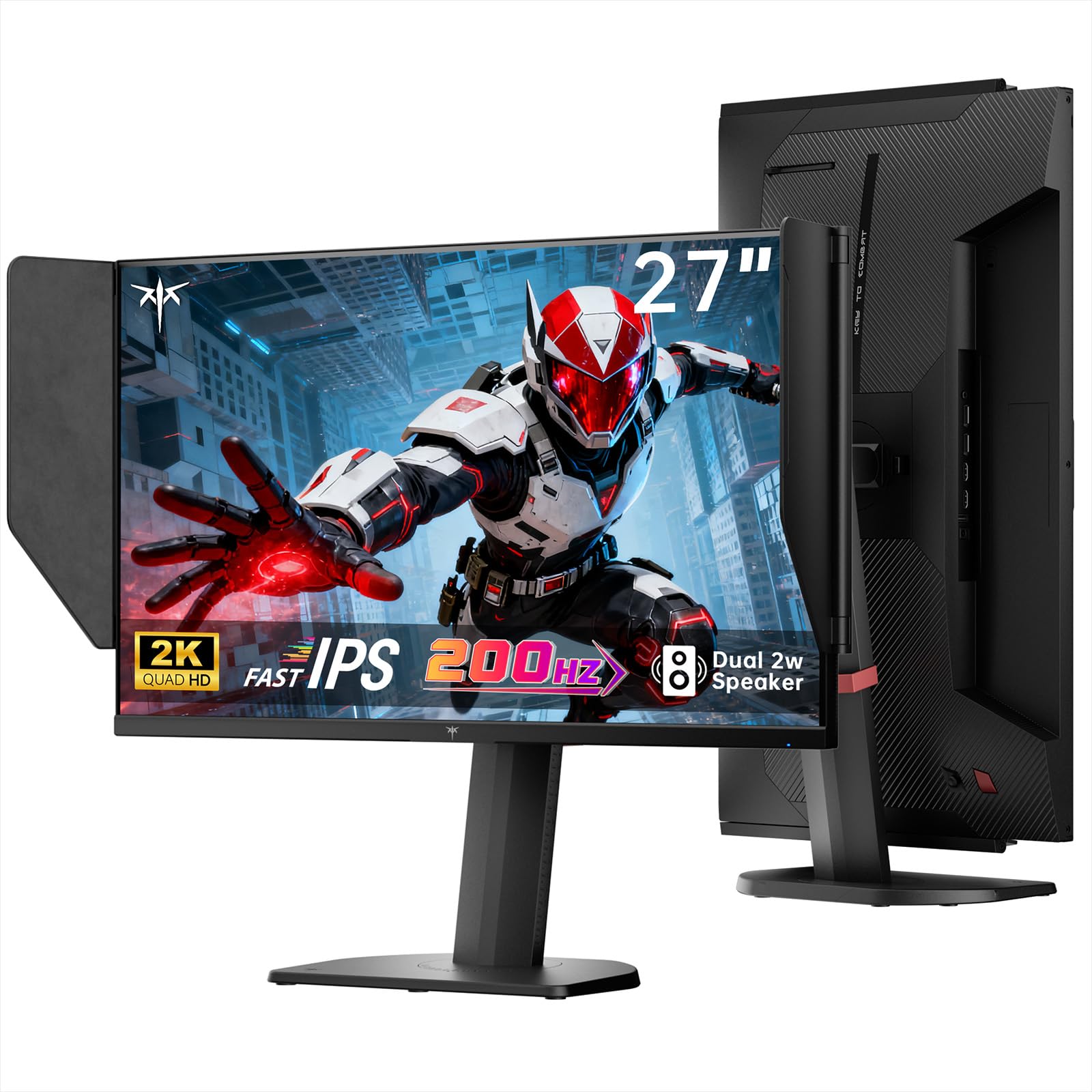
Image: The KTC 27M1 monitor with its stand fully assembled, ready for use.
3.2 Attaching the Shielding Hood
The shielding hood helps reduce glare and reflections for an optimal viewтажрыйбасы.
- Locate the two shielding hood pieces.
- Align each piece with the designated slots on the sides of the monitor and gently slide them into place until secure.

Image: The KTC 27M1 monitor shown with the shielding hood attached, designed to block reflected light.
3.3 Туташтыруучу кабельдер
Мониторду компьютериңизге же башка түзмөктөргө тиешелүү кабелдер аркылуу туташтырыңыз:
- DisplayPort (DP): For 200Hz (overclockable to 210Hz) refresh rates, connect the DP cable from your graphics card to the monitor's DP 1.4 port.
- HDMI: For 144Hz refresh rates, connect an HDMI 2.0 cable from your device to one of the monitor's HDMI ports.
- Күч: Connect the power adapter to the DC input on the monitor, then plug the power cord into a wall outlet.
- Аудио: Connect headphones or external speakers to the 3.5mm earphone jack if desired.

Сүрөт: Жакын план view of the KTC 27M1 monitor's rear ports, including HDMI, DisplayPort, USB, and earphone jack.
4. Иштөө нускамалары
4.1 Күйгүзүү/өчүрүү
Press the 5-way navigation joystick located on the back of the monitor to power it on or off.
4.2 Экрандык менюнун навигациясы
The 5-way navigation joystick is used to access and navigate the On-Screen Display (OSD) menu:
- OSD менюсун ачуу үчүн джойстикти басыңыз.
- Меню параметрлери боюнча чабыттоо үчүн джойстикти Өйдө/Төмөн/Солго/Оңго жылдырыңыз.
- Press the joystick again to select an option or confirm a setting.
- Move the joystick Left to go back to the previous menu or exit the OSD.
4.3 Дисплей орнотууларын тууралоо
OSD менюсунда сиз ар кандай дисплей жөндөөлөрүн өзгөртө аласыз:
- Жарыктык/Контраст: Жалпы жарыктыктын жана контрасттын деңгээлин тууралаңыз.
- Түс жөндөөлөрү: Modify color temperature (Warm, Cool, User), gamma, hue, and saturation. The monitor offers 130% sRGB color gamut and ΔE<2 for accurate color reproduction.
- Оюнду орнотуу: Enable/disable Adaptive Sync (FreeSync/G-Sync Compatible), adjust Overdrive (Ultra Fast recommended for gaming), and activate Game Assist features.
- Өркүндөтүлгөн орнотуулар: Toggle HDR (Auto/Off) and OverClock (to achieve 210Hz refresh rate).
- Киргизүү: Manually select the input source (DP, HDMI1, HDMI2).
- Система топтому: Change OSD language, LED indicator, audio volume, and other system preferences.
4.4 Эргономикалык жөндөөлөр
The monitor stand supports multiple ergonomic adjustments for comfortable viewing:
- Бийиктигин тууралоо: Adjust the monitor height by 150±5mm.
- Россия: Tilt the screen from -5° to 35°.
- Айлануучу: Swivel the monitor ±60°.
- Пивот: Pivot the screen from -5° to 90° for vertical orientation.

Image: Visual representation of the KTC 27M1 monitor's tilt, swivel, elevate, and pivot adjustments.
5. Өзгөчөлүктөрү
- Дисплей: 27-inch QHD (2560x1440) Fast IPS panel.
- Жаңыртуу ылдамдыгы: 200Hz, overclockable to 210Hz.
- Жооп убактысы: 1ms (MPRT) for sharp visuals.
- Түс тактыгы: 130% sRGB color gamut, 99% DCI-P3 coverage, ΔE<2, 450 cd/m² brightness, 1.07 Billion Colors, 1000:1 Contrast Ratio.
- Адаптивдүү синхрондоштуруу: FreeSync and G-Sync Compatible to eliminate screen tearing.
- Көзгө кам көрүү: Flicker-free and low blue light modes for extended comfortable viewing.
- Аудио: Built-in dual 2W speakers.
- Байланыш: 2x HDMI 2.0 ports, 1x DisplayPort 1.4 port, 1x USB 2.0 port, 1x Earphone jack.
- Монтаждоо: 100x100mm VESA mount compatible.
- Дизайн: Includes a detachable shielding hood to block reflected light.

Image: The KTC 27M1 monitor displaying vibrant colors, highlighting its color accuracy and brightness features.
6. Техникалык шарттар
| Өзгөчөлүк | Спецификация |
|---|---|
| Бренд | KTC |
| Модель номери | H27T8 (Marketed as 27M1) |
| Screen Size | 27 дюйм |
| Native Resolution | 2560x1440 (QHD) |
| Дисплей технологиясы | Ыкчам IPS |
| Жаңыртуу ылдамдыгы | 200 Hz (Overclockable to 210 Hz) |
| Жооп убактысы | 1 миллисекунд (MPRT) |
| Жарыктык | 450 Кандела (кд/м²) |
| Контраст катышы | 1000:1 |
| Түс гаммасы | 130% sRGB, 99% DCI-P3 |
| Viewбурч | 178 градус |
| HDR колдоо | Ооба |
| Adaptive Sync | FreeSync, G-Sync Compatible |
| Камтылган динамиктер | 2x 2W Speakers |
| Байланыш | 2x HDMI 2.0, 1x DisplayPort 1.4, 1x USB 2.0, 1x Earphone |
| VESA тоосу | 100x100мм |
| Эргономика | Бийиктигин, эңкейишин, айлануусун, бурулушун жөндөө |
| Энергияны керектөө | 48 Ватт |
7. Техникалык тейлөө жана кам көрүү
- Экранды тазалоо: Экранды жумшак, түксүз чүпүрөк менен акырын сүртүңүз. өжөр белгилер үчүн, гampen the cloth with a mild, non-abrasive screen cleaner.
- Тазалоо Casing: Мониторду тазалоо үчүн жумшак, кургак чүпүрөктү колдонуңуз casinг. Күчтүү жуугучтарды же абразивдүү тазалагычтарды колдонуудан алыс болуңуз.
- Вентиляция: Ensure the ventilation openings on the monitor are clear and unobstructed to prevent overheating.
- Сактагыч: If storing the monitor for an extended period, disconnect it from power and store it in a cool, dry place.
8. Кыйынчылыктарды
8.1 Күч жок
- Электр шнурунун мониторго жана розеткага бекем туташтырылганын текшериңиз.
- Розетка туура иштеп жатканын башка түзмөктү сайып текшериңиз.
- Кубат адаптери туура туташтырылганын текшериңиз.
8.2 No Signal/Blank Screen
- Confirm that the video cable (DP or HDMI) is securely connected to both the monitor and your computer/device.
- Press the OSD joystick to open the menu and manually select the correct input source.
- Компьютериңиздин/түзмөгүңүздүн күйүп турганын жана уйку режиминде эмес экенин текшериңиз.
- Try using a different video cable or port to rule out cable/port issues.
8.3 Flickering/Distorted Image
- Видео кабелинде кандайдыр бир бузулуулар же бош туташуулардын бар-жоктугун текшериңиз.
- Adjust the refresh rate in your computer's display settings to match the monitor's native refresh rate (200Hz or 210Hz if overclocked).
- Enable Adaptive Sync (FreeSync/G-Sync Compatible) in the monitor's OSD menu and your graphics card settings.
- Графикалык картаңыздын драйверлери жаңыртылганын текшериңиз.
8.4 No Sound from Built-in Speakers/Earphone Jack
- Монитордун экрандык менюсундагы жана компьютериңиздин операциялык тутумундагы үн жөндөөлөрүн текшериңиз.
- Компьютериңиздин үн жөндөөлөрүндө туура аудио чыгаруу түзмөгү тандалганын текшериңиз.
- Verify that the audio cable (if using external speakers) or headphones are properly connected.
9. Кепилдик жана колдоо
KTC is committed to providing quality service and support for your monitor.
- Кепилдик: This product comes with a 3-year quality guarantee.
- Техникалык колдоо: Lifetime technical support is available for all KTC products.
- Биз менен байланышыңыз: If you have any questions or encounter issues, please contact KTC customer support. Solutions will be provided within 24 hours.