
1. Киришүү
This manual provides essential information for setting up, operating, maintaining, and troubleshooting your CHUWI Hi10 X2 2-in-1 Laptop Tablet. Please read it thoroughly before using your device.
Кутуда эмне бар
- Hi10 X2 Tablet
- Магниттик баскычтоп
- Стенд менен куту
- Заряддагыч топтому
- Колдонуучунун Колдонмосу (бул документ)

Image 1.1: CHUWI Hi10 X2 Tablet with Magnetic Keyboard and Case.
2. Орнотуу
2.1 Алгачкы заряддоо
Before first use, fully charge your CHUWI Hi10 X2 tablet using the provided charger set. Connect the charger to the Type-C port on the tablet and plug it into a power outlet. The charging indicator light will illuminate.
2.2 Attaching the Magnetic Keyboard and Case
Align the tablet with the magnetic connectors on the keyboard. The magnets will secure the tablet in place. The case with stand can be adjusted to your preferred viewбурч.
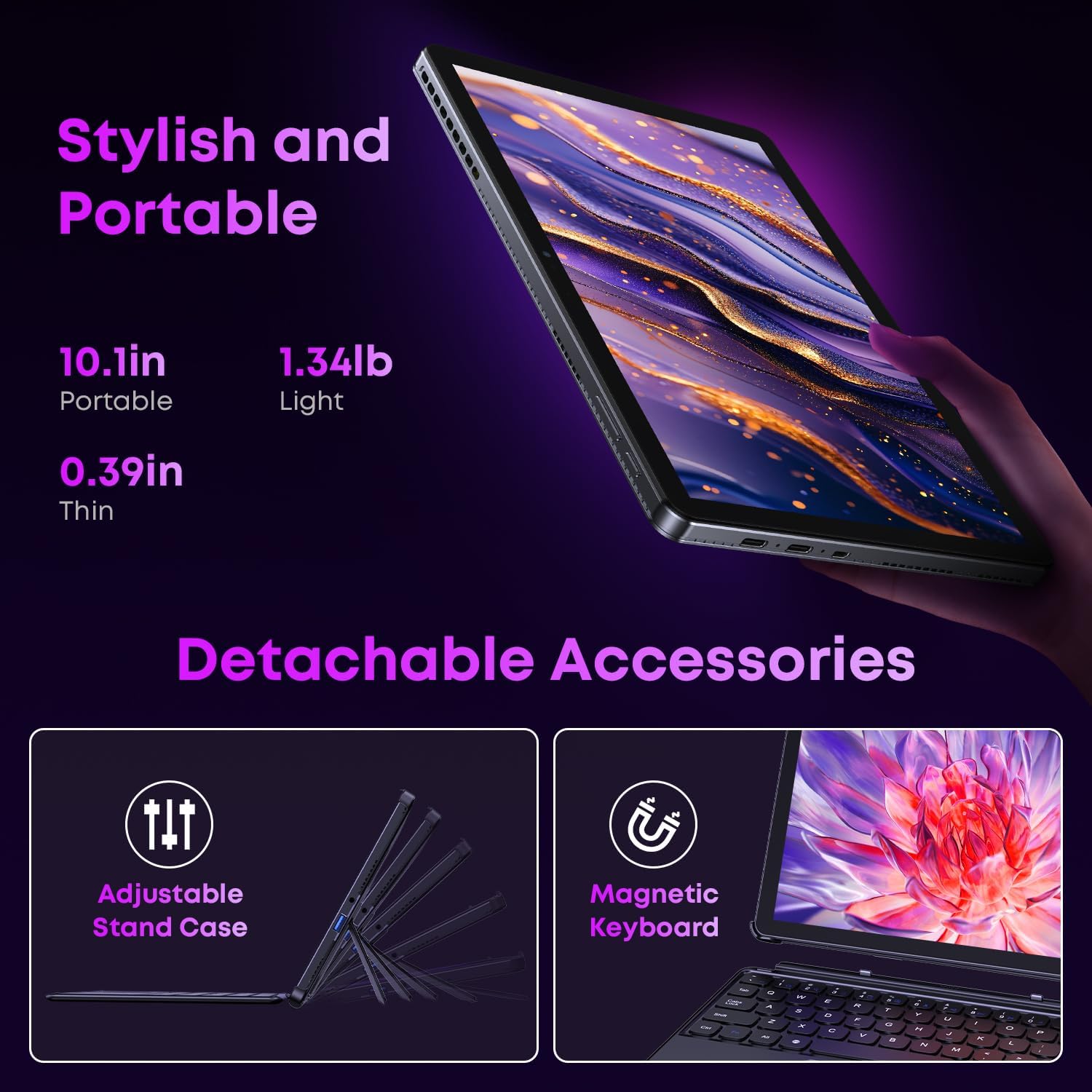
Image 2.1: Detachable accessories including the magnetic keyboard and adjustable stand case.
2.3 First Boot-Up and Windows Activation
Press and hold the power button until the screen turns on. Follow the on-screen instructions to complete the initial Windows 11 setup. If your Windows system arrives unactivated, please send the serial number (located on the back of the device) to CHUWI support via Amazon for your activation key.
2.4 Wi-Fiга туташуу
During setup, you will be prompted to connect to a Wi-Fi network. Select your network and enter the password. The device supports Wi-Fi 6 for fast and stable connections.
3. Иштөө нускамалары
3.1 Күйгүзүү/өчүрүү жана Уйку режими
- Күйгүзүү: Экран жарык кылганга чейин кубат баскычын басып, кармап туруңуз.
- Өчүрүү: From the Windows Start menu, select Power > Shut down.
- Уйку режими: Briefly press the power button to enter or exit sleep mode.
3.2 Сенсордук экранды колдонуу
The 10.1-inch HD touchscreen supports 10-point multi-touch gestures. Use taps, swipes, and pinches for navigation and interaction with applications.

Image 3.1: The 10.1-inch HD touchscreen display.
3.3 Ноутбук жана планшет режимдери
The magnetic keyboard allows for seamless switching between laptop and tablet modes. Attach the keyboard for typing and productivity, or detach it for a pure tablet experience.
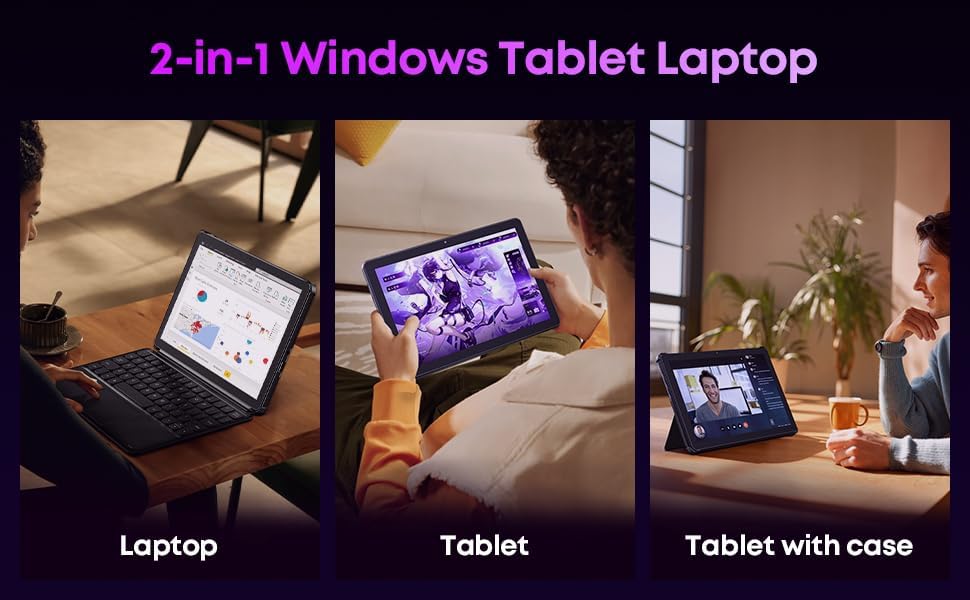
Image 3.2: Usage scenarios demonstrating laptop, tablet, and tablet with case modes.
3.4 Байланыш
- USB порттору: The tablet features a full-featured Type-C port and a USB 3.2 Gen1 port for data transfer and connecting peripherals.
- Микро HDMI: Connect to external monitors or TVs using the Micro HDMI port for extended display options, supporting up to 4K video output.
- Bluetooth 5.3: Pair with wireless headphones, mice, and other Bluetooth accessories.
- Wi-Fi 6: Enjoy high-speed internet connectivity for streaming and browsing.
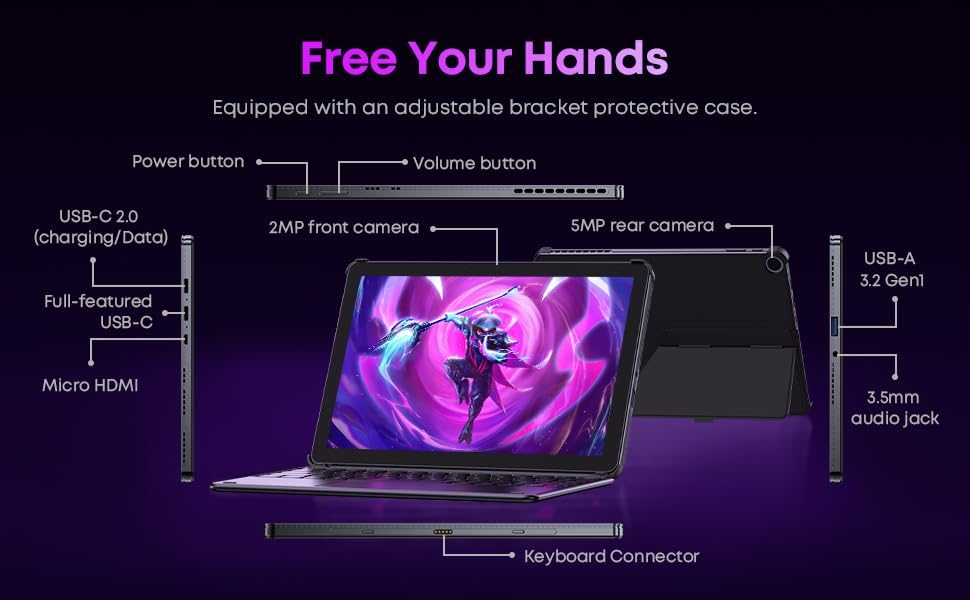
Сүрөт 3.3: Детальдуу view of the tablet's ports and connectors.
3.5 Камераны колдонуу
The tablet is equipped with a 5MP autofocus rear camera for capturing photos and videos, and a 2MP front camera for video calls and selfies.

Image 3.4: Camera and wireless connectivity features.
3.6 Processor and Storage
Powered by a 10th Gen Intel Core i3 processor (up to 3.9GHz) and 8GB RAM, the tablet handles multitasking efficiently. The 256GB SSD provides ample storage and fast access to your files.

Image 3.5: Intel 10th Gen Core i3 Processor details.
3.7 Продукт бүттүview Video
Видео 3.6: Бүттүview of the CHUWI Hi10 X2 2-in-1 Laptop Tablet, highlighting its features and functionality.
4. Техникалык тейлөө
4.1 Аппаратты тазалоо
Планшеттин экранын жана корпусун тазалоо үчүн жумшак, түксүз чүпүрөктү колдонуңуз. өжөр тактар үчүн, бир аз гampчүпүрөккө суу же экранды тазалоо эритмеси. Катуу химиялык заттардан же абразивдүү материалдардан алыс болуңуз.
4.2 Батареяга кам көрүү
To prolong battery life, avoid exposing the tablet to extreme temperatures. It is recommended to keep the battery charge between 20% and 80% for optimal longevity. Avoid fully discharging the battery frequently.
4.3 Программалык камсыздоо жаңыртуулары
Системаңызда эң акыркы коопсуздук жаңыртуулары жана иштин натыйжалуулугун жакшыртуулар бар экенине ынануу үчүн Windows жаңыртууларын үзгүлтүксүз текшерип жана орнотуп туруңуз. Орнотуулар > Windows жаңыртуу бөлүмүнө өтүңүз.
4.4 Сактагычты башкаруу
Мезгил-мезгили менен кайраview жана керексиз жок кылуу files and applications to free up storage space on the 256GB SSD. This helps maintain optimal device performance.
5. Кыйынчылыктарды
5.1 Түзмөк күйбөй жатат
- Ensure the device is fully charged. Connect the charger and wait a few minutes before attempting to power on.
- Катуу баштапкы абалга келтирүү үчүн кубат баскычын 10-15 секунд басып туруңуз.
5.2 Wi-Fi туташуу маселелери
- Wi-Fi роутериңизди жана планшетиңизди өчүрүп күйгүзүңүз.
- Башка түзмөктөр бир эле Wi-Fi тармагына туташа аларын текшериңиз.
- Windows жөндөөлөрүндө тармакты унутуп, кайра туташыңыз.
5.3 Screen Not Responding to Touch
- Планшетти кайра иштетиңиз.
- Экран таза жана таштандылардан таза экенин текшериңиз.
5.4 Keyboard Not Working
- Ensure the tablet is correctly aligned and securely connected to the magnetic keyboard.
- Планшетти кайра иштетиңиз.
Көбүрөөк жардам алуу үчүн, сураныч, Колдоо бөлүмүн караңыз.
6. Техникалык шарттар
| Өзгөчөлүк | Спецификация |
|---|---|
| Бренд | ЧУВИ |
| Модель аты | Hi10 X2 |
| Процессор | Intel Core i3 (10th Gen, up to 3.9 GHz) |
| Операция системасы | Windows 11 Home |
| RAM | 8 ГБ |
| Сактагыч | 256 ГБ SSD |
| Screen Size | 10.1 дюйм |
| Display Resolution | 1280x800 пиксел |
| Байланыш | Wi-Fi 6, Bluetooth 5.3 |
| Порттар | Full-featured Type-C, USB 3.2 Gen 1, Micro HDMI, 3.5mm Audio Jack |
| Камералар | 5MP Autofocus Rear, 2MP Front |
| Салмагы | 1.3 фунт (болжол менен 0.59 кг) |
| Өлчөмдөрү (L x W x Th) | 9.6" x 6.49" x 0.39" |
| Батарея сыйымдуулугу | 3400 мАч |
7. Кепилдик маалыматы
The CHUWI Hi10 X2 2-in-1 Laptop Tablet comes with a 1 жылдык чектелген кепилдикБул кепилдик кадимки колдонуудагы өндүрүштүк кемчиликтерди жана бузулууларды камтыйт. Кепилдик дооматтары үчүн сатып алганыңызды тастыктаган документти сактап коюңуз.
For detailed warranty terms and conditions, please refer to the official CHUWI webсайтка же кардарларды колдоо менен байланышыңыз.
8. Колдоо
If you encounter any issues not covered in the Troubleshooting section, or require assistance with Windows activation, please contact CHUWI customer support. You can typically find support contact information on the official CHUWI website or through your purchase platform (e.g., Amazon seller messaging).
Колдоо кызматына кайрылганда, түзмөгүңүздүн сериялык номерин жана сатып алууну тастыктаган документти даярдап коюңуз.