
1. Киришүү
This manual provides detailed instructions for the setup, operation, and maintenance of your Akko TAC75 HE 8K RGB Magnetic Gaming Keyboard. Please read this manual thoroughly before using the product to ensure optimal performance and longevity.
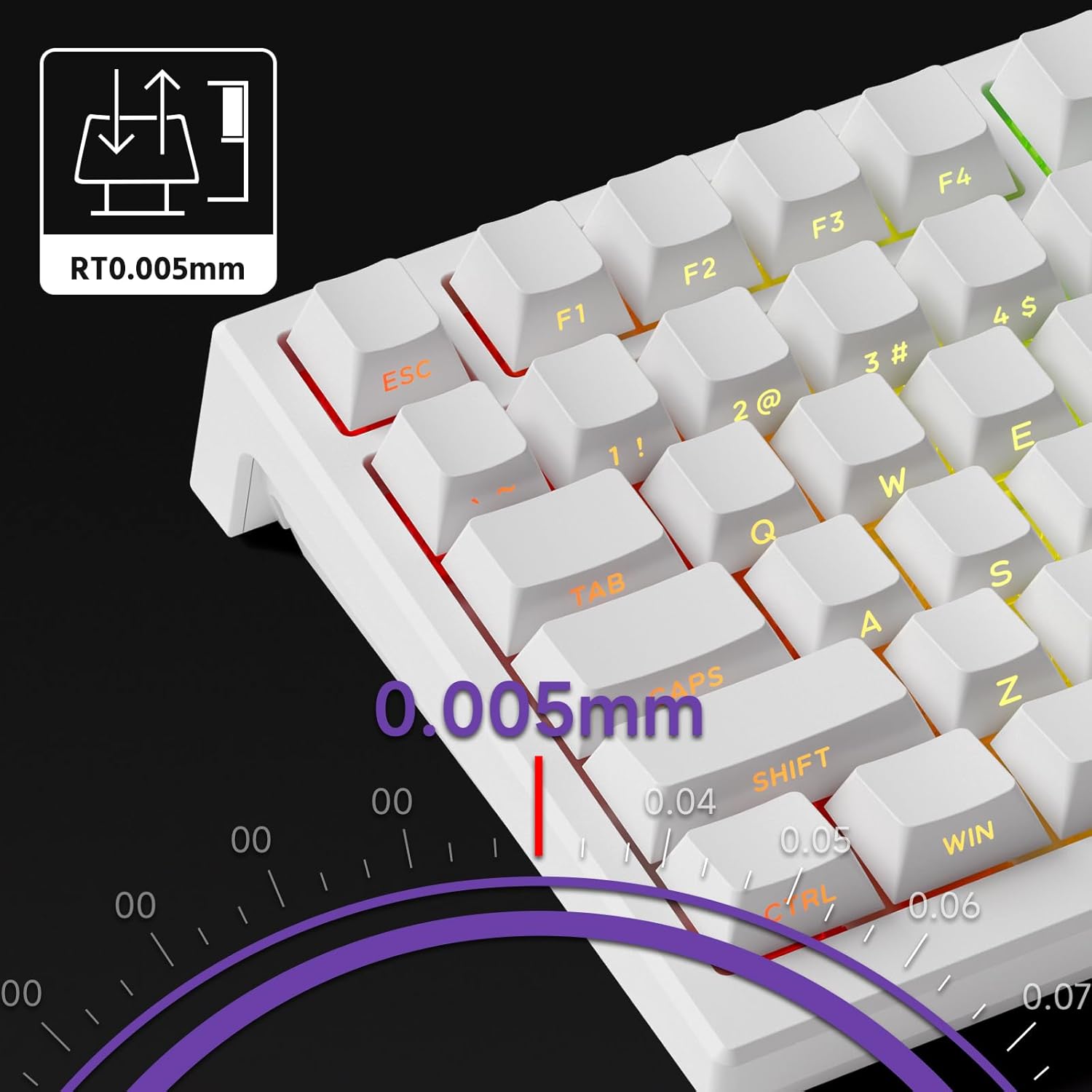
Image 1.1: Akko TAC75 HE 8K RGB Magnetic Gaming Keyboard. This image displays the full keyboard from a top-down perspective, showcasing its 75% layout and RGB lighting.
2. Пакеттин мазмуну
Пакетте бардык буюмдар бар экенин текшериңиз:
- Akko TAC75 HE 8K RGB Magnetic Gaming Keyboard
- USB Type-C кабели
- Колдонуучунун Колдонмосу (бул документ)
- Keycap Puller (may vary by region)
- Switch Puller (may vary by region)
3. Орнотуу
3.1 Баскычтопту туташтыруу
- Unpack the keyboard and USB Type-C cable from the box.
- Connect the USB Type-C end of the cable to the port on the back of the keyboard.
- Кабелдин стандарттуу USB-A учун компьютериңиздеги жеткиликтүү USB портуна туташтырыңыз.
- Клавиатура автоматтык түрдө сиздин операциялык системаңыз тарабынан аныкталат.

Image 3.1: Keyboard with integrated cable routing channels. This image highlights the cable management grooves on the underside of the keyboard, allowing for organized cable placement.
3.2 Software Installation (Akko Driver)
For full customization and advanced features, download and install the Akko Driver software. The software allows you to configure key bindings, RGB lighting, actuation points, and other magnetic switch settings.
- Visit the official Akko webсайт: https://web.akkogear.com/
- Navigate to the "Driver" or "Software" section.
- Иштетүү системаңызга ылайыктуу драйверди жүктөп алыңыз.
- Орнотууну аяктоо үчүн экрандагы нускамаларды аткарыңыз.
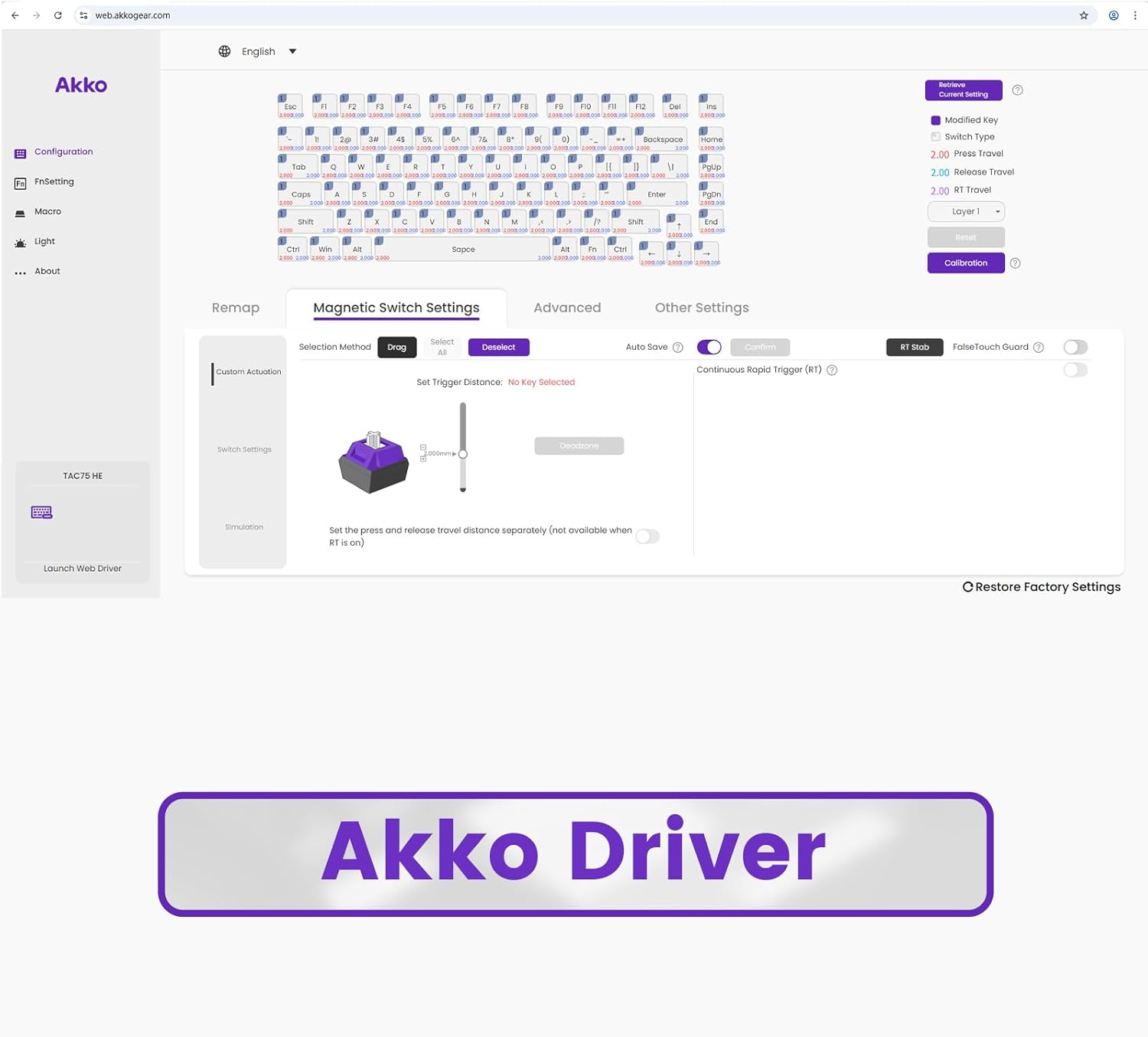
Image 3.2: Screenshot of the Akko Driver software interface. This image shows the web-based driver with options for configuration, remapping, magnetic switch settings, and advanced settings.
4. Иштөө нускамалары
4.1 Негизги баскычтоп функциялары
The Akko TAC75 HE functions as a standard 75% ANSI layout keyboard. All standard keys operate as expected. Function keys (F1-F12) are accessible via the Fn баскыч айкалышы.
4.2 Magnetic Switch Features
Your keyboard is equipped with advanced magnetic switches, offering features like adjustable actuation, Rapid Trigger, SOCD, and DKS.
4.2.1 Adjustable Actuation
The actuation distance of each key can be precisely adjusted in increments of 0.005mm using the Akko Driver software. This allows you to customize the key sensitivity to your preference, from light touches to deeper presses.

Image 4.1: Graphic illustrating 0.005mm adjustable actuation. This image shows a close-up of keyboard keys with a diagram indicating the precise 0.005mm actuation adjustment capability.
4.2.2 Rapid Trigger (RT)
Rapid Trigger allows keys to actuate and reset based on movement rather than a fixed point. This means a key can register a new press as soon as it begins to move upwards, and reset as soon as it begins to move downwards, enabling faster repeated inputs. Configure RT settings via the Akko Driver.
4.2.3 Dynamic Key Strokes (DKS) / Mod Tap
DKS, also known as Mod Tap, allows a single key to perform different actions based on how it is pressed. For example, a quick tap might register one key, while holding it down registers another. This feature can be configured through the Akko Driver software.
4.2.4 Simultaneous Opposing Cardinal Directions (SOCD)
SOCD cleaning is a feature primarily used in gaming to prevent conflicting directional inputs. For instance, if both 'left' and 'right' are pressed simultaneously, SOCD cleaning can prioritize one direction or cancel both, depending on the configured mode. This is configurable within the Akko Driver.
4.3 RGB жарыкты башкаруу
The Akko TAC75 HE features customizable RGB backlighting. Lighting effects, colors, and brightness can be adjusted using the Akko Driver software. Some basic lighting modes might be accessible via Fn key combinations (refer to the software for specific key combinations).

Image 4.3: Akko TAC75 HE keyboard displaying vibrant RGB lighting. This image showcases the keyboard's customizable backlighting across its keys.
4.4 High Performance Features
The keyboard boasts an 8000Hz polling rate and 16000Hz scan rate, minimizing input latency and ensuring rapid response times for competitive gaming.

Image 4.4: Graphic indicating 8K Polling Rate and 16K Universal Scan. This image highlights the high-performance specifications of the keyboard, emphasizing its low latency capabilities.
5. Техникалык тейлөө
5.1 Баскычтопту тазалоо
Клавиатуранын көрүнүшүн жана функционалдуулугун сактоо үчүн:
- Тазалоодон мурун клавиатураны компьютерден ажыратыңыз.
- Бир аз жумшак, түксүз кездемени колдонуңуз dampened with water or a mild cleaning solution to wipe the keycaps and case.
- Баскыч капкактарынын ортосундагы чаң жана таштанды үчүн кысылган абаны колдонуңуз.
- Катуу химиялык заттарды, абразивдерди же эриткичтерди колдонуудан алыс болуңуз.
5.2 Баскычтын капкагын алып салуу жана алмаштыруу
The keyboard features durable PBT Double-shot keycaps. If you need to remove or replace keycaps:
- Use a keycap puller to gently remove keycaps. Pull straight up to avoid damaging the switch stem.
- Алмаштырып жатканда, клавиатураны которгучтун сабы менен тегиздеп, ордуна чыккыча акырын басыңыз.

Image 5.1: Diagram showing Cherry Profile keycap heights. This image illustrates the varying heights of keycaps across different rows, characteristic of the Cherry profile.
6. Кыйынчылыктарды
6.1 Баскычтоп жооп бербейт
- USB Type-C кабелинин клавиатурага да, компьютерге да бекем туташтырылганын текшериңиз.
- Баскычтопту компьютериңиздин башка USB портуна туташтырууга аракет кылыңыз.
- Системага тиешелүү маселелерди жокко чыгаруу үчүн баскычтопту башка компьютерде сынап көрүңүз.
- Компьютериңизди өчүрүп күйгүзүңүз.
6.2 RGB жарыктандыруу иштебей жатат
- Check the Akko Driver software to ensure RGB lighting is enabled and configured correctly.
- RGB башкаруусуна тоскоол боло турган эч кандай карама-каршы программа иштеп турбагандыгын текшериңиз.
- Try resetting the keyboard to factory defaults via the Akko Driver software.
6.3 Программалык камсыздоо клавиатураны аныктабай жатат
- Ensure the Akko Driver software is the latest version. Re-download from https://web.akkogear.com/ зарыл болсо.
- Temporarily disable any antivirus or firewall software that might be blocking the driver.
- Ensure the keyboard is directly connected to the computer and not through a USB hub.
7. Техникалык шарттар
| Өзгөчөлүк | Деталь |
|---|---|
| Модел | Akko TAC75 HE |
| Которгучтар | Akko Glare Linear Magnetic Switches |
| Ишке киргизүү | Magnetic, Adjustable (0.005mm increments) |
| Макет | 75% ANSI |
| Добуш берүү көрсөткүчү | 8000 Гц |
| Скандоо ылдамдыгы | 16000 Гц |
| Байланыш | USB Type-C (зымдуу) |
| Баскыч капкактары | PBT Double-shot, Side-printed Shine-through |
| Жарыктандыруу | RGB |
| Иштин материалы | ABS пластик |
| Кабелдин узундугу | 1.5 м |
| Өлчөмдөрү (болжол менен) | 330 x 76 x 135 мм |
| Салмагы (болжол менен) | 700 г |
| Шайкеш түзмөктөр | PC, оюн консолу |
| Өзгөчөлүктөр | Hall Effect, SOCD, Rapid Trigger, DKS Mod Tap, Adjustable Height |
8. Кепилдик жана колдоо
8.1 Кепилдик маалыматы
The Akko TAC75 HE 8K RGB Magnetic Gaming Keyboard comes with a 12 айлык кепилдик from the date of purchase, covering manufacturing defects. Please retain your proof of purchase for warranty claims. The warranty does not cover damage caused by misuse, accidents, unauthorized modifications, or normal wear and tear.
8.2 Кардарларды колдоо
For technical assistance, warranty claims, or further inquiries, please contact Akko customer support through their official webсайт:
You may also find FAQs and additional resources on their support pages.