
Introduction
This manual provides detailed instructions for the setup, operation, maintenance, and troubleshooting of your MAGIC-REFINER X2 Superlight Wireless Gaming Mouse. Please read this manual thoroughly before using the product to ensure optimal performance and longevity.
Пакеттин мазмуну
- MAGIC-REFINER X2 Wireless Gaming Mouse
- USB-C заряддоо/дата кабели
- 2.4GHz USB кабылдагычы
- Кошумча кармоочу скотч
- User Manual
Продукт бүттүview
The MAGIC-REFINER X2 mouse features a lightweight design and tri-mode connectivity for versatile use.
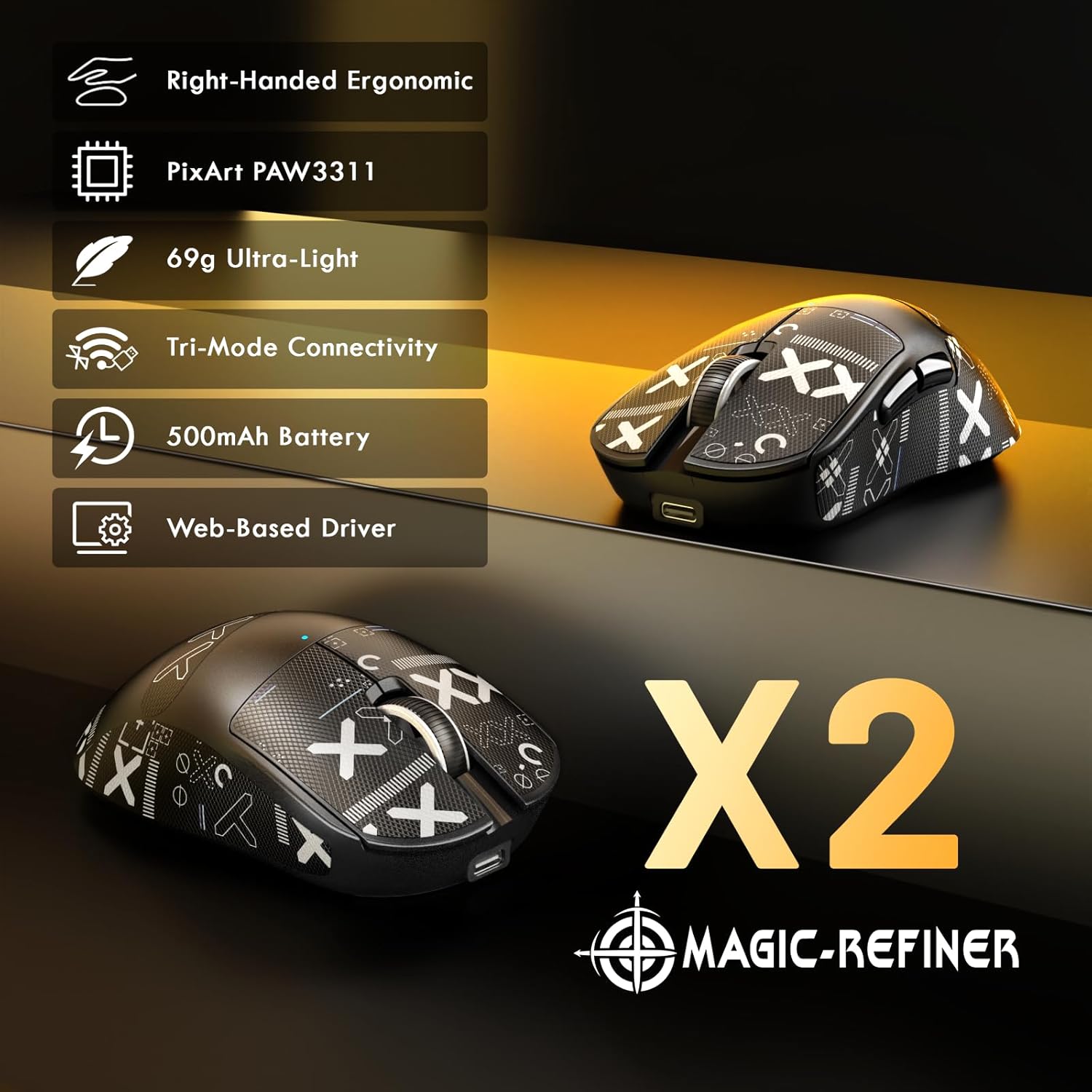
Сүрөт: бүттүview of the MAGIC-REFINER X2 mouse highlighting its main features and ergonomic design.
Mouse Dimensions and Ergonomics

Image: Detailed dimensions and ergonomic design of the X2 mouse, suitable for right-handed users with medium to large hands.
The X2 mouse is designed for right-handed users, offering an ergonomic shape for comfortable use during extended periods. Its dimensions are approximately 122mm (length) x 64mm (width) x 41mm (height).
Жайгашуу
1. Чычканды заряддоо
Before first use, it is recommended to fully charge the mouse. Connect the supplied USB-C cable to the mouse's charging port and the other end to a USB power source (e.g., computer USB port, USB wall adapter). The mouse features a 500mAh battery, providing approximately 200 hours of usage on a full charge.
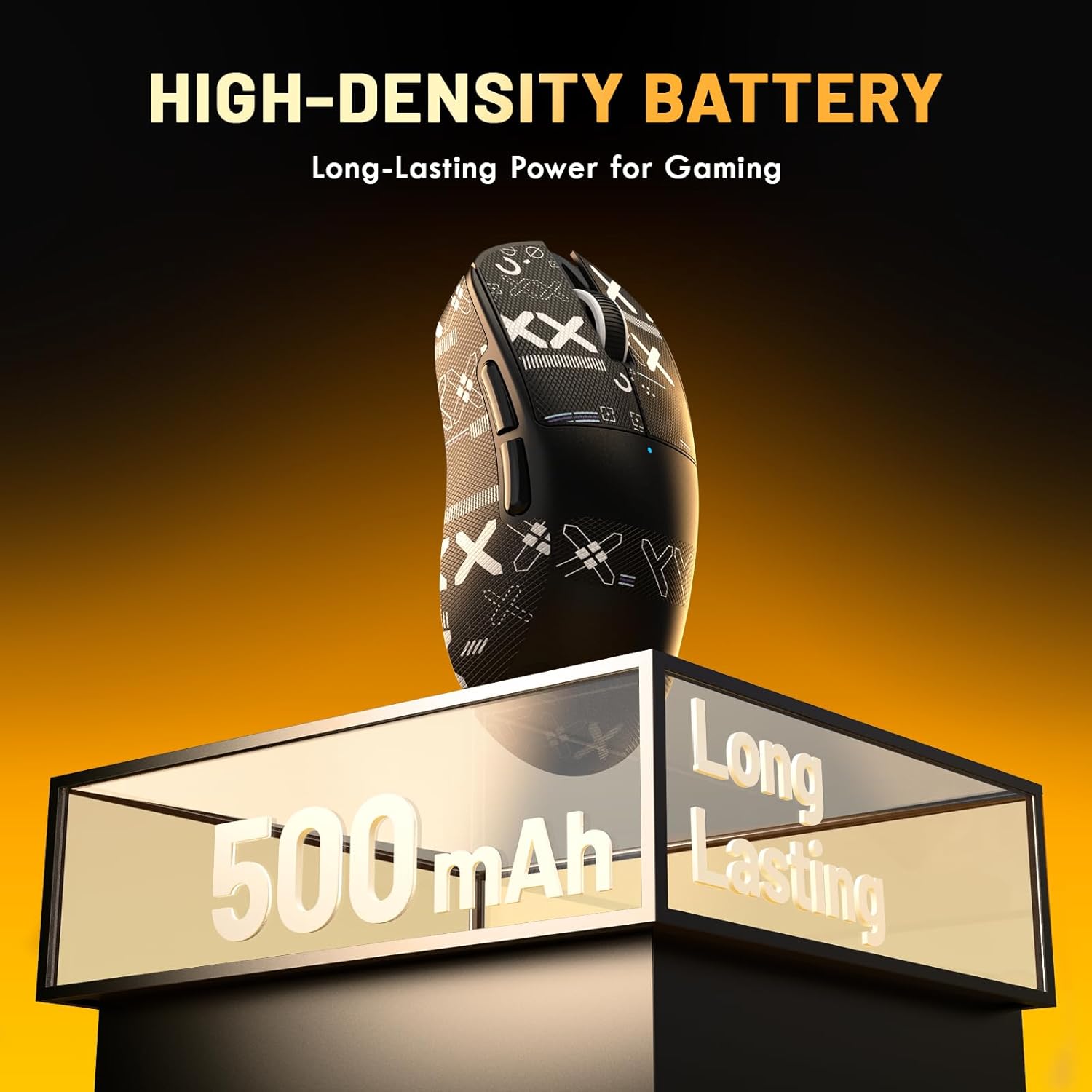
Image: The X2 mouse highlighting its 500mAh high-density, long-lasting battery.
2. Чычканды туташтыруу
The MAGIC-REFINER X2 supports three connection modes: 2.4GHz Wireless, Bluetooth, and Wired USB-C.
2.1. 2.4 ГГц зымсыз режим
- Көбүнчө чычкандын астыңкы бөлүгүндө сакталган 2.4 ГГц USB ресиверди табыңыз.
- USB ресиверди компьютериңиздеги жеткиликтүү USB портуна сайыңыз.
- Turn on the mouse using the power switch on the underside. Select the 2.4GHz mode (often indicated by a specific switch position or LED color).
- Чычкан компьютериңизге автоматтык түрдө туташуу керек.
2.2. Bluetooth режими
- Turn on the mouse and select the Bluetooth mode using the switch on the underside.
- Компьютериңизде же түзмөгүңүздө Bluetooth жөндөөлөрүн ачыңыз.
- Initiate the pairing process on the mouse (refer to the mouse's underside or a specific button for pairing mode, usually indicated by a blinking LED).
- Select "MAGIC-REFINER X2" (or similar name) from the list of available Bluetooth devices on your computer and complete the pairing.
2.3. Зымдуу режим
- USB-C кабелин чычканга, ал эми экинчи учун компьютериңиздеги USB портуна туташтырыңыз.
- Чычкан автоматтык түрдө зымдуу режимге өтүп, заряддоону баштайт.

Image: The X2 mouse demonstrating its tri-mode connectivity options, including wired USB-C, 2.4GHz wireless, and Bluetooth.
Чычканды иштетүү
DPI тууралоо
The X2 mouse features a PixArt PAW3311 sensor with a maximum DPI of 25,000. DPI settings can be adjusted using the dedicated DPI button on the mouse or through the web-based driver software. The mouse typically cycles through preset DPI levels with each press of the DPI button.

Image: Technical specifications of the PixArt PAW3311 sensor, including IPS, DPI, Polling Rate, and Acceleration.
Добуш берүү көрсөткүчүн тууралоо
The mouse supports a 1000Hz polling rate. This setting can be configured via the web-based driver software to suit your preferences.
Программалануучу баскычтар жана программалык камсыздоо
The MAGIC-REFINER X2 mouse is equipped with 5 programmable buttons. To customize button functions, DPI settings, polling rate, and other parameters, download and install the dedicated web-based driver software from the official MAGIC-REFINER website. The software allows for personalized configurations to enhance your gaming experience.

Image: The user interface of the web-based driver software for the X2 mouse, demonstrating customization options for DPI, polling rate, and button assignments.
Applying Grip Tape
The included grip tape can be applied to the mouse for enhanced grip and to reduce hand sweat. Ensure the mouse surface is clean and dry before carefully applying the pre-cut tape to the desired areas.
Техникалык тейлөө
- Тазалоо: Use a soft, dry cloth to clean the mouse. Avoid using harsh chemicals or abrasive materials. For stubborn dirt, a slightly damp cloth can be used, ensuring no moisture enters the mouse's internal components.
- Сактагыч: Чычканды күн нурунан жана экстремалдык температурадан алыс салкын, кургак жерде сактаңыз.
- Батареяга кам көрүү: Батареянын иштөө мөөнөтүн узартуу үчүн, чычкандын зарядын тез-тез толук бошотпоңуз. Батареянын индикатору кубаттуулуктун аздыгын көрсөткөндө, аны кубаттаңыз.
Проблемаларды чечүү
- Чычкан жооп бербей жатат:
- Ensure the mouse is powered on and the correct connection mode (2.4GHz, Bluetooth, or Wired) is selected.
- Батареянын деңгээлин текшерип, керек болсо заряддаңыз.
- 2.4 ГГц режими үчүн USB ресивери иштеген USB портуна бекем сайылганын текшериңиз. Башка USB портун колдонуп көрүңүз.
- For Bluetooth mode, ensure Bluetooth is enabled on your device and the mouse is properly paired. Try re-pairing.
- Зымдуу режимде USB-C кабели чычканга да, компьютерге да бекем туташтырылганын текшериңиз.
- Cursor movement is erratic or sluggish:
- Чычкандын астындагы оптикалык сенсорду тазалаңыз.
- Чычканды ылайыктуу жерде (мисалы, чычкан аянтчасында) колдонуп жатканыңызды текшериңиз. Өтө чагылдыруучу же тунук беттерден качыңыз.
- Adjust the DPI settings to a comfortable level.
- Check for interference in wireless modes. Move the receiver closer to the mouse or away from other wireless devices.
- Баскычтар иштебей жатат:
- Чычкан туура туташтырылганын текшериңиз.
- If using programmable buttons, check the settings in the web-based driver software.
Техникалык шарттар
| Бренд | СЫЙКЫРДУУ ТАЗАЛООЧУ |
| Модел | X2 |
| Байланыш | Үч режим (2.4 ГГц зымсыз, Bluetooth, USB-C зымдуу) |
| Сенсор | PixArt PAW3311 оптикалык сенсор |
| Макс DPI | 25,000 DPI |
| Добуш берүү көрсөткүчү | 1000Hz |
| Ылдамдатуу | 35G |
| IPS | 300IPS |
| Buttons | 5 Программалануучу баскычтар |
| Которгучтар | HUANO микрокоммутаторлору (60 миллион чыкылдатуу) |
| Кодер | TTC коддогучу |
| Батарея сыйымдуулугу | 500mAh |
| Батареянын иштөө мөөнөтү | 200 саатка чейин |
| Салмагы | 69g (approx. 0.2 Kilograms total package weight) |
| Колдун багыты | Оң колдуу |
| Шайкеш түзмөктөр | Personal Computer (PC/Mac) |
Кепилдик жана колдоо
MAGIC-REFINER products are designed for reliability and performance. This product comes with a standard manufacturer's warranty. For specific warranty terms and conditions, please refer to the warranty card included in your package or visit the official MAGIC-REFINER webсайт.
For technical support, troubleshooting assistance, or inquiries regarding your MAGIC-REFINER X2 mouse, please contact our customer support team through the official webсайт же продукт документациясында көрсөтүлгөн байланыш маалыматы.
Официалдуу Webсайт: www.magic-refiner.com (Эскертүү: Бул толтургуч URL. Please refer to your product packaging for the actual support webсайт.)