
1. Киришүү
Welcome to the user manual for your new ASUS VivoBook 2026 Edition Laptop. This guide provides essential information to help you set up, operate, maintain, and troubleshoot your device. The ASUS VivoBook is designed for efficiency and portability, featuring an Intel 13th Gen processor, a vibrant 14-inch Full HD display, and Windows 11 Home.
Негизги өзгөчөлүктөрү:
- Powerful Intel i3 13th Gen Processor: Intel Core i3-1315U 6-Core (up to 4.5GHz) for efficient performance.
- Upgraded Memory & Storage: 16GB DDR4 RAM and 256GB PCIe SSD for smooth multitasking and fast data access.
- 14-inch Full HD Thin Bezel Display: 1920x1080 resolution with 250 nits brightness and anti-glare coating.
- Өркүндөтүлгөн байланыш: Wi-Fi 6E and Bluetooth 5.3 for reliable wireless connections.
- Коопсуз Webкамера: 720p HD camera with an integrated privacy shutter.
- Портативдик дизайн: Lightweight at 3.09 lbs with up to 8 hours of battery life.
2. Орнотуу
2.1 Кутудан чыгаруу жана алгачкы текшерүү
Carefully remove your laptop and all accessories from the packaging. Ensure all components listed in the 'What's in the Box' section are present and undamaged.
- ASUS VivoBook ноутбук
- 65W USB-C заряддагыч
- USB-C - USB-C кабели
2.2 Кубатты туташтыруу
Before first use, connect the AC adapter to your laptop and a power outlet. It is recommended to fully charge the battery before initial operation.
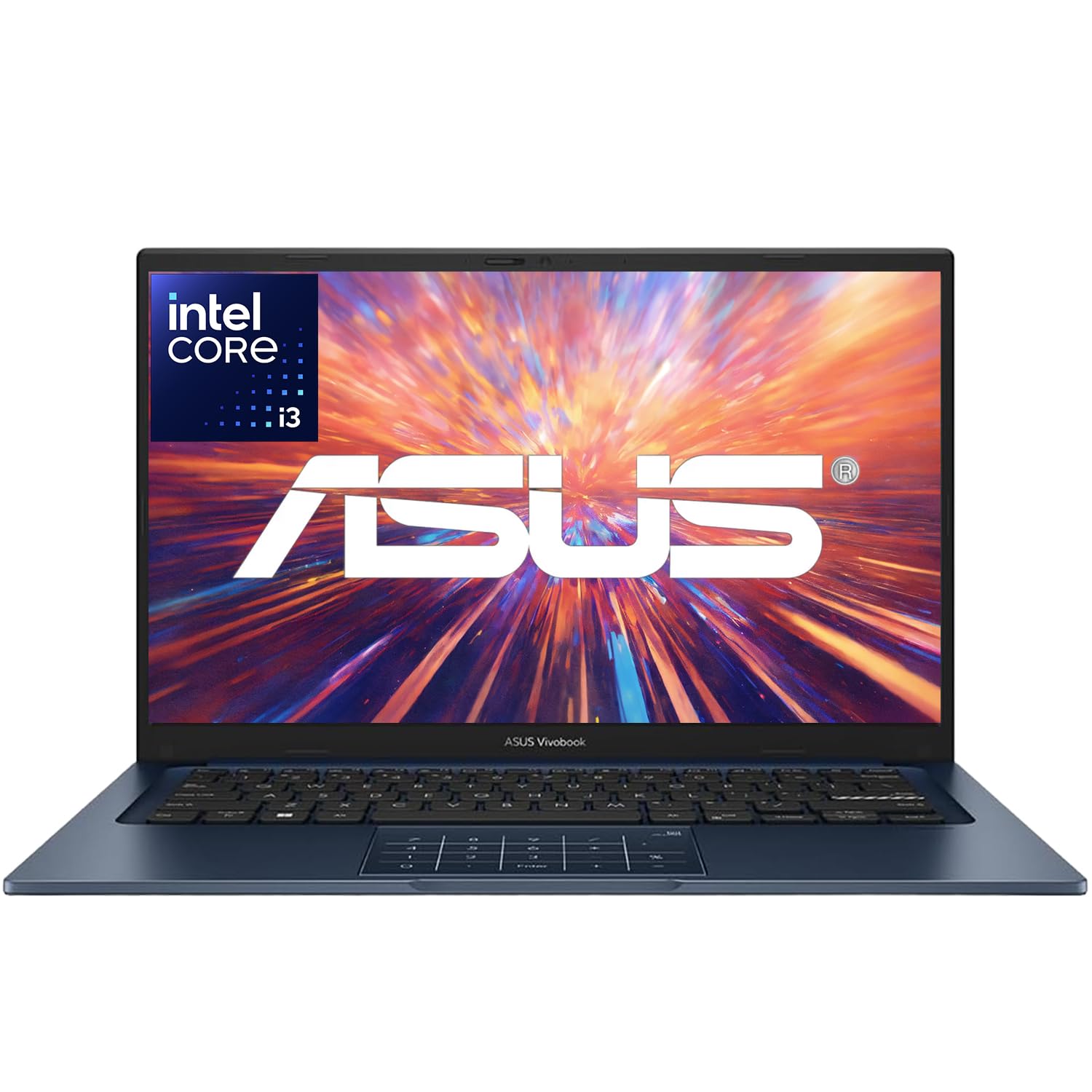
Image: The ASUS VivoBook Laptop, typically shown with its power adapter connected to the charging port.
2.3 Биринчи жүктөө жана Windows 11 орнотуу
Press the power button to turn on your laptop. Follow the on-screen instructions to complete the Windows 11 Home setup process. This includes selecting your region, language, creating a user account, and accepting the license agreement.
2.4 Wi-Fiга туташуу
During the Windows setup or after, connect to a Wi-Fi network. Click the Wi-Fi icon in the taskbar, select your network, enter the password, and click Connect.
3. Ноутбугуңузду иштетүү
3.1 Процессордун иштеши
Your ASUS VivoBook is equipped with an Intel Core i3-1315U Processor, featuring 6 cores and 8 threads, with a maximum turbo frequency of 4.5 GHz. This processor is designed for efficient handling of daily computing tasks, from browsing and document editing to light multimedia use.

Image: A visual representation of the Intel Core i3-1315U Processor, highlighting its 13th generation, 6 cores, 8 threads, and up to 4.5 GHz Max Turbo Frequency.
3.2 Дисплейдин өзгөчөлүктөрү
The 14-inch Full HD (1920 x 1080) NanoEdge display offers a clear and immersive viewing experience with an 82.5% screen-to-body ratio. It features an anti-glare coating and is certified flicker-free and low blue light for reduced eye strain.

Image: The ASUS VivoBook laptop showcasing its 14-inch NanoEdge display with thin bezels, emphasizing the 82.5% screen-to-body ratio and certifications for flicker-free and low blue light.
3.3 Webcam and Privacy
The laptop includes a 720p HD camera with ASUS 3D Noise Reduction (3DNR) technology for clearer video calls. For enhanced privacy, a physical webcam privacy shield is integrated, allowing you to cover the camera lens when not in use.

Image: A close-up of the ASUS VivoBook's webcam, illustrating the ASUS 3D Noise Reduction technology for improved video clarity during conference calls.

Image: Details showing the physical webcam privacy shield that slides over the camera lens, and the laptop's 180-degree lay-flat hinge for easy screen sharing.
3.4 Баскычтоп жана сенсордук такта
The laptop features a backlit keyboard for comfortable typing in various lighting conditions. The touchpad includes ASUS NumberPad 2.0, which allows you to activate a virtual numeric keypad on the touchpad for data entry. To enable or disable the NumberPad, simply tap the icon on the touchpad.

Image: The ASUS NumberPad 2.0 integrated into the touchpad, showing the numeric layout. Also depicted is the fingerprint sensor for quick and secure login.
3.5 Порттар жана туташуу
Your VivoBook offers a range of ports for connecting peripherals and external displays:
- 1 x USB 3.2 Gen 1 Type-C
- 2 x USB 3.2 Gen 1 Type-A
- 2 x USB 2.0 Type-A
- 1 x HDMI v1.4
- 1 x Кулакчын / Микрофон айкалышкан аудио уячасы
- 1 x Coaxial plug power jack
Wireless connectivity includes MediaTek Wi-Fi 6E (2x2) and Bluetooth 5.3.

Сүрөт: деталдуу view of the various ports on the side of the ASUS VivoBook laptop, including USB 2.0, USB 3.2 Gen 1, USB-C 3.2 Gen 1, HDMI, and the Audio Combo Jack.
3.6 Батареяны башкаруу
The laptop is equipped with a 3-cell, 42Wh battery, providing up to 8 hours of non-gaming battery life. To optimize battery longevity, avoid frequently discharging the battery completely and use the provided charger.
4. Техникалык тейлөө
4.1 Ноутбугуңузду тазалоо
- Жумшак, түксүз кездемени колдонуңуз dampдисплей үчүн суу же атайын экран тазалоочу менен иштетилген.
- Баскычтоп жана шасси үчүн жумшак кездеме колдонуңуз. Катуу химиялык заттардан же абразивдүү материалдардан алыс болуңуз.
- Тазалоодон мурун ноутбуктун өчүрүлгөнүн жана розеткадан ажыратылганын текшериңиз.
4.2 Программалык камсыздоо жаңыртуулары
Regularly check for and install Windows updates to ensure system stability, security, and performance. You can find these in Windows Settings > Update & Security > Windows Update.
4.3 Сактагычты башкаруу
Мезгил-мезгили менен кайраview орнотулган колдонмолоруңуз жана files to free up storage space on your 256GB PCIe SSD. Use Windows' built-in Disk Cleanup tool or uninstall unnecessary programs.
5. Кыйынчылыктарды
This section addresses common issues you might encounter with your ASUS VivoBook laptop.
5.1 Электр энергиясы маселелери
- Ноутбук күйбөй жатат: AC адаптери ноутбукка да, иштеген электр розеткасына да бекем туташып турганын текшериңиз. Кубат индикаторунун жарыгы күйүп турганын текшериңиз.
- Батарея кубатталбай жатат: AC адаптери жана кабели бузулбагандыгын текшериңиз. Башка розетканы колдонуп көрүңүз.
5.2 Дисплей көйгөйлөрү
- Экранда дисплей жок: Көйгөй ноутбуктун ички дисплейинде экенин текшерүү үчүн тышкы мониторду HDMI портуна туташтырыңыз. Ноутбуктун күйүп турганын текшериңиз.
- Күңүрт же бүлбүлдөгөн экран: Adjust brightness settings (Fn + F5/F6 keys). Check for updated graphics drivers.
5.3 Байланыш маселелери
- Wi-Fi туташпай жатат: Ensure Wi-Fi is enabled (Fn + F10 key or Windows Settings). Restart your router and laptop.
- Bluetooth түзмөгү жупташкан жок: Ensure Bluetooth is enabled in Windows Settings. Make sure the device is in pairing mode and within range.
5.4 Аудио көйгөйлөрү
- Үн жок: Check volume levels in Windows and ensure speakers are not muted. Verify audio drivers are up to date.
For further assistance, please refer to the ASUS support webсайтка же кардарларды тейлөөгө кайрылыңыз.
6. Техникалык шарттар
The ASUS VivoBook 2026 Edition Laptop is built to meet US Military Grade MIL-STD 810H standards, undergoing multiple tests for durability and reliability.

Image: The ASUS VivoBook laptop with a badge indicating US Military Grade MIL-STD 810H certification, surrounded by icons representing various durability tests like shock, vibration, temperature, and humidity.
| Компонент | Спецификация |
|---|---|
| Процессор | Intel Core i3-1315U (13th Gen), 6 Cores (2P+4E), 8 Threads, up to 4.5 GHz |
| Операция системасы | Windows 11 Home 64-бит |
| Графика | Intel UHD графикасы (интегралдык) |
| Эстутум (RAM) | 16GB DDR4 SDRAM (Max 40GB) |
| Сактагыч | 256 ГБ PCIe SSD |
| Дисплей | 14-inch FHD (1920 x 1080), 250 nits, 45% NTSC, 60Hz, Anti-Glare, Thin Bezel LCD |
| Байланыш | MediaTek Wi-Fi 6E (2x2), Bluetooth 5.3 |
| Порттар | 1x USB 3.2 Gen 1 Type-C, 2x USB 3.2 Gen 1 Type-A, 2x USB 2.0 Type-A, 1x HDMI v1.4, 1x Headphone/Mic Combo Jack, 1x Coaxial Power Jack |
| Аудио | SonicMaster орнотулган динамик |
| Webcam | Купуялык жапкычы бар 720p HD камера |
| Батарея | 3 клеткалуу 42 Вт/саат (оюнсуз 8 саатка чейин) |
| Өлчөмдөрү (L x W x Y) | 12.79 x 8.42 x 0.7 дюйм |
| Салмагы | 3.09 фунт |
| Түс | Тынч көк |
| Модель жылы | 2026 |
7. Кепилдик жана колдоо
Your ASUS VivoBook Laptop comes with a standard manufacturer's warranty. Please refer to the warranty card included with your product for specific terms and conditions, including coverage duration and service procedures.
7.1 Техникалык колдоо
Техникалык жардам, драйверлерди жүктөп алуу же өнүм жөнүндө кошумча маалымат алуу үчүн, ASUS расмий колдоо кызматына кайрылыңыз website. You can typically find support resources by searching for your laptop model on the ASUS webсайт.
ASUS колдоо Webсайт: www.asus.com/support/
7.2 Коргоо пландары
Extended protection plans may be available for purchase separately to provide additional coverage beyond the standard warranty. Please inquire with your retailer or check the ASUS website for details on available protection options.