
Introduction
Thank you for choosing the OBZ Bluetooth Barcode Scanner OV-26T. This device is a versatile 2D/1D/QR code reader designed for efficient data capture in various environments such as retail, warehousing, and inventory management. It features wireless connectivity via Bluetooth and a 2.4G wireless base, along with a convenient charging stand. This manual provides detailed instructions for setting up, operating, and maintaining your scanner to ensure optimal performance.
Продукт бүттүview
The OBZ OV-26T scanner is engineered for reliability and ease of use. It combines a comfortable handheld design with advanced scanning technology.
Негизги компоненттер
- Штрихкод сканери: The main handheld unit for scanning codes.
- Charging Stand/Base: Provides charging and 2.4G wireless connectivity.
- USB кабели: For charging and connecting the base to a host device.
- Lithium Polymer Batteries: Two included for extended operation.

Image: The OBZ Bluetooth Barcode Scanner with its charging stand, illustrating the complete product setup.
Жайгашуу
1. Сканерди кубаттоо
Before first use, ensure the scanner is fully charged.
- Connect the USB cable to the charging stand and then to a power source (e.g., computer USB port or USB wall adapter).
- Place the scanner into the charging stand. The indicator light on the scanner will show charging status.
- A full charge takes approximately 3.5 hours and provides up to 10 hours of scanning time. The battery is detachable for convenience.

Image: Illustration of the detachable battery design and charging specifications, including 10 hours scanning time, 3.5 hours charging time, and 100 days standby time for the 2200mAh battery.
2. Connecting the Charging Stand (for 2.4G Wireless Mode)
If you plan to use the 2.4G wireless connection, connect the charging stand to your host device.
- Plug the USB cable from the charging stand into an available USB port on your computer or POS system. The system should automatically recognize the device.
Иштөө нускамалары
Байланыш режимдери
The OBZ OV-26T scanner supports two wireless connection modes: Bluetooth and 2.4G Wireless Base.
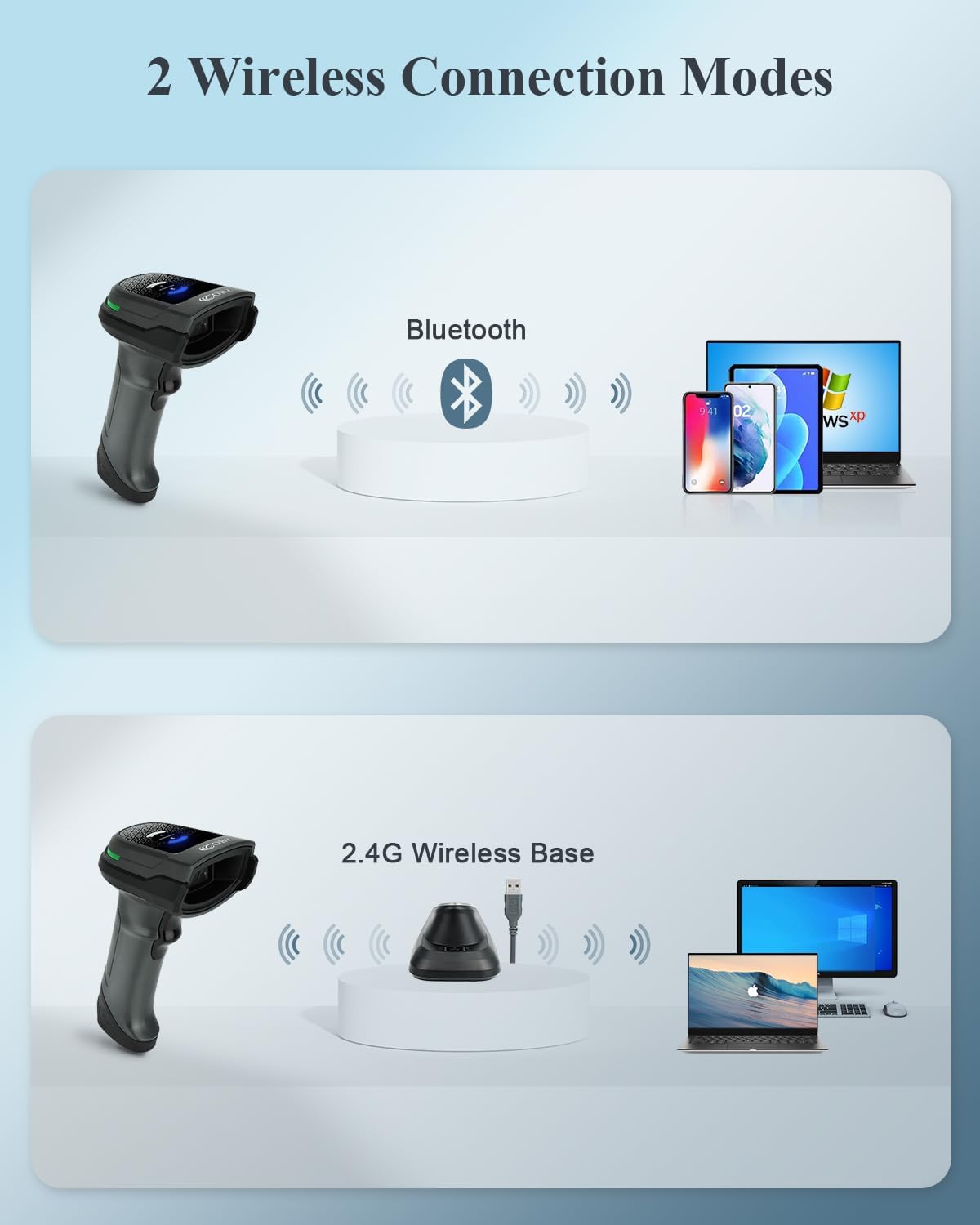
Image: Diagram illustrating the two wireless connection modes: Bluetooth for direct connection to devices like smartphones, tablets, and laptops, and 2.4G Wireless Base for connection via a USB dongle to computers.
1. Bluetooth туташуусу
- Сканерди күйгүзүңүз.
- Activate Bluetooth on your host device (smartphone, tablet, laptop, etc.).
- Издөө available Bluetooth devices. The scanner should appear as "OBZ Scanner" or similar.
- Жупташтыруу үчүн сканерди тандаңыз. Ийгиликтүү туташуу сканердеги белгилүү бир үн же жарык менен көрсөтүлөт.
2. 2.4G Wireless Base Connection
- Ensure the charging stand is connected to your computer via USB.
- Сканерди күйгүзүңүз.
- The scanner and base are typically pre-paired. If not, press the "Connection Button" on the base to initiate pairing. The scanner will automatically connect to the base.

Image: The Smart Base, highlighting its functions: recharging the scanner, transmitting barcode data, and a one-click pairing function via the connection button.
Штрихкоддорду сканерлөө
The scanner is capable of reading various 1D, 2D, and QR codes from both paper and digital screens.
- Сканердин терезесин сканерлегиңиз келген штрих-кодго багыттаңыз.
- Press the trigger button. A red aiming beam will appear.
- Ensure the aiming beam covers the entire barcode.
- A successful scan will be indicated by a beep and/or a green light. The scanned data will be transmitted to your connected device.
Image: The scanner demonstrating its ability to read various barcode types including 1D, PDF417, ISSN/ISBN, QR Code, Aztec, and DataMatrix from both physical labels and digital screens.

Image: Visual representation of the scanner's fast reading speed, capable of decoding PDF417, DataMatrix, QR Code, Aztec, ISSN/ISBN, UPC/EAN, and all 1D types.
Шайкештик
The OBZ OV-26T scanner is compatible with a wide range of operating systems and devices.
- Операциялык системалар: Mac OS, Windows, Linux, Android, iOS.
- Түзмөктөр: PC, Laptops, Tablets, iPads, Smartphones, Point-of-Sale (POS) systems.

Image: Display of the scanner's broad compatibility with Mac OS, Windows, Linux, Android, and iOS, connecting to PCs, laptops, tablets, iPads, smartphones, and POS systems.
Техникалык тейлөө
- Тазалоо: Сканердин сыртын тазалоо үчүн жумшак, кургак чүпүрөктү колдонуңуз. Скандоочу терезе үчүн жумшак, түксүз кездемени жеңил колдонуңуз dampened with water or a mild glass cleaner. Avoid abrasive materials or harsh chemicals.
- Батареяга кам көрүү: To prolong battery life, avoid fully discharging the battery frequently. Store the scanner in a cool, dry place when not in use for extended periods.
- Сактагыч: Store the scanner and charging stand in a safe environment, away from extreme temperatures, moisture, and direct sunlight.
- Колдонуу: Handle the scanner with care. Avoid dropping it, as this can damage internal components.
Проблемаларды чечүү
- Сканер күйбөй жатат:
- Ensure the battery is properly inserted and charged. Place the scanner on the charging stand for at least 30 minutes.
- Scanner not connecting via Bluetooth:
- Make sure Bluetooth is enabled on your host device.
- Ensure the scanner is in Bluetooth pairing mode (refer to specific pairing instructions if available in the quick start guide).
- Delete any previous pairings of the scanner from your device's Bluetooth list and try pairing again.
- Ensure the scanner is within the effective range of your Bluetooth device.
- Scanner not connecting via 2.4G Wireless Base:
- Verify the charging stand is securely connected to your computer's USB port.
- Try pressing the "Connection Button" on the base to re-establish the link.
- Компьютериңиздеги башка USB порту менен сынап көрүңүз.
- Сканер штрих-коддорду окубай жатат:
- Штрих-коддун бузулбагандыгын же начар басылгандыгын текшериңиз.
- Сканердин окуу терезесин тазалаңыз.
- Сканер менен штрих-коддун ортосундагы аралыкты жана бурчту тууралаңыз.
- Ensure the barcode type is supported by the scanner (1D, 2D, QR).
- Check if the scanner is properly connected to your host device.
- Inconsistent or slow scanning:
- Ensure the scanner battery is sufficiently charged.
- Башка зымсыз түзмөктөрдүн кийлигишүүсүн азайтыңыз.
- For dense QR codes, ensure proper lighting and a steady hand.
Техникалык шарттар
| Өзгөчөлүк | Деталь |
|---|---|
| Модель номери | OV-26T |
| Байланыш технологиясы | Bluetooth, 2.4G Wireless (via base), USB Cable |
| Скандоо мүмкүнчүлүгү | 1D, 2D, QR Codes (e.g., UPC/EAN, PDF417, DataMatrix, QR Code, Aztec) |
| Шайкеш түзмөктөр | Android Devices, iOS Devices, Mac OS, Point Of Sale Systems, Windows PC |
| Power Source | Battery-Powered, Corded Electric (via USB) |
| Батарея түрү | Литий Полимер (2 камтылган) |
| Батарея сыйымдуулугу | 2200 мАч (болжолдуу, сүрөткө негизделген) |
| Заряддоо убактысы | Болжол менен 3.5 саат |
| Скандоо убактысы | 10 саатка чейин |
| Күтүү убактысы | 100 күнгө чейин |
| Продукциянын өлчөмдөрү | 5.7 x 3 x 3.54 дюйм |
| Элемент Салмагы | 6.9 унция |
| Өндүрүүчү | OBZ |
Кепилдик жана колдоо
For warranty information and technical support, please refer to the documentation included with your product or contact OBZ customer service directly. Contact details can typically be found on the manufacturer's official webсайтында же продуктунун таңгагында.