
1. Орнотуу
This section guides you through the initial setup of your CHUWI CoreBook X laptop.
1.1 Кутудан чыгаруу жана баштапкы күйгүзүү
- Ноутбукту жана бардык аксессуарларды таңгактан этияттык менен алып салыңыз.
- Connect the provided USB-C power adapter to the laptop's USB-C port (PD Charging/USB 2.0) and then to a power outlet.
- Open the laptop lid. The laptop may power on automatically or you may need to press the power button located on the keyboard.
- Follow the on-screen instructions to complete the Windows 11 Pro initial setup, including language selection, network connection, and user account creation.
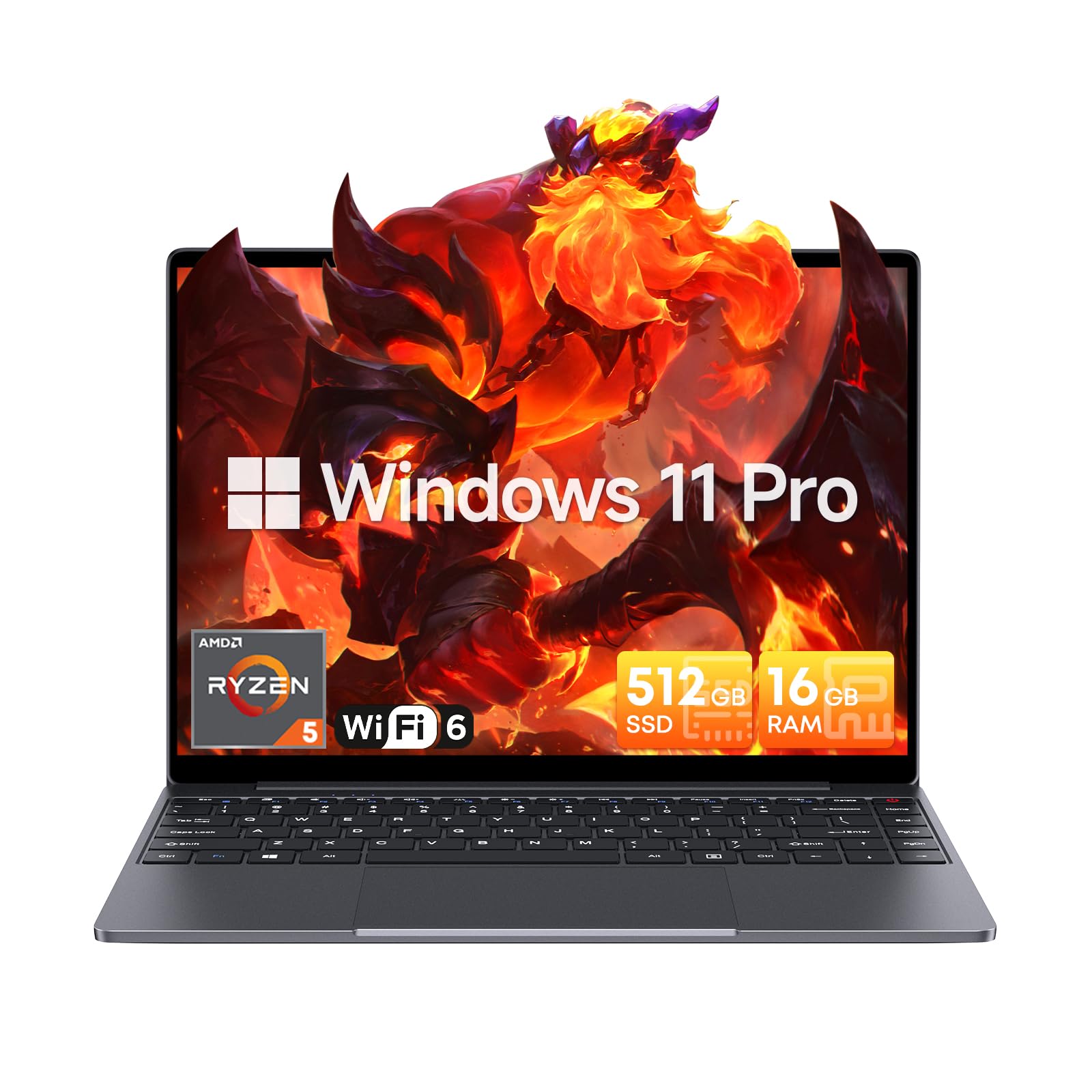
Image: The CHUWI CoreBook X laptop open on a desk, ready for use.
1.2 Перифериялык түзүлүштөрдү туташтыруу
- USB түзмөктөрү: Connect USB mice, keyboards, or external storage devices to the available USB 3.0 ports.
- Тышкы дисплей: Use the HDMI 1.4 port or the full-featured USB Type-C port to connect an external monitor.
- Аудио түзмөктөр: Наушниктерди же тышкы динамиктерди 3.5 мм аудио уячасына туташтырыңыз.
- TF картасы: Insert a TF card into the TF card slot for additional storage.

Сүрөт: деталдуу view of the laptop's ports, including TF Card Slot, 3.5mm Headphone Jack, USB 3.0 Port, Lock Slot, USB Type-C (PD Charging/USB 2.0), HDMI 1.4, and Full-featured USB Type-C Port.
1.3 Тармак жана Bluetooth туташуусу
- Wi-Fi 6: To connect to a wireless network, click the Wi-Fi icon in the taskbar, select your network, and enter the password.
- Bluetooth 5.2: To pair Bluetooth devices, go to Windows Settings > Bluetooth & devices, turn on Bluetooth, and select your device to pair.
2. Иштөө
This section covers the basic operation of your CHUWI CoreBook X laptop.
2.1 Электр энергиясын башкаруу
- Күйгүзүү: Кубат баскычын басыңыз.
- Уйку режими: Капкакты жабыңыз же Баштоо менюсунан "Уйку" дегенди тандаңыз.
- Өчүрүү: Баштоо менюсунан "Өчүрүү" дегенди тандаңыз.
- Кайра баштоо: Баштоо менюсунан "Кайра баштоо" тандаңыз.
2.2 Баскычтоп жана сенсордук такта
- The laptop features a full-sized backlit keyboard with white illumination. Use the function keys (Fn) in combination with other keys for shortcuts like adjusting brightness, volume, or toggling the backlight.
- The large touchpad supports multi-touch gestures for navigation. Refer to Windows settings for customizing touchpad gestures.

Сүрөт: жакын план view of the laptop's backlit keyboard and large touchpad, highlighting its navigation features.
2.3 Дисплей жана аудио
- The 14-inch IPS display offers a 2160*1440 resolution. Adjust display settings (brightness, resolution, scaling) through Windows Display Settings.
- The laptop is equipped with stereo speakers. Volume can be controlled via the keyboard function keys or the Windows sound settings.
- HD webcam is integrated for video conferencing.

Image: The laptop's 14-inch 2K IPS display showcasing vibrant colors and a comparison of 3:2 and 16:9 aspect ratios.
2.4 Видео бүттүview
Video: An official product video demonstrating various features and usage scenarios of the CHUWI CoreBook X laptop, including its performance, display, and connectivity options.
3. Техникалык тейлөө
Туура тейлөө сиздин ноутбуктун узак иштөөсүн жана оптималдуу иштешин камсыз кылат.
3.1 Тазалоо
- Use a soft, lint-free cloth to clean the screen. For stubborn marks, dampкездемени суу же экранды коргоочу каражат менен бир аз сүртүңүз.
- Wipe the chassis and keyboard with a soft, dry cloth. Avoid using harsh chemicals or abrasive materials.
- Periodically use compressed air to clear dust from the vents to maintain efficient cooling.
3.2 Батареяга кам көрүү
- Avoid fully discharging the battery frequently. Charge the laptop when the battery level is low.
- Store the laptop in a cool, dry place if not used for extended periods, with the battery charged to around 50-70%.
- Use only the original or certified compatible USB-C PD charger.
3.3 Сактоо жана эстутум жаңыртуу
The laptop supports RAM and SSD upgrades.
- The 16GB DDR4 RAM can be expanded up to 64GB via 2 SODIMM slots.
- The 512GB PCIe SSD can be expanded up to 2TB using the M.2 2280 PCIe slot.
- A convenient detachable bottom cover allows for easier access to upgrade components without removing the entire back panel.

Image: The underside of the laptop with the detachable cover removed, revealing the dual-channel SO-DIMM slot for RAM upgrades.
4. Кыйынчылыктарды
Бул бөлүм сиз кабылышы мүмкүн болгон жалпы маселелер боюнча чечимдерди берет.
4.1 Жалпы маселелер жана чечимдер
- Ноутбук күйбөйт:
- Кубат адаптери ноутбукка да, иштеген электр розеткасына да бекем туташып турганын текшериңиз.
- Электр розеткасынын иштешин текшериңиз.
- Катуу баштапкы абалга келтирүү үчүн кубат баскычын 10-15 секунд басып туруңуз.
- Дисплей көйгөйлөрү (сүрөт жок, бүлбүлдөп):
- Функционалдык баскычтарды колдонуп, экрандын жарыктыгын тууралаңыз.
- Эгерде тышкы монитор туташып турса, аны ажыратып көрүңүз.
- Ноутбукту кайра иштетиңиз.
- Wi-Fi or Bluetooth connectivity problems:
- Ensure Wi-Fi/Bluetooth is enabled in Windows settings.
- Wi-Fi көйгөйлөрү үчүн роутериңизди/модемиңизди өчүрүп күйгүзүңүз.
- Remove and re-pair Bluetooth devices.
- Update network and Bluetooth drivers through Device Manager.
- Жай аткаруу:
- Фондо иштеп жаткан керексиз тиркемелерди жабыңыз.
- Windows жаңыртууларын жана драйвер жаңыртууларын текшериңиз.
- SSDде жетиштүү бош орун камсыз кылыңыз.
- Кесепеттүү программаны сканерлеңиз.
Бул жерде каралбаган маселелерге туш болсоңуз же кошумча жардам керек болсо, Колдоо бөлүмүнө кайрылыңыз.
5. Техникалык шарттар
Detailed technical specifications for the CHUWI CoreBook X laptop.

Image: An illustration of the AMD Ryzen 5 processor, highlighting its core count, threads, and clock speed.
| Өзгөчөлүк | Спецификация |
|---|---|
| Модель аты | Corebook X |
| Процессор | AMD Ryzen 5 (6 Cores, 12 Threads, up to 4.3 GHz) |
| Графика | AMD Radeon Graphics (1800MHz, Max 2GB Memory) |
| RAM | 16GB DDR4 (Expandable up to 64GB via 2 SODIMM slots) |
| Сактагыч | 512GB PCIe SSD (Expandable up to 2TB via M.2 2280 PCIe slot) |
| Дисплей | 14-inch IPS, 2160*1440 Resolution, 100% sRGB Color Gamut |
| Операция системасы | Windows 11 Pro |
| Байланыш | Wi-Fi 6 (802.11ax), Bluetooth 5.2 |
| Порттар | USB Type-C (PD Charging/USB 2.0), USB 3.0, HDMI 1.4, Full-featured USB Type-C, 3.5mm Audio Jack, TF Card Slot, Lock Slot |
| Батарея | 46.2Wh Lithium-Ion Battery, 65W USB-C PD Fast Charging |
| Баскычтоп | Full-sized Backlit Keyboard with White Illumination |
| Сенсордук такта | Large Touchpad, Multi-touch |
| Webcam | HD Webcam |
| Өлчөмдөр | 12.2"L x 9"W x 0.67"Th (17mm thin) |
| Салмагы | 2.2 фунт (1.4 кг) |
6. Кепилдик
The CHUWI CoreBook X laptop comes with a 1 жылдык өндүрүүчүнүн кепилдиги.
This warranty covers defects in materials and workmanship under normal use. It does not cover damage caused by accidents, misuse, unauthorized repairs, or modifications. Please retain your proof of purchase for warranty claims.
7. Колдоо
For technical assistance, warranty claims, or further inquiries, please contact CHUWI customer support.
- Өндүрүүчү колдоо: Расмий CHUWI сайтына баш багыңыз webколдоо булактары, көп берилүүчү суроолор жана байланыш маалыматы үчүн сайт.
- Сатуучуну колдоо: If purchased through a retailer, you may also contact the seller for assistance.