
1. Продукт бүтүп калдыview
The Bikevee BKV100A is a wireless GPS bike computer designed to track your cycling data with precision. It features a 2.6-inch LCD display, ANT+ connectivity for various sensors, and seamless integration with the Link-S app and Strava for data management and sharing. Its IPX7 waterproof rating ensures durability in various weather conditions.
1.1 Негизги өзгөчөлүктөрү
- Clear 2.6" LCD Screen: Easily read speed, distance, and ride stats.
- Manual & Auto Backlight: Ensures visibility day or night.
- ANT+ Connectivity: Connects with compatible sensors for real-time data.
- Strava-Compatible GPX Data Sync: Export rides via Link-S app to Strava.
- Автоматтык токтотуу функциясы: Saves battery when paused.
- IPX7 Суу өткөрбөйт: Designed for all-day riding in various conditions.
- 5-Star GPS Positioning: Supports GPS, Galileo, BDS, Glonass, and QZSS for accurate tracking.
1.2 Кутуда эмне бар

Image: Included components of the Bikevee BKV100A.
- Bike Computer (Main Unit)
- USB-C заряддоо кабели
- Стандарттык велосипед орнотуу
- Каучук
- Rubber Rings (for mounting)
- User Manual
2. Орнотуу
2.1 Велосипед компьютерин орнотуу

Image: Step-by-step guide for mounting the bike computer.
- 1-кадам: Place the bicycle computer horizontally onto the mount.
- 2-кадам: Attach the bicycle computer securely on the stand.
- 3-кадам: Turn the bicycle computer clockwise by 90 degrees until it locks into place.
2.2 Колдонмону жүктөө жана түзмөктү жупташтыруу
To fully utilize your Bikevee BKV100A, download the 'Link-S' app from your device's app store (Google Play Store or Apple App Store).
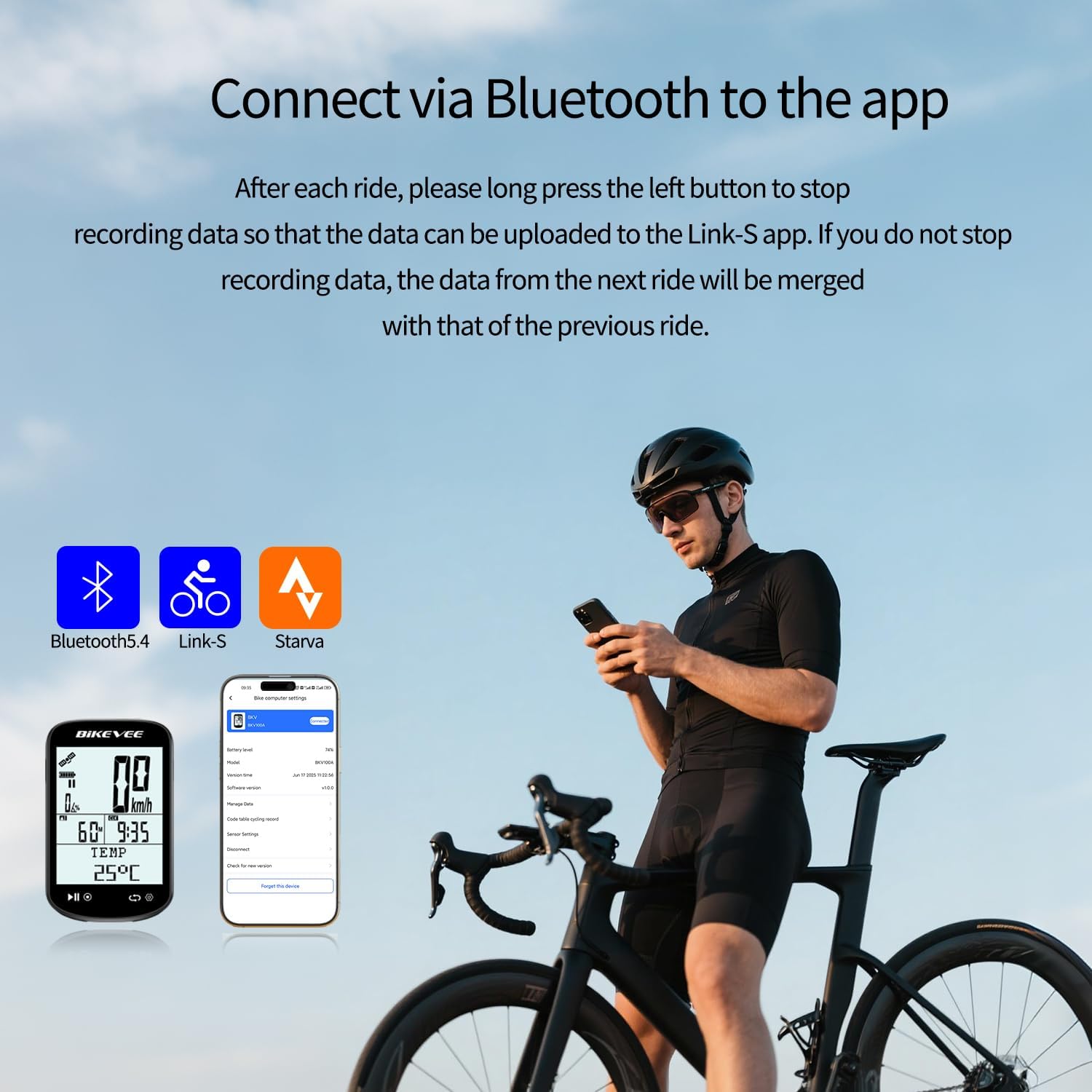
Image: Connecting the Bikevee BKV100A to the Link-S app via Bluetooth.
- Turn on your Bikevee BKV100A.
- Open the 'Link-S' app on your smartphone.
- Navigate to the 'Devices' section and select 'Add Device'.
- The app will search for your bike computer. Once found, click on the device name.
- A pairing code will be displayed on your bike computer. Enter this code into the app on your phone and confirm.
- Once connected, the app will display 'Connected'.
2.3 Программаны жаңыртуу
Regularly updating the software ensures optimal performance and access to new features. If you experience issues like incorrect trip distance or temperature display, a software update is recommended.
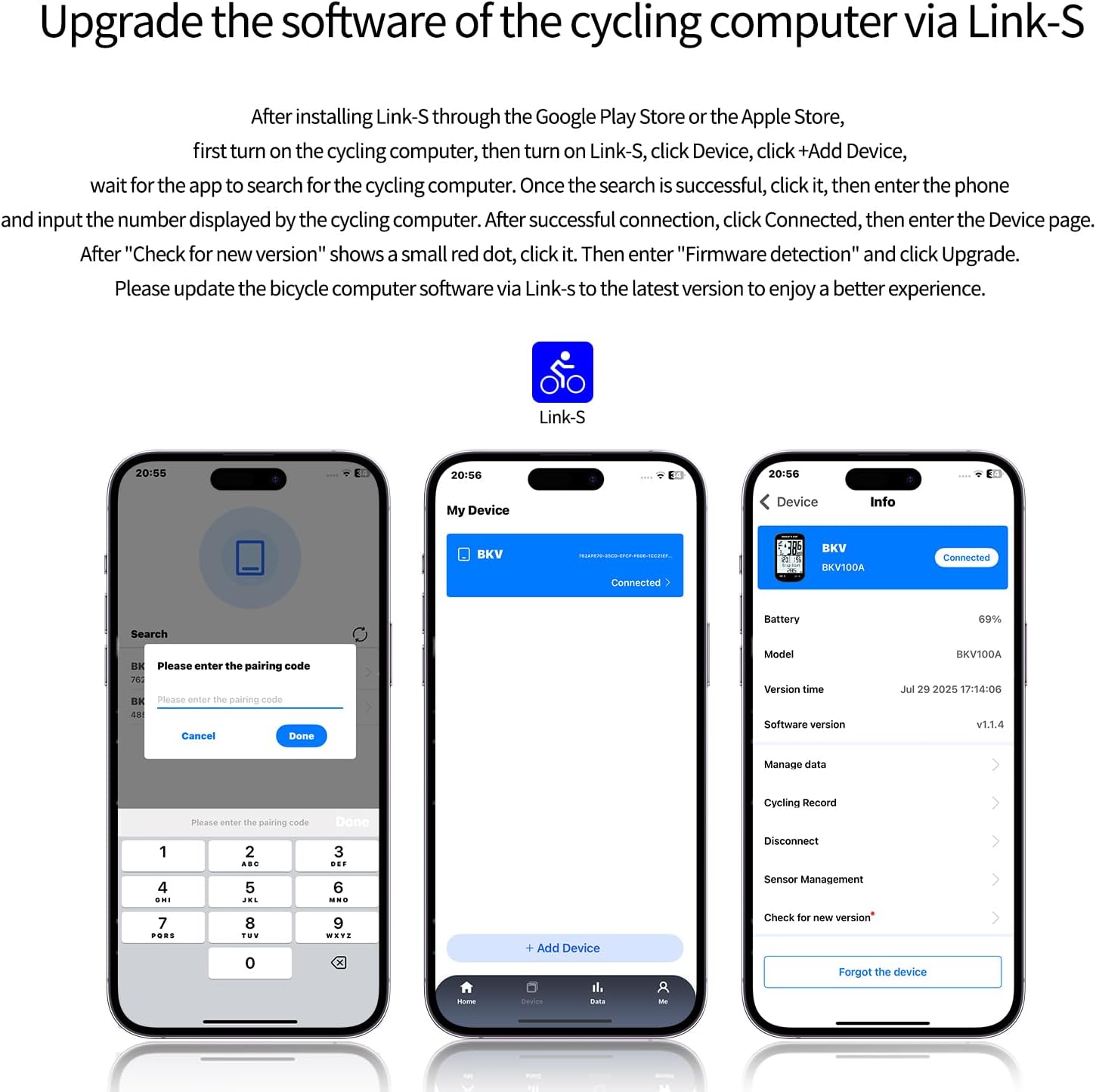
Image: Steps for updating the bike computer's software through the Link-S app.
- Ensure your bike computer is paired and connected to the Link-S app.
- In the app, go to the device information page.
- Look for 'Check for new version'. If a red dot appears, an update is available.
- Click on 'Check for new version' and then 'Upgrade' to start the firmware update.
- Wait for the update to complete (approximately 1 minute). The app will indicate 'Upgrade completed'.
Video: Guide on how to perform a firmware update to unlock auto backlight and other features.
Video: Demonstrates the firmware update process (V1.1.7) for enhanced user experience.
3. Иштөө нускамалары
3.1 Баскыч функциялары

Сүрөт: бүттүview of button functions for navigating riding pages and settings.
- Сол баскыч (Ойнотуу/Тындыруу): Click to record/pause ride data. Long press for two seconds to stop recording data.
- Middle Button (Settings): Long press to enter the settings page.
- Right Button (Next Page): Click to navigate to the next data page.
- Каптал баскычы: Long press for two seconds to turn the device on/off. Short press to turn backlight on/off while cycling.
3.2 Auto Backlight & Time Calibration

Image: Demonstrates the auto backlight feature for day and night visibility.
The device supports both manual and automatic backlight. When riding, briefly press the side button to toggle the backlight. The automatic backlight feature, enabled via software update, enhances visibility and supports GPS automatic time calibration.
3.3 ANT+ Sensor Connectivity

Image: Illustrates the compatibility of the bike computer with multiple ANT+ sensors.
The Bikevee BKV100A maximizes compatibility by working perfectly with ANT+ sensors. Multiple sensors, such as heart rate monitors, cadence/speed sensors, and power meters, can be connected simultaneously for comprehensive data tracking.
3.4 GPS позициялоо

Image: The bike computer's multi-system GPS positioning for enhanced accuracy.
The device supports 5-star positioning systems including GPS, Galileo, BDS, Glonass, and QZSS. The first connection may take longer, but subsequent connections will be faster and more accurate.
3.5 Data Sync & Strava Integration

Image: Process of syncing data to Strava via the Link-S app.
After each ride, long press the left button on the bike computer to stop recording data. This allows the data to be uploaded to the Link-S app. If you do not stop recording, data from the next ride may merge with the previous one.
- Open the Link-S app and navigate to the 'Data' section.
- Find the cycling record you wish to upload and click the green arrow icon next to it.
- To share with Strava, go to the 'Me' page in the Link-S app.
- Find '3rd party account link' and click on it.
- Link your Strava account. Once linked, you can upload your cycling data directly to Strava.
Video: Instructions on how to sync ride data to the Link-S app and share it on Strava.
3.6 Time Zone and Speed Unit Settings

Image: Adjusting time zone and speed unit settings on the device.
- Long press the middle button to enter the settings page.
- Use the right button to navigate through the settings until you find 'Time Zone' or 'Units'.
- Click the middle button to select and adjust the desired setting.
- Long press the middle button again to exit the settings page.
4. Техникалык тейлөө
4.1 Тазалоо
To maintain the device's appearance and functionality, wipe it regularly with a soft, damp cloth. Avoid using harsh chemicals or abrasive cleaners, as these can damage the screen or casing.
4.2 Сууга туруктуулук (IPX7)
The Bikevee BKV100A is IPX7 waterproof, meaning it can withstand immersion in water up to 1 meter for 30 minutes. While it is designed to be durable in rain and splashes, avoid prolonged submersion or high-pressure water jets.
4.3 Батареяга кам көрүү
The device features a Lithium Ion battery with an average life of 50 hours. To prolong battery life:
- Биринчи колдонуудан мурун аппаратты толук заряддаңыз.
- Батареяны бат-баттан толук түгөтүп коюудан алыс болуңуз.
- Аппаратты колдонбогондо салкын, кургак жерде сактаңыз.
- Заряддоо үчүн берилген USB-C кабелин колдонуңуз.
5. Кыйынчылыктарды
5.1 Жалпы маселелер
- Trip Distance Not Displaying / Temperature Locked in Celsius: This is often due to an incomplete software update. Please update to v1.4.7 or the latest version via the Link-S app as described in Section 2.3.
- Түзмөк күйбөй жатат: Батарея заряддалганын текшериңиз. Түзмөктү USB-C кабели аркылуу кубат булагына туташтырыңыз.
- Difficulty Pairing with App: Ensure Bluetooth is enabled on your phone and the bike computer. Make sure no other software is connected to the device. If recording a ride, end the ride first. If the device is off, turn it on and try again.
- Так эмес маалыматтар: Ensure GPS signal is strong. For ANT+ sensors, check battery levels and proper installation.
5.2 Жалпы кеңеш
If you encounter persistent issues not covered here, try restarting the device and your smartphone. Ensure the Link-S app is updated to its latest version.
6. Техникалык шарттар
| Бренд | Bikevee |
| Модель номери | BKV100A |
| Түс | Кара |
| Продукциянын өлчөмдөрү | 1.97"L x 0.63"W x 3.15"H |
| Элемент Салмагы | 70 грамм |
| Screen Size | 2.6 дюйм |
| Дисплей түрү | LCD |
| Батареянын орточо иштөө мөөнөтү | 50 саат |
| Сенсор түрү | Speed/Cadence Sensor; GPS Sensor |
| Батарея түрү | Литий ион |
| Байланыш технологиясы | ANT+ |
| Монтаж түрү | Рул монтажы |
| Адам интерфейсинин киргизүү | Buttons |
| Эл аралык коргоо рейтинги | IPX7 |
7. Кепилдик жана колдоо
7.1 Кепилдик маалыматы
The Bikevee BKV100A Wireless GPS Bike Computer comes with a эки жылдык кепилдик сатып алынган күндөн тартып. Бул кепилдик өндүрүштүк кемчиликтерди жана нормалдуу колдонуудагы бузулууларды камтыйт. Кепилдик дооматтары үчүн сатып алганыңыздын далилин сактап коюңуз.
7.2 Кардарларды колдоо
If you encounter any problems, have questions, or require assistance with your Bikevee BKV100A, please do not hesitate to contact our customer support team. We are here to help.
Байланыш маалыматы:
- Электрондук почта: support@bikevee.com
- Webсайт: зыярат кылыңыз Bikevee Store on Amazon Көп берилүүчү суроолор жана кошумча ресурстар үчүн.