
1. Бүттүview
The Zebra TC52 is a wireless Android handheld device designed for efficient 1D, 2D, and QR code barcode scanning. This device offers a familiar Android operating system experience with access to various applications, making it suitable for diverse business environments. It is built for durability and ease of use, providing a reliable solution for data capture tasks.
Негизги өзгөчөлүктөрү:
- Budget-Friendly & Durable: Designed to balance durability with cost-effectiveness for business applications.
- Көп функциялуу сканерлөө мүмкүнчүлүктөрү: Supports scanning of 2D, 1D, and QR codes, accommodating a broad range of barcode formats.
- Android 14 with Play Store Access: Provides a user-friendly Android experience with access to a wide variety of applications for enhanced functionality.
- Заряддагыч камтылган: Comes with a charger to ensure the device remains powered for continuous operation.
2. Продукциянын компоненттери
The Zebra TC52 package includes the following main components:
- Zebra TC52 Handheld Barcode Scanner
- Заряддоо кабели
- Кубаттуу адаптер
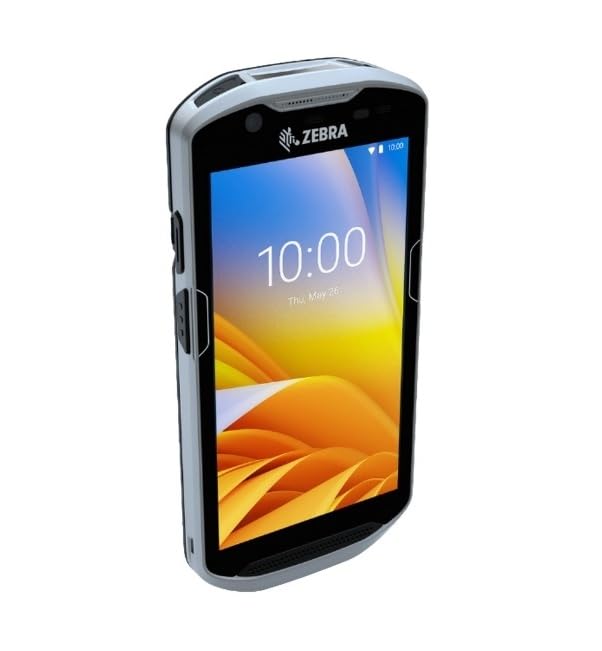
Сүрөт 2.1: Алдыңкы view of the Zebra TC52 handheld barcode scanner, showing the screen and an active scanning beam.

2.2-сүрөт: Төмөнкү view of the Zebra TC52, highlighting the integrated barcode scanner module.
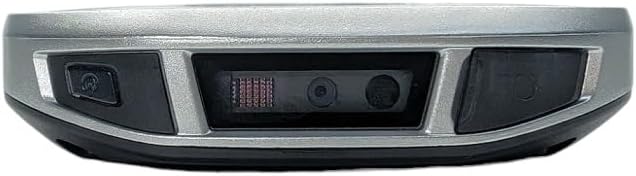
Figure 2.3: The Zebra TC52 handheld barcode scanner shown alongside its charging cable and power adapter.
3. Орнотуу
3.1. Баштапкы заряддоо
- Connect the charging cable to the USB-C port on the bottom of the TC52 device.
- Кубат адаптерин стандарттуу электр розеткасына сайыңыз.
- Allow the device to charge completely before first use. The charging indicator light will typically change color or turn off when fully charged.
3.2. Күйгүзүү / Өчүрүү
- Күйгүзүү үчүн: Press and hold the Power button (usually located on the side) until the Zebra logo appears on the screen.
- Өчүрүү үчүн: Өчүрүү менюсу пайда болгонго чейин Күйгүзүү баскычын басып, кармап туруңуз. "Өчүрүү" дегенди тандап, ырастаңыз.
3.3. Тармакка кошулуу
- Башкы экрандан, Тез жөндөөлөр панелине кирүү үчүн жогору жагынан ылдый серпиңиз.
- Wi-Fi'ды иштетүү үчүн Wi-Fi сөлөкөтүн таптаңыз.
- Wi-Fi жөндөөлөрүн ачуу үчүн Wi-Fi сүрөтчөсүн басып, кармап туруңуз.
- Каалаган тармакты тандап, суралса сырсөздү киргизиңиз.
4. Иштөө нускамалары
4.1. Негизги навигация
- Башкы экран: Access applications and widgets.
- Колдонмо тартмасы: Экранды ылдый жагынан өйдө сүрүңүз view бардык орнотулган колдонмолор.
- Эскертмелер жана Ыкчам жөндөөлөр: Билдирмелерди жана тез жөндөөлөрдү которуштуруу үчүн экрандын өйдө жагынан ылдый сүрүңүз.
4.2. Штрихкод сканерлөө
- Түзмөгүңүздөгү сканерлөө тиркемесин ачыңыз.
- Сканер терезесин (түзмөктүн жогору жагында жайгашкан) штрих-кодго багыттаңыз.
- Press and hold one of the scan buttons (typically on the sides of the device) to activate the scanning beam.
- Ensure the scanning beam covers the entire barcode. A successful scan is usually indicated by an audible beep and/or a visual confirmation on the screen.
- Скандоо баскычын коё бериңиз.
Video 4.1: This video demonstrates the basic operation of the Zebra TC52 handheld scanner, including powering on, navigating the Android interface, and using the scanning function.
4.2-видео: Бул видеодо кыскача маалымат берилетview of the Zebra TC52's rugged design and scanning capabilities, showing it in a typical operational environment.
5. Техникалык тейлөө
5.1. Аспапты тазалоо
- Жумшак, түксүз кездемени колдонуңуз dampened with water or a mild cleaning solution to wipe the exterior of the device.
- For the display, use a screen-specific cleaner and a microfiber cloth to avoid scratches.
- Do not use abrasive cleaners, solvents, or aerosol sprays directly on the device.
5.2. Батареяга кам көрүү
- Charge the device regularly to maintain optimal battery health.
- Батареяны бат-баттан толук кубаттап калуудан алыс болуңуз.
- Аппаратты узак убакыт бою колдонбогондо салкын, кургак жерде сактаңыз.
5.3. Программалык камсыздоону жаңыртуу
Regularly check for and install software updates to ensure optimal performance, security, and access to the latest features. Updates can typically be found in the device's settings under "System" or "About phone."
6. Кыйынчылыктарды
6.1. Түзмөк күйбөй жатат
- Ensure the battery is sufficiently charged. Connect the device to the charger and wait a few minutes before attempting to power on again.
- Perform a soft reset by holding down the Power button for 10-15 seconds.
6.2. Barcode Scanner Not Working
- Сканерлөөчү тиркеме ачык жана активдүү экенин текшериңиз.
- Check for any obstructions on the scanner window and clean if necessary.
- Штрих-коддун бузулбагандыгын же начар басылгандыгын текшериңиз.
- Аппаратты кайра иштетиңиз.
6.3. Connectivity Issues (Wi-Fi)
- Toggle Wi-Fi off and on in the Quick Settings.
- Тармакты унутуп, кайра туташып, туура сырсөз киргизилгенин текшериңиз.
- Restart your Wi-Fi router if other devices are also experiencing connectivity issues.
7. Техникалык шарттар
| Өзгөчөлүк | Деталь |
|---|---|
| Бренд | Zebra (Manufacturer: Symbol) |
| Модел | TC52 |
| Скандоо мүмкүнчүлүгү | 2D/1D/QR Code Barcode Scanner |
| Операция системасы | Android (Version not specified, but implies modern Android with Play Store access) |
| Байланыш | Зымсыз |
| Камтылган аксессуарлар | Заряддагыч |
| GTIN | 611393754717 |
| ASIN | B0GKB5YQ3F |
8. Кепилдик жана колдоо
8.1. Amazon жаңыртылган кепилдиги
This product is part of the Amazon Renewed program and is backed by the Amazon Renewed Guarantee. This typically includes a 90-day return policy for refund or replacement if the product does not work as expected.
8.2. Техникалык колдоо
For technical assistance or further inquiries regarding your Zebra TC52 device, please refer to the official Zebra support resources or contact the seller, Tekswamp LLC, for specific support related to your renewed product.