
1. Киришүү
The Huawei OptiXstar K251a-21 is a sub-FTTR (Fiber to the Room) unit designed to extend the high-speed network provided by the Huawei FTTR OptiXstar F50 Plus main unit. This device supports ultra-Gigabit high-speed access via upstream fiber optic lines and delivers Ultra Gigabit dual-band Wi-Fi and ultra-Gigabit network ports to users. It integrates next-generation Wi-Fi 7 technology for higher speeds and lower latency, ensuring a superior home network experience.
2. Коопсуздук маалыматы
Please read and understand all safety instructions before using this device. Failure to follow these instructions may result in injury, damage to the device, or property damage.
- Аппарат менен кошо берилген кубат адаптерин гана колдонуңуз.
- Аппаратты сууга, нымдуулукка же экстремалдык температурага тийгизбеңиз.
- Аппаратты жылуулук булактарынын жанына же тике күн нуруна коюудан алыс болуңуз.
- Ашыкча ысып кетүүнүн алдын алуу үчүн туура желдетүүнү камсыз кылыңыз.
- Аппаратты өзүңүз ачууга же оңдоого аракет кылбаңыз. Жардам алуу үчүн квалификациялуу тейлөө кызматкерлерине кайрылыңыз.
- Аппаратты балдардан жана үй жаныбарларынан алыс кармаңыз.
3. Пакеттин мазмуну
Пакетиңизде бардык буюмдар бар экенин текшериңиз:
- Huawei OptiXstar K251a-21 Sub FTTR Device
- Электр кабели
- Ыкчам баштоо колдонмосу (эгер камтылган болсо)
4. Продукт бүтүп калдыview
Түзмөктүн компоненттери жана көрсөткүчтөрү менен таанышып алыңыз.
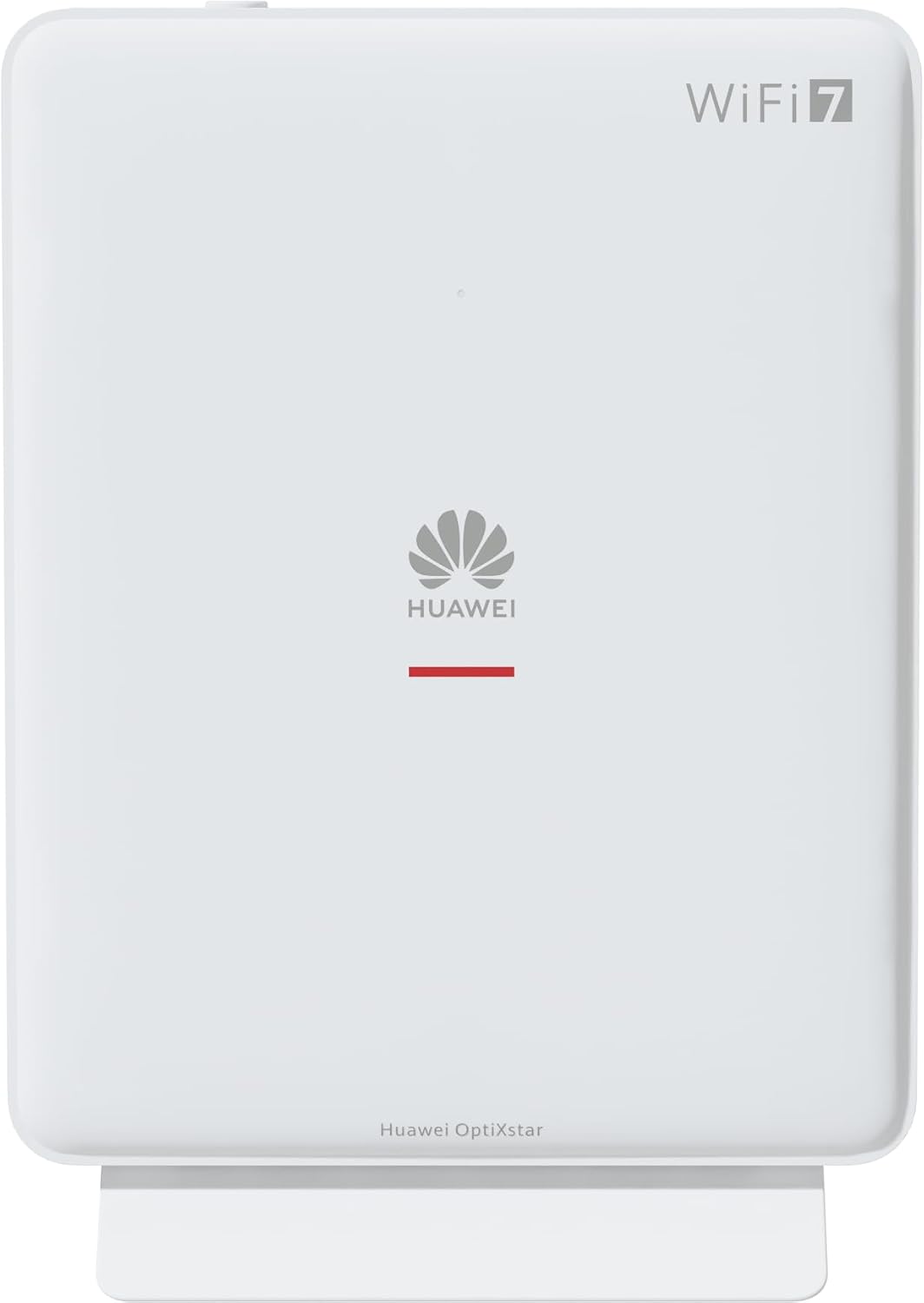
Сүрөт 1: Алдыңкы view of the Huawei OptiXstar K251a-21 Sub FTTR device, showing the Huawei logo and "WiFi 7" branding.

Figure 2: Angled front-side view of the Huawei OptiXstar K251a-21 Sub FTTR, highlighting its sleek design and ventilation.

3-сүрөт: Арткы view of the Huawei OptiXstar K251a-21 Sub FTTR, displaying the ports (Reset, 2-GE, 1-2.5GE, Power, FTTR) and mounting options.

4-сүрөт: Side profile of the Huawei OptiXstar K251a-21 Sub FTTR, showing its slim form factor and ventilation grilles.

Сүрөт 5: Арткы бурчтуу view of the Huawei OptiXstar K251a-21 Sub FTTR, providing a clear look at the port labels and layout.

6-сүрөт: Жогорку view of the Huawei OptiXstar K251a-21 Sub FTTR, featuring the WPS/LED button.
Порттор жана баскычтар:
- FTTR Port: Connects to the main FTTR unit via a fiber optic cable.
- 1-2.5GE Port: Gigabit Ethernet port for high-speed wired connections.
- 2-GE Port: Зымдуу туташуулар үчүн Gigabit Ethernet порту.
- Электр порту: Кубат адаптерине туташат.
- Калыбына келтирүү баскычы: Used to restore factory settings (press and hold for 5-10 seconds).
- WPS/LED Button: Initiates Wi-Fi Protected Setup (WPS) for easy device connection and controls LED indicators.
5. Орнотуу
Follow these steps to set up your Huawei OptiXstar K251a-21 Sub FTTR device:
- Жайгашкан жери: Choose a central location in your home for optimal Wi-Fi coverage. The device is suitable for various installation scenarios, including vertical placement on a desk, wall-mounting, plugging into a power strip, or mounting in an 86mm junction box with a bracket.
- Fiber Optic кабелин туташтыруу: Connect one end of the fiber optic cable to the FTTR port on the Sub FTTR unit and the other end to the corresponding FTTR port on your Huawei FTTR OptiXstar F50 Plus main unit or wall outlet. Ensure the connection is secure.
- Туташуу кубаты: Plug the power adapter into the Power port on the Sub FTTR unit, then plug the other end into a power outlet.
- Күйгүзүү: The device will automatically power on. Wait for the indicator lights to stabilize, typically indicating a successful connection to the main FTTR unit and active Wi-Fi.
- Wired Connections (Optional): For wired devices, connect an Ethernet cable from the 1-2.5GE or 2-GE ports on the Sub FTTR to your computer, gaming console, or other network devices.
6. Иштөө
Once set up, your OptiXstar K251a-21 provides seamless Wi-Fi 7 connectivity.
- Wi-Fi туташуусу: Издөө the Wi-Fi network name (SSID) broadcast by your FTTR system on your devices (smartphones, laptops, etc.). Enter the Wi-Fi password. The system's unique SRCN (Seamless Roaming Coordinate Network) technology ensures seamless roaming throughout your home.
- C-WAN Architecture: The C-WAN architecture centrally controls and coordinates network-wide Wi-Fi resources via the Main FTTR, providing an ultra-Gigabit high-speed experience.
- IoT Casing: The device features an IoT casing designed to protect home network security and privacy.
- WPS функциясы: Press the WPS/LED button briefly to use Wi-Fi Protected Setup (WPS) for quick connection of compatible devices without entering the password.
- LED көрсөткүчтөрү: The LED indicators provide status information. Refer to the main FTTR unit's manual or the device's specific documentation for detailed LED status meanings.
7. Техникалык тейлөө
Regular maintenance helps ensure optimal performance and longevity of your device.
- Тазалоо: Түзмөктү жумшак, кургак чүпүрөк менен акырын сүртүңүз. Суюк тазалоочу каражаттарды же абразивдүү материалдарды колдонбоңуз.
- Программалык камсыздоонун жаңыртуулары: Huawei periodically releases firmware updates to improve performance and security. These updates are typically managed through the main FTTR unit or a dedicated mobile application. Ensure your system is always running the latest firmware.
- Вентиляция: Ашыкча ысып кетүүнүн алдын алуу үчүн желдетүү тешиктери жабылбагандыгын текшериңиз.
- Кабелдик башкаруу: Keep fiber optic and power cables neatly organized and free from kinks or excessive bending.
8. Кыйынчылыктарды
Эгер көйгөйлөргө туш болсоңуз, көйгөйлөрдү чечүүнүн төмөнкү кадамдарын жасап көрүңүз:
- Кубат жок: Check if the power cable is securely connected to both the device and the power outlet. Try a different outlet.
- Интернет байланышы жок:
- Verify that the fiber optic cable is correctly connected to the FTTR port.
- Check the status indicators on both the Sub FTTR and the main FTTR unit.
- Restart both the Sub FTTR and the main FTTR unit by unplugging them from power for 30 seconds and then plugging them back in.
- Ensure your main FTTR unit has an active internet connection.
- Жай Wi-Fi ылдамдыгы:
- Ensure the device is placed optimally, away from obstructions and interference sources.
- Check if too many devices are connected to the network.
- Update the firmware of your FTTR system.
- Consider using a wired connection for bandwidth-intensive tasks.
- Wi-Fi'га туташуу мүмкүн эмес:
- Туура Wi-Fi сырсөзүн киргизип жатканыңызды текшериңиз.
- Try using the WPS button to connect.
- Restart your device and the Sub FTTR unit.
- Заводдун баштапкы абалга келтирүү: If issues persist, you may need to perform a factory reset. With the device powered on, use a pointed object (like a paperclip) to press and hold the Reset button for 5-10 seconds until the indicators change. Note that this will erase all custom settings.
9. Техникалык шарттар
| Өзгөчөлүк | Спецификация |
|---|---|
| Бренд | HUAWEI |
| Модель номери | K8M251a-21G02 |
| Өлчөмдөрү (пакет) | 24.5 x 23.7 x 7.4 см |
| Салмагы (пакет) | 300 грамм |
| Өзгөчө өзгөчөлүк | Интернет коопсуздугу |
| Жыштык тилкесинин классы | Dual Band |
| Зымсыз байланыш стандарты | 802.11ax (Wi-Fi 7 Generation) |
| Шайкеш түзмөктөр | Персоналдык компьютер |
| Сунушталган Колдонуулар | Үй |
| Камтылган компоненттер | Электр кабели |
| Байланыш технологиясы | Ethernet, FTTR, Wi-Fi, Fiberglass |
| Түс | Ак |
| Порттардын саны | 4 (FTTR, 1-2.5GE, 2-GE, Power) |
| Маалыматтарды өткөрүү ылдамдыгы | 1 Gigabits per second |
| Smart Home шайкештиги | Compatible with smart home systems |
| Интернет байланышы | Ооба |
| Connectivity Protocol | Wi-Fi |
10. Кепилдик жана колдоо
Кепилдик маалыматы жана техникалык колдоо үчүн расмий Huaweiге кайрылыңыз website or contact your local Huawei customer service. Keep your purchase receipt for warranty claims.
Онлайн ресурстар: Расмий Huawei колдоо бөлүмүнө баш багыңыз webКөп берилүүчү суроолор, жаңыртылган окуу куралдары жана программалык камсыздоону жүктөө үчүн сайт.
Кардарларды тейлөө: Contact details for customer support can typically be found on the Huawei website or in the documentation provided with your main FTTR unit.