
Introduction
This manual provides detailed instructions for the HP K500F Wireless Gaming Keyboard. It covers setup, operation, maintenance, troubleshooting, and product specifications to ensure optimal use of your device. Please read this manual thoroughly before using the keyboard.

Image: The HP K500F keyboard showcasing its tri-mode wireless capability, multimedia knob, and RGB backlighting.
Продукт бүттүview
The HP K500F is a versatile 98-key compact membrane keyboard designed for various computing environments. It features tri-mode connectivity, dynamic RGB backlighting, and a dedicated volume knob for enhanced user experience.
Негизги өзгөчөлүктөрү:
- Үч режимдүү зымсыз байланыш: Supports Bluetooth 5.0, 2.4GHz wireless (via USB dongle), and USB-C wired modes.
- RGB Backlit with Side Light Bar: Customizable dynamic RGB backlighting with adjustable breathing effects and a stylish side light strip.
- 3000mAh кайра заряддалуучу батарея: Built-in high-capacity battery for extended use.
- 98-Ачкыч компакт жайгашуусу: Space-saving design with an integrated number pad and a dedicated multimedia volume control knob.
- Retro Round Keycaps & Ergonomic Comfort: ABS round keycaps and dual-stage adjustable feet for comfortable typing angles.
- Шайкештик: Compatible with WINDOWS series, MACOS, and other operating systems.

Image: The HP K500F keyboard in Gradient Pink, highlighting its compact layout and design.
Орнотуу нускамалары
1. Баштапкы заряддоо
Before first use, fully charge the keyboard. Connect the included 1.5m USB-C to USB-A cable to the keyboard's USB-C port and the other end to a computer's USB port. Important: Only charge via a computer USB port. Do NOT use wall adapters, power banks, or fast chargers to prevent damage to the battery.
2. Баскычтопту туташтыруу
The HP K500F supports three connection modes:
2.1. 2.4 ГГц зымсыз режим
- Locate the 2.4GHz USB dongle, usually stored in a compartment on the keyboard.
- USB жабдыгын компьютериңиздеги жеткиликтүү USB портуна сайыңыз.
- Set the mode selector switch on the keyboard to the 2.4GHz position. The keyboard will automatically connect.
2.2. Bluetooth 5.0 режими
- Set the mode selector switch on the keyboard to the Bluetooth position.
- Түзмөгүңүздө (компьютер, планшет ж.б.) Bluetooth'ду иштетип, жаңы түзмөктөрдү издеңиз.
- Select "HP K500F" from the list of available devices to pair.
2.3. USB-C зымдуу режими
- Connect the included USB-C to USB-A cable from the keyboard's USB-C port to a USB port on your computer.
- Set the mode selector switch on the keyboard to the wired (USB-C) position. The keyboard will function as a wired device.
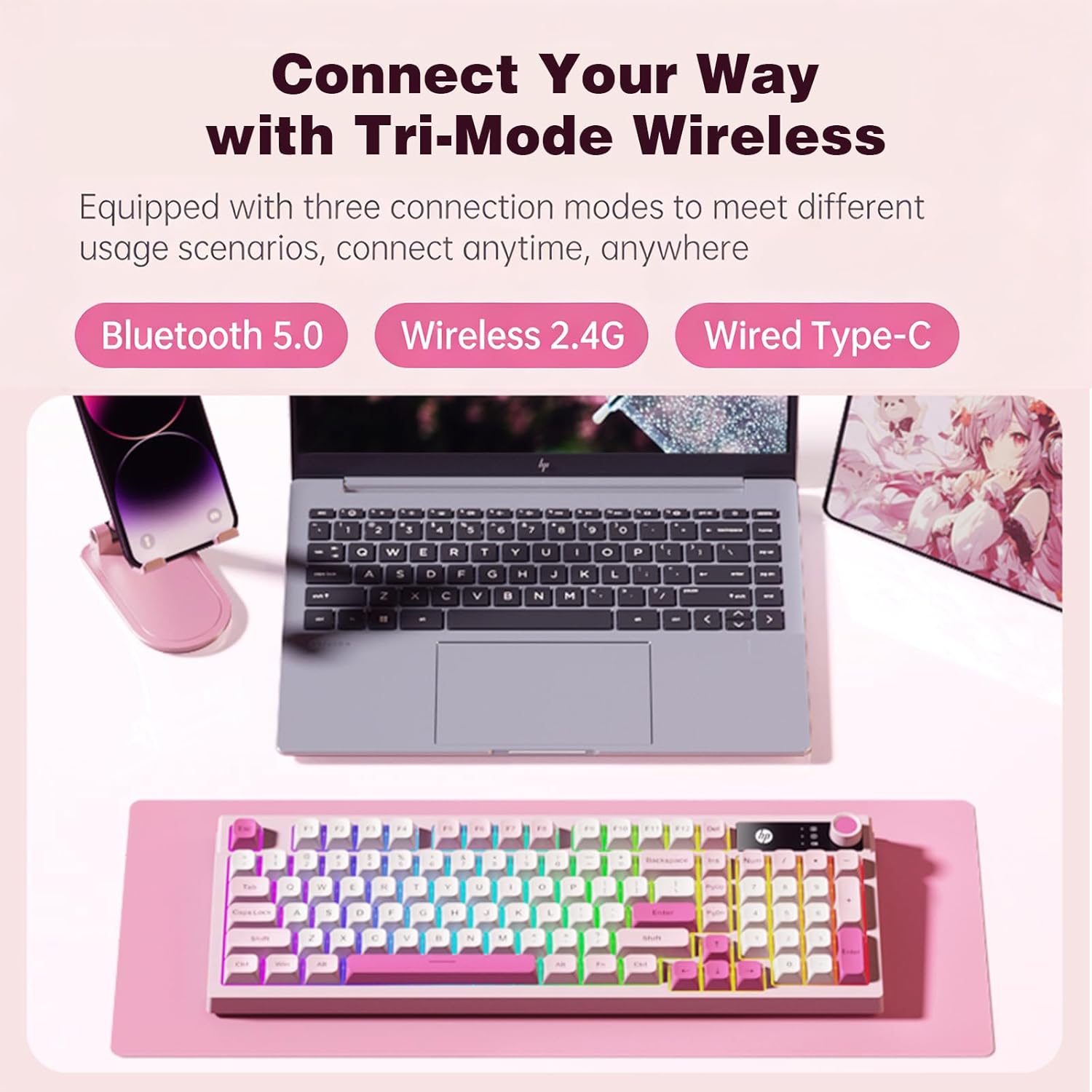
Image: The HP K500F keyboard demonstrating its tri-mode wireless connectivity options with various devices.
Иштөө нускамалары
1. Multimedia Volume Knob
The dedicated volume knob allows for quick audio adjustments:
- Оңго айлантуу: Үнүн жогорулатуу.
- Солго буруңуз: Үнүн азайтуу.
- Пресс: Аудиону үнсүз кылуу/үнсүз кылуу.

Image: A close-up illustrating the functions of the multimedia volume knob: rotate right to increase, rotate left to decrease, and press to mute.
2. RGB жарыгын башкаруу
The keyboard features dynamic RGB backlighting and a side light bar. Specific key combinations (often Fn + arrow keys or dedicated light keys) are used to:
- Change lighting modes (e.g., breathing, static, wave).
- Жарыктуулук деңгээлин тууралаңыз.
- Change lighting speed.
Refer to the quick start guide included with your keyboard for exact key combinations for lighting control.

Image: The HP K500F keyboard displaying its vibrant rainbow LED backlighting across the keys.
3. Жөнгө салынуучу буттар
The keyboard is equipped with dual-stage adjustable feet on the underside. These allow you to customize the typing angle to reduce wrist strain and improve ergonomic comfort during extended use. Simply flip out the desired stage of the feet to adjust the tilt.

Сүрөт: А view of the HP K500F keyboard's underside, illustrating the two stages of its adjustable tilt legs for ergonomic positioning.
Техникалык тейлөө
1. Тазалоо
Клавиатураңызды тазалоо үчүн, анын бетин жумшак, нымдуу чүпүрөк менен акырын сүртүңүзamp cloth. For deeper cleaning, use compressed air to remove debris from between the keycaps. Avoid using harsh chemicals or abrasive materials, as these can damage the keyboard's finish and components.
2. Батареяга кам көрүү
Батареянын иштөө мөөнөтүн узартуу жана коопсуздукту камсыздоо үчүн:
- Always charge the keyboard using the provided USB-C cable connected to a computer's USB port.
- Do not use third-party wall adapters, power banks, or fast chargers.
- Клавиатураны өтө жогорку температурага же түз күн нуруна дуушар кылбаңыз.
- If storing the keyboard for an extended period, ensure it is partially charged (around 50%) to prevent deep discharge.
Проблемаларды чечүү
1. Баскычтоп жооп бербейт
- Батареяны текшерүү: Ensure the keyboard is charged. Connect it to a computer's USB port for charging.
- Туташуу режимин текшерүү: Verify the mode selector switch is set to the correct position (2.4GHz, Bluetooth, or Wired) for your intended connection.
- 2.4 ГГц: Ensure the USB dongle is securely plugged into the computer. Try a different USB port.
- Bluetooth: Баскычтопту түзмөгүңүз менен кайра жупташтырыңыз. Түзмөгүңүздө Bluetooth иштетилгенин текшериңиз.
- текст: USB-C кабели клавиатурага жана компьютерге бекем туташып турганын текшериңиз. Башка USB портун же кабелин колдонуп көрүңүз.
2. RGB Backlighting Not Working
- Жарыктыкты текшерүү: The backlight might be turned off or set to the lowest brightness. Use the designated key combinations (refer to quick start guide) to adjust brightness.
- Батарея деңгээли: Low battery can sometimes affect lighting functionality. Charge the keyboard fully.
3. Keys Not Registering or Double Typing
- Таза ачкычтар: Dust or debris under the keycaps can cause issues. Use compressed air to clean around the affected keys.
- Байланышты кайра баштоо: Disconnect and reconnect the keyboard (either by unplugging the dongle/cable or turning Bluetooth off/on).
- Башка түзмөктө сыноо: If possible, test the keyboard on a different computer or device to determine if the issue is with the keyboard or the original device.
Техникалык шарттар
| Бренд | HP |
| Модель номери | K500F |
| Түс | Gradient Pink |
| Баскычтоптун түрү | Мембрана баскычтобу |
| Байланыш | Tri-Mode (Bluetooth 5.0, 2.4GHz Wireless, USB-C Wired) |
| Ачкыч саны | 98 keys (compact layout with integrated number pad) |
| Арткы жарык | RGB with adjustable breathing effects and side light bar |
| Батарея | 3000mAh rechargeable (charge via computer USB port only) |
| Клавиатура материалы | ABS пластик |
| Дене материалы | ABS пластик |
| Кабелдин узундугу | 1.5m USB-C to USB-A (included) |
| Жөнгө салынуучу буттар | Dual-stage for ergonomic typing angles |
| Шайкештик | WINDOWS series/MACOS/etc |
| Өлчөмдөрү (L x W x Y) | 15.98" x 1.5" x 5.55" |
Кепилдик жана колдоо
1. Кепилдик маалыматы
The HP K500F Wireless Gaming Keyboard comes with a 30-day warranty from the date of purchase. This warranty covers manufacturing defects under normal use. It does not cover damage caused by misuse, accidents, unauthorized modifications, or improper charging practices.
2. Кардарларды колдоо кызматы
For technical assistance, warranty claims, or further inquiries, please contact HP customer support through their official website or the contact information provided with your purchase documentation. Please have your model number (K500F) and proof of purchase ready when contacting support.