Introduction
This manual provides detailed instructions for the proper use and maintenance of your Gateway DC-T50 Digital Camera. Please read this manual thoroughly before operating the camera to ensure optimal performance and longevity.
The Gateway DC-T50 is a 5-megapixel digital camera featuring a 3x optical zoom lens, a 1.5-inch TFT LCD display, and video recording capabilities. It is designed for ease of use, allowing you to capture high-quality images and video clips.
1. Орнотуу
1.1 Пакеттен чыгаруу жана мазмуну
Бардык буюмдарды кутудан кылдаттык менен чыгарыңыз. Төмөнкү компоненттердин бар экендигин текшериңиз:
- Gateway DC-T50 Digital Camera
- Кайра заряддалуучу литий-иондук батарейка
- Батарея заряддагыч
- 32 MB SD Memory Card
- Моюн боосу
- USB Cable (for computer connection)
- Колдонуучунун Колдонмосу (бул документ)
1.2 Батареяны орнотуу жана заряддоо
- Камеранын ылдый жагындагы батарея уясынын капкагын табыңыз.
- Капкактын кулпусун жылдырып, бөлүмдү ачыңыз.
- Insert the Lithium-ion battery according to the polarity indicators inside the compartment.
- Батарея уясынын капкагын бекем жабыңыз.
- To charge the battery, insert it into the provided battery charger and connect the charger to a power outlet. The charging indicator light will show the charging status.
- Биринчи колдонуудан мурун батареянын толук заряддалышына уруксат бериңиз.
Сүрөт: каптал view of the Gateway DC-T50 camera, illustrating the location of the battery and SD card compartment.
1.3 SD Memory Card Installation
- Камера өчүк экенин текшериңиз.
- Open the battery/SD card compartment cover.
- Insert the 32 MB SD memory card into the SD card slot with the metal contacts facing down and towards the camera. Push until it clicks into place.
- Бөлүмдүн капкагын жабыңыз.
- To remove the SD card, gently push it in until it springs out, then pull it out.
1.4 Моюн боону тагуу
Thread the neck strap through the strap eyelet on the camera body and secure it according to the strap's instructions. This helps prevent accidental drops.
2. Камераны иштетүү
2.1 Күйгүзүү/өчүрүү
басыңыз КҮЧ камераны күйгүзүү же өчүрүү үчүн анын жогору жагында жайгашкан баскычты басыңыз. Күйгүзүлгөндө линза созулат.

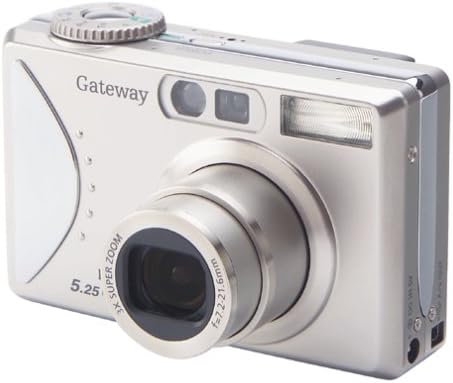
Сүрөт: алдыңкы view of the Gateway DC-T50 digital camera with the lens extended, ready for use.
2.2 Негизги сүрөт
- Режимди тандоо: Use the mode dial (if present) or menu options to select your desired shooting mode (e.g., Auto, Macro, Movie).
- Композиттик кадр: Use the 1.5-inch TFT LCD display or the optical viewтемаңызды рамкалоо үчүн тапкыч.
- Чоңойтуу: Use the zoom controls (typically a rocker switch) to adjust the 3x optical zoom. Digital zoom is also available.
- Фокус: The camera will automatically focus when the shutter button is half-pressed.
- Тартуу: Fully press the ТАПКАН сүрөткө тартуу үчүн баскыч.

Сүрөт: Арткы view of the Gateway DC-T50 digital camera, highlighting the LCD screen and various control buttons for navigation and settings.
2.3 Атуу режимдери
- Автоматтык режим: The camera automatically adjusts settings for most shooting conditions.
- Макро режими: For close-up photography of small objects. Activate via the menu or a dedicated button.
- Кино режими: Records video clips at 15 frames per second (fps) with sound.
2.4 Flash Settings
The built-in flash can be adjusted to various modes (e.g., Auto, Fill-in, Red-eye Reduction, Off) through the camera's menu or a dedicated flash button.
2.5 Авто таймер
Activate the 10-second self-timer for self-portraits or group photos. The camera will count down before taking the picture.
2.6 ReviewСүрөттөрдү өчүрүү жана жок кылуу
Enter playback mode (usually indicated by a play icon button) to view your captured photos and videos on the LCD screen. Use the directional pad to navigate. To delete an unwanted image, select it and press the ЖОК button (often represented by a trash can icon).
2.7 Компьютерге туташуу
Use the provided USB cable to connect the camera to your computer. The camera should appear as a removable disk drive, allowing you to transfer images and videos to your computer for storage, editing, or sharing.
3. Техникалык тейлөө
- Линзаны тазалоо: Камера линзалары үчүн атайын жасалган жумшак, түксүз кездемени колдонуңуз. Манжаларыңыз менен линзага тийүүдөн качыңыз.
- ЖК экранын тазалоо: Wipe gently with a soft, dry cloth. Do not use abrasive cleaners.
- Батареяга кам көрүү: Батареяны колдонбогондо салкын, кургак жерде сактаңыз. Батареянын иштөө мөөнөтүн узартуу үчүн бат-баттан толук зарядсыздануудан качыңыз.
- Сактагыч: When not in use for extended periods, remove the battery and store the camera in a dry, dust-free environment, away from extreme temperatures.
- Суу каршылык: This camera is not water-resistant. Avoid exposure to moisture or liquids.
4. Кыйынчылыктарды
| Көйгөй | Мүмкүн болгон себеп / Чечим |
|---|---|
| Камера күйбөйт. |
|
| "Картада ката кетти" деген билдирүү пайда болот. |
|
| Сүрөттөр бүдөмүк. |
|
| Flash күйбөйт. |
|
| Сүрөттөрдү компьютерге өткөрүү мүмкүн эмес. |
|
5. Техникалык шарттар
| Өзгөчөлүк | Деталь |
|---|---|
| Модель аты | DC-T50 |
| Натыйжалуу дагы эле чечим | 5 мегапиксел |
| Оптикалык масштаб | 3x |
| Digital Zoom | 4x |
| Дисплей | 1.5 дюймдук TFT түстүү LCD |
| Сактагыч медиа | Secure Digital (SD) Card (32 MB included) |
| Батарея түрү | Заряддалуучу литий-ион |
| Video Resolution | 5 MP (for video clips) |
| Кадр жыштыгы (видео) | 15 кадр/сек |
| Авто таймер | 10 секунд |
| Колдоого алынган File Формат | JPEG (images), MP4 (video), WAV (audio) |
| Түс | Titanium Silver |
| Өндүрүүчү | Gateway |
6. Кепилдик жана колдоо
6.1 Чектелген Кепилдик
The Gateway DC-T50 Digital Camera comes with a 1-year limited warranty from the date of purchase. This warranty covers manufacturing defects under normal use. It does not cover damage caused by misuse, accidents, unauthorized modifications, or external factors. Please retain your proof of purchase for warranty claims.
6.2 Кардарларды колдоо
For technical assistance, warranty service, or further inquiries, please refer to the official Gateway support channels or website. Contact information can typically be found on the manufacturer's official product page or included documentation.


