Introduction
This manual provides comprehensive instructions for setting up, operating, and maintaining your RCA RCRP05BR 5-Device Universal Remote Control. This remote is designed to consolidate control of up to five audio/video devices, offering a familiar layout for cable box control and supporting various digital television features.
Remote Control Layout
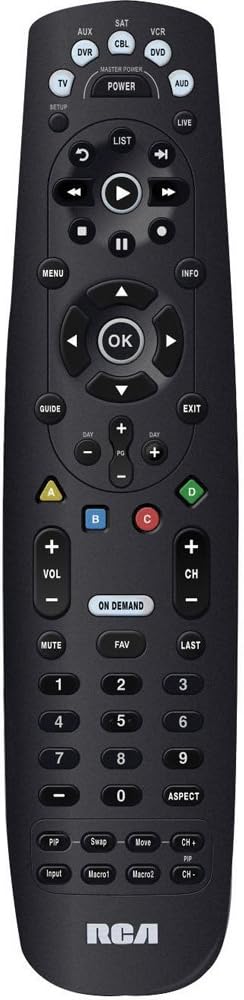
The image above displays the RCA RCRP05BR universal remote control. Key sections include:
- Жогорку бөлүм: Device selection buttons (TV, AUX, SAT, CBL, VCR, DVD, AUD) and the Master Power button. The SETUP button is also located here.
- Middle Section (Playback & Navigation): Includes playback controls (Play, Pause, Stop, Rewind, Fast Forward, Skip), a circular navigation pad with an OK button, and MENU, INFO, GUIDE, and EXIT buttons.
- Lower Middle Section (Channel & Volume): Features Volume (+/-), Channel (+/-), MUTE, FAV (Favorites), LAST, and the colored A, B, C, D buttons. The ON DEMAND button is also present.
- Bottom Section (Numeric Keypad & Advanced Functions): A standard numeric keypad (0-9) and buttons for ASPECT, PIP (Picture-in-Picture), Swap, Move, Input, Macro1, and Macro2. The RCA logo is at the very bottom.
Жайгашуу
1. Батареяны орнотуу
- Алыстан башкаруунун артындагы батарея бөлүмүнүн капкагын алыңыз.
- Insert two (2) fresh AA alkaline batteries, matching the polarity (+ and -) indicators inside the compartment.
- Батарея бөлүгүнүн капкагын ордуна коюңуз.
2. Пультту программалоо
The remote can be programmed using direct code entry, auto code search, or a learning feature.
Түздөн-түз кодду киргизүү
- Башкаргыңыз келген аспапты күйгүзүңүз (мисалы, сыналгы, DVD ойноткуч).
- басып, кармап туруңуз ЖАЙГАШУУ button until the red indicator light illuminates.
- Программалоону каалаган аппараттын баскычын басыңыз (мисалы, TV, DVD). The red indicator light will blink once and remain lit.
- Enter the 4-digit code for your brand and device from the provided code list (not included in this manual, refer to product packaging or manufacturer's webсайт).
- If the code is valid, the red indicator light will turn off. If the light blinks four times, the code is invalid; re-enter the code.
- Басуу менен пультту текшериңиз КҮЧ button. If the device turns off, try other functions like volume or channel. If it works, programming is complete. If not, try the next code for your brand or use auto code search.
Автоматтык код издөө
- Көзөмөлдөгөн шайманды күйгүзүңүз.
- басып, кармап туруңуз ЖАЙГАШУУ button until the red indicator light illuminates.
- Press the device button you want to program. The red indicator light will blink once and remain lit.
- басыңыз КҮЧ баскычын кайра-кайра басыңыз (болжол менен 2 секунда сайын) аппаратыңыз өчүп калганга чейин.
- Түзмөк өчкөндөн кийин, басыңыз ENTER button (usually the OK button in the center navigation pad) to save the code. The red indicator light will turn off.
- Test the remote. If it works, programming is complete.
Окуу өзгөчөлүгү
This feature allows the universal remote to learn functions directly from your original remote control. This is useful for functions not covered by pre-programmed codes or for devices not listed.
- Place the RCA universal remote and your original remote control on a flat surface, facing each other, about 1-2 inches apart.
- басып, кармап туруңуз ЖАЙГАШУУ button until the red indicator light illuminates.
- Press the device button (e.g., TV) you want to assign the learned function to. The red indicator light will blink once and remain lit.
- Press the button on the RCA remote that you want to teach a function (e.g., a specific function button). The red indicator light will blink rapidly.
- Press and hold the corresponding button on your original remote control until the red indicator light on the RCA remote blinks twice and then stays lit. This indicates successful learning.
- Repeat steps 4 and 5 for any other functions you wish to learn.
- басыңыз ЖАЙГАШУУ button to exit learning mode. The red indicator light will turn off.
- Test the learned functions.
3. Volume Punch-Through
This feature allows the volume control (VOL +/-) to always control a specific device, regardless of which device mode the remote is currently in. This is useful if you use an audio receiver for all sound.
- басып, кармап туруңуз ЖАЙГАШУУ button until the red indicator light illuminates.
- Press the device button (e.g., AUD) that you want to control the volume. The red indicator light will blink once and remain lit.
- басыңыз VOL+ button. The red indicator light will blink twice and turn off.
- Now, when you press VOL +/- in any device mode, it will control the volume of the selected device (e.g., AUD).
- To disable volume punch-through, repeat steps 1-3, but in step 3, press the VOL- ордуна баскыч VOL+.
Пультту иштетүү
Түзмөк тандоо
Белгилүү бир түзмөктү башкаруу үчүн пульттун жогору жагындагы тиешелүү түзмөк баскычын басыңыз (мисалы, TV, CBL, DVD). The remote will then send commands for that device.
Негизги функциялар
- КҮЧ: Тандалган аппаратты күйгүзөт же өчүрөт.
- VOL +/-: Үнүн тууралайт.
- CH +/-: Каналдарды өзгөртөт.
- Үнсүз: Аудионун үнүн өчүрөт же ачат.
- Сандык баскычтоп (0-9): For direct channel entry or other numeric inputs.
Өркүндөтүлгөн функциялар
- МЕНЮ: Тандалган түзмөктүн экрандагы менюсуна кирет.
- ЖЕТЕКЧЕ: Displays the program guide (for TV/Cable/Satellite).
- МААЛЫМАТ: Displays information about the current program or selection.
- Навигация тактасы (өйдө/төмөн/сол/оң/ОК): Менюларда багыттоо жана тандоолорду ырастоо үчүн колдонулат.
- Ойнотууну башкаруу элементтери (ойнотуу, тындыруу, токтотуу, артка түрүү, алдыга тез түрүү, өткөрүп жиберүү): Controls playback for DVRs, VCRs, and DVD/Blu-ray players.
- Түстүү баскычтар (A, B, C, D): These buttons (Red, Blue, Yellow, Green) are often used for special functions in cable/satellite boxes or Blu-ray players. Their function varies by device.
- СУРОО-ТАЛАП БОЮНЧА: Accesses On Demand services (for cable/satellite).
- PIP (Picture-in-Picture), Swap, Move, Input, Macro1, Macro2: These buttons provide additional functionality, which may need to be programmed via the learning feature or specific codes for your devices.
Техникалык тейлөө
- Батареяны алмаштыруу: Replace batteries when the remote's indicator light becomes dim or functions become unreliable. Always use fresh AA alkaline batteries.
- Тазалоо: Пультту жумшак, кургак чүпүрөк менен сүртүңүз. Суюк тазалоочу каражаттарды же абразивдүү материалдарды колдонуудан алыс болуңуз.
- Сактагыч: Пультту күн нурунан жана экстремалдык температурадан алыс, салкын, кургак жерде сактаңыз.
Проблемаларды чечүү
- Алыстан иштебеген түзмөк:
- Жаңы батарейкалар туура орнотулганын текшериңиз.
- Verify the correct device button (e.g., TV, CBL) is pressed before attempting to control the device.
- Reprogram the remote using a different code for your device, or try the auto code search method.
- Пульт менен аппараттын ортосунда эч кандай тоскоолдуктар жок экенин текшериңиз.
- Программалоодон кийин кээ бир баскычтар иштебейт:
- The selected code may only support basic functions. Try another code for your device.
- Use the learning feature to teach specific functions from your original remote.
- Roku "Back" button not working (as noted in user reviewс):
- The RCA RCRP05BR may not have a pre-programmed "Back" function for all Roku devices.
- If your original Roku remote is IR-based, use the learning feature to teach the "Back" function to an unused button on the RCA remote.
- If your Roku remote uses Wi-Fi Direct (not IR), the learning feature will not work directly. Some users have successfully used IR remote apps on smartphones (if the phone has an IR blaster) to teach the function.
- Volume control not working as expected:
- Check if Volume Punch-Through is enabled for a different device than intended. Adjust or disable it as needed.
Техникалык шарттар
| Өзгөчөлүк | Деталь |
|---|---|
| Модель номери | RCRP05BR |
| Түзмөктөрдүн саны | 5 |
| Power Source | 2 АА батарейкалар (киргизилген эмес) |
| Өлчөмдөр | 11.1 x 4.75 x 2 дюйм |
| Салмагы | 6.4 унция |
| Өзгөчөлүктөр | Universal compatibility, Learning feature, Volume Punch-Through |
Кепилдик маалымат
RCA products typically come with a limited warranty. Please refer to the warranty card included with your purchase or visit the official RCA website for detailed warranty terms and conditions specific to the RCRP05BR model. Keep your proof of purchase for warranty claims.
Кардарларды колдоо
For further assistance, technical support, or to access the latest code lists, please visit the official RCA support website or contact their customer service department. Contact information can usually be found on the product packaging or the RCA brand webсайт.


