1. Киришүү
This manual provides detailed instructions for the setup, operation, maintenance, and troubleshooting of your Razer BlackWidow Ultimate Mechanical Gaming Keyboard. Please read this manual thoroughly to ensure proper use and to maximize your gaming and typing experience.
2. Продукт бүтүп калдыview
Негизги өзгөчөлүктөрү:
- Mechanical Key Architecture: Designed for superior tactility and faster response times.
- Fully Programmable Keys: Includes 5 additional gaming keys with on-the-fly macro recording capabilities.
- Арткы жарык баскычтары: Features customizable backlighting for enhanced visibility in various lighting conditions.
- Razer Mechanical Switches: Equipped with 50g actuation force for optimal gaming performance.
Кутуда эмне бар:
- Razer BlackWidow Ultimate Mechanical Gaming Keyboard
- USB кабели (интеграцияланган)
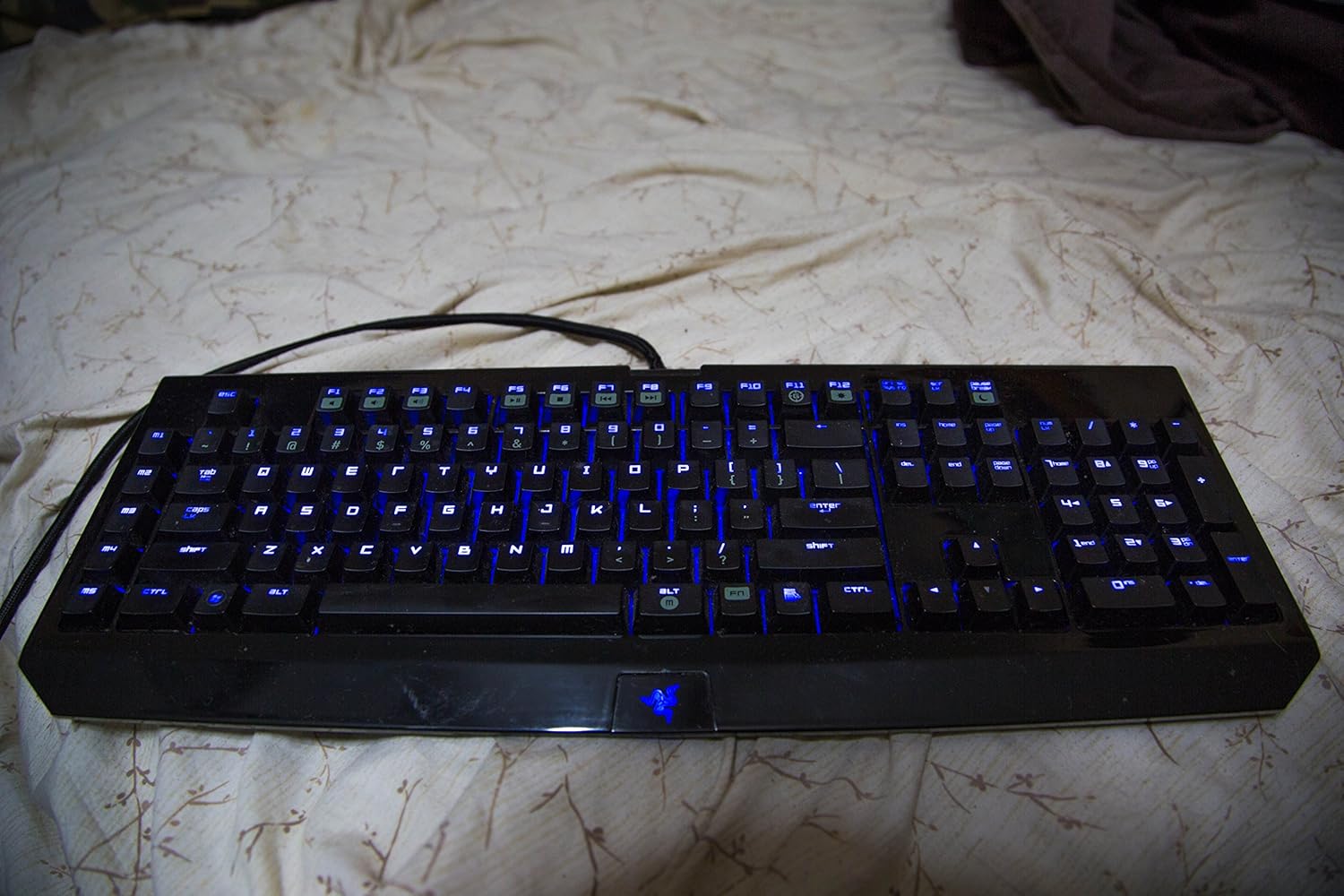
Figure 2.1: Razer BlackWidow Ultimate Mechanical Gaming Keyboard with blue backlighting activated.
3. Орнотуу
- Баскычтопту туташтыруу: Plug the integrated USB cable from the keyboard into an available USB port on your computer. The keyboard is plug-and-play for basic functionality.
- Razer Synapse программасын орнотуу: For full functionality, including macro programming, backlighting customization, and profile management, download and install the Razer Synapse software from the official Razer webсайт (www.razer.com/synapse). Орнотуу үчүн экрандагы нускамаларды аткарыңыз.
- Драйверди орнотуу: Upon connecting the keyboard and installing Synapse, the necessary drivers will be automatically detected and installed. Firmware updates may also be prompted through Synapse.
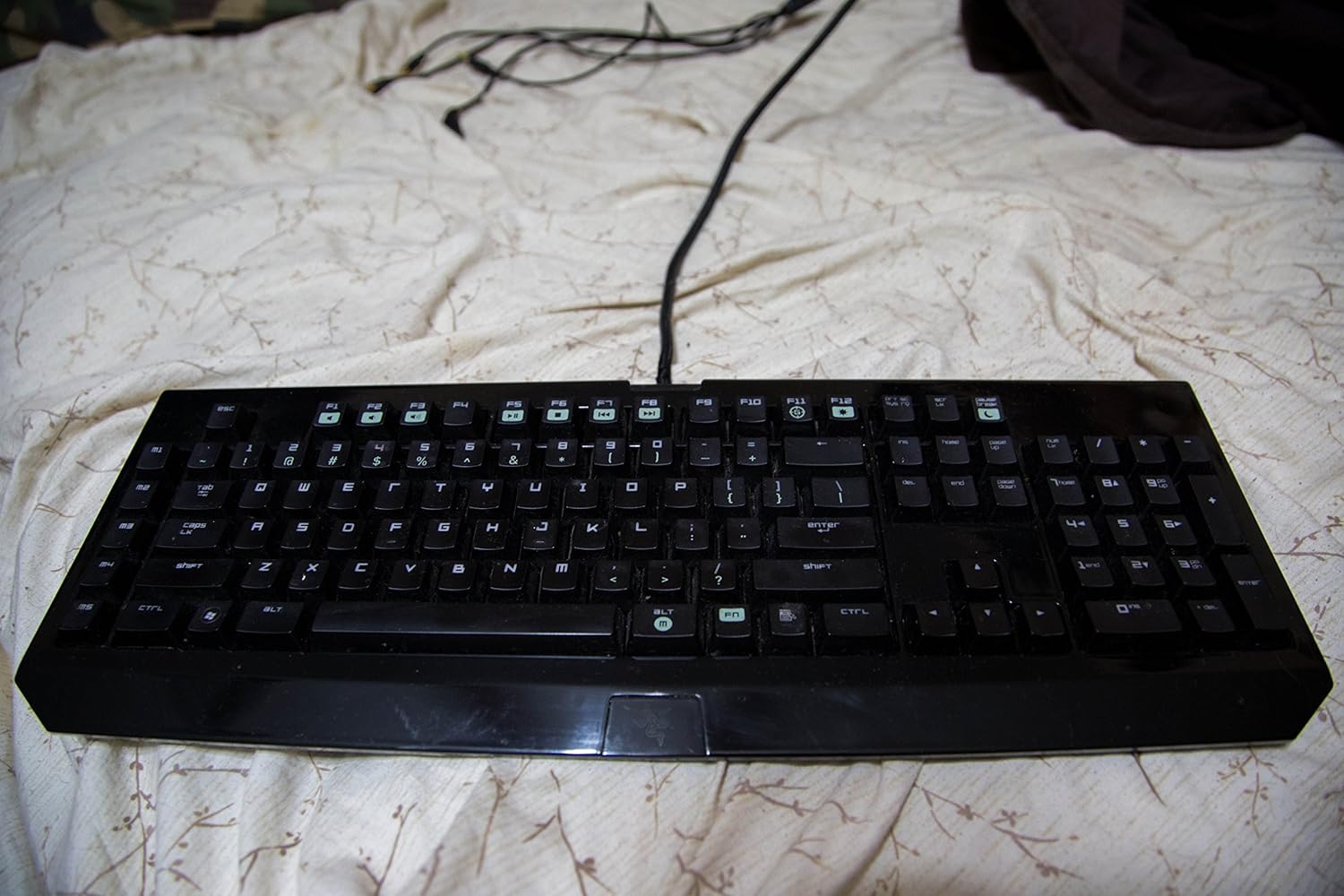
Figure 3.1: Razer BlackWidow Ultimate Mechanical Gaming Keyboard in a powered-off state or with backlighting disabled.
4. Иштөө нускамалары
4.1 Backlighting Control:
- The keyboard features individually backlit keys.
- Adjust backlighting intensity using the dedicated function keys (usually Fn + F11 for decrease, Fn + F12 for increase).
- Further customization, including brightness levels and lighting effects, can be configured through the Razer Synapse software.
4.2 Macro Recording:
The keyboard supports on-the-fly macro recording without software, as well as advanced macro programming via Razer Synapse.
- On-the-Fly Recording: Press Fn + G to initiate recording. Select a macro key (M1-M5) to assign the macro. Type your desired key sequence. Press Fn + G again to stop recording.
- Synapse Macro Editor: For complex macros with precise timing and delays, use the Macro module within Razer Synapse.
4.3 Gaming Mode:
- Activate Gaming Mode (Fn + F10) to disable the Windows key and other potentially disruptive key combinations during gameplay.
- This prevents accidental interruptions to your gaming session.
4.4 Мультимедиа баскычтары:
- Utilize the function keys (Fn + F1-F7) for multimedia control, including volume adjustment, play/pause, stop, and track navigation.
- Note: Specific software (e.g., iTunes) may require additional configuration or plugins for full multimedia key compatibility. Refer to Razer support for details.

4.1-сүрөт: Бурчтуу view of the Razer BlackWidow Ultimate, highlighting the key layout and backlighting.
5. Техникалык тейлөө
- Баскычтопту тазалоо: Бир аз жумшак, түксүз кездемени колдонуңуз dampened with water or a mild cleaning solution to wipe down the keys and chassis. Avoid harsh chemicals.
- Жылтырак беттер: The keyboard features glossy surfaces that may attract fingerprints and dust. Regular cleaning is recommended to maintain its appearance.
- Чаңды тазалоо: Баскыч капкактарынын ортосундагы чаңды жана калдыктарды тазалоо үчүн кысылган абаны колдонуңуз.
- Кабельге кам көрүү: Зыяндын алдын алуу үчүн өрүлгөн USB кабелин курч ийилгенден же ашыкча тартпаңыз.
6. Кыйынчылыктарды
- Баскычтоп жооп бербейт: Ensure the USB cable is securely connected to your computer. Try a different USB port. Restart your computer.
- Арткы жарык иштебей жатат: Check backlighting intensity settings using Fn + F11/F12. Verify settings within Razer Synapse.
- Windows баскычтарынын кокустан басылышы: Activate Gaming Mode (Fn + F10) to disable the Windows key during gaming.
- Keys Registering Incorrectly or Sticking: Ensure the keyboard is clean and free of debris. If the issue persists, try reinstalling Razer Synapse or updating keyboard firmware.
- Программалык камсыздоо маселелери: If Razer Synapse is not functioning correctly, try reinstalling the software. Ensure your operating system is up to date.
- Туруктуу маселелер: If you encounter problems not resolved by the above steps, please contact Razer Support for further assistance.
7. Техникалык шарттар
| Өзгөчөлүк | Деталь |
|---|---|
| Модель номери | RZ03-00380100-R3U1 |
| Баскычтоптун түрү | Механикалык оюн баскычтобу |
| Которуу түрү | Razer Mechanical Switches (50g actuation force) |
| Байланыш | USB |
| Арткы жарыктандыруу | Individually backlit keys (Single Color) |
| Программалануучу ачкычтар | 5 additional macro keys with on-the-fly recording |
| Продукциянын өлчөмдөрү | Узундугу 18.7" x Туурасы 6.73" x Бийиктиги 1.18" (болжол менен) |
| Элемент Салмагы | 5.3 фунт |
| Колдоого алынган тилдер | Англис, француз, испан |
8. Кепилдик жана колдоо
Razer products are built to the highest standards and come with a limited manufacturer's warranty. For detailed warranty information, please refer to the warranty card included with your product or visit the official Razer webсайт.
For technical support, driver downloads, and frequently asked questions, please visit the Razer Support page:
You can also contact Razer customer service directly through their webжекелештирилген жардам үчүн сайт.