1. Киришүү
The M-AUDIO Avid KeyStudio is a 49-key, velocity-sensitive, synth-action USB MIDI keyboard controller designed for music creation and performance. It provides essential controls for interacting with digital audio workstations (DAWs) and virtual instruments.
Негизги өзгөчөлүктөр төмөнкүлөрдү камтыйт:
- 49 velocity-sensitive keys for expressive playing.
- Assignable modulation wheel for vibrato and filter effects.
- Pitch bend wheel for expressive performances.
- Volume slider for output level control.
- Octave and transpose buttons to adjust the keyboard's range.

1-сүрөт: Бурчтуу view of the M-AUDIO Avid KeyStudio 49-Key USB MIDI Keyboard Controller.
2. Коопсуздук маалыматы
Please read and understand the following safety precautions before operating the Avid KeyStudio:
- Кубат булагы: Connect the device only to a USB port that meets the specified power requirements.
- Нымдуулук: Түзмөктү жамгырдын, нымдуулуктун же ашыкча нымдуулуктун таасирине дуушар кылбаңыз.
- Жылуулук: Түзмөктү радиаторлор, жылыткычтар, мештер же башка жылуулук чыгаруучу шаймандар сыяктуу жылуулук булактарынан алыс кармаңыз.
- Тазалоо: Кургак чүпүрөк менен гана тазалаңыз. Суюк тазалагычтарды же аэрозолдорду колдонбоңуз.
- Тейлөө: Бул продуктту өзүңүз тейлөөгө аракет кылбаңыз. Бардык тейлөөнү квалификациялуу тейлөө кызматкерлерине тапшырыңыз.
- Жайгашкан жери: Кокусунан кулап кетпеши үчүн, түзмөктү туруктуу, тегиз жерге коюңуз.
3. Пакеттин мазмуну
Пакетте бардык буюмдар бар экенин текшериңиз:
- Avid KeyStudio 49-Key USB MIDI Keyboard Controller
- USB кабели
- M-Audio Micro USB Audio Interface (may be included with some bundles)
- Software Installation Disc (e.g., Pro Tools SE)
- Колдонуучунун Колдонмосу (бул документ)

Figure 2: Avid KeyStudio product packaging, indicating included components.

Figure 3: The M-Audio Micro USB Audio Interface, often bundled with the KeyStudio.
4. Орнотуу
4.1 Аппараттык туташуу
- Connect one end of the supplied USB cable to the USB port on the back of the Avid KeyStudio.
- Connect the other end of the USB cable to an available USB port on your computer. The KeyStudio is USB bus-powered and does not require an external power adapter.
- If using the M-Audio Micro USB Audio Interface, connect it to another available USB port on your computer.

Figure 4: Rear panel of the Avid KeyStudio with the USB port for computer connection.
4.2 Программалык камсыздоону орнотуу
The Avid KeyStudio typically includes a software bundle, such as Pro Tools SE, and requires drivers for full functionality. Follow these steps:
- Insert the software installation disc into your computer's optical drive. If no disc is provided or your computer lacks an optical drive, download the latest drivers and software from the official M-Audio webсайт.
- Follow the on-screen instructions to install the necessary drivers for the Avid KeyStudio. It is recommended to install drivers before connecting the keyboard for the first time.
- Install the bundled software (e.g., Pro Tools SE) as per its specific instructions.
- Орнотуудан кийин, суралса, компьютериңизди өчүрүп-күйгүзүңүз.
- Once your computer has restarted, connect the Avid KeyStudio via USB. The operating system should recognize the device.

Figure 5: The Avid KeyStudio connected to a computer, ready for use with music production software.
5. Иштөө нускамалары
5.1 Controls Overview
The Avid KeyStudio features a straightforward layout for intuitive control:

6-сүрөт: Жогорку view of the Avid KeyStudio, highlighting its main controls.
- 49 Ылдамдыкты сезгич баскычтар: These keys respond to how hard you press them, allowing for dynamic musical expression.
- Pitch Bend Wheel: Located on the left, this wheel allows you to momentarily raise or lower the pitch of notes for expressive effects.
- Модуляция дөңгөлөгү: Also on the left, this wheel is typically assigned to control vibrato, filter cutoff, or other continuous parameters within your software.
- Үндүн сыдырмасы: Adjusts the MIDI output volume. This controls the volume within your software, not the physical output of the keyboard itself.
- Октава баскычтары: Use these buttons to shift the entire keyboard's range up or down in octaves. This allows access to a wider range of notes than the 49 physical keys provide.
- Transpose баскычтары: These buttons allow you to shift the pitch of the keyboard up or down in semitone increments.
- Edit Mode Button: This button is used to access advanced configuration options. Refer to the software documentation for specific functions.
5.2 Программалык камсыздоо менен колдонуу
The Avid KeyStudio functions as a MIDI controller, sending MIDI data to your computer. It is compatible with most Digital Audio Workstations (DAWs) and music software, including the bundled Pro Tools SE, GarageBand, FL Studio, and REAPER.
- Launch your DAW: Open your preferred music software (e.g., Pro Tools SE).
- Select MIDI Input: In your DAW's preferences or settings, ensure that the Avid KeyStudio is selected as a MIDI input device.
- Load an Instrument: Create a new track and load a virtual instrument (e.g., piano, synth, drums).
- Play and Record: You can now play the virtual instrument using the KeyStudio's keys and controls. Use the DAW's recording functions to capture your performance.
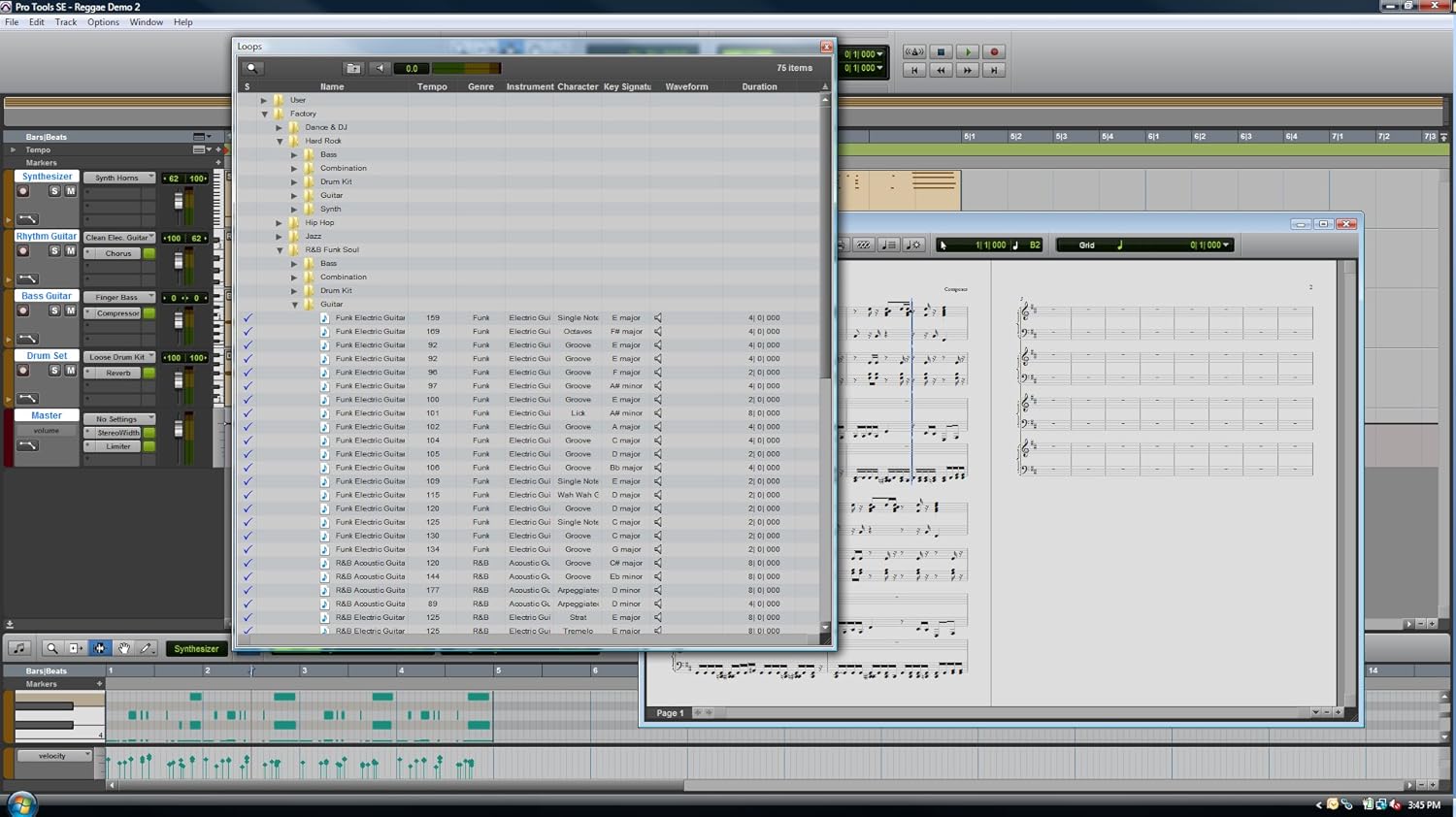
7-сүрөт: Мисample of the Pro Tools SE software interface, where the KeyStudio can control virtual instruments.

Figure 8: Pro Tools SE 'New Session' screen, allowing selection of various project templates.

Figure 9: Selecting a virtual instrument (Guitars) within Pro Tools SE.
6. Техникалык тейлөө
Proper maintenance ensures the longevity and optimal performance of your Avid KeyStudio.
- Тазалоо: Use a soft, dry, lint-free cloth to wipe the surface of the keyboard. Avoid abrasive cleaners, solvents, or waxes.
- Сактагыч: When not in use, store the keyboard in a clean, dry environment, away from direct sunlight and extreme temperatures. Consider using a dust cover.
- Колдонуу: Баскычтопту түшүрүүдөн же катуу соккулардан сактаныңыз. Анын үстүнө оор нерселерди коюуга болбойт.
7. Кыйынчылыктарды
If you encounter issues with your Avid KeyStudio, refer to the following common problems and solutions:
| Көйгөй | Мүмкүн болгон себеп / Чечим |
|---|---|
| Keyboard not recognized by computer/software. |
|
| No sound when playing keys. |
|
| Keys feel unresponsive or inconsistent velocity. |
|
| Software crashes during installation or use. |
|
8. Техникалык шарттар
| Өзгөчөлүк | Деталь |
|---|---|
| Ачкычтар | 49, velocity-sensitive, synth-action |
| Байланыш | USB |
| Controls | Pitch Bend Wheel, Modulation Wheel, Volume Slider, Octave Up/Down Buttons, Transpose Buttons, Edit Mode Button |
| Күч | USB шинасы менен иштейт |
| Элемент Салмагы | 6.5 фунт (2.95 кг) |
| Продукциянын өлчөмдөрү | 34 x 4 x 9.5 дюйм (86.36 x 10.16 x 24.13 см) |
| Модель номери | Avid KeyStudio |
| UPC | 763615778978, 777785735495, 613570227335 |
| Биринчи жеткиликтүү | 16-сентябрь, 2010-жыл |
9. Кепилдик жана колдоо
M-AUDIO products are covered by a limited warranty. For specific warranty terms and conditions, please refer to the warranty card included with your product or visit the official M-AUDIO webсайт.
For technical support, driver downloads, and additional resources, please visit the M-AUDIO support page:
https://www.m-audio.com/support
When contacting support, please have your product model (Avid KeyStudio) and serial number ready.


