1. Киришүү
The IK Multimedia iRig Mix is an ultra-compact and portable DJ mixer designed for seamless integration with smartphones and tablets. It allows users to mix two stereo audio signals, apply crossfading, and control audio levels and equalization. Beyond DJ applications, it supports microphone and instrument inputs, making it versatile for various audio mixing needs, including small band setups and karaoke. This manual provides comprehensive instructions for setting up, operating, and maintaining your iRig Mix.
2. Негизги өзгөчөлүктөрү
- Two stereo inputs with independent gain, bass, treble, and volume controls.
- Independent cue system on each channel with LED indication and a channel cross-fader for smooth transitions.
- Dedicated input for instruments or microphones with volume control, compatible with iOS apps like AmpliTube and VocaLive.
- Stereo output via RCA connectors with master level control and LED meters for visual monitoring.
- High-quality, pristine sound reproduction.
- Headphone output for master or cue monitoring with independent volume control.
- Input switch to split Input 1 into dual-mono for use with DJ mixing applications on a single iOS device.
3. Пакеттин мазмуну
Upon unboxing your iRig Mix, please ensure all components are present:
- iRig Mix unit
- 2 x RCA stereo cables
- 1 x 3.5mm stereo to 2 x RCA cable
- 1 x Micro-USB to USB power cable
- Quick Start Guide
4. Орнотуу
4.1 Кубат туташтыруу
Connect the supplied Micro-USB to USB cable to the DC IN port on the iRig Mix. Connect the other end to a USB power source (e.g., a USB wall adapter, computer USB port, or a portable USB power bank). The POWER LED will illuminate when the unit is powered on.
4.2 Аудио байланыштар
The iRig Mix offers versatile connectivity for various audio sources and output devices.
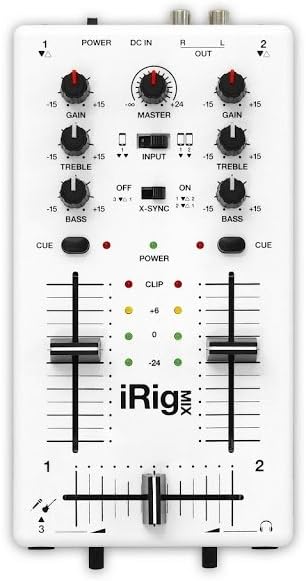
1-сүрөт: алдыңкы панелдин үстүндөview of the iRig Mix, showing all controls and indicators.
Input 1 & 2 (Stereo Inputs)
These inputs are designed for connecting two separate stereo audio sources, such as smartphones, tablets, MP3 players, or CD players. Use the provided 3.5mm stereo to 2x RCA cable or standard RCA cables depending on your source device.

Figure 2: The iRig Mix facilitating a dual iPad DJ setup, demonstrating its ability to mix audio from two separate iOS devices.
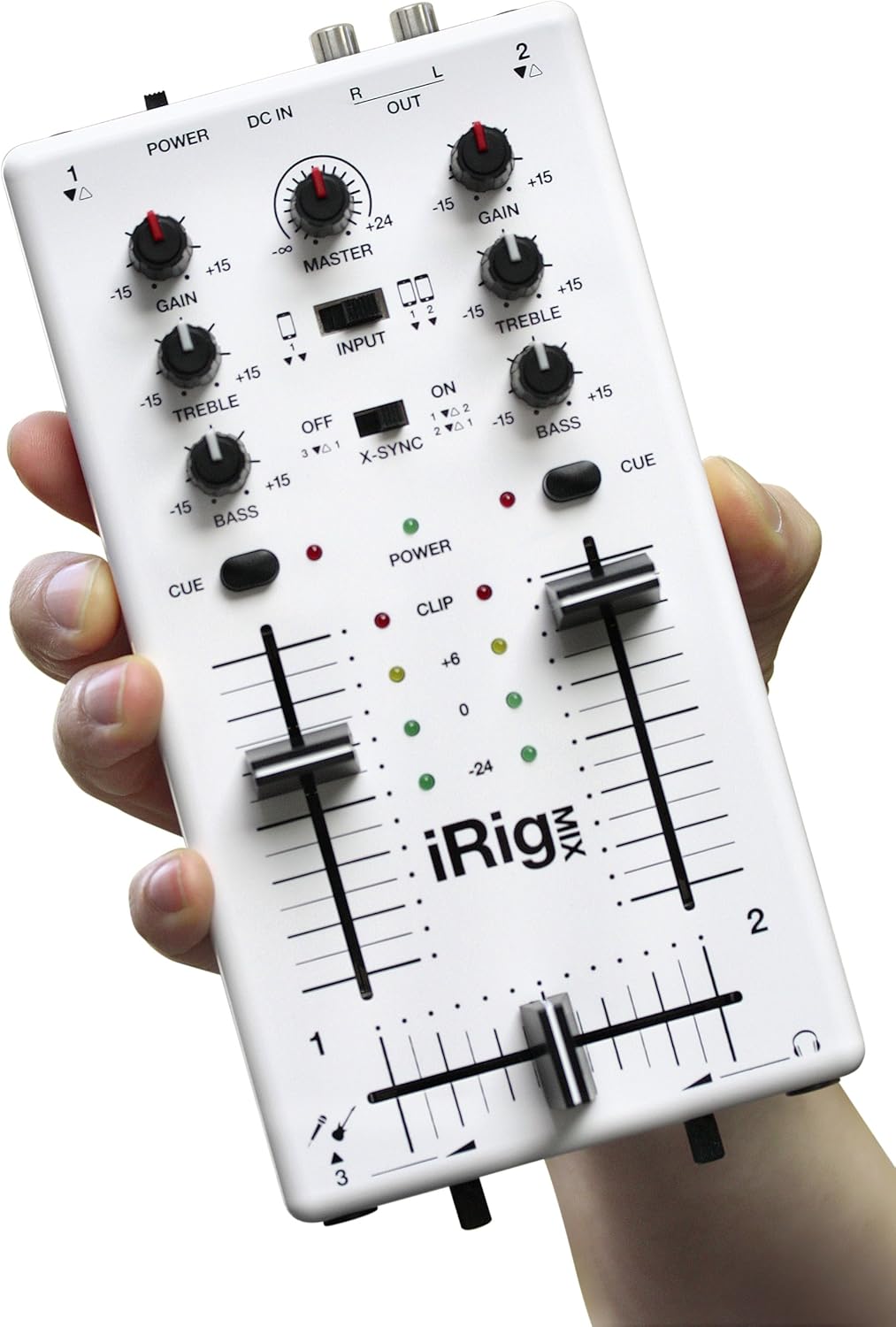
Figure 3: The iRig Mix connected to a portable CD player and an iPad, illustrating its flexibility with various audio sources.
Input 3 (Instrument/Microphone Input)
This input allows you to connect a microphone or an electric instrument (like a guitar or bass) directly to the iRig Mix. This signal can then be processed by compatible iOS applications.

Figure 4: An electric guitar connected to the iRig Mix, with the output routed to an iPad running the AmpliTube app for effects processing.
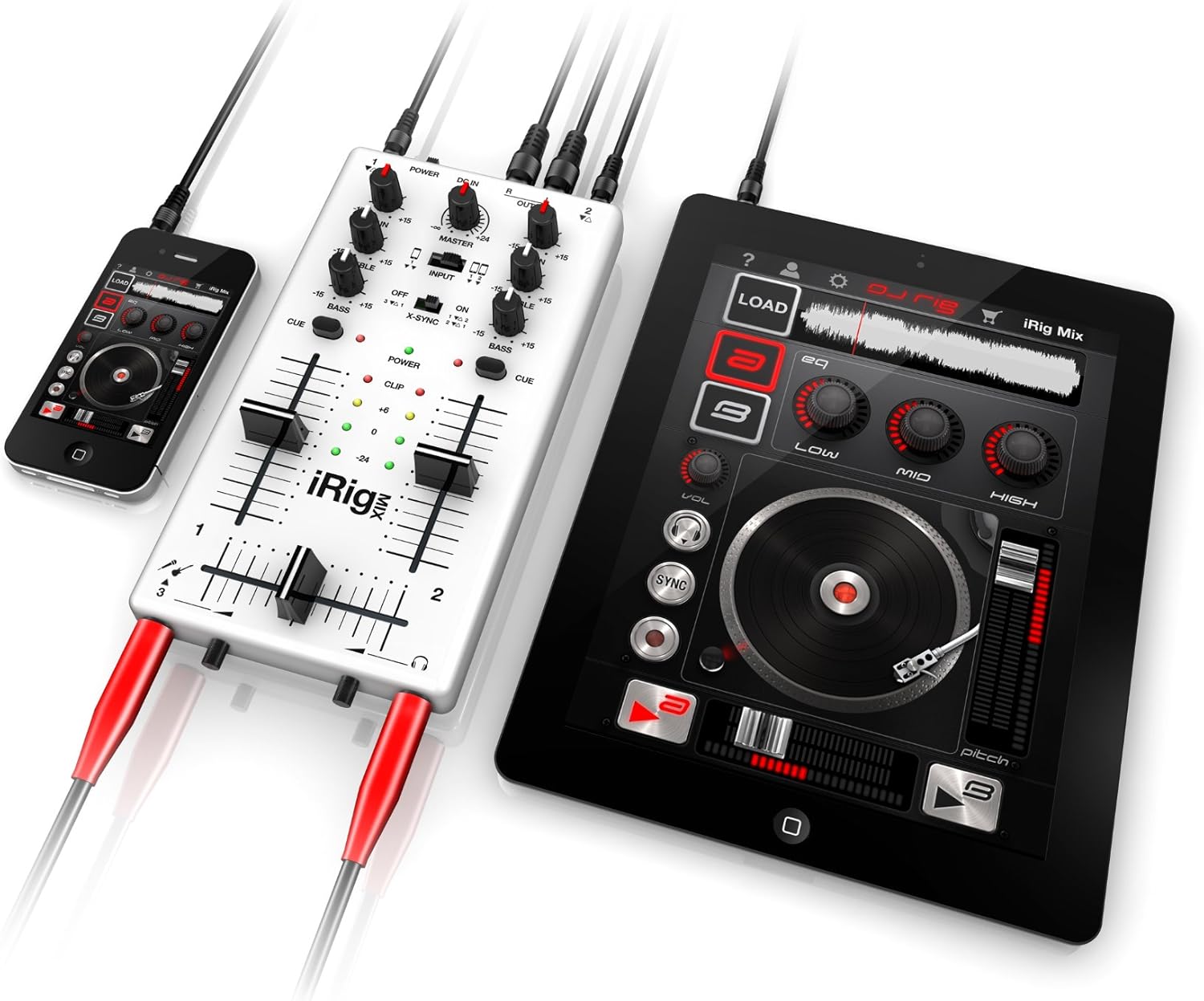
Figure 5: A microphone connected to the iRig Mix, demonstrating its capability for vocal input and processing via a connected iPhone.
Output (RCA Stereo Output)
Connect the RCA stereo output to your sound system, powered speakers, or amplifier. Ensure the volume on your output device is initially low to prevent sudden loud sounds.
Наушник чыгаруу
Plug your headphones into the 3.5mm headphone jack for monitoring your mix or cueing tracks.
5. Иштөө нускамалары
5.1 Controls Overview
Familiarize yourself with the various controls on the iRig Mix:
- GAIN Knobs (1 & 2): Ар бир канал үчүн киргизүү деңгээлин тууралаңыз.
- TREBLE Knobs (1 & 2): Adjust the high-frequency response for each channel.
- BASS Knobs (1 & 2): Adjust the low-frequency response for each channel.
- МАСТЕР баскычы: Миксердин жалпы чыгаруу көлөмүн көзөмөлдөйт.
- INPUT Switch: Selects the input configuration. In the 'OFF' position, Input 1 and Input 2 are separate stereo inputs. In the 'ON' position, Input 1 is split into dual-mono for single-device DJ applications.
- X-SYNC Switch: Activates the X-SYNC feature for automatic beat matching with compatible IK Multimedia apps.
- CUE Buttons (1 & 2): Engage pre-listening for individual channels through the headphone output.
- Channel Faders (1 & 2): Control the volume of each channel.
- Cross-fader: Blends between Channel 1 and Channel 2.
- POWER LED: Бирдиктин күйгүзүлгөнүн көрсөтөт.
- КЛИП СИД лампалары: Indicate when an input signal is too high, potentially causing distortion. Adjust GAIN to prevent clipping.
5.2 Basic Mixing Operation
- Connect your audio sources to Input 1 and Input 2.
- Connect your output system to the RCA OUT ports.
- Adjust the GAIN knobs for each channel to achieve a healthy signal level without clipping (CLIP LEDs should not illuminate constantly).
- Use the BASS and TREBLE knobs to shape the tone of each track.
- Use the CUE buttons and headphone output to pre-listen to tracks before playing them live. Adjust the headphone volume with the dedicated knob.
- Use the Channel Faders to control the individual volume of each track.
- Use the Cross-fader to smoothly transition between Channel 1 and Channel 2.
- Adjust the MASTER knob for the overall output volume.
5.3 Using with iOS Applications
The iRig Mix is designed to work seamlessly with various iOS applications. For DJing, IK Multimedia offers the free VDJ application. For instrument and vocal processing, apps like AmpliTube and VocaLive can be used with Input 3.

Figure 6: The iRig Mix connected to both an iPhone and an iPad, showcasing its ability to integrate with multiple mobile devices for a comprehensive DJ setup.
6. Техникалык тейлөө
To ensure the longevity and optimal performance of your iRig Mix, follow these maintenance guidelines:
- Тазалоо: Түзмөктүн сыртын тазалоо үчүн жумшак, кургак чүпүрөктү колдонуңуз. Абразивдүү тазалоочу каражаттарды, эриткичтерди же момдорду колдонуудан алыс болуңуз.
- Сактагыч: Store the iRig Mix in a cool, dry place away from direct sunlight and extreme temperatures.
- Колдонуу: Агрегатты кылдаттык менен колдонуңуз. Аны түшүрүүдөн же катуу таасирлерден сактаныңыз.
- Байланыштары: Always ensure cables are connected and disconnected gently to prevent damage to the ports.
7. Кыйынчылыктарды
If you encounter issues with your iRig Mix, refer to the following common problems and solutions:
- Кубат жок: Ensure the Micro-USB cable is securely connected to both the iRig Mix and a working USB power source. Check if the power source is active.
- Үн чыгышы жок:
- Verify all audio cables are correctly connected to the inputs and outputs.
- Check that the MASTER volume knob is turned up.
- Ensure the Channel Faders are raised and the Cross-fader is not fully biased to an inactive channel.
- Confirm that your audio sources (smartphones, tablets) are playing sound and their volume is turned up.
- Check the volume level on your connected sound system/speakers.
- Distorted Sound / Clipping:
- Reduce the GAIN knobs for the input channels. The CLIP LEDs should only flash occasionally on peaks, not stay lit.
- Lower the volume on your source devices.
- Reduce the MASTER volume.
- Кулакчындарды көзөмөлдөө көйгөйлөрү:
- Ensure headphones are fully plugged in.
- Check the headphone volume knob.
- Verify the CUE buttons for the desired channels are engaged.
- Fader Feels Stiff or Inaccurate: This can sometimes occur with compact mixers. Ensure the fader is clean and free of debris. If the issue persists and affects performance, contact customer support.
- Compatibility with Android Devices: While primarily designed for iOS, many Android devices can work with the iRig Mix. Ensure your Android device supports audio output via its headphone jack and consider using compatible third-party DJ or audio apps.
If these steps do not resolve your issue, please refer to the support section or visit the IK Multimedia webкошумча жардам үчүн сайт.
8. Техникалык шарттар
| Спецификация | Нарк |
|---|---|
| Элемент Салмагы | 0.65 фунт (10.4 унция) |
| Продукциянын өлчөмдөрү | 8.5 x 2.5 x 4.5 дюйм |
| Элемент моделинин номери | iRig Mix |
| Түс аты | Silver |
| Шайкеш түзмөктөр | Планшет, смартфон |
| Туташтыргыч түрү | RCA |
| Аппараттык платформа | Планшет, смартфон |
| Операция системасы | iOS (compatible with many Android devices) |
| Power Source | Electric (via Micro-USB) |
| Каналдардын саны | 2 |
| Биринчи жеткиликтүү күн | 14-февраль, 2012-жыл |
9. Кепилдик жана колдоо
For detailed warranty information, please refer to the warranty card included with your purchase or visit the official IK Multimedia website. IK Multimedia provides customer support and resources for their products.
Официалдуу Webсайт: Visit the IK Multimedia Store on Amazon
For technical support, product registration, and software updates, please visit the support section of the IK Multimedia webсайт.


