1. Киришүү
This manual provides instructions for the Canon PIXMA MX 897 Ink All-in-One Printer. The device integrates print, scan, copy, and fax functionalities, along with network and Wi-Fi capabilities. It features a 3.0-inch LCD screen for user interaction.
Негизги өзгөчөлүктөр төмөнкүлөрдү камтыйт:
- ISO standard print speed (A4): up to 12.5 images per minute (ipm) for monochrome and 9.3 ipm for color.
- Capable of printing a 10 x 15 cm borderless photo in approximately 20 seconds.
- Functions: Print, Scan, Copy, Fax, Networkable, Wi-Fi, and Card Direct.
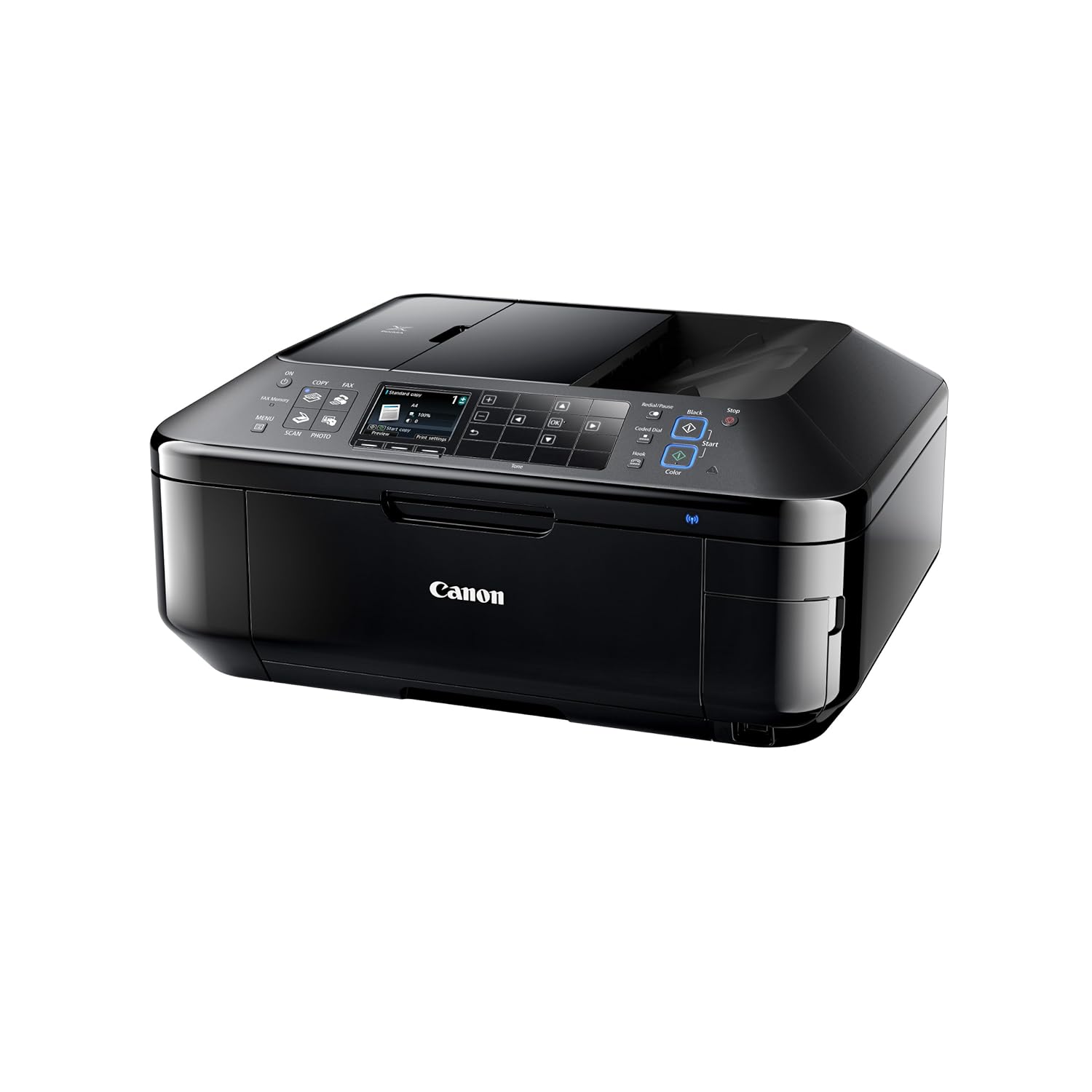
Сүрөт 1: Алдыңкы view of the Canon PIXMA MX 897 All-in-One Printer. This image displays the printer's overall design, including the control panel and paper output tray.
2. Орнотуу
Follow these general steps to set up your Canon PIXMA MX 897 printer. Refer to the quick start guide included in the packaging for detailed, step-by-step instructions.
- Пакеттен чыгаруу: Carefully remove the printer from its packaging and remove all protective materials and tapes.
- Кубат туташуу: Connect the power cord to the printer and then to a power outlet. Turn on the printer.
- Сыя картриджди орнотуу: Open the printer cover and install the compatible ink cartridges (PG740 and CL741) into their designated slots. Ensure they are securely latched.
- Кагаз жүктөө: Load appropriate paper (e.g., A4 plain paper or glossy photo paper) into the paper tray. Adjust the paper guides to fit the paper size.
- Initial Setup on LCD: Follow the on-screen instructions on the 3.0-inch LCD panel to select language, region, and perform print head alignment.
- Туташуу орнотуулары:
- Wi-Fi туташуусу: Navigate to the Wi-Fi setup menu on the LCD panel. Select your wireless network and enter the password.
- USB туташуу: Принтерди компьютериңизге USB кабели аркылуу туташтырыңыз (кошумча эмес).
- Драйверди орнотуу: Install the printer drivers and software on your computer from the provided CD-ROM or by downloading them from the official Canon webсайт.
3. Иштөө нускамалары
The Canon PIXMA MX 897 features a dual-function panel and a 3.0-inch LCD screen for intuitive operation across its various functions.
3.1. Control Panel Overview
The printer's control panel utilizes an alternating keypad interface on a single touch panel. This design displays only the keys relevant to the specific function currently in use, enhancing user efficiency.

Сүрөт 2: Жакын пландан view of the Canon PIXMA MX 897 control panel and paper output tray. The image highlights the touch-sensitive buttons and the integrated LCD screen.
3.2. Басып чыгаруу
Документтерди же сүрөттөрдү басып чыгаруу үчүн:
- Принтер күйгүзүлүп, компьютериңизге же тармагыңызга туташып турганын текшериңиз.
- Load the desired paper type and size into the paper tray. The printer supports A4 and glossy photo paper.
- Компьютериңизден басып чыгаргыңыз келген документти же сүрөттү ачыңыз.
- Select "Print" from the application's menu. Adjust print settings such as paper size, type, and print quality in the printer driver dialog box.
- Click "Print" to start the printing process.
The printer offers ISO standard print speeds of up to 12.5 ipm for monochrome and 9.3 ipm for color A4 documents. Borderless 10 x 15 cm photos can be printed in approximately 20 seconds.

Figure 3: The Canon PIXMA MX 897 printer actively printing a document. Paper is visible exiting the output tray, demonstrating the printing function.
3.3. Scanning and Copying
The printer is equipped with a fully integrated Auto Document Feeder (ADF) that can hold up to 35 sheets of regular A4 paper for scanning and copying tasks.
- Скандоо: Place documents on the scanner glass or in the ADF. Use the "Scan" function on the control panel or initiate scanning from your computer using the installed software.
- Көчүрүү: Place documents on the scanner glass or in the ADF. Select "Copy" on the control panel, adjust settings like number of copies or quality, and press the start button.
3.4. Факс жөнөтүү
To send or receive faxes, ensure the printer is connected to a telephone line. Use the "Fax" function on the control panel to dial numbers and manage fax settings.
3.5. PIXMA Cloud Link
The PIXMA Cloud Link feature allows direct access to online content without a computer:
- Online Photo Albums: Print photos directly from supported online photo services.
- Web Калыптар: Access and print various stationery templates directly from the Canon server.
- Google Булуттагы Принтер: Басып чыгаруу web-connected devices using Google Cloud Print.
4. Техникалык тейлөө
Үзгүлтүксүз тейлөө принтериңиздин оптималдуу иштешин жана узак иштөөсүн камсыздайт.
4.1. Сыя картриджин алмаштыруу
When an ink cartridge runs low or is empty, a message will appear on the LCD screen. Replace cartridges with genuine Canon PG740 (Black) and CL741 (Color) cartridges. Follow the on-screen instructions or refer to the full manual for detailed replacement steps.
4.2. Тазалоо
- Сырткы: Принтердин сыртын жумшак менен сүртүңүз, damp, түксүз кездеме.
- Ички иштер: Periodically clean the paper feed rollers and print head using the utility functions available through the printer's control panel or computer software.
- Сканер айнек: Clean the scanner glass with a soft, lint-free cloth and a non-abrasive glass cleaner to prevent streaks on scanned or copied documents.
4.3. Print Head Alignment and Nozzle Check
If print quality deteriorates (e.g., blurry text, incorrect colors), perform a print head alignment and nozzle check from the printer's maintenance menu to resolve common issues.
5. Кыйынчылыктарды
This section addresses common issues you might encounter with your Canon PIXMA MX 897 printer.
5.1. Принтер жооп бербей жатат
- Күчтү текшерүү: Принтер розеткага сайылып, күйгүзүлгөнүн текшериңиз.
- Байланыштарды текшерүү: Verify that the USB cable is securely connected to both the printer and the computer, or that the Wi-Fi connection is active and stable.
- Принтердин абалы: Check the printer's LCD screen for any error messages.
- Түзмөктөрдү кайра иштетүү: Turn off the printer and computer, then restart them.
5.2. Басып чыгаруу сапатынын маселелери
- Аз сыя: Сыя деңгээлин текшерип, бош же аз картридждерди алмаштырыңыз.
- Сопло тыгыны: Perform a nozzle check and print head cleaning from the maintenance menu.
- Басып чыгаруу башын тегиздөө: If prints are misaligned, perform print head alignment.
- Кагаз түрү: Ensure the correct paper type is selected in the print settings.
5.3. Кагаздын тыгылып калышы
- Жолду тазалоо: Carefully remove any jammed paper from the paper input tray, output tray, or inside the printer.
- Туура жүктөө: Кагаз туура жүктөлгөндүгүн жана ашыкча толтурулбаганын текшериңиз.
- Кагаздын абалы: Use new, uncreased paper.
5.4. Тармакка туташуу көйгөйлөрү
- Маршрутизатор: Wi-Fi роутериңиз күйүп турганын жана туура иштеп жатканын текшериңиз.
- Сигнал күчү: Check the Wi-Fi signal strength on the printer's LCD.
- Кайра конфигурациялоо: Re-enter Wi-Fi settings on the printer if necessary.
6. Техникалык шарттар
| Өзгөчөлүк | Деталь |
|---|---|
| Модель номери | PIXMA MX 897 |
| Өндүрүүчү | Canon |
| Форма фактору | All-in-One (Print, Scan, Copy, Fax) |
| Басма технологиясы | Inkjet |
| Принтердин чыгышы | Түс |
| Максималдуу басып чыгаруу ылдамдыгы (түстүү) | 4 ppm (мүнөтүнө барак) |
| ISO Standard Print Speed (Mono) | 12.5 ipm (images per minute) |
| ISO Standard Print Speed (Colour) | 9.3 ipm (images per minute) |
| Borderless Photo Print (10x15cm) | Болжол менен 20 секунд |
| Дуплекстүү басып чыгаруу | Автоматтык |
| Сканер түрү | Жабылган |
| Автоматтык документ бергичтин (ADF) сыйымдуулугу | Up to 35 sheets (A4) |
| Башкаруу ыкмасы | Touch (Dual function panel, 3.0-inch LCD) |
| Байланыш технологиясы | USB, Wi-Fi |
| Өзгөчө өзгөчөлүк | Тармакка даяр |
| Шайкеш картридждер | PG740 (Black), CL741 (Color) |
| Supported Print Media | Glossy photo paper, A4 |
| Продукциянын өлчөмдөрү (LxWxH) | 21.8 x 49.1 x 21.8 см |
| Элемент Салмагы | 11.7 кг (11 кг 700 г) |
| Камтылган компоненттер | Принтер |
7. Кепилдик жана колдоо
7.1. Кепилдик маалыматы
The Canon PIXMA MX 897 Ink All-in-One Printer comes with a 2 жылдык кепилдик. Кепилдик дооматтары үчүн сатып алганыңыздын далилин сактап коюңуз.
7.2. Кардарларды колдоо кызматы
For technical assistance, troubleshooting beyond this manual, or warranty service, please contact Canon customer support. Refer to the official Canon website or the documentation included with your product for contact details specific to your region.
Кошумча ресурстар төмөнкүлөрдү камтышы мүмкүн:
- Canon Official Support Webсайт (Чыгample шилтеме, чыныгы шилтеме аймакка жараша өзгөрүшү мүмкүн)
- Онлайн көп берилүүчү суроолор жана билим базасы.
- Драйверлерди жана программалык камсыздоону жүктөп алуу.


