Introduction
This manual provides detailed instructions for the setup, operation, and maintenance of your iBall C 8.0 Web Camera. Please read this manual thoroughly before using the product to ensure optimal performance and longevity.
Пакеттин мазмуну
- iBall C 8.0 Web Camera with integrated USB cable
- Driver CD (if applicable)
Note: Contents may vary slightly based on region or package version.
Өзгөчөлүктөрү
The iBall C 8.0 Web Camera is designed for high-quality video communication and still image capture. Key features include:
- Interpolated 8.0 Mega Pixel Still Image Resolution
- Interpolated 4.0 Mega Pixel Video Resolution
- High quality 5G wide angle lens
- 6 LEDs for night vision with brightness controller
- Snapshot button for still image capture
- Built-in high sensitive microphone
- Built-in 4 Photo frames and 7 special effects
- 4X Digital Zoom
- Multi-utility camera base for use on Monitors, LCDs and Laptops
- USB 2.0 interface (backward compatible with USB 1.1)
Жайгашуу
1. Аппараттык туташуу
- жайгаштырыңыз Webкамера: Place the iBall C 8.0 Web Camera on your monitor, laptop screen, or a flat surface using its multi-utility base. Ensure it is stable and facing the desired direction.
- Компьютерге туташуу: USB туташтыргычын сайыңыз webcam into an available USB 2.0 port on your computer. The operating system should detect the new hardware.
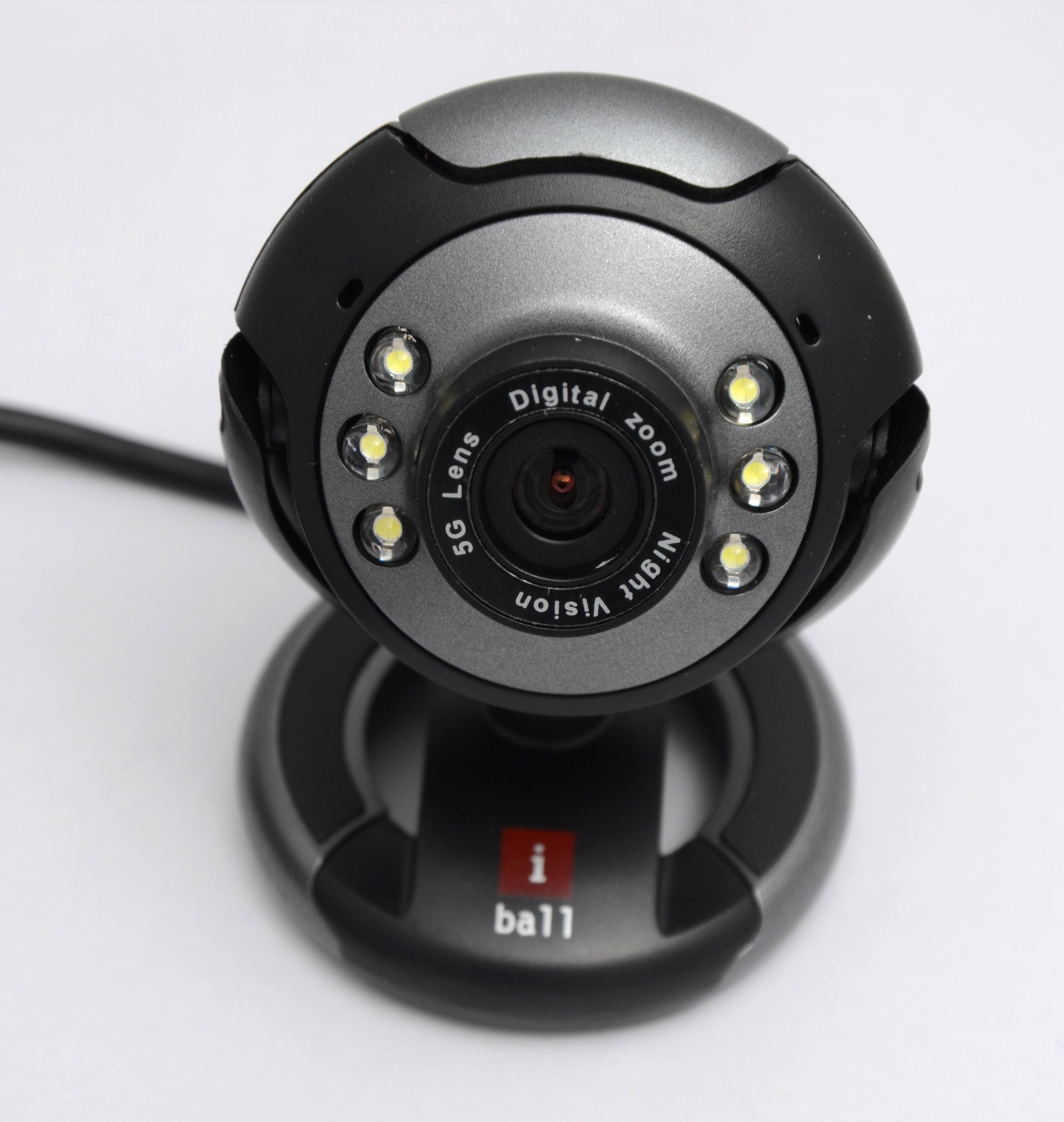
Image: The iBall C 8.0 Web Camera with its integrated USB cable. The camera features a multi-utility base and a lens surrounded by 6 LEDs. The USB connector is visible, ready for connection to a computer.
2. Драйверди орнотуу
For Windows 2000 / XP / Vista / 7, drivers are typically required. The product includes a driver for Windows with photo frames and special effects.
- Драйвердин CDсин салыңыз: If provided, insert the driver CD into your computer's CD/DVD drive.
- Орнотууну иштетүү: орнотуу үчүн экрандагы нускамаларды аткарыңыз webcam drivers and bundled software. If an auto-run feature does not start, navigate to the CD drive in "My Computer" and run the setup executable (e.g., setup.exe).
- Компьютерди кайра иштетүү: After installation, it is recommended to restart your computer to ensure all drivers are properly loaded.
Note: For newer operating systems (Windows 8/10/11), drivers may install automatically upon connection. If not, please refer to the iBall support webакыркы айдоочулар үчүн сайт.
Иштөө нускамалары
колдонуу Webcam
- Колдонмону ишке киргизүү: Open a video conferencing application (e.g., Skype, Zoom, Google Meet) or a camera application on your computer. Select the iBall C 8.0 Web Camera as your video input device.
- Фокусту тууралоо: The webcam has a focus range of 5 cm to infinity. Adjust the lens manually if your image appears blurry.
- Night Vision (LEDs): The 6 built-in LEDs provide illumination in low-light conditions. Use the brightness controller on the cable to adjust the intensity of these LEDs.
- Сүрөт баскычы: Press the dedicated snapshot button on the webcam to capture still images instantly. The image will be saved to your default pictures folder or the location specified in the bundled software.
- Digital Zoom: Utilize the 4X Digital Zoom feature through the bundled software or your video application settings to magnify your image.
- Photo Frames & Special Effects: Access the 4 built-in photo frames and 7 special effects via the bundled software to enhance your video calls or captured images.
- Камтылган микрофон: The high-sensitive microphone will automatically pick up audio. Ensure it is selected as the audio input device in your application settings.
Техникалык тейлөө
- Тазалоо: Камера линзасын жана корпусун тазалоо үчүн жумшак, кургак чүпүрөктү колдонуңуз. Суюк тазалоочу каражаттарды же абразивдүү материалдарды колдонуудан алыс болуңуз.
- Сактагыч: Колдонулбаган учурда, дүкөндү сактаңыз webкамераны таза, кургак жерде, күндүн түз тийген нурунан жана өтө жогорку температурадан алыс сактаңыз.
- Кабельге кам көрүү: Do not pull the cable forcefully or bend it sharply to prevent damage.
Проблемаларды чечүү
- Көйгөй: WebКомпьютер камераны аныктай алган жок.
- Чечим:
- USB кабели иштеген USB портуна бекем сайылганын текшериңиз.
- Башка USB портун колдонуп көрүңүз.
- Компьютериңизди өчүрүп күйгүзүңүз.
- Verify that drivers are correctly installed (refer to "Driver Installation" section).
- Түзмөк менеджерин (Windows) текшерип көрүңүз, эгерде webcam is listed without errors.
- Көйгөй: Сүрөт бүдөмүк же фокусу жок.
- Чечим:
- Manually adjust the focus ring around the lens until the image is clear.
- Линзанын таза жана тактар жок экенин текшериңиз.
- Problem: No audio from the webкамера микрофон.
- Чечим:
- Check your application's audio settings and ensure the iBall C 8.0 microphone is selected as the input device.
- Операция тутумуңуздагы микрофондун купуялык жөндөөлөрүн текшериңиз.
- Problem: Night vision LEDs are not working or too dim/bright.
- Чечим:
- Adjust the brightness controller located on the webcam's cable.
- камсыз кылуу webcam is receiving sufficient power from the USB port.
Техникалык шарттар
| Өзгөчөлүк | Деталь |
|---|---|
| Сүрөт сенсору | High quality 1/4 CMOS sensor |
| Натыйжалуу пикселдер | 480K pixels (Interpolated 8M pixels still image & 4M pixels video) |
| Video Resolution | Max. up to 2560 x 1920 pixels (Interpolated) |
| Сүрөттүн чечилиши | Max. up to 3200 x 2400 pixels (Interpolated) |
| Кадр ылдамдыгы | секундасына 50 кадр |
| Түс тереңдиги | 24-Bit True Colour |
| Интерфейс | USB 2.0, backward compatible to USB 1.1 |
| Фокус | 5 cm to Infinity |
| Микрофон | Built-in high sensitive microphone |
| Сүрөт баскычы | Built-in snapshot button |
| Түнкү көрүнүш | 6 LEDs for night vision, with brightness controller |
| Digital Zoom | 4X Digital Zoom |
| Video Effects | 4 photo frames and 7 special effects |
| OS шайкештиги | Windows 2000 / XP / Vista & 7 |
| Элемент Салмагы | 240 г |
| Линзанын түрү | Wide Angle (5G) |
| Image Stabilization | Санарип |
Кепилдик жана колдоо
The iBall C 8.0 Web Camera comes with a 2 жылдык кепилдик сатып алынган күндөн тартып. Кепилдик дооматтары үчүн сатып алуу дүмүрчөгүңүздү сактап коюңуз.
For technical support, driver updates, or further assistance, please visit the official iBall support website or contact their customer service. Contact information can typically be found on the iBall webсайт же продукт таңгак.


