1. Киришүү
This manual provides detailed instructions for the installation, configuration, and operation of your TP-Link N600 Wireless Dual Band Gigabit Router, model TL-WDR3600. This device offers simultaneous 2.4GHz and 5GHz wireless connections, Gigabit Ethernet ports, and USB ports for enhanced network functionality. Please read this manual thoroughly to ensure proper use and optimal performance of your router.
2. Продукт бүтүп калдыview
2.1 Негизги өзгөчөлүктөрү
- Simultaneous 2.4GHz 300Mbps and 5GHz 300Mbps connections for 600Mbps total available bandwidth.
- Two USB ports for sharing printers, files, or media locally or over the Internet.
- Full Gigabit Ethernet ports for ultimate wired transfer speeds.
- Hardware NAT for WAN to LAN throughput exceeding 800Mbps.
- Built-in media server for sharing music, video, and photos with devices like Windows Media Player, PS3, or Xbox 360.
- Built-in print server for wireless printing from various computers by connecting a USB printer.
- Simple wireless security encryption via the WPS button.
- External detachable antennas for improved alignment and potential upgrades.
2.2 Пакеттин мазмуну
Төмөнкү нерселер сиздин продукт пакетиңизге киргизилиши керек:
- TP-Link TL-WDR3600 Wireless N600 Dual Band Router
- Кубаттуу адаптер
- Ethernet кабели
- Ыкчам орнотуу колдонмосу
- Ресурстук CD
2.3 Продукт Views

Сүрөт 1: Фронт view of the TP-Link TL-WDR3600 N600 Wireless Dual Band Gigabit Router, showing the status indicator lights and the TP-Link logo.
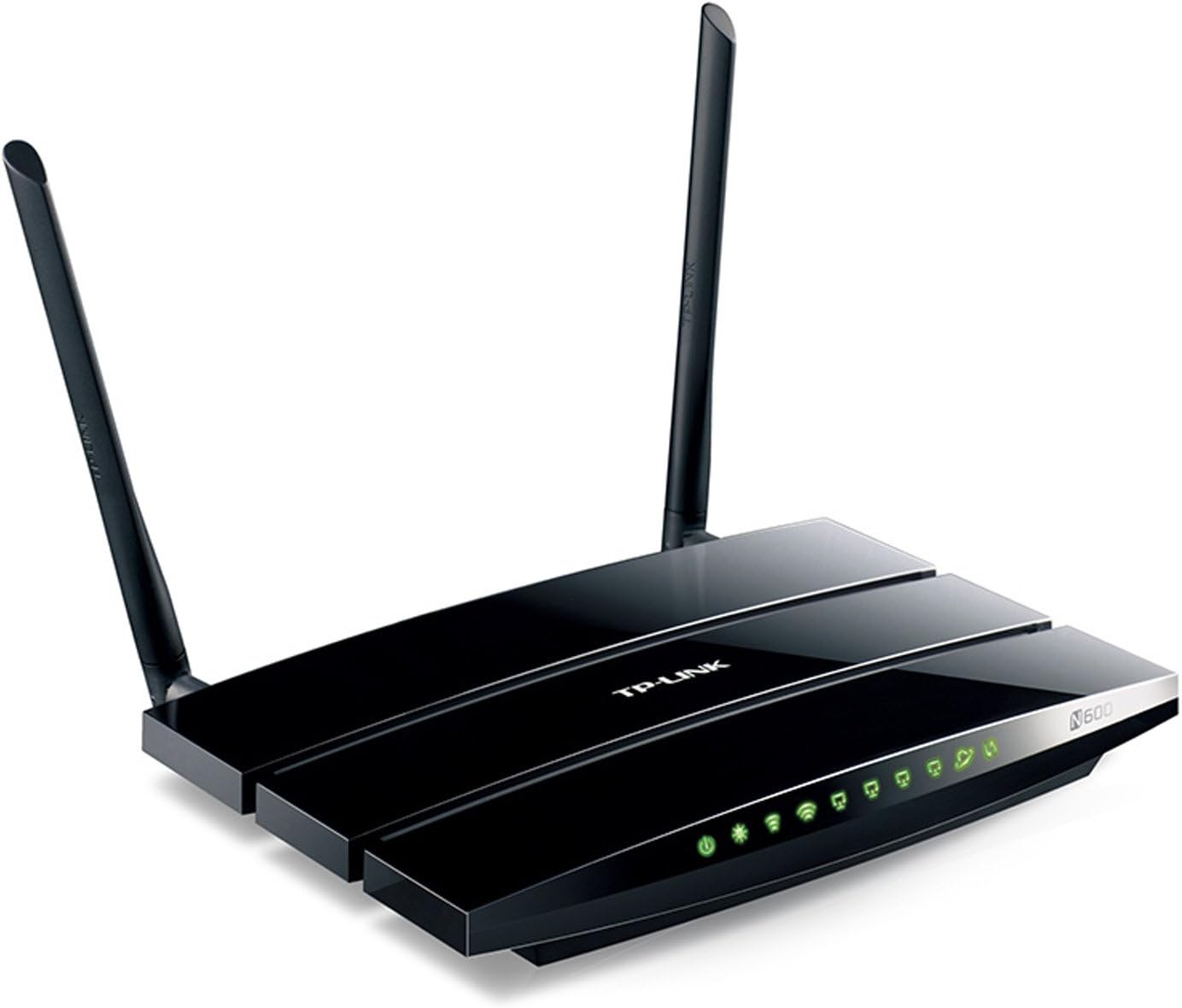
Сүрөт 2: Бурчтуу view of the TP-Link TL-WDR3600 N600 Wireless Dual Band Gigabit Router, highlighting the two external detachable antennas and the rear ports.
3. Орнотуу колдонмосу
Follow these steps to set up your TP-Link TL-WDR3600 router:
- Модемиңизди өчүрүү: Учурдагы модемиңизден электр кубатын ажыратыңыз.
- Роутерди туташтыруу:
- Connect one end of the Ethernet cable to the WAN port (usually blue) on the router.
- Ethernet кабелинин экинчи учун модемиңиздин Ethernet портуна туташтырыңыз.
- Connect your computer to one of the LAN ports (yellow) on the router using another Ethernet cable, or connect wirelessly using the default Wi-Fi name (SSID) and password found on the router's label.
- Түзмөктөрдү күйгүзүү: First, power on your modem and wait for it to fully boot up (usually indicated by stable lights). Then, power on your TP-Link router.
- Access the Router's Web Интерфейс:
- ачуу а web браузер (мисалы, Chrome, Firefox, Edge).
- Type the default access address (e.g., tplinkwifi.net or 192.168.0.1) дарек тилкесине кирип, Enter баскычын басыңыз.
- Демейки колдонуучу атын жана паролду киргизиңиз (адатта админ for both, found on the router's label).
- Run the Quick Setup Wizard: Follow the on-screen instructions of the Quick Setup Wizard to configure your Internet connection, wireless network names (SSIDs), and passwords. It is highly recommended to change the default login password for security.
- Түзмөктөрүңүздү туташтырыңыз: Once configured, connect your wireless devices to the new Wi-Fi networks (2.4GHz or 5GHz) using the passwords you set.
4. Иштөө нускамалары
4.1 Зымсыз байланыш
The TL-WDR3600 supports dual-band Wi-Fi, allowing you to connect devices to either the 2.4GHz or 5GHz network.
- 2.4 ГГц диапазону: Offers wider coverage and better penetration through walls, suitable for general internet use and older devices.
- 5 ГГц диапазону: Provides faster speeds and less interference, ideal for bandwidth-intensive activities like online gaming and HD video streaming, especially for newer devices.
To connect a device, select the appropriate Wi-Fi network (SSID) from your device's Wi-Fi settings and enter the password.
4.2 USB портунун функциясы
The router features two USB 2.0 ports for versatile functionality:
- Сактоону бөлүшүү: Бөлүшүү үчүн USB сактагыч түзмөгүн (мисалы, флеш-диск, тышкы катуу диск) туташтырыңыз files across your network or remotely via FTP. Configure this feature in the router's web interface under "USB Settings" or "Storage Sharing."
- Принтерди бөлүшүү: Connect a USB printer to the router to enable wireless printing from any computer on your network. You will need to install the TP-Link USB Printer Controller Utility on each computer that will use the shared printer.
- Медиа сервер: Utilize the built-in media server to stream media files (music, videos, photos) from a connected USB storage device to DLNA-compatible devices such as smart TVs, game consoles (PS3, Xbox 360), or media players.
4.3 Коноктор тармагы
The Guest Network feature allows you to provide internet access to guests without giving them access to your main network resources. This enhances security. You can enable and configure separate SSIDs and passwords for guest networks via the router's web интерфейс.
5. Техникалык тейлөө
- Программалык камсыздоонун жаңыртуулары: TP-Linkти дайыма текшерип туруңуз website for firmware updates. Updating the firmware can improve performance, add new features, and fix security vulnerabilities. Download the correct firmware for your model and follow the instructions provided on the TP-Link support page for installation.
- Маршрутизатордун жайгашуусу: Place the router in a central location, away from obstructions (e.g., thick walls, metal objects) and sources of interference (e.g., microwaves, cordless phones) to maximize wireless coverage and signal strength.
- Тазалоо: Роутерди таза жана чаңсыз кармаңыз. Ашыкча ысып кетүүнүн алдын алуу үчүн жакшы желдетүүнү камсыз кылыңыз.
- Кадимки кайра жүктөөлөр: Periodically rebooting your router (power cycling) can help resolve minor network issues and improve performance.
6. Кыйынчылыктарды
6.1 Интернетке кирүү жок
- Модем, роутер жана компьютердин ортосундагы бардык кабелдик туташууларды текшериңиз. Алардын коопсуз экенине ынаныңыз.
- Verify that your modem is working correctly by connecting a computer directly to it.
- Reboot your modem and router in sequence: first the modem, then the router.
- Маршрутизаторго кириңиз web interface and check the WAN status. Ensure your Internet Service Provider (ISP) settings are correctly configured.
- If your ISP requires MAC Address Cloning, configure this in the router's WAN settings.
6.2 Жай зымсыз ылдамдык
- Ensure your devices are connected to the appropriate band (5GHz for faster speeds, if supported).
- Reduce interference by placing the router away from other electronic devices.
- Change the wireless channel in the router's settings to avoid congestion with neighboring networks. Use a Wi-Fi analyzer tool to find less crowded channels.
- Кардар түзмөктөрүңүздөгү зымсыз адаптер драйверлерин жаңыртыңыз.
6.3 Маршрутизаторго кирүү мүмкүн эмес Web Интерфейс
- Компьютериңиз роутерге Ethernet же Wi-Fi аркылуу туташкандыгын текшериңиз.
- Verify that you are using the correct IP address or domain name (e.g., tplinkwifi.net, 192.168.0.1).
- Браузериңиздин кэшин жана cookie файлдарын тазалаңыз же башка браузерди колдонуп көрүңүз.
- Компьютериңиздеги брандмауэрди же антивирустук программаларды убактылуу өчүрүңүз.
- If you forgot the login password, you may need to perform a factory reset on the router. Locate the reset button (usually a small pinhole) on the router, press and hold it for about 10 seconds while the router is powered on, then release. This will restore the router to its default settings.
7. Техникалык шарттар
| Бренд | TP-Link |
| Модель аты | TL-WDR3600 |
| Зымсыз түрү | 802.11n |
| Жыштык тилкесинин классы | Кош тилкелүү (2.4 ГГц жана 5 ГГц) |
| Зымсыз ылдамдык | 300 Мбит/сек (2.4 ГГц) + 300 Мбит/сек (5 ГГц) чейин |
| Ethernet порттору | 4x Гигабит LAN, 1x Гигабит WAN |
| USB порттору | 2x USB 2.0 |
| Антенналар | 2x ажыратылуучу тышкы антенналар |
| Өлчөмдөрү (LxWxH) | 12.4 x 2.76 x 9.45 дюйм |
| Операциялык системанын шайкештиги | Windows, Mac |
| Тtage | 12 вольт |
8. Кепилдик жана техникалык колдоо
For warranty information, technical support, firmware updates, and additional resources, please visit the official TP-Link website. You can typically find support contact details, FAQs, and product documentation specific to the TL-WDR3600 model on their support pages.
TP-Link расмий Webсайт: www.tp-link.com


