1. Киришүү
This manual provides detailed instructions for the installation, configuration, and operation of your TOTOLINK N150RT 150Mbps Wireless-N Router. Please read this manual thoroughly before using the device to ensure proper setup and optimal performance. Keep this manual for future reference.
2. Продукт бүтүп калдыview
2.1 Негизги өзгөчөлүктөрү
- 150 Мбит / с зымсыз роутер
- Supports Wireless Repeater/Access Point modes
- VLAN колдоосу
- IPTV compatibility
- Multiple SSIDs for network segmentation
- Quality of Service (QoS) for bandwidth management
- Complies with 802.11n standard
- Advanced WPA/WPA2 encryption for security
2.2 Пакеттин мазмуну
Пакетиңизде бардык буюмдар бар экенин текшериңиз:
- TOTOLINK N150RT Wireless-N Router
- Кубаттуу адаптер
- Ыкчам орнотуу колдонмосу
- Internet Cable (Ethernet cable)
- Flyer (additional documentation)
2.3 Физикалык мүнөздөмө
The TOTOLINK N150RT router features a compact design with essential indicators and ports for network connectivity.
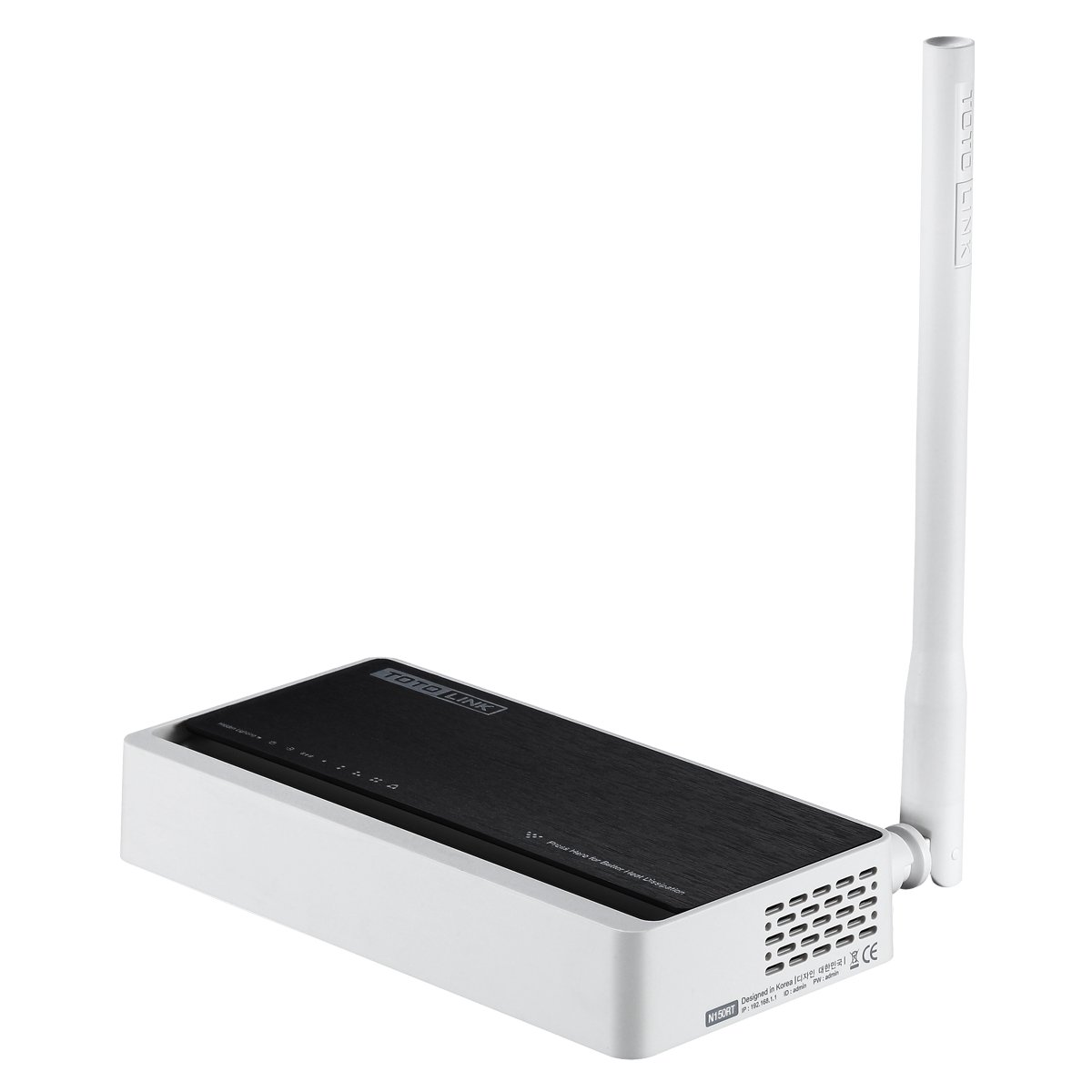
1-сүрөт: Алдыңкы жана үстү View of the TOTOLINK N150RT Router. This image shows the router from a slightly elevated front-right angle, highlighting the TOTOLINK branding on the top surface and the single external antenna on the right side.

2-сүрөт: Арткы View of the TOTOLINK N150RT Router with Ports (Angled). This image displays the rear panel of the router from an angled perspective, showing the WAN port (yellow), four LAN ports (orange), a reset button, a WPS button, and the power switch.

3-сүрөт: Арткы View of the TOTOLINK N150RT Router with Ports (Straight). This image provides a direct view of the router's rear panel, clearly showing the layout of the WAN port, four LAN ports, reset button, WPS button, and power switch, alongside the external antenna.
LED көрсөткүчтөрү:
- Power LED: Кубаттын абалын көрсөтөт.
- WAN LED: Интернетке туташуу абалын көрсөтөт.
- LAN диоддору (1-4): Indicate connection status for each wired LAN port.
- WLAN LED: Зымсыз байланыштын активдүүлүгүн көрсөтөт.
Порттор жана баскычтар:
- WAN порту (сары): Connects to your modem or internet service provider's network.
- LAN Ports (Orange, 1-4): Компьютерлер, оюн консолдору же тармак принтерлери сыяктуу зымдуу түзмөктөргө туташат.
- WPS/RST баскычы: Used for Wi-Fi Protected Setup (WPS) or to reset the router to factory defaults (press and hold).
- Кубат которгучу: Роутерди күйгүзөт же өчүрөт.
- Power Jack: Берилген кубат адаптерине туташат.
3. Орнотуу колдонмосу
3.1 Аппараттык туташуу
- Өчүрүү: Ensure your modem and router are powered off.
- Модемди роутерге туташтыруу: Connect one end of an Ethernet cable to the LAN port of your modem and the other end to the WAN порту (сары) of the N150RT router.
- Компьютерди роутерге туташтыруу (милдеттүү эмес): For initial setup, connect one end of an Ethernet cable to a LAN port (orange) on the N150RT router and the other end to your computer's Ethernet port. Alternatively, you can connect wirelessly after the router is powered on.
- Туташуу кубаты: Connect the provided power adapter to the router's power jack and then plug it into a power outlet.
- Күйгүзүү: First, power on your modem and wait for it to fully boot up (usually indicated by stable internet LED). Then, power on the N150RT router using the power switch.
- LEDди текшерүү: Check the Power, WAN, and WLAN LEDs on the router. The Power LED should be solid, the WAN LED should indicate an active connection, and the WLAN LED should be blinking or solid.
3.2 Баштапкы конфигурация (Web Интерфейс)
- Кирүү роутери: ачуу а web browser (e.g., Chrome, Firefox, Edge) on a computer connected to the router (either wired or wirelessly).
- IP дарегин киргизиңиз: In the browser's address bar, type the default IP address of the router (commonly
192.168.1.1or192.168.0.1) and press Enter. Refer to the label on the bottom of your router or the Quick Installation Guide for the exact default IP. - Кирүү: A login prompt will appear. Enter the default username and password (commonly
adminfor both). If these do not work, check the router's label or manual. - Орнотуу устасын иштетүү: Upon successful login, you will typically be guided through a Quick Setup Wizard. Follow the on-screen instructions to configure your internet connection type (e.g., PPPoE, Dynamic IP, Static IP) and wireless network settings (SSID and password).
- Демейки сырсөздү өзгөртүү: For security, it is highly recommended to change the default login password for the router's web интерфейс.
4. Иштөө нускамалары
After initial setup, you can access the router's web interface to manage various network settings and advanced features.
4.1 Зымсыз байланыштын негизги жөндөөлөрү
- SSID (тармактын аталышы): Customize your Wi-Fi network name.
- Коопсуздук режими: Select WPA2-PSK (AES) for optimal security.
- Password (Pre-Shared Key): Set a strong, unique password for your Wi-Fi network.
4.2 Өркүндөтүлгөн функциялар
The N150RT router supports several advanced functionalities accessible through its web интерфейс:
- Wireless Repeater/Access Point Mode: Configure the router to extend an existing Wi-Fi network or act as a simple access point. Refer to the router's online help or full user manual for specific steps.
- VLAN (Virtual Local Area Network): Allows for logical segmentation of your network. This is typically used in more complex network environments.
- IPTV: Specific settings may be available to optimize performance for Internet Protocol Television services.
- Бир нече SSID: Create separate wireless networks (e.g., one for guests, one for private use) with different security settings.
- QoS (Кызматтын сапаты): Prioritize network traffic for certain applications or devices to ensure smoother performance for critical services like online gaming or video streaming.
- Firewall жана коопсуздук: Configure firewall rules, MAC address filtering, and other security features to protect your network.
5. Техникалык тейлөө
5.1 Орнотулган программаны жаңыртуу
Regularly checking for and installing firmware updates is crucial for security, stability, and new features. Visit the official TOTOLINK website for your model (N150RT) to download the latest firmware. The update process is usually performed via the router's web interface under a "System Tools" or "Firmware Upgrade" section.
5.2 Заводдук абалга кайтаруу
A factory reset restores the router to its original default settings. This can be useful for troubleshooting persistent issues or when reconfiguring the router from scratch.
- 1-ыкма (Аппараттык баскыч): Роутер күйгүзүлгөндө, басып туруңуз WPS/RST баскычы on the rear panel for approximately 5-10 seconds until the LEDs flash. Release the button, and the router will reboot with factory defaults.
- 2-ыкма (Web Интерфейс): Маршрутизаторго кириңиз web interface. Navigate to "System Tools" or "Administration" and look for a "Factory Defaults" or "Backup & Restore" option. Select "Restore Factory Defaults" and confirm.
Note: Performing a factory reset will erase all your custom settings, including Wi-Fi name and password. You will need to reconfigure the router after a reset.
6. Кыйынчылыктарды
6.1 Интернетке кирүү жок
- Кабелдерди текшерүү: Бардык Ethernet кабелдери туура портторго (WANдан модемге, LANдан түзмөктөргө) бекем туташтырылганын текшериңиз.
- Модем абалы: Модемиңиз туура иштеп жатканын жана активдүү интернет байланышы бар экенин текшериңиз.
- Роутердин светодиоддору: Check the WAN LED on the router. If it's off or red, there might be an issue with the internet connection from your ISP or modem.
- Түзмөктөрдү кайра жүктөө: Power cycle your modem, then the router, and then your computer/device. Wait a few minutes after each device powers on.
- ISP Орнотуулары: Confirm your internet connection type (PPPoE, Dynamic IP, Static IP) and credentials are correctly configured in the router's web интерфейс.
6.2 Wi-Fi'га туташуу мүмкүн эмес
- WLAN LED: Ensure the WLAN LED on the router is active.
- SSID берүү: Check if your Wi-Fi network name (SSID) is being broadcast. If it's hidden, you'll need to manually enter it on your device.
- Купуя сөз: Туура Wi-Fi сырсөзүн киргизип жатканыңызды эки жолу текшериңиз. Сырсөздөр регистрге сезимтал.
- Аралык/Кийлигишүү: Move closer to the router or check for sources of interference (e.g., cordless phones, microwaves).
- Түзмөктүн шайкештиги: Ensure your device's wireless adapter supports 802.11n or compatible standards.
6.3 Жай зымсыз ылдамдык
- Интерференция: Change the wireless channel in the router's settings to avoid interference from neighboring networks.
- Маршрутизатордун жайгашуусу: Position the router in a central location, away from obstructions and other electronic devices.
- Микропрограмма: Роутердин микропрограммасы жаңыртылганын текшериңиз.
- Өткөрүү жөндөмдүүлүгүн колдонуу: Check if multiple devices are heavily using the network (e.g., streaming, large downloads). QoS settings can help manage this.
7. Техникалык шарттар
The following table outlines the technical specifications for the TOTOLINK N150RT Wireless-N Router:
| Өзгөчөлүк | Деталь |
|---|---|
| Бренд | TOTOLINK |
| Модель номери | 6952887400029 (N150RT) |
| Зымсыз стандарт | 802.11b/g/n |
| Зымсыз ылдамдык | 150 Мбит/сек чейин |
| Байланыш түрү | Wi-Fi |
| Порттар | 1x WAN, 4x LAN (10/100Mbps) |
| Антенна | 1x тышкы антенна |
| Коопсуздук | WPA/WPA2, WPA-PSK/WPA2-PSK шифрлөө |
| Операциялык системанын шайкештиги | Windows, MAC, Linux |
| Продукциянын өлчөмдөрү (LxWxH) | 15.7 x 7.8 x 24.3 см |
| Элемент Салмагы | 421 г |
| Камтылган компоненттер | Router, Power Adapter, Quick Installation Guide, Internet Cable, Flyer |
8. Кепилдик жана колдоо
For warranty information, technical support, and additional resources, please refer to the official TOTOLINK website or contact their customer support directly. Details regarding warranty periods and service procedures are typically provided with your purchase documentation or on the manufacturer's webсайт.
Always ensure you are using official support channels for assistance with your TOTOLINK N150RT router.


