1. Продукт бүтүп калдыview
The Lexmark MS812DN is a high-performance monochrome laser printer designed for demanding work environments. It offers fast printing speeds, high-resolution output, and robust features to keep your office productive.
Негизги өзгөчөлүктөрү:
- Faster processing: Efficiently handles complex print jobs.
- Reliable High performance: Built for consistent, high-volume printing.
- Keep jobs moving: Designed to minimize interruptions and maximize uptime.
- Spend less time waiting: Achieves print speeds of up to 70 pages per minute.
- Print on a wide range of media: Supports various paper types including card stock, envelopes, labels, and transparencies.

Figure 1: Lexmark MS812DN Monochrome Laser Printer.
2. Орнотуу колдонмосу
Follow these steps to set up your Lexmark MS812DN printer.
2.1 Принтерди таңгактан чыгаруу
- Принтерди таңгагынан этияттык менен чыгарыңыз.
- Принтерден бардык таңгактоочу материалдарды, ленталарды жана коргоочу пленкаларды алып салыңыз.
- Ensure all included components (workgroup printer, black toner cartridge) are present.
2.2 Принтерди туташтыруу
- Принтерди туруктуу, тегиз бетке коюңуз.
- Электр шнурду принтерге, анан жерге туташтырылган электр розеткасына туташтырыңыз.
- For network connectivity, connect an Ethernet cable from your network router/switch to the printer's Ethernet port.
- Alternatively, for direct connection, use a USB cable to connect the printer to your computer's USB port.
2.3 Тонер-картриджди орнотуу
- Принтердин алдыңкы кирүү эшигин ачыңыз.
- Unpack the black toner cartridge.
- Тонерди бирдей бөлүштүрүү үчүн картриджди акырын чайкаңыз.
- Insert the toner cartridge into its designated slot until it clicks into place.
- Алдыңкы кирүү эшигин жабыңыз.
2.4 Кагазды жүктөө
- Кагаз салгычты тартыңыз.
- Кагаз багыттагычтарын жүктөлүп жаткан кагаздын өлчөмүнө тууралаңыз.
- Кагаз үймөгүн лотоктун тегиздигине жана багыттоочулардын ичинде болушуна ынануу менен салыңыз.
- Push the paper tray back into the printer until it locks.
2.5 Драйверди орнотуу
After connecting the printer, install the necessary drivers on your computer. Drivers and user guides are available from the official Lexmark webсайт. Visit www.lexmark.com for the latest software downloads compatible with PC, Mac, and Unix systems.

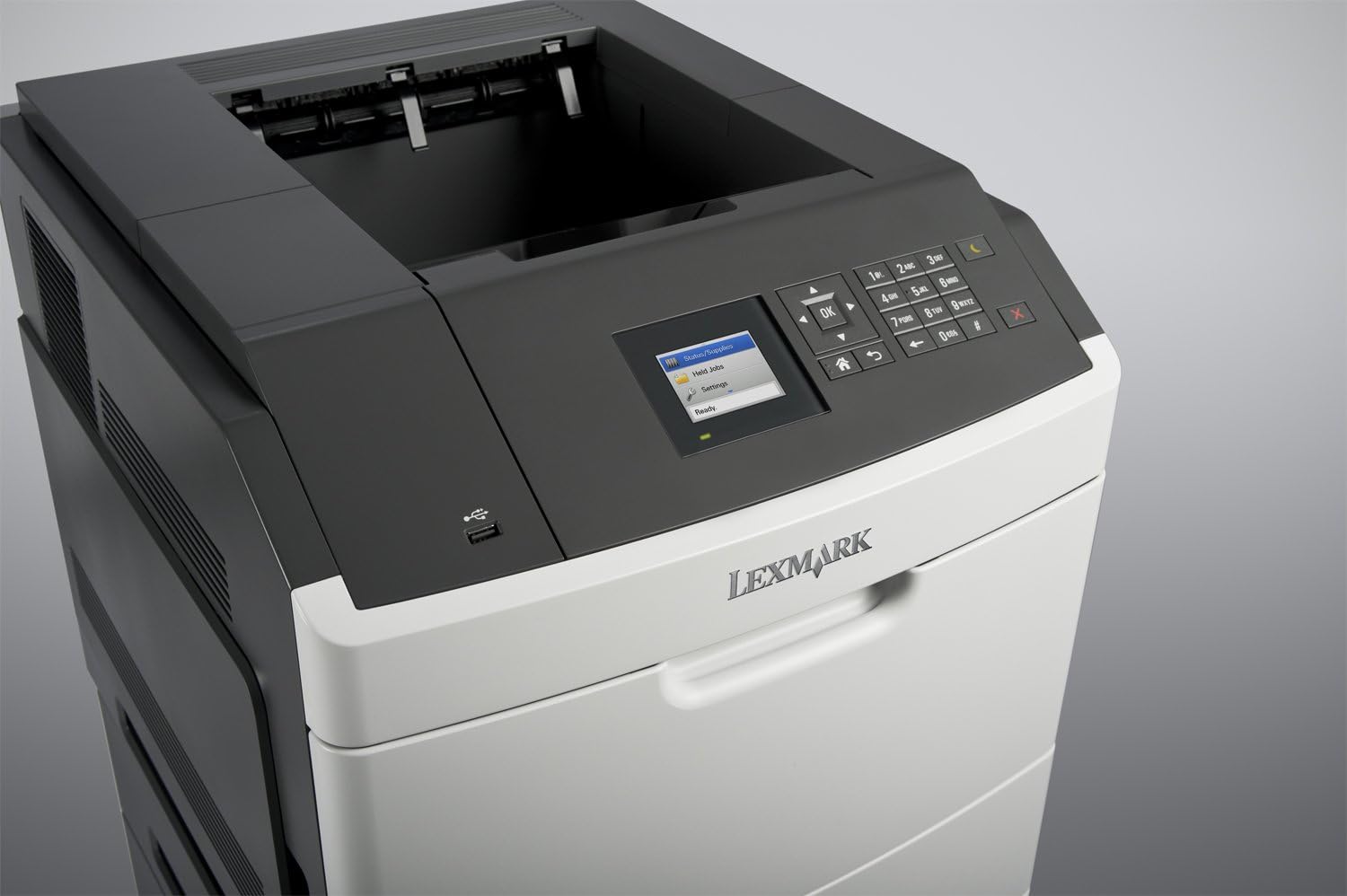
Сүрөт 2: Алдыңкы view of the Lexmark MS812DN printer, showing the paper tray and control panel.
3. Операция
This section covers the basic operation of your Lexmark MS812DN printer.
3.1 Негизги басып чыгаруу
- Принтер күйгүзүлүп, компьютериңизге же тармагыңызга туташып турганын текшериңиз.
- Компьютериңизде басып чыгаргыңыз келген документти ачыңыз.
- Тандоо File > Басып чыгаруу (же колдонмоңуздагы эквиваленттүү буйрук).
- Choose the Lexmark MS812DN from the list of available printers.
- Керектүү түрдө басып чыгаруу орнотууларын тууралаңыз (мисалы, көчүрмөлөрдүн саны, кагаз өлчөмү, басып чыгаруу сапаты).
- Click Басып чыгаруу.
3.2 Дуплекстүү басып чыгаруу (эки тараптуу)
The MS812DN supports automatic duplex printing.
- In your application's print dialog, look for options related to Эки тараптуу басып чыгаруу or Дуплекстүү басып чыгаруу.
- Керектүү дуплекстүү опцияны тандаңыз (мисалы, узун жээкке байлоо, кыска жээкке байлоо).
- Адаттагыдай басып чыгарууну улантыңыз.
3.3 Башкаруу панелин колдонуу
The printer features an e-Task touch screen for direct control. Use the touch screen to:
- View printer status and error messages.
- Access printer settings and network configurations.
- Initiate copy, scan, and fax functions directly from the device.
3.4 Copy, Scan, and Fax Functions
The Lexmark MS812DN is a multifunction device capable of copying, scanning, and faxing.
- Көчүрмө: Place documents on the scanner glass or in the Automatic Document Feeder (ADF). Use the control panel to select copy options and start the process.
- Скандоо: Scan documents to a computer, network folder, or email. Configure scan destinations via the control panel or your computer's scanning software.
- Факс: Connect a phone line to the printer's fax port. Use the control panel to dial numbers and send faxes.
4. Техникалык тейлөө
Үзгүлтүксүз техникалык тейлөө принтериңиздин узак иштөөсүн жана оптималдуу иштешин камсыз кылат.
4.1 Тонер-картриджди алмаштыруу
When the toner is low, the printer will display a message on the control panel. To replace:
- Алдыңкы кирүү эшигин ачыңыз.
- Эски тонер картриджди сууруп алып чыгарып алыңыз.
- Unpack the new toner cartridge and shake it gently.
- Insert the new cartridge until it clicks into place.
- Алдыңкы кирүү эшигин жабыңыз.
4.2 Принтерди тазалоо
- Сырткы: Принтердин сыртын жумшак менен сүртүңүз, damp, түксүз кездеме. Абразивдүү тазалагычтарды же эриткичтерди колдонбоңуз.
- Сканер айнек: Сканер айнегин айнек тазалагычка нымдалган жумшак чүпүрөк менен тазалаңыз.
- Ички компоненттери: Refer to the detailed user guide (available on Lexmark's website) for instructions on cleaning internal components like rollers and the fuser.
4.3 Кагаз тыгындарын тазалоо
If a paper jam occurs, the printer's control panel will display an error message indicating the location of the jam. Follow the on-screen instructions or consult the full user manual for specific steps to clear the jam from various access points.
3-сүрөт: Каптал view of the Lexmark MS812DN printer, showing access points for maintenance.
5. Кыйынчылыктарды
Бул бөлүмдө сиз кабылышы мүмкүн болгон жалпы маселелерди чечүү жолдору каралган.
5.1 Принтер жооп бербей жатат
- Ensure the printer is powered on and all cables (power, USB/Ethernet) are securely connected.
- Check the printer's control panel for any error messages.
- Принтерди да, компьютериңизди да өчүрүп күйгүзүңүз.
- Компьютериңизге туура принтер драйвери орнотулганын жана тандалганын текшериңиз.
5.2 Басма сапаты маселелери
- Тонер картриджинин деңгээлин текшерип, аз болсо алмаштырыңыз.
- Басып чыгаруу ишиңизге ылайыктуу кагазды колдонуп жатканыңызды текшериңиз.
- Perform a print quality test from the printer's control panel or driver settings.
- Clean the printer's internal components as per the maintenance section or full user manual.
5.3 Кагаз тыгындары
Refer to Section 4.3 for instructions on clearing paper jams. Always remove jammed paper carefully to avoid tearing.
5.4 Тармакка туташуу көйгөйлөрү
- Verify the Ethernet cable is properly connected to both the printer and the network device.
- Check network settings on the printer's control panel to ensure it has a valid IP address.
- Тармак роутериңизди/коммутаторуңузду өчүрүп-күйгүзүңүз.
6. Техникалык шарттар
| Өзгөчөлүк | Деталь |
|---|---|
| Бренд | Lexmark |
| Модель аты | MS812DN |
| Элемент моделинин номери | PP7687 |
| Басма технологиясы | Лазер |
| Принтердин чыгышы | Монохромдуу |
| Макс басып чыгаруу ылдамдыгы монохромдуу | 70 промилле |
| Максималдуу кара жана ак басып чыгаруу чечими | 1200 x 1200 dpi |
| Эки тараптуу басып чыгаруу (Дуплекс) | Ооба |
| Байланыш технологиясы | Ethernet, USB |
| Эстутум сактоо сыйымдуулугу | 512 MB |
| Максималдуу киргизүү барагынын сыйымдуулугу | 4400 |
| Басма маалымат каражаттары | Card stock, Envelopes, Labels, Paper (plain), Transparencies |
| Шайкеш түзмөктөр | PC, Mac, Unix |
| Продукциянын өлчөмдөрү (L x W x Y) | 21.1 x 24.2 x 22.2 дюйм |
| Элемент Салмагы | 27 фунт |
| Камтылган компоненттер | Workgroup printer, Toner cartridge - black |
| Принтердин кошумча функциялары | Көчүрүү, факс, сканерлөө |
7. Кепилдик жана колдоо
7.1 Кепилдик маалыматы
This Lexmark MS812DN printer may come with a 90-Day Depot Warranty, particularly for refurbished units. Please refer to your purchase documentation for specific warranty terms and conditions.
7.2 Кардарларды колдоо
For further assistance, technical support, or to download the latest drivers and full user manuals, please visit the official Lexmark support webсайт:
You can also visit the Lexmark Store on Amazon for product information and accessories: Lexmark Store


