1. Киришүү
This manual provides instructions for the setup, operation, and maintenance of your Logitech MK750 Wireless Solar Keyboard and Marathon Mouse Combo. This combo offers a power-efficient solution for your computing needs, featuring a solar-powered keyboard and a mouse with extended battery life, both connected via Logitech Unifying technology.

Image 1.1: The Logitech MK750 Wireless Solar Keyboard and Marathon Mouse Combo, showcasing the full-size keyboard with solar panels and the ergonomic mouse.
2. Пакеттин мазмуну
Пакетиңизде бардык буюмдар бар экенин текшериңиз:
- Logitech Wireless Solar Keyboard K750
- Logitech Marathon чычканы M705
- Logitech бириктирүүчү кабыл алгычы
- Колдонуучунун документтери (бул колдонмо)
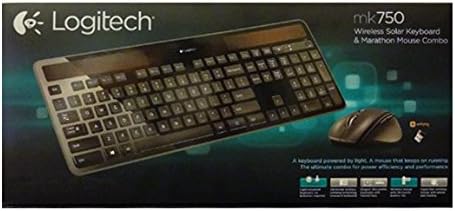
Image 2.1: Retail packaging for the Logitech MK750 Wireless Solar Keyboard and Marathon Mouse Combo.
3. Орнотуу
3.1. Бириктирүүчү кабыл алгычты туташтыруу
- Locate the Logitech Unifying Receiver in your package.
- Plug the Unifying Receiver into an available USB port on your computer.
- Your computer should automatically detect the receiver and install necessary drivers.
3.2. Keyboard Setup
- Ensure the keyboard is exposed to light to begin charging. The keyboard is powered by ambient light, both indoors and outdoors.
- Turn the keyboard power switch to the ON position. The power switch is typically located on the top right edge of the keyboard.
- The keyboard should automatically connect to the Unifying Receiver. If not, use the Logitech Unifying Software (available for download from the Logitech website) to pair the devices.
3.3. Mouse Setup
- Open the battery compartment on the underside of the Marathon Mouse.
- Insert the included AA battery, ensuring correct polarity.
- Батарея отсегин жабыңыз.
- Turn the mouse power switch to the ON position. The power switch is typically located on the underside of the mouse.
- The mouse should automatically connect to the Unifying Receiver. If not, use the Logitech Unifying Software to pair the devices.
4. Иштөө нускамалары
4.1. Баскычтоптун өзгөчөлүктөрү
- Күн кубаты: The keyboard features integrated solar panels that charge the internal battery using any light source.
- Батарея көрсөткүчү: A dedicated battery indicator light or button (often F12) can be used to check the keyboard's charge level. Green indicates sufficient charge, red indicates low charge.
- Функция баскычтары: The F1-F12 keys have secondary functions (e.g., media control, volume adjustment) accessible by pressing the 'Fn' key simultaneously.
- Logitech Solar App: Download the Logitech Solar App to monitor the keyboard's charge level and light intensity in real-time.
4.2. Чычкандын өзгөчөлүктөрү
- Hyper-Fast Scrolling: The scroll wheel can switch between hyper-fast scrolling (for long documents) and click-to-click scrolling (for precision). This is typically toggled by a button behind the scroll wheel.
- Программалануучу баскычтар: The mouse features multiple buttons that can be customized using Logitech Options software (available for download from the Logitech webсайт).
- Энергияны башкаруу: The mouse has an ON/OFF switch on its underside to conserve battery life when not in use.
5. Техникалык тейлөө
5.1. Тазалоо
- Тазалоодон мурун түзмөктөрдү компьютериңизден ажыратыңыз.
- Бир аз жумшак, түксүз кездемени колдонуңуз dampсуу же жумшак тазалоо эритмеси менен.
- Катуу химиялык заттарды, абразивдүү тазалоочу каражаттарды же суюктуктарды түз түзмөктөргө чачуудан алыс болуңуз.
- For the keyboard's solar panels, gently wipe them to ensure optimal light absorption.
5.2. Battery Replacement (Mouse)
The Marathon Mouse uses one AA battery. While designed for long battery life, replacement will eventually be necessary.
- Turn off the mouse using the power switch on the underside.
- Батарея отсегин ачыңыз.
- Эски AA батарейкасын алып салыңыз.
- Insert a new AA battery, observing correct polarity.
- Батарея бөлүмүн жаап, чычканды кайра күйгүзүңүз.
6. Кыйынчылыктарды
6.1. Devices Not Responding
- Күчтү текшерүү: Ensure both the keyboard and mouse are turned ON.
- Алуучу туташуусу: Verify the Unifying Receiver is securely plugged into a working USB port. Try a different USB port.
- Батарея деңгээли: For the keyboard, ensure it has sufficient light exposure. For the mouse, check or replace the AA battery.
- Кайра жупташтыруу: Клавиатура менен чычканды кабыл алгыч менен кайра жупташтыруу үчүн Logitech Unifying программасын колдонуңуз.
- Интерференция: Move the devices closer to the receiver. Avoid placing them near other wireless devices or large metal objects that might cause interference.
6.2. Keyboard Not Charging
- Ensure the solar panels are clean and unobstructed.
- Place the keyboard in a well-lit area. Both natural and artificial light sources can charge the keyboard.
- Use the Logitech Solar App to check the light intensity and charging status.
7. Техникалык шарттар
| Бренд | Logitech |
| Модель номери | 920-004861 |
| Байланыш технологиясы | Radio Frequency (Logitech Unifying) |
| Keyboard Power Source | Solar, Internal Rechargeable Battery |
| Mouse Power Source | 1 x AA Батарея |
| Операциялык системанын шайкештиги | Windows XP жана андан кийинки |
| Баскычтоптун өлчөмдөрү (LxWxH) | Болжол менен 19 x 7.9 x 1.4 дюйм |
| Элемент Салмагы | Approximately 3 pounds (combo) |
8. Кепилдик жана колдоо
Logitech products are designed for reliability and performance. For specific warranty information regarding your MK750 Wireless Solar Keyboard and Marathon Mouse Combo, please refer to the warranty card included with your product or visit the official Logitech support webсайт.
For technical support, driver downloads, or additional product information, please visit support.logi.com. You can find FAQs, troubleshooting guides, and contact options for customer service.


