1. Киришүү
The D-Link DIR-610 Wireless N150 Router is designed to provide a high-speed wireless network connection for your home or small office. This manual will guide you through the installation, configuration, and operation of your new router, ensuring a secure and efficient internet experience.
The DIR-610 supports the latest wireless security features to prevent unauthorized access to both the wireless network and the internet. It also includes Quality of Service (QoS) functionality, which, when enabled, allows for a better online experience by prioritizing network traffic.
2. Пакеттин мазмуну
Пакетиңизде төмөнкү заттар бар экенин текшериңиз:
- 1 x D-Link DIR-610 Wireless N150 Router
- 1 х кубат адаптери
- 1 х Ethernet кабели
- 1 x Орнотуу колдонмосу
- 1 х Колдонуучунун колдонмосу (бул документ)
Эгерде кандайдыр бир нерселер жок болсо же бузулса, жергиликтүү D-Link сатуучусуна кайрылыңыз.
3. Орнотуу
Follow these steps to set up your D-Link DIR-610 Router:
- Маршрутизаторду таңгактан чыгаруу: Роутерди жана бардык аксессуарларды таңгактан этияттык менен алып салыңыз.
- Маршрутизаторду жайгаштырыңыз: Place the router in a central location in your home or office, away from obstructions and devices that may cause interference (e.g., cordless phones, microwave ovens).
- Кубатка туташуу: Connect the power adapter to the router's power port and then plug the adapter into a wall outlet. Ensure the power LED on the router illuminates.
- Интернетке туташуу (WAN): Connect one end of the provided Ethernet cable to your modem's Ethernet port and the other end to the Internet (WAN) port on the DIR-610 router.
- Connect to Computer (LAN - Optional): For initial setup or wired connections, connect one end of another Ethernet cable (not included, or use the provided one if not connecting to modem yet) to one of the LAN ports on the router and the other end to your computer's Ethernet port. Alternatively, you can connect wirelessly using the default Wi-Fi name and password found on the router's label.
- Run D-Link Assistant: The D-Link Assistant allows users without technical knowledge to install the router and establish an internet connection in minutes by simply running the product CD. Insert the product CD into your computer and follow the on-screen instructions.
- Мүмкүнчүлүк Web-based Setup: If not using the CD, open a web browser (e.g., Chrome, Firefox) on a connected computer and type
http://dlinkrouter.localorhttp://192.168.0.1into the address bar. Log in using the default username (usually админ) жана сырсөз (көбүнчө бош же админ). Refer to the router's label for default login credentials. - Орнотуу устасын аткарыңыз: Once logged in, the setup wizard will guide you through configuring your internet connection, wireless network name (SSID), and password.
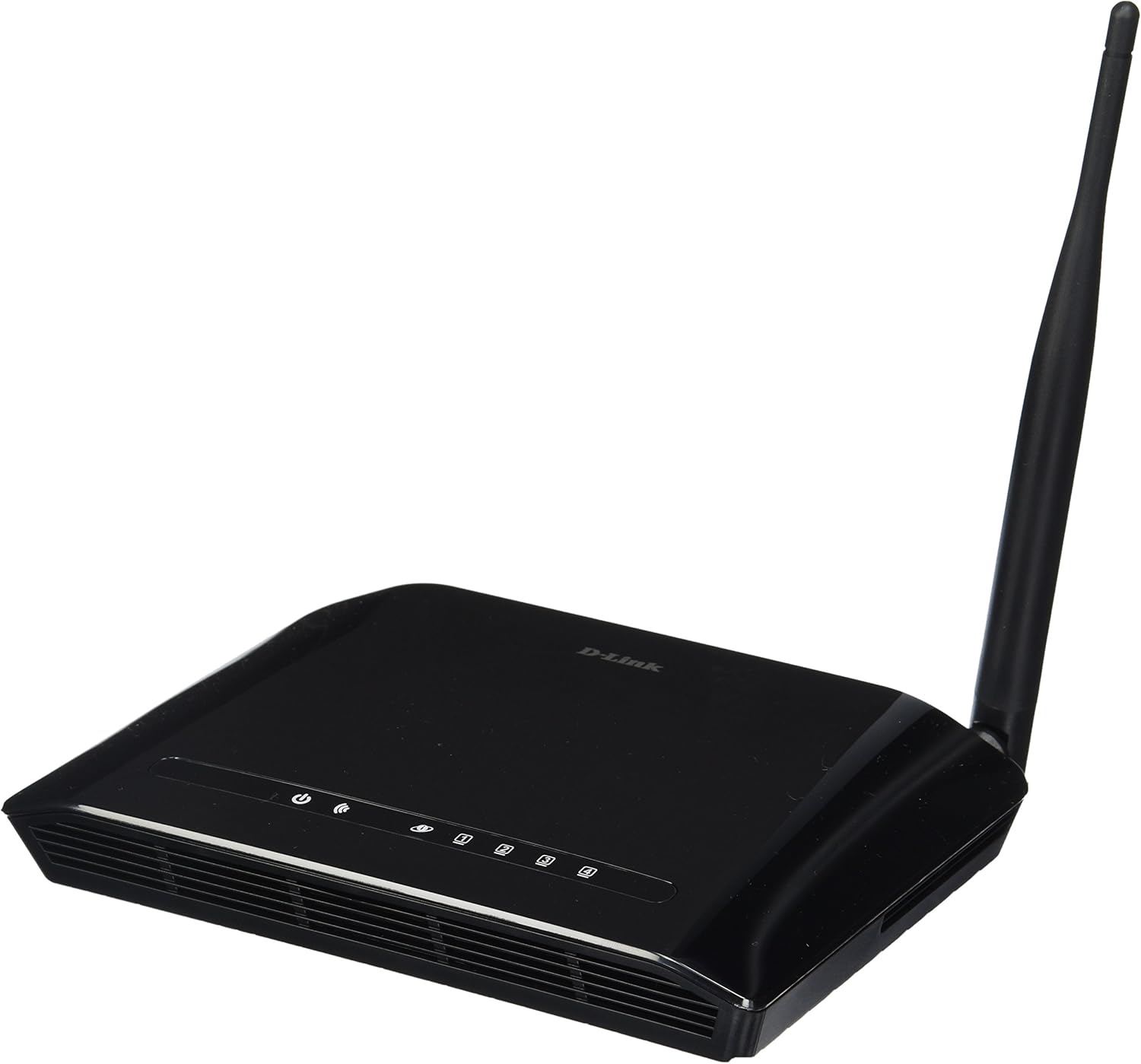
3.1-сүрөт: Фронт view of the D-Link DIR-610 Wireless N150 Router. This image shows the compact black router with its single external antenna and LED indicators on the front panel for power, internet, and wireless status.
4. Маршрутизаторду иштетүү
Once your D-Link DIR-610 router is set up, you can manage its various functions through the web-негизделген интерфейс.
4.1 Зымсыз байланыш
The DIR-610 provides Wireless N150 connectivity, offering reliable wireless access for devices such as laptops, smartphones, and tablets. To connect a device:
- Түзмөгүңүздө Wi-Fi иштетиңиз.
- Жеткиликтүү зымсыз тармактарды издеңиз.
- Select your configured network name (SSID).
- Enter your wireless password (WPA/WPA2 key).
4.2 Коопсуздук өзгөчөлүктөрү
The DIR-610 incorporates advanced wireless security protocols to protect your network from unauthorized access. It supports WPA/WPA2 encryption. It is highly recommended to use WPA2-PSK (AES) encryption with a strong, unique password for your wireless network.
4.3 Кызматтын сапаты (QoS)
The DIR-610 Router includes Quality of Service (QoS) functionality. QoS allows you to prioritize certain types of network traffic, such as online gaming or video streaming, over less time-sensitive activities like file downloads. This helps ensure a smoother and more responsive experience for critical applications. You can configure QoS settings through the router's web интерфейс.
5. Техникалык тейлөө
Regular maintenance helps ensure optimal performance and longevity of your D-Link DIR-610 router.
- Программалык камсыздоонун жаңыртуулары: Мезгил-мезгили менен D-Link колдоосун текшерип туруңуз webмикропрограммалык камсыздоону жаңыртуу сайты. Микропрограмманы жаңыртуу иштин натыйжалуулугун жакшыртып, жаңы функцияларды кошуп, коопсуздук кемчиликтерин оңдой алат.
- Коопсуз сырсөздөр: Regularly change your router's administrator password and your Wi-Fi password to strong, unique combinations.
- Физикалык чөйрө: Keep the router in a well-ventilated area, free from dust and direct sunlight. Avoid placing heavy objects on top of the router.
- Кайра жүктөлүүдө: If you experience network issues, a simple reboot of the router (unplugging the power for 10 seconds and plugging it back in) can often resolve minor problems.
6. Кыйынчылыктарды
This section addresses common issues you might encounter with your D-Link DIR-610 router.
6.1 Интернетке кирүү жок
- Check all cable connections: Ensure the Ethernet cable from your modem is securely connected to the router's Internet (WAN) port.
- Verify modem status: Ensure your modem is working correctly and has an active internet connection.
- Reboot devices: Power cycle your modem, then your router, and finally your computer/device.
- Маршрутизатордун жөндөөлөрүн текшерүү: роутердин орнотууларына кириңиз web interface and verify your internet connection settings (e.g., PPPoE, DHCP, Static IP) are correct as provided by your Internet Service Provider (ISP).
6.2 Жай зымсыз ылдамдык
- Интерференция: Move the router away from other electronic devices that might cause interference.
- Канал тандоо: In the router's wireless settings, try changing the wireless channel to a less congested one (e.g., 1, 6, or 11).
- Аралык жана тоскоолдуктар: Ensure your device is within a reasonable range of the router and that there are no major physical obstructions (thick walls, metal objects) blocking the signal.
- QoS жөндөөлөрү: If QoS is enabled, ensure it is configured correctly and not inadvertently prioritizing less important traffic.
6.3 Forgotten Administrator Password
If you forget your router's administrator password, you will need to perform a factory reset. Locate the reset button (usually a small pinhole button) on the router. With the router powered on, use a paperclip to press and hold the reset button for about 10 seconds. The router will reboot with factory default settings, and you can then log in using the default credentials (e.g., username админ, password blank or админ).
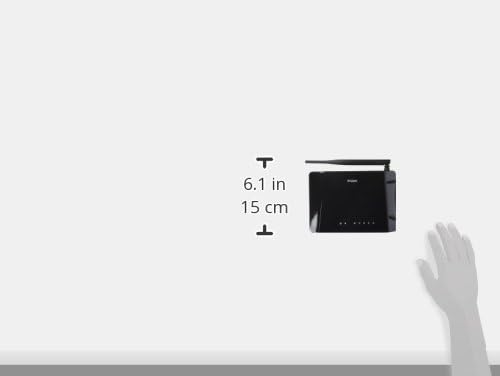
6.1-сүрөт: Diagram illustrating the approximate dimensions of the D-Link DIR-610 Router. The image shows the router's height of approximately 6.1 inches (15 cm).
7. Техникалык шарттар
| Өзгөчөлүк | Спецификация |
|---|---|
| Бренд | D-Link |
| Өндүрүүчү | D-Link |
| Сериялар | 97200GL |
| Түс | Кара |
| Продукт бийиктиги | 14.75 сантиметр |
| Продукт туурасы | 3.15 сантиметр |
| Резолюция | pixels Pixels |
| Батареялар камтылган | Жок |
| Продукциянын өлчөмдөрү | 11.32 x 3.15 x 14.75 см; 200 г |
| Продукт моделинин номери | ДИР-610 |
| ASIN | B00CLMOR4U |
| Биринчи жеткиликтүү күн | 15-жылдын 2012-ноябры |
| Камтылган компоненттер | 1 DIR-610 Router, Power Adapter, Ethernet Cable, Installation Guide, User Manual |
| Байланыш технологиясы | Зымсыз |
| Продукт Салмагы | 200 грамм |
| Башкаруу ыкмасы | Application (referring to web интерфейс) |
| LAN портунун өткөрүү жөндөмдүүлүгү | 10/100 megabits per second |
| UPC | 790069377822, 790069377808, 790069377891 |
| Глобалдык соода товарынын номери (GTIN) | 00790069377891 |
8. Коопсуздук маалыматы
Түзмөккө зыян келтирбөө же жаракат келтирбөө үчүн бардык коопсуздук көрсөтмөлөрүн окуп чыгып, аткарыңыз:
- Аппаратты ачпаңыз casing.
- Аппаратты сууга, нымдуулукка же экстремалдык температурага тийгизбеңиз.
- Аппарат менен кошо берилген кубат адаптерин гана колдонуңуз.
- Аппаратты жылуулук булактарынан жана түз күн нурунан алыс кармаңыз.
- Аппараттын айланасында туура желдетүүнү камсыз кылыңыз.
9. Кепилдик жана колдоо
Кепилдик жөнүндө маалымат алуу үчүн, өнүмүңүз менен кошо берилген кепилдик картасын караңыз же расмий D-Link сайтына кириңиз website for your region. D-Link provides technical support for its products. For assistance, please visit your local D-Link support webсайтка же кардарларды тейлөөгө кайрылыңыз.
D-Link Webсайт: www.dlink.com


