1. Продукт бүтүп калдыview
The Gioteck EX-05S High Definition Headset is designed to deliver superior stereo game sound and crystal-clear voice communication. It is compatible with multiple platforms including PS4, PS3, Xbox 360, PC, and Mac. This headset features 40mm high-quality stereo drivers, a noise-isolating microphone, and breathable micro-fibre ear cups for extended comfort.
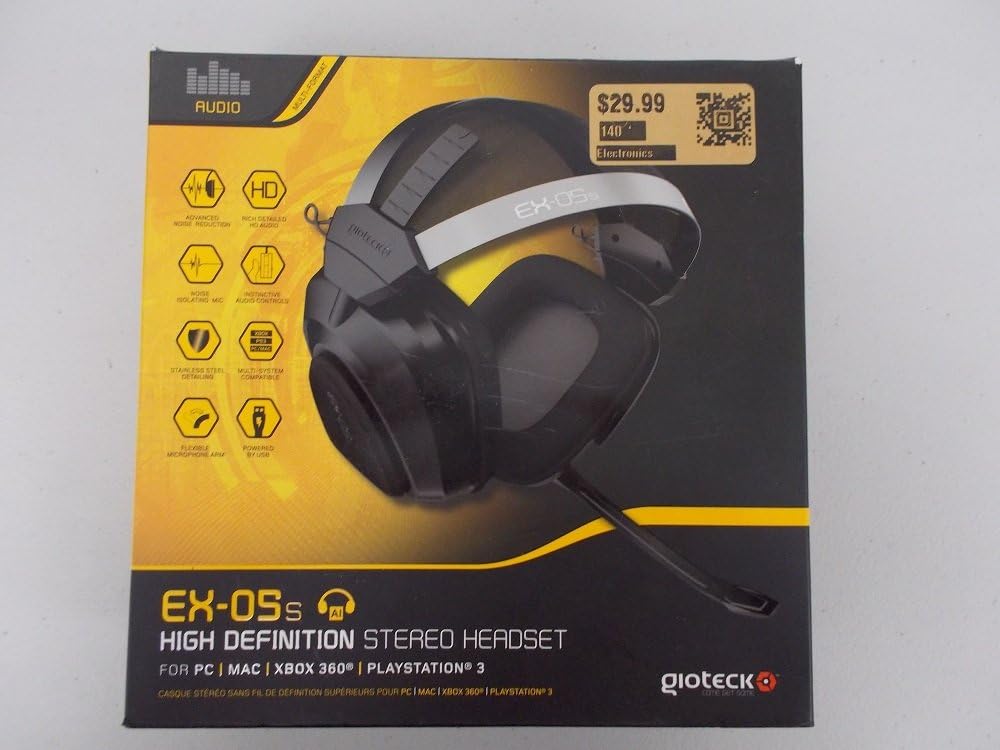
Figure 1.1: Gioteck EX-05S Headset packaging, highlighting key features and compatibility.

1.2-сүрөт: Каптал view of the Gioteck EX-05S Headset, showing the ear cup and microphone arm.
2. Өзгөчөлүктөрү
- 40mm High Quality Stereo Drivers: Delivering rich, detailed audio for an immersive gaming experience.
- Noise Isolating Microphone: Designed to eliminate echo and external noise for clear communication.
- Breathable Micro-Fibre Ear Cups: Ensures comfort during long gaming sessions.
- Өркүндөтүлгөн ызы-чууну азайтуу: Minimizes game sound interference from external speakers.
- Flexible and 180-Degree Rotating Microphone Arm: Allows for optimal microphone positioning.
- Instinctive and Accessible Controls: Conveniently located controls for voice and game sound adjustments.
- Stainless Steel Detailing: Provides durability and a premium finish.
- Көп платформа шайкештиги: Works with PS4, PS3, Xbox 360, PC, and Mac.
3. Пакеттин мазмуну
Сураныч, пакетиңизде төмөнкү нерселердин бардыгы бар экенине ынаныңыз:
- Gioteck EX-05S Universal High Definition Stereo Headset
4. Орнотуу колдонмосу
4.1 Connecting to Gaming Consoles (PS4, PS3, Xbox 360)
- Locate the 3.5mm audio jack on your gaming controller or console.
- Insert the 3.5mm connector from the EX-05S headset firmly into the audio jack.
- Ensure your console's audio settings are configured to output game audio and chat through the connected headset. Refer to your console's system settings for specific audio output configurations.
4.2 PC/Mac менен туташуу
- For PCs with separate audio and microphone jacks, you may need a PC splitter cable (not included) to connect the single 3.5mm headset jack to your computer's audio output and microphone input ports.
- For devices with a combined 3.5mm audio/microphone jack, simply plug the headset's 3.5mm connector directly into the port.
- Adjust your computer's sound settings to select the EX-05S headset as the default playback and recording device.
5. Иштөө нускамалары
5.1 Үндү башкаруу
The EX-05S headset features an inline control box on the cable. Use the volume dial to adjust the overall audio level of your game and chat sound.
5.2 Микрофонду үнсүз кылуу
A switch or button on the inline control box allows you to quickly mute or unmute your microphone. Ensure the microphone is unmuted when you wish to communicate.
5.3 Микрофонду жайгаштыруу
The flexible microphone arm can be rotated 180 degrees. Position the microphone approximately 1-2 inches from your mouth for optimal voice clarity and to minimize background noise.
6. Техникалык тейлөө жана кам көрүү
- Тазалоо: Гарнитураны тазалоо үчүн жумшак, кургак чүпүрөктү колдонуңуз. Кулакчындарды бир аз сүртүңүз.amp кездемени колдонсо болот, бирок нымдуулуктун динамик торчолоруна кирбегенин текшериңиз. Катуу химиялык заттарды же абразивдүү тазалоочу каражаттарды колдонбоңуз.
- Сактагыч: Гарнитураны салкын, кургак жерде, күндүн түз нурунан жана өтө жогорку температурадан алыс сактаңыз. Кабелди чаташтырып албаңыз.
- Колдонуу: Always grasp the plug when disconnecting the cable, rather than pulling on the cable itself, to prevent damage to the wiring.
- Кулак чөйчөктөрү: The breathable micro-fibre ear cups can be gently wiped clean. Avoid excessive pressure or stretching.
7. Кыйынчылыктарды
7.1 Гарнитурадан үн чыкпайт
- 3.5 мм уячасынын аудио портуна толугу менен киргизилгенин текшериңиз.
- Check the inline volume control on the headset cable and ensure it is turned up.
- Verify your device's (console, PC, Mac) audio output settings are configured to send sound to the headset.
- Түзмөккө тиешелүү маселени болтурбоо үчүн гарнитураны башка түзмөктө сынап көрүңүз.
7.2 Микрофон иштебейт
- Check the microphone mute switch on the inline control box and ensure it is unmuted.
- Verify your device's (console, PC, Mac) microphone input settings are configured to receive input from the headset.
- Ensure the microphone arm is positioned correctly and not obstructed.
- Test the microphone on another device or application to confirm functionality.
7.3 Static or Distorted Audio
- Туташуунун бекем жана таштандылардан таза экенине ынаныңыз.
- Try adjusting the volume levels on both the headset and the connected device.
- Move away from potential sources of electromagnetic interference (e.g., Wi-Fi routers, cordless phones).
- Башка аудио булагы же түзмөк менен сынап көрүңүз.
8. Техникалык шарттар
| Өзгөчөлүк | Деталь |
|---|---|
| Модель аты | E5SUNI-11-MU |
| Байланыш технологиясы | Зымдуу |
| Камтылган компоненттер | Наушник |
| Жаш аралыгы (сүрөттөө) | бойго жеткен |
| Материал | Дат баспаган болот |
| Продукт үчүн атайын колдонуу | Оюндар |
| Шайкеш түзмөктөр | Gaming Consoles, Computers |
| Башкаруу түрү | Үндү көзөмөлдөө |
| Кабель өзгөчөлүгү | Тартылуучу |
| Элемент Салмагы | 669 грамм (1.47 фунт) |
| Башкаруу ыкмасы | Үн |
| Аудио драйвер түрү | Динамикалык драйвер |
| Наушник формасы | Ашыкча кулак |
| Наушник уясы | 3.5 мм Джек |
| Продукциянын өлчөмдөрү | 8.46 x 7.87 x 3.94 дюйм |
9. Кепилдик жана колдоо
Gioteck products are manufactured to high standards and undergo rigorous testing. For information regarding warranty coverage, technical support, or service, please refer to the official Gioteck webсайтка же түздөн-түз кардарларды колдоо менен байланышыңыз. Ар кандай кепилдик дооматтары үчүн сатып алганыңыздын далилин сактаңыз.
Эң акыркы колдоо маалыматы үчүн төмөнкү дарекке кайрылыңыз: www.gioteck.com/support


