1. Киришүү
This manual provides instructions for the setup, operation, and maintenance of your Logitech M557 Bluetooth Mouse. The Logitech M557 is designed for seamless wireless connectivity with Bluetooth-enabled computers, laptops, and tablets, supporting various operating systems including Windows, macOS, Chrome OS, and Android.
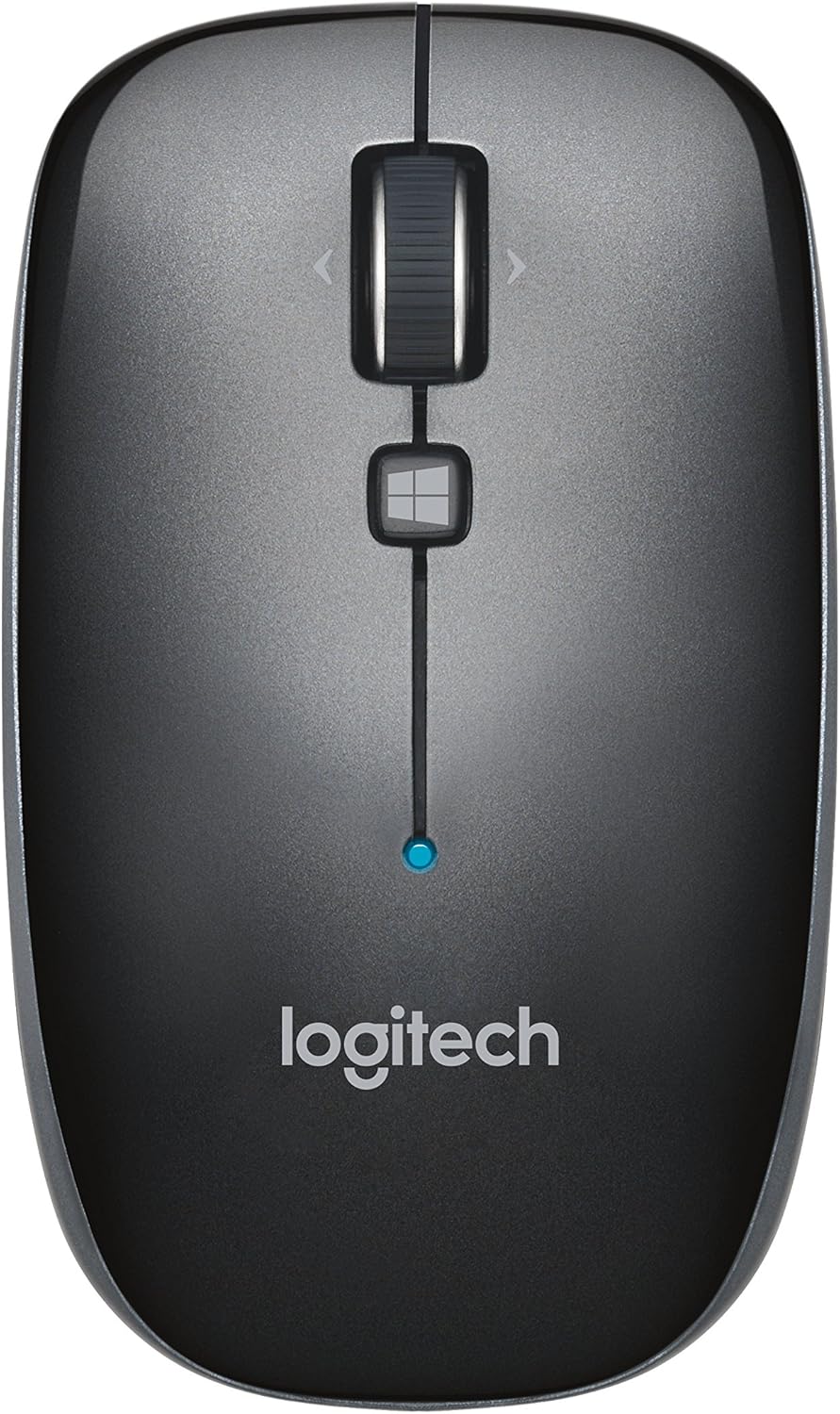
1-сүрөт: Жогорку view of the Logitech M557 Bluetooth Mouse, showing the scroll wheel, Windows button, and Logitech logo.
2. Пакеттин мазмуну
Пакетиңизде төмөнкү заттар бар экенин текшериңиз:
- Logitech M557 Bluetooth чычкан
- 1 AAA Battery (pre-installed or included separately)
- Тез баштоо боюнча колдонмо (бул колдонмо толук колдонмо катары кызмат кылат)
3. Орнотуу
3.1. Батареяны орнотуу
- Чычкандын астыңкы жагындагы батарея бөлүкчөсүн табыңыз.
- Батарея бөлүгүнүн капкагын жылдырыңыз.
- Insert the included AAA battery, ensuring correct polarity (+/-).
- Батарея уясынын капкагын жабыңыз.

2-сүрөт: Underside of the Logitech M557 mouse, showing the ON/OFF switch, Connect button, and optical sensor. The battery compartment is typically located here.
3.2. Bluetooth аркылуу туташуу
The Logitech M557 connects wirelessly via Bluetooth, requiring no USB receiver.
- Күйгүзүү: Slide the ON/OFF switch on the bottom of the mouse to the "ON" position. A small LED indicator on the top of the mouse may light up briefly.
- Жупташтыруу режимин иштетүү: басып, кармап туруңуз Туташуу button on the bottom of the mouse for a few seconds until the LED indicator on the top of the mouse begins to blink rapidly. This indicates the mouse is in pairing mode.
- Түзмөгүңүздө Bluetooth иштетүү:
- Windows: барыңыз Орнотуулар > Түзмөктөр > Bluetooth жана башка түзмөктөр. Ensure Bluetooth is turned on.
- MacOS: барыңыз System Settings > Bluetooth. Ensure Bluetooth is turned on.
- Chrome OS/Android: барыңыз Орнотуулар > Туташкан түзмөктөр > Bluetooth. Ensure Bluetooth is turned on.
- Чычканды жупташтырыңыз: In your device's Bluetooth settings, look for "Logitech M557" in the list of available devices. Select it to initiate the pairing process.
- Ырастоо: Once paired, the LED indicator on the mouse will stop blinking and remain solid for a few seconds, then turn off. Your mouse is now ready for use.
Note: If the connection is lost or you wish to pair with a different device, repeat steps 2-5.
4. Чычканыңызды башкаруу
4.1. Негизги функциялар
- Чычкандын сол баскычы: Негизги тандоо жана активдештирүү.
- Оң баскычты чыкылдатуу менен чыкылдатыңыз: Контексттик менюларга жетет.
- Жылдыруу дөңгөлөгү: Документтерди тигинен жылдырат жана web барактар.
- Дөңгөлөктү эңкейтүү: The scroll wheel can also be tilted left or right for horizontal scrolling (if supported by your operating system/application).
- Scroll Wheel Button: Pressing the scroll wheel acts as a middle-click button, often used for opening links in new tabs or activating specific application functions.
- Windows Button: Located below the scroll wheel. By default, this button opens the Start Menu or Search function on Windows. Its function may be customizable using Logitech Options software (if available for your OS).

3-сүрөт: Бурчтуу view of the Logitech M557 mouse, highlighting its ergonomic design and button placement.
4.2. Customizing Your Mouse (Optional)
For advanced customization of button functions and scroll behavior, Logitech may offer software such as Logitech Options. Visit the official Logitech support website for your product model to check for compatible software downloads.
5. Техникалык тейлөө
5.1. Тазалоо
To maintain optimal performance, clean your mouse periodically:
- Бир аз жумшак, түксүз кездемени колдонуңуз dampened with water or an electronics-safe cleaning solution.
- Катуу химиялык заттардан же абразивдүү материалдардан алыс болуңуз.
- Clean the optical sensor area on the bottom of the mouse to ensure accurate tracking.
5.2. Батареяны алмаштыруу
The Logitech M557 uses one AAA battery. The average battery life is approximately 12 months, but actual life may vary based on usage.
- When the battery is low, the LED indicator on the mouse may flash red.
- Turn off the mouse using the ON/OFF switch on the bottom.
- Батарея отсегин ачыңыз.
- Remove the old AAA battery and dispose of it according to local regulations.
- Insert a new AAA battery, observing correct polarity.
- Close the battery compartment and turn the mouse back on.
6. Кыйынчылыктарды
6.1. Mouse Not Connecting or Disconnecting
- Батареяны текшерүү: Батарея туура орнотулганын жана жетиштүү заряддалганын текшериңиз. Зарыл болсо, алмаштырыңыз.
- Power Cycle: Чычканды өчүрүп, кайра күйгүзүңүз.
- Кайра жупташтыруу: Remove "Logitech M557" from your device's Bluetooth list and repeat the pairing process (Section 3.2).
- Түзмөктүн Bluetooth: Ensure Bluetooth is enabled on your computer or tablet.
- Интерференция: Bluetooth can be affected by other wireless devices (e.g., Wi-Fi routers, other Bluetooth devices). Try moving closer to your device or away from potential sources of interference.
- Операциялык системанын жаңыртуулары: Түзмөгүңүздүн иштөө тутуму жана Bluetooth драйверлери жаңыртылганын текшериңиз.
6.2. Cursor Movement is Erratic or Non-Responsive
- Таза сенсор: Чычкандын түбүндөгү оптикалык сенсорду тазалаңыз.
- Бети: Ensure you are using the mouse on a suitable surface. Highly reflective or transparent surfaces may affect tracking. A mouse pad is recommended.
- Батарея: Low battery can affect performance. Replace the battery.
6.3. Buttons or Scroll Wheel Not Functioning
- Кайра жупташтыруу: Try re-pairing the mouse with your device.
- Программалык камсыздоо: If using customization software, ensure it is correctly installed and configured. Temporarily uninstalling and reinstalling the software might resolve issues.
- Башка түзмөктө сыноо: If possible, test the mouse on another Bluetooth-enabled device to determine if the issue is with the mouse or the original device.
7. Техникалык шарттар
| Өзгөчөлүк | Деталь |
|---|---|
| Бренд | Logitech |
| Модел | M557 (P/N: 910-003971) |
| Байланыш технологиясы | Bluetooth |
| Кыймылды аныктоо | Оптикалык |
| Операциялык системанын шайкештиги | Windows 10, 11 or later, macOS, Chrome OS, Android |
| Power Source | Батарея менен иштейт |
| Батарея түрү | 1 AAA батарейка (кошулган) |
| Батареянын орточо иштөө мөөнөтү | 12 ай |
| Түс | Боз |
| Элемент Салмагы | 2.16 унция (болжол менен 61 грамм) |
| Продукциянын өлчөмдөрү (LxWxH) | 3.93 x 2.28 x 1.34 дюйм (болжол менен 10 x 5.8 x 3.4 см) |

4-сүрөт: Logitech M557 mouse displaying its physical dimensions.
8. Кепилдик жана колдоо
Кепилдик жөнүндө маалымат жана техникалык колдоо алуу үчүн, расмий Logitech компаниясына кайрылыңыз website. You can find detailed support resources, FAQs, and contact information by visiting support.logi.com and searching for "Logitech M557".
Note: Product specifications and warranty terms are subject to change without notice. Please consult the official Logitech webакыркы маалымат алуу үчүн сайт.


