1. Киришүү
Thank you for choosing the Rapoo E6500 Bluetooth Multi-Media Ultra-Slim Wireless Keyboard. This manual provides detailed instructions on how to set up, operate, and maintain your new keyboard. Please read this manual carefully before use to ensure optimal performance and longevity of your device.
The Rapoo E6500 is designed for seamless connectivity with Android devices, offering a compact and portable typing solution with integrated multimedia functions.
2. Негизги өзгөчөлүктөрү
- Ultra-Slim дизайн: With a thickness of only 5.6mm, this keyboard is exceptionally portable.
- Bluetooth байланышы: Provides a stable and reliable wireless connection to your Android devices.
- Multi-Media Hotkeys: Dedicated keys for quick access to media controls and other functions.
- Компакт жайгашуусу: Efficient design for comfortable typing on the go.
- Туруктуу курулуш: Built with quality materials for long-lasting use.

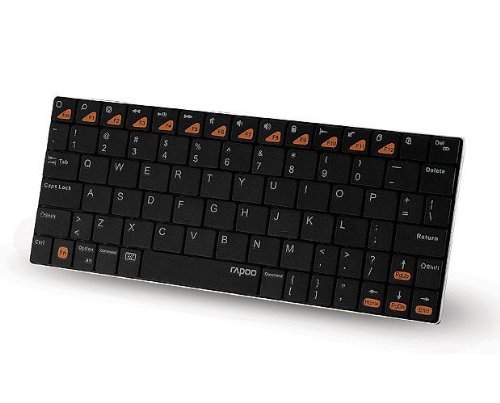
2.1-сүрөт: жогорудан ылдыйга view of the Rapoo E6500 Bluetooth Keyboard, showcasing its full key layout and multimedia function keys.
3. Пакеттин мазмуну
Сураныч, кутудан чыкканда пакеттин мазмунун текшериңиз. Эгерде кандайдыр бир буюмдар жок же бузулуп калса, сатуучуга кайрылыңыз.
- Rapoo E6500 Bluetooth Keyboard
- USB заряддоо кабели (эгер бар болсо)
- Колдонуучунун Колдонмосу (бул документ)
4. Орнотуу колдонмосу
4.1. Charging the Keyboard (if applicable)
If your keyboard has a built-in rechargeable battery, connect the provided USB charging cable to the keyboard's charging port and the other end to a USB power source (e.g., computer USB port, USB wall adapter). The charging indicator light will illuminate during charging and turn off when fully charged.
4.2. Pairing with Your Android Device
- Ensure the keyboard is sufficiently charged or has fresh batteries installed.
- Turn on the keyboard by sliding the power switch (usually located on the side or back) to the "ON" position.
- Press and hold the Bluetooth pairing button (often labeled with a Bluetooth icon or "Connect") for a few seconds until the Bluetooth indicator light starts blinking. This indicates the keyboard is in pairing mode.
- Android түзмөгүңүздө төмөнкүгө өтүңүз Орнотуулар > Туташкан түзмөктөр > Bluetooth.
- Ensure Bluetooth is turned "ON" on your Android device.
- Your device will scan for available Bluetooth devices. Select "Rapoo E6500" or a similar name from the list of found devices.
- If prompted, enter the pairing code displayed on your Android device using the Rapoo E6500 keyboard, then press Кириңиз.
- Жупташтырылгандан кийин, клавиатурадагы Bluetooth индикатору күйүп-өчүүнү токтотуп, үзгүлтүксүз бойдон калат же өчөт, бул ийгиликтүү туташууну билдирет.
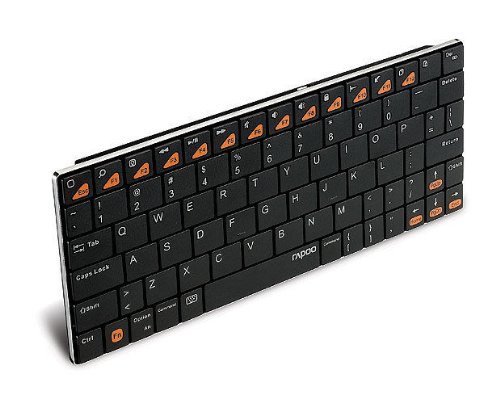
4.1-сүрөт: Бурчтуу view of the Rapoo E6500 keyboard, highlighting its slim profile жана ачкычтын жайгашуусу.
5. Иштөө нускамалары
5.1. Негизги терүү
Once paired, you can use the Rapoo E6500 keyboard like any standard keyboard. Simply open any text input field on your Android device and begin typing.
5.2. Using Multimedia Hotkeys
The Rapoo E6500 features dedicated multimedia hotkeys (F1-F12) that provide quick access to various functions. These functions are typically activated by pressing the Fn каалаган функция баскычы менен бир убакта басыңыз.
| Ыкчам баскычтар айкалышы | Функция |
|---|---|
| Fn + F1 | Башкы экран |
| Fn + F2 | издөө |
| Fn + F3 | Артка |
| Fn + F4 | Меню |
| Fn + F5 | Ойнотуу/Тыныгуу |
| Fn + F6 | Мурунку трек |
| Fn + F7 | Кийинки трек |
| Fn + F8 | Үнсүз |
| Fn + F9 | Үндү төмөндөтүү |
| Fn + F10 | Үндү көтөрүү |
| Fn + F11 | Кулпуланган экран |
| Fn + F12 | Browser/Web |
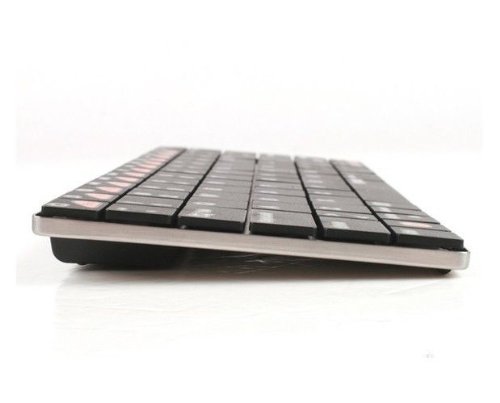
5.1-сүрөт: Каптал view of the Rapoo E6500 keyboard, emphasizing its thin profile.
6. Техникалык тейлөө жана кам көрүү
To ensure the longevity and optimal performance of your Rapoo E6500 keyboard, follow these maintenance guidelines:
- Тазалоо: Use a soft, dry, lint-free cloth to wipe the surface of the keyboard. For stubborn dirt, slightly dampчүпүрөктү суу же жумшак, абразивдүү тазалагыч менен жууп салыңыз. Ашыкча нымдуулуктан сактаныңыз.
- Сактагыч: When not in use for extended periods, turn off the keyboard to conserve battery life. Store it in a cool, dry place away from direct sunlight and extreme temperatures.
- Суюктуктардан алыс болуңуз: Клавиатурага суюктуктарды тийгизбеңиз. Төкмөлөр туруктуу зыян алып келиши мүмкүн.
- Этияттык менен мамиле кылуу: Баскычтопту түшүрүүдөн же катуу соккулардан сактаныңыз.
7. Кыйынчылыктарды
If you encounter issues with your Rapoo E6500 keyboard, please refer to the following common problems and solutions:
| Көйгөй | Мүмкүн себеп | Чечим |
|---|---|---|
| Баскычтоп күйбөйт. | Батареянын заряды аз же кубат баскычы өчүк. | Charge the keyboard. Ensure the power switch is in the "ON" position. |
| Keyboard does not connect to device. | Bluetooth not enabled on device, keyboard not in pairing mode, or already paired with another device. | Ensure Bluetooth is enabled on your Android device. Put the keyboard into pairing mode. Forget the device on your Android device and re-pair. Ensure no other devices are actively connected to the keyboard. |
| Ачкычтар жооп бербей жатат же туура эмес терип жатат. | Low battery, connection issue, or software glitch. | Charge the keyboard. Re-pair the keyboard with your device. Restart your Android device. |
| Multimedia hotkeys not working. | Not pressing the Fn key, or device software incompatibility. | басып жатканыңызды текшериңиз Fn key simultaneously with the desired function key. Some Android versions or apps may have limited support for certain hotkeys. |
If the problem persists after trying these solutions, please contact Rapoo customer support for further assistance.
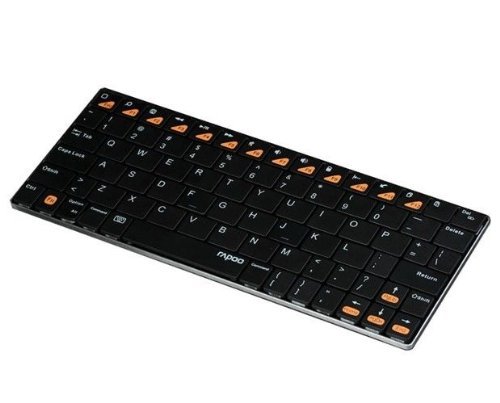
Figure 7.1: Another angled top-down view of the Rapoo E6500 keyboard, showing the full key layout.
8. Продукттун спецификациялары
| Өзгөчөлүк | Деталь |
|---|---|
| Модель номери | 14207-ARE6500BK-K07 |
| Байланыш | Bluetooth |
| Операциялык системанын шайкештиги | Android |
| Түс | Кара |
| Өлчөмдөрү (LxWxH) | 21.1 x 9.7 x 1.5 см (болжол менен 8.3 x 3.8 x 0.6 дюйм) |
| Элемент Салмагы | 220 г (болжол менен 0.48 фунт) |
| Өзгөчө өзгөчөлүк | Wireless, Multi-Media Keys |
Сүрөт 8.1: Алдыңкы view of the Rapoo E6500 keyboard, showing its slim profile алдынан
9. Кепилдик жана колдоо
Rapoo products are designed and manufactured to the highest quality standards. For information regarding warranty coverage, terms, and conditions, please refer to the warranty card included with your product or visit the official Rapoo webсайт.
For technical support, troubleshooting assistance beyond this manual, or to inquire about replacement parts, please contact Rapoo customer service through their official channels. Details can typically be found on the product packaging or the Rapoo webсайт.
Маанилүү: Сатып алуу квитанциясын кепилдик дооматтары үчүн сатып алуунун далили катары сактаңыз.


