1. Киришүү
This manual provides comprehensive instructions for the setup, operation, maintenance, and troubleshooting of your Genius Traveler 9005BT 4-D Bluetooth Mouse. Please read this manual thoroughly before using the device to ensure proper functionality and longevity.
Негизги өзгөчөлүктөрү:
- Precision 1200 dpi BlueEye engine for versatile surface tracking.
- Bluetooth 4-button wireless optical mouse.
- Ergonomic design suitable for both left and right-handed users.
- Turbo Scroll function for rapid document and web бет багыттоо.
- BlueEye technology allows operation on various surfaces including dusted glass, marble, carpet, and sofa upholstery.
- Compatible with multiple operating systems: Android 3.0+, Windows 7/XP/Vista, and Mac OS X 10.4 or later.
2. Пакеттин мазмуну
Төмөндө тизмеленген нерселердин баары сиздин продукт таңгагыңызда бар экенин текшериңиз:
- Genius Traveler 9005BT Mouse
- CD driver for mouse 4-D Scroll function
- Two AA Alkaline batteries
- Көп тилдүү колдонуучу колдонмо
3. Орнотуу
3.1. Батареяны орнотуу
- Чычкандын астыңкы бетинен батарея бөлүмүнүн капкагын табыңыз.
- Бөлүмдү ачуу үчүн капкакты акырын жылдырыңыз же көтөрүңүз.
- Insert the two AA Alkaline batteries, ensuring correct polarity (+ and -) as indicated inside the compartment.
- Батарея бөлүкчөсүнүн капкагын бекем чыккыча ордуна коюңуз.
3.2. Bluetooth Жупташтыруу
To connect your Traveler 9005BT mouse to your device:
- Ensure the mouse is powered on. There is typically a power switch on the underside of the mouse.
- Activate Bluetooth on your computer, laptop, or Android device.
- On your device, navigate to the Bluetooth settings and initiate a search for new devices.
- The Genius Traveler 9005BT should appear in the list of available devices. Select it to begin the pairing process.
- Follow any on-screen prompts to complete the pairing. A successful connection will be indicated by a confirmation message on your device.
The mouse supports Bluetooth EDR 2.0 technology, providing a reliable working distance of up to 10 meters. It is compatible with Android 3.0+, Windows 7/XP/Vista, and Mac OS X 10.4 or later.
3.3. Driver Installation (for 4-D Scroll Function)
For optimal use of the 4-D Scroll function, install the provided driver:
- Insert the included CD driver into your computer's optical drive.
- Керектүү программаны орнотуу үчүн экрандагы нускамаларды аткарыңыз.
- Restart your computer if prompted to ensure the driver is fully installed and recognized.
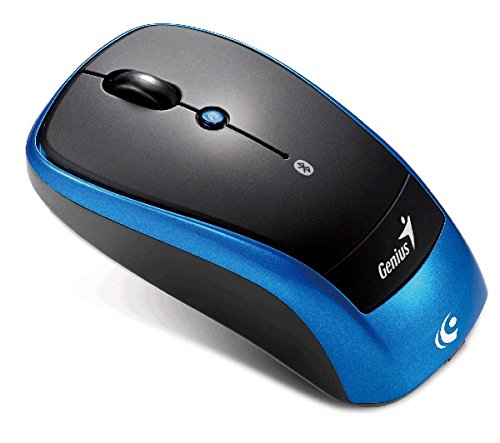
Үстүбүздөгү чыгым view of the Genius Traveler 9005BT 4-D Bluetooth Mouse, showcasing its ergonomic design with a black top surface and blue sides. It features a scroll wheel, left and right click buttons, and a small button for 4-D scroll functionality.
4. Чычканды иштетүү
4.1. Негизги функциялар
- Сол чыкылдатуу: Press the left button for primary selection and activation.
- Оң чыкылдатуу: Press the right button to access contextual menus.
- Жылдыруу дөңгөлөгү: Roll the wheel up or down to scroll vertically through documents and web барактар.
4.2. 4-D Scroll Function
The Traveler 9005BT features a dedicated 4-D scroll function key. Once the driver is installed, this function allows for more natural and convenient scrolling by simply moving your mouse in the direction you wish to scroll (up, down, left, or right) while holding down the 4-D scroll button.
4.3. Turbo Scroll
Engage the Turbo Scroll feature for hyper-fast navigation through lengthy documents, spreadsheets, and web pages. This function allows you to accelerate scrolling speed, significantly improving efficiency when reviewing extensive content.
4.4. BlueEye Technology
The integrated BlueEye technology enables the mouse to operate on a wide variety of surfaces that traditional optical mice may struggle with. This includes challenging textures such as dusted glass, marble, carpet, and sofa upholstery, providing flexibility in your workspace.
5. Техникалык тейлөө
5.1. Тазалоо
Оптималдуу аткарууну жана көрүнүштү сактоо үчүн:
- Тазалоодон мурун, чычканды өчүрүп коюңуз.
- Сырткы беттерди сүртүү үчүн жумшак, кургак, түксүз чүпүрөктү колдонуңуз.
- өжөр кир үчүн, бир аз гampчүпүрөктү суу же жумшак, абразивдүү тазалагыч менен жууп салыңыз. Ашыкча нымдуулуктан сактаныңыз.
- Do not use harsh chemicals, solvents, or abrasive materials, as these can damage the mouse's finish or internal components.
- Periodically clean the optical sensor area on the underside of the mouse with a cotton swab to prevent tracking issues.
5.2. Батареяны алмаштыруу
When the mouse's performance degrades or it stops responding, it may be time to replace the batteries. Follow the battery installation steps outlined in Section 3.1.
6. Кыйынчылыктарды
If you encounter issues with your Genius Traveler 9005BT mouse, refer to the following common solutions:
- Чычкан жооп бербейт:
- Чычкан күйгүзүлгөнүн текшериңиз.
- Текшерип, керек болсо батарейкаларды алмаштырыңыз.
- Verify that Bluetooth is enabled on your device and the mouse is paired correctly. Try re-pairing if needed.
- Move the mouse closer to your device to rule out range issues.
- Курсордун туруксуз кыймылы:
- Чычкандын астындагы оптикалык сенсорду тазалаңыз.
- Ensure you are using the mouse on a suitable surface. While BlueEye technology is versatile, extreme surfaces or highly reflective ones can still cause issues.
- Check for any obstructions around the optical sensor.
- 4-D Scroll Function Not Working:
- Confirm that the 4-D scroll driver has been installed correctly from the provided CD.
- Restart your computer after driver installation.
- Bluetooth'тун өчүрүлүшү:
- Ensure no other devices are causing Bluetooth interference.
- Update your device's Bluetooth drivers.
- Чычканды түзмөгүңүз менен кайра жупташтырыңыз.
If these steps do not resolve the issue, consult the multi-language user manual included in your package or contact Genius customer support.
7. Техникалык шарттар
| Өзгөчөлүк | Деталь |
|---|---|
| Бренд | Genius |
| Модель номери | Traveler 9005BT |
| Кыймылды аныктоо технологиясы | Optical (BlueEye) |
| DPI | 1200 dpi |
| Байланыш | Bluetooth EDR 2.0 |
| баскычтардын саны | 4 |
| Колдун багыты | Эки тараптуу |
| Power Source | 2 x AA щелочтуу батарейкалар (киргизилген эмес) |
| Шайкеш операциялык системалар | Windows® 7, Vista, XP / Android 3.0+ / Mac OS X 10.4+ |
| Аппараттык платформа | Ноутбук, персоналдык компьютер |
8. Кепилдик жана колдоо
For warranty information, please refer to the documentation provided with your purchase or contact your retailer. Genius products typically come with a limited warranty. For technical support or further assistance, please consult the multi-language user manual included in your package or visit the official Genius webбайланыш маалыматы үчүн сайт.


