1. Киришүү
The ViewSonic VG2438SM is a 24-inch high-performance multimedia display designed for home and office environments. It features a 16:10 aspect ratio with a 1920x1200 resolution, providing additional vertical viewing space. This monitor includes full ergonomic functionality, ViewMode presets for optimized screen performance, Flicker-Free technology, and a Blue Light Filter to reduce eye strain. SuperClear technology ensures excellent color performance and wide viewing angles. Connectivity options include DisplayPort, DVI, VGA, and a 4-port USB hub. Integrated speakers enhance the multimedia experience, and a VESA-mountable design offers flexible placement.
2. Орнотуу
2.1 Пакеттен чыгаруу
Carefully remove the monitor and all accessories from the packaging. Ensure all components listed in the packing list are present. The monitor is lightweight for easy handling.
2.2 Стендди чогултуу
Attach the monitor stand to the display panel. Typically, this involves securing the stand with a single screw. Refer to the diagram below for visual guidance.

Сүрөт 2.2.1: Алдыңкы view -ныкы ViewSonic VG2438SM monitor with its stand assembled.

2.2.2-сүрөт: Арткы view illustrating the stand attachment point and VESA mounting area.
2.3 Туташтыруучу кабельдер
Connect the necessary cables to the monitor and your computer. The VG2438SM supports DisplayPort, DVI, and VGA inputs. Also connect the USB upstream cable for the integrated USB hub and the audio cable for the speakers.
- Кубат кабели: Кубат кабелин монитордун кубат киресине, андан кийин розеткага туташтырыңыз.
- Видео кабель: Төмөнкүлөрдүн бирин тандаңыз:
- DisplayPort cable for optimal digital video and audio transmission.
- DVI cable for digital video transmission.
- VGA cable for analog video transmission.
- USB жогорку агым кабели: Connect the USB upstream cable from the monitor to your computer to enable the 4-port USB hub.
- Аудио кабели: Connect the audio cable from your computer's audio output to the monitor's audio input to use the integrated speakers.

2.3.1-сүрөт: Детальдуу view of the monitor's connectivity ports, including DisplayPort, DVI, VGA, USB, and audio inputs.
2.4 Баштапкы күйгүзүү
Press the power button on the monitor. The monitor should power on and display an image from your connected computer. If no image appears, ensure all cables are securely connected and the correct input source is selected on the monitor.
3. Операция
3.1 Монитордун башкаруу элементтери
The monitor's control buttons are located on the lower right-hand corner of the frame. Due to their subtle design, they may be difficult to see in low light. Use a flashlight if necessary to locate them. Once identified, these buttons allow access to the On-Screen Display (OSD) menu for various settings adjustments.
3.2 Эргономикалык жөндөөлөр
The VG2438SM offers advanced ergonomic features for user comfort and productivity. Adjust the monitor to your preferred viewабалы:
- Бийиктигин тууралоо: Мониторду көз деңгээлине чейин көтөрүңүз же төмөндөтүңүз (100 мм чейин).
- Россия: Adjust the screen angle from -5 to 37 degrees to minimize glare and optimize viewing.
- Айлануучу: Rotate the monitor horizontally up to 360 degrees.
- Пивот: Портрет режими үчүн экранды 90 градуска буруңуз viewing. Note that the monitor may need to be tilted slightly to clear the stand during rotation.
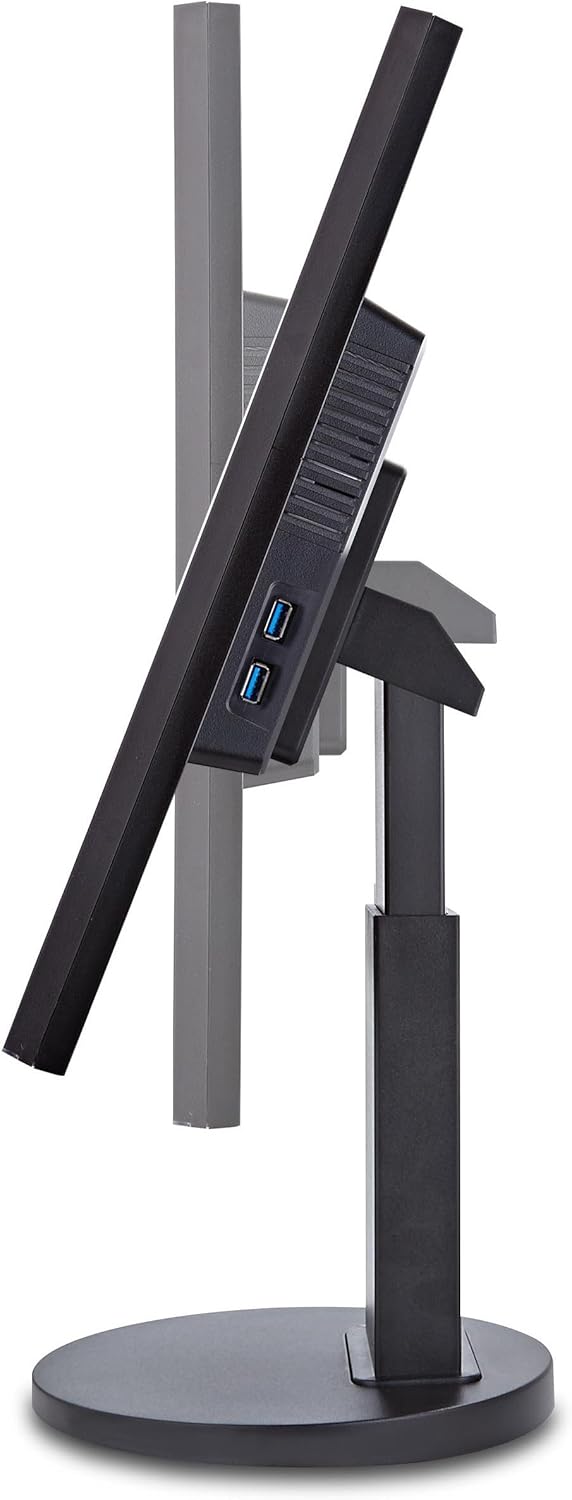
Figure 3.2.1: Monitor demonstrating height adjustment capability.
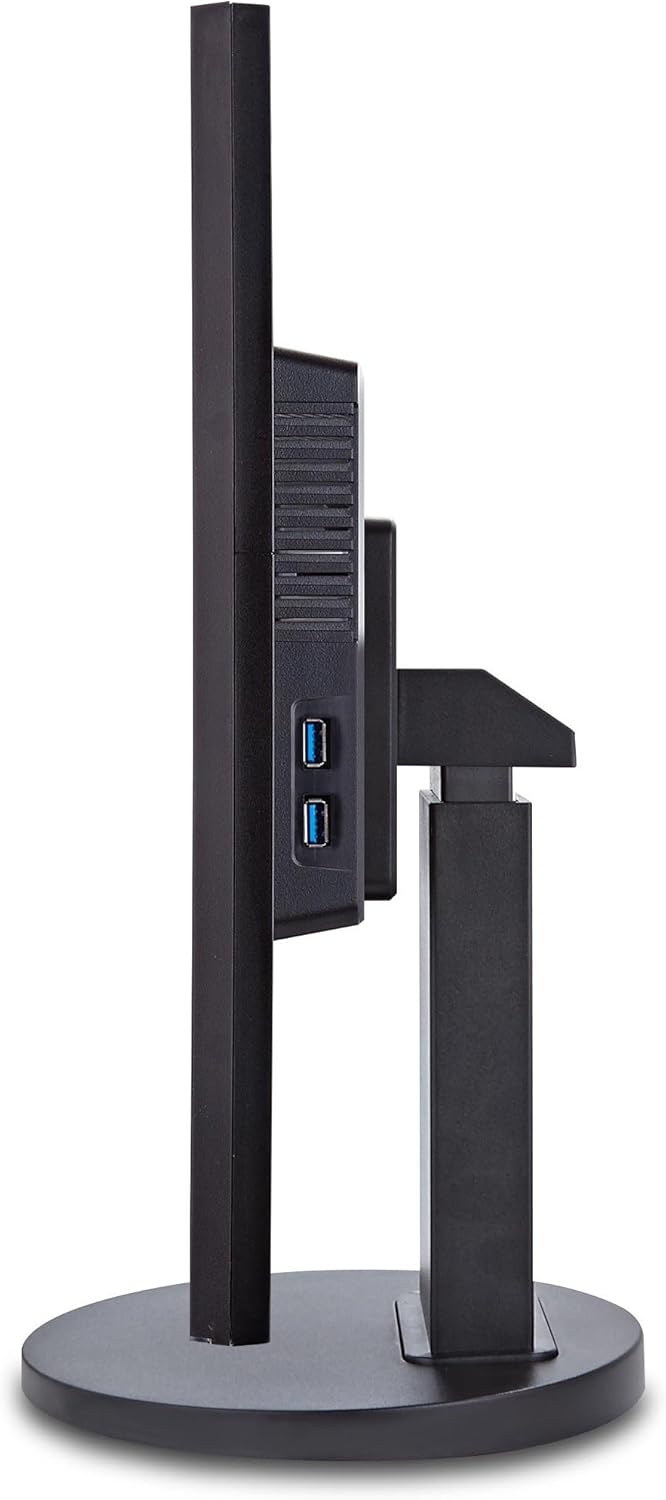
Figure 3.2.2: Monitor in portrait mode, illustrating the pivot function.
3.3 ViewРежим орнотуулары
Монитор камтыйт ViewSonic эксклюзивдүү ViewMode feature, offering five intuitive scenario presets for optimized screen performance. Access these presets through the OSD menu:
- Оюн: Optimized for gaming visuals.
- Тасма: Видео ойнотуу үчүн жакшыртылган.
- Web: Suitable for general web серептөө.
- Текст: Reduces eye strain for reading documents.
- Моно: Displays content in monochrome.
These presets adjust gamma curve, color temperature, contrast, and brightness to deliver an optimized viewing experience for different applications.
3.4 ViewSplit Software
ViewSonic эксклюзивдүү ViewSplit software allows you to create an ideal and customized working environment by dividing your screen into multiple viewing windows. This enhances productivity and multitasking.
3.4.1 Орнотуу
жүктөп алыңыз ViewSplit software from the ViewSonic website. It can be found on the ViewSplit product page or within the Driver & Software section of any product page.
3.4.2 Колдонуу
- эки жолу чыкылдатыңыз ViewSplit icon on your desktop or click the notification tray icon to open the ViewSplit homepage.
- Select a predefined template from the available options. This template will be applied to your main display.
- To place an application into a split window, drag the application window into the desired ViewSplit window. The target window will highlight in blue.
- Release the application, and it will automatically position and resize within the selected split window.
- To create a customizable template, click the tool icon in the "Customizable Templates" section.
- Select a predefined template to use as a base. You can then customize the template by dragging and resizing the red borders of the split windows.
- Click the save icon to save your customized template. Up to six different templates can be saved for maximum flexibility.
Video 3.4.1: Demonstration of ViewSplit software installation and usage for screen layout customization.
3.5 Интеграцияланган баяндамачылар
The ViewSonic VG2438SM includes two integrated 2W stereo speakers. Connect an audio cable from your computer to the monitor's audio input to utilize these speakers for multimedia playback. While suitable for general use, external speakers may offer superior audio quality for critical listening.
3.6 USB хабы
The monitor features an integrated 4-port USB hub. Connect the USB upstream cable from the monitor to your computer to activate these ports. This allows for convenient connection of peripherals and accessories directly to the monitor.
3.7 Эко-режим
ViewSonic's proprietary Eco-mode is an energy-saving feature that helps reduce power consumption. It offers "Optimize (85%)" or "Conserve (65%)" settings, which can be accessed through the OSD menu. Eco-mode adjusts brightness in low ambient light, improving visibility and reducing eye fatigue, while also extending the lifespan of the LED backlighting.
3.8 Blue Light Filter
жогорулатуу үчүн viewing comfort during extended periods, the VG2438SM includes a Blue Light Filter setting. This feature allows users to adjust the amount of blue light emitted from the screen, which can help reduce eye discomfort.
4. Техникалык тейлөө
Сиздин узак жана оптималдуу иштешин камсыз кылуу үчүн ViewSonic VG2438SM monitor, follow these general maintenance guidelines:
- Экранды тазалоо: Экранды жумшак, түксүз чүпүрөк менен акырын сүртүңүз. өжөр белгилери үчүн, жеңил гampчүпүрөктү суу же экранга арналган тазалоо эритмеси менен сүртүңүз. Катуу химиялык заттарды же абразивдүү материалдарды колдонуудан алыс болуңуз.
- Тазалоо Casing: Мониторду тазалоо үчүн жумшак, кургак чүпүрөктү колдонуңуз casing.
- Вентиляция: Ашыкча ысып кетүүнүн алдын алуу үчүн монитордун желдетүү тешиктери жабылбагандыгын текшериңиз.
- Колдонулбаганда өчүрүү: Энергияны үнөмдөө жана анын иштөө мөөнөтүн узартуу үчүн мониторду узак мөөнөткө колдонбогондо өчүрүңүз.
- Экстремалдуу шарттарды болтурбоо: Do not expose the monitor to extreme temperatures, humidity, or direct sunlight.
5. Кыйынчылыктарды
Бул бөлүмдө сиздин компьютериңизде кездешиши мүмкүн болгон жалпы көйгөйлөр каралат ViewSonic VG2438SM monitor.
5.1 No Image or Dim Screen
- Күчтү текшерүү: Кубат кабели мониторго да, розеткага да бекем туташтырылганын текшериңиз.
- Видео кабелдерди текшерүү: Verify that the video cable (DisplayPort, DVI, or VGA) is firmly connected to both the monitor and your computer.
- Туура киргизүүнү тандаңыз: Use the monitor's OSD menu to ensure the correct input source is selected (e.g., DisplayPort, DVI, VGA).
- Караңгылык маселеси: If the screen becomes dim after going to sleep or upon booting, try adjusting the monitor settings to "native" mode or ensure the monitor does not go to sleep. As a workaround, power off the monitor when turning off the PC.
5.2 Жаркылдаган экран
- Кабель туташууларын текшерүү: Ensure all video cables are securely connected. A loose connection can cause flickering.
- Adjust Refresh Rate: Verify that your computer's display settings are configured to the recommended refresh rate for the monitor (e.g., 60Hz).
- Графикалык драйверлерди жаңыртуу: Компьютериңиздин видеокарта драйверлери жаңыртылганын текшериңиз.
- Башка түзмөк менен сыноо: Connect the monitor to a different computer or video source to determine if the issue is with the monitor or the source device.
5.3 Өлүк пикселдер
While rare, dead pixels can occur. If you notice any pixels that are permanently off or stuck on a single color, refer to ViewSonic's pixel policy for warranty information. Dead pixels are typically more noticeable against a solid background.
5.4 Poor Sound Quality from Integrated Speakers
- Check Audio Cable: Ensure the audio cable is properly connected from your computer to the monitor.
- Үндү тууралоо: Increase the volume on both your computer and the monitor.
- Speaker Limitations: The integrated 2W stereo speakers are designed for basic audio. For higher fidelity sound, consider using external speakers or headphones.
5.5 Difficulty Locating Control Buttons
The monitor's control buttons are subtly integrated into the bezel. If you have trouble finding them, use a flashlight to illuminate the lower right-hand corner of the monitor frame. Familiarize yourself with their positions for easier access.
5.6 Humming/Buzzing Noise
If a slight humming or buzzing noise is heard, particularly after the monitor has been off for some time, it may be related to internal components. If this is bothersome, consider completely cutting power to the monitor (e.g., via a power strip switch) when it is not in use.
6. Техникалык шарттар
| Өзгөчөлүк | Деталь |
|---|---|
| Бренд | ViewSonic |
| Модель номери | VG2438SM |
| Screen Size | 24 дюйм |
| Панел түрү | IPS (SuperClear Image Enhancement Technology) |
| Native Resolution | 1920 x 1200 пиксел |
| Аспект катышы | 16:10 |
| Жаңыртуу ылдамдыгы | 60 Гц |
| Viewбурчтар | 178° / 178° (Horizontal/Vertical) |
| Динамикалык контраст катышы | 50M:1 (Mega Dynamic Contrast Ratio) |
| Байланыш | DisplayPort, DVI-D, VGA, 4-port USB Hub, Audio In |
| Баяндамачылар | Integrated 2W Stereo Speakers |
| Эргономика | Height Adjust (100mm), Tilt (-5° to 37°), Swivel (360°), Pivot (90°) |
| VESA тоосуна шайкеш келет | 100 x 100 мм |
| Продукциянын өлчөмдөрү (LxWxH) | 8 x 21.9 x 15.5 дюйм |
| Элемент Салмагы | 12.54 фунт |
| Өзгөчөлүктөр | ViewMode, Flicker-Free, Blue Light Filter, Eco-Mode, Mercury-Free LED Backlighting |
7. Кепилдик жана колдоо
7.1 Чектелген Кепилдик
The ViewSonic VG2438SM monitor includes ViewSonic's industry-leading pixel policy and a 3-year limited warranty. This warranty covers defects in materials and workmanship under normal use. For specific terms and conditions, please refer to the official warranty documentation included with your product or visit the ViewSonic webсайт.
7.2 Кардарларды колдоо
For further assistance, technical support, or to learn more about ViewSonic продукциялары, расмий сайтына кириңиз ViewSonic webсайт:


