1. Продукт бүтүп калдыview
The BUFFALO DriveStation Ultra is a high-performance, high-capacity direct attached storage (DAS) solution designed for demanding data transfer needs, such as high-resolution video editing. This 10-drive desktop model offers a 40 TB storage capacity and features multi-interface support for both Mac and PC systems.
Негизги өзгөчөлүктөр төмөнкүлөрдү камтыйт:
- Industry-leading throughput: Up to 972 MB/s Read and 737 MB/s Write speeds.
- Multi-interface support: Thunderbolt 2 for Mac, and eSATA/USB 3.0 for Windows.
- Advanced data protection: Supports RAID 6 configurations, allowing for up to two drive failures without data loss.
- Equipped with enterprise or NAS hard drives for continuous operation.
1.1 Кутуда эмне бар
- DriveStation™ Ultra unit
- Thunderbolt кабели
- USB 3.0 кабели
- eSATA кабели
- Ыкчам орнотуу көрсөтмөсү
- Кепилдик билдирүү
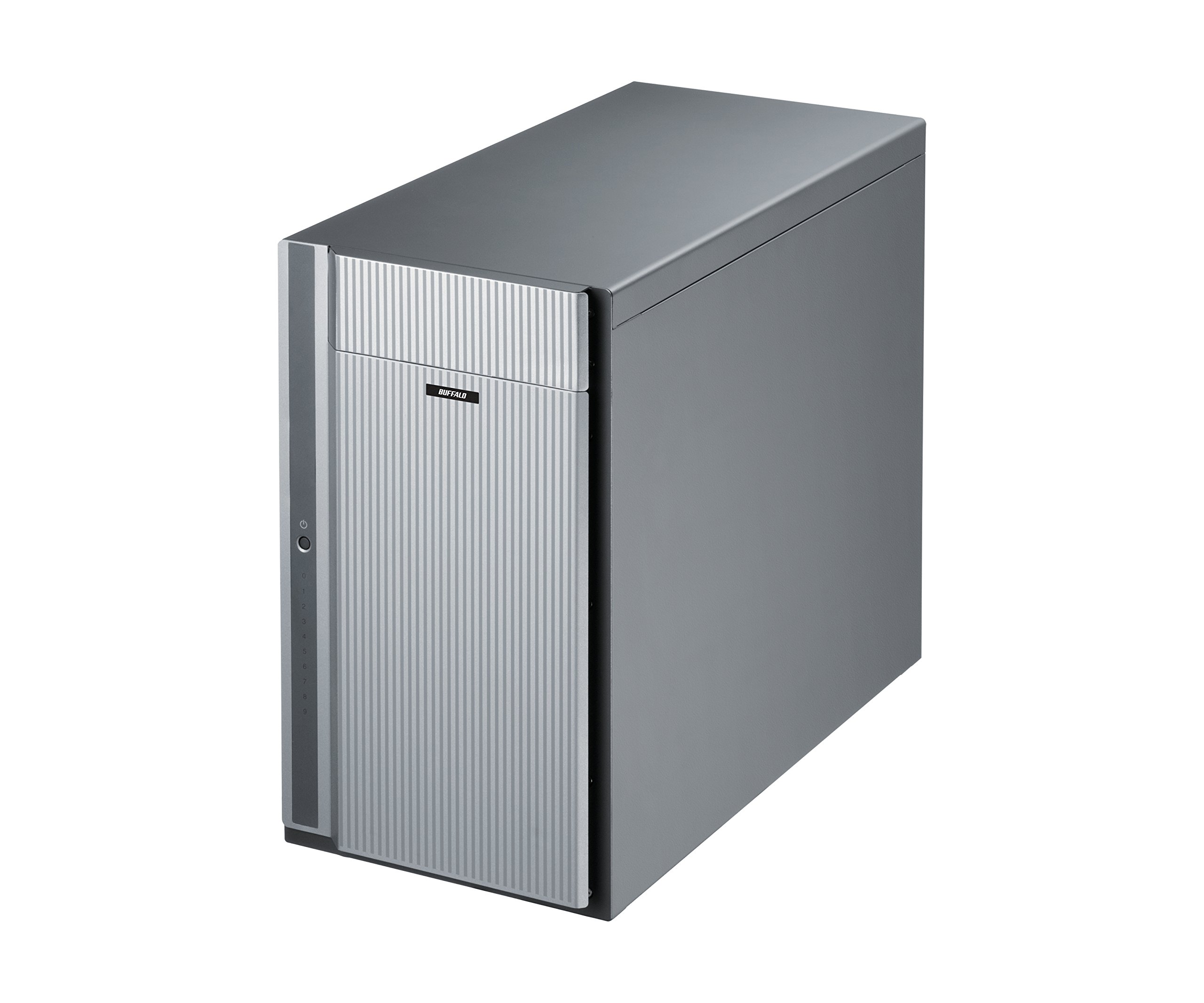
Сүрөт 1: Алдыңкы view of the BUFFALO DriveStation Ultra unit.
2. Орнотуу нускамалары
Follow these steps to set up your DriveStation Ultra:
- Аппаратты таңгактан чыгаруу: Carefully remove the DriveStation Ultra and all accessories from its packaging.
- Аппаратты жайгаштырыңыз: Place the unit on a stable, flat surface with adequate ventilation. Ensure no vents are obstructed.
- Туташуу кубаты: Connect the power cable to the unit and then to a power outlet. Do not power on the device yet.
- Компьютерге туташуу: Төмөнкү туташуу ыкмаларынын бирин тандаңыз:
- Thunderbolt 2 (Mac): Use the provided Thunderbolt cable to connect the DriveStation Ultra to your Mac's Thunderbolt port.
- USB 3.0 (PC/Mac): Use the provided USB 3.0 cable to connect the DriveStation Ultra to your computer's USB 3.0 port.
- eSATA (PC): Use the provided eSATA cable to connect the DriveStation Ultra to your computer's eSATA port.
- Күйгүзүү: Once connected, press the power button on the DriveStation Ultra. The device will initialize.
- Драйверди орнотуу (зарыл болсо): Your operating system should automatically detect the device. If prompted, install any necessary drivers from the included software or BUFFALO's support webсайт.
- RAID конфигурациясы: The DriveStation Ultra comes pre-configured. For advanced RAID configurations (e.g., changing from default RAID 6), refer to the detailed software manual available on the BUFFALO support webсайт.

2-сүрөт: Арткы view of the DriveStation Ultra, highlighting Thunderbolt, USB 3.0, and eSATA ports.
3. Иштөө нускамалары
Once the DriveStation Ultra is set up and recognized by your computer, it functions as an external storage device. You can access it like any other connected drive.
- Маалыматтарды өткөрүү: Сүйрөп барып таштаңыз files to and from the DriveStation Ultra. For optimal performance, use the Thunderbolt 2 connection on Mac systems or USB 3.0/eSATA on PC systems.
- Аткаруу: Expect high-speed data transfers, particularly with large files, due to the optimized hardware and RAID configuration.
- Коопсуз алып салуу: Always safely eject the DriveStation Ultra from your operating system before disconnecting the cables or powering down the unit to prevent data corruption.
- Энергияны башкаруу: The device is designed for continuous operation. If you need to power it off, use the power button on the unit after safely ejecting it from your computer.
4. Техникалык тейлөө
Proper maintenance ensures the longevity and reliability of your DriveStation Ultra:
- Тазалоо: Use a soft, dry cloth to clean the exterior of the unit. Do not use liquid cleaners or aerosols directly on the device.
- Вентиляция: Ensure that the ventilation openings are clear of dust and obstructions to prevent overheating.
- Программалык камсыздоонун жаңыртуулары: Periodically check the BUFFALO support webмикропрограммалык камсыздоону жаңыртуу сайты. Микропрограммалык камсыздоону жаңыртып туруу иштин натыйжалуулугун жана туруктуулугун жакшырта алат.
- Маалыматтын камдык көчүрмөсү: While the DriveStation Ultra offers RAID 6 for data protection, it is always recommended to maintain separate backups of critical data.
- Drive Health: Monitor the health of the drives using the included utility software or your operating system's disk management tools.
5. Кыйынчылыктарды
If you encounter issues with your DriveStation Ultra, try the following steps:
- Түзмөк аныкталган жок:
- Кубат кабелинин бекем туташтырылганын жана түзмөктүн кубатка күйүп турганын текшериңиз.
- Verify that the data cable (Thunderbolt, USB, or eSATA) is firmly connected to both the DriveStation Ultra and your computer.
- Try connecting to a different port on your computer or using a different cable.
- Restart your computer and the DriveStation Ultra.
- Жай аткаруу:
- Ensure you are using the correct high-speed interface (Thunderbolt 2, USB 3.0, or eSATA) and compatible cables.
- Компьютериңиздеги ресурстарды керектеп жаткан фондук процесстерди текшериңиз.
- Verify that the DriveStation Ultra has adequate ventilation to prevent thermal throttling.
- Drive Failure Indication:
- The DriveStation Ultra's RAID 6 configuration provides protection against up to two drive failures. Consult the detailed manual or BUFFALO support for drive replacement procedures.
- Do not attempt to replace drives without proper guidance to avoid data loss.
- Башка маселелер: If the problem persists after trying these steps, refer to the comprehensive user manual on the BUFFALO support webсайтка же техникалык колдоо менен байланышыңыз.
6. Техникалык шарттар
| Өзгөчөлүк | Деталь |
|---|---|
| Катуу дисктин сыйымдуулугу | 40 ТБ механикалык катуу диск |
| Бренд | BUFFALO |
| Сериялар | DriveStation Ultra |
| Модель номери | HD-DN040T/R6 |
| Аппараттык платформа | Mac, PC |
| Элемент Салмагы | 39.7 фунт |
| Продукциянын өлчөмдөрү (LxWxH) | 15.24 x 7.48 x 12.6 дюйм |
| Түс | Silver |
| Катуу диск интерфейси | eSATA |
| Катуу дисктин айлануу ылдамдыгы | 7200 RPM |
| Байланыш технологиясы | Thunderbolt, USB, eSATA |
| Орнотуу түрү | Тышкы катуу диск |
| Биринчи жеткиликтүү күн | 22-июль, 2015-жыл |
7. Кепилдик маалыматы
The BUFFALO DriveStation Ultra 10-Drive Thunderbolt Desktop DAS 40 TB (Model HD-DN040T/R6) comes with a 3 жылдык Чектелген Кепилдик.
For detailed terms and conditions of the warranty, please refer to the warranty statement included in your product packaging or visit the official BUFFALO webсайт.
8. Колдоо
For technical assistance, additional documentation, or to download the latest drivers and firmware, please visit the official BUFFALO support webсайт.
You can typically find support resources by searching for your product model (HD-DN040T/R6) on the BUFFALO support portal.
Contact information for customer service may also be available on the BUFFALO website or in your product's quick setup guide.


