1. Киришүү
Сатып алганыңыз үчүн рахматasing the ELECOM M-XGM10DBBK Wireless 5-Button BlueLED Mouse. This mouse is designed for comfort and precision, featuring an ergonomic shape that fits naturally in your hand and BlueLED technology for reliable tracking on various surfaces. This manual provides essential information for proper setup, operation, and maintenance of your device.
2. Продукт бүтүп калдыview
The M-XGM10DBBK mouse is part of the "EX-G" series, known for its ergonomic design and comfortable grip. It features five buttons, including dedicated back and forward buttons, to enhance productivity.
Негизги өзгөчөлүктөрү:
- Эргономикалык дизайн: Shaped to fit the hand for ultimate grip comfort.
- Көк LED сенсору: Provides precise tracking on a wide range of surfaces, including glass and fabric.
- 5 баскычтуу функция: Includes left, right, scroll wheel, and dedicated back/forward buttons.
- 2.4 ГГц зымсыз туташуу: Offers a stable connection with a range of approximately 10 meters (3 meters on steel desks).
- Ыңгайлаштырылган баскычтар: Button functions can be re-assigned using the free "ELECOM Mouse Assistant" software (Windows/Mac only).
- Батарея көрсөткүчү: А лamp indicates remaining battery life.
Компоненттери:
Familiarize yourself with the mouse components:

2.1-сүрөт: Жогорку view of the mouse, highlighting the main buttons.
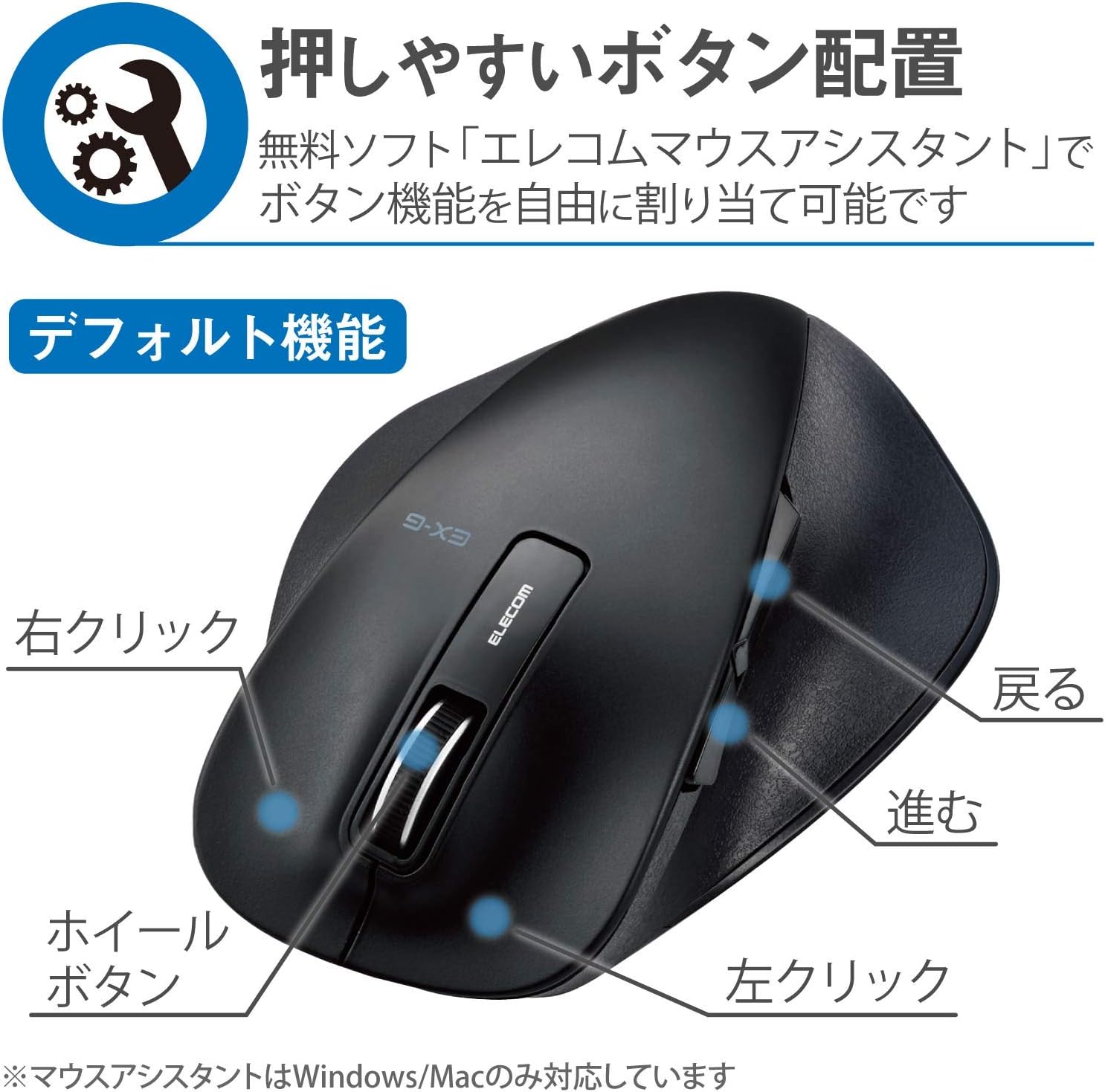
2.2-сүрөт: Каптал view of the mouse, showing the back and forward buttons.
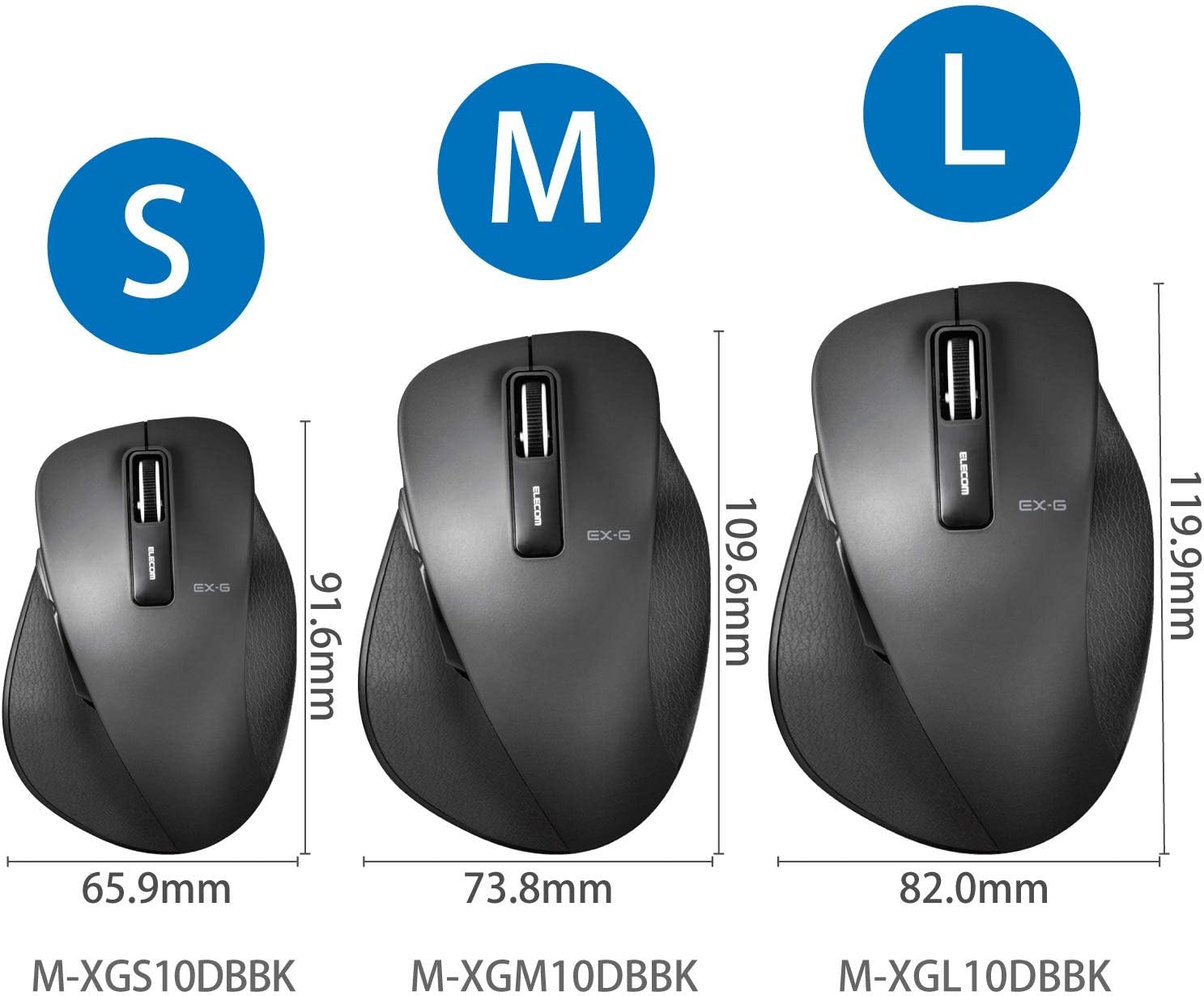
Figure 2.3: Size comparison of EX-G mice (S, M, L). The M-XGM10DBBK is the M size.

2.4-сүрөт: Төмөнкү view of the mouse, indicating the optical sensor, power switch, and receiver storage compartment.

Figure 2.5: Illustration of the durable Omron switches used for the left and right click buttons.
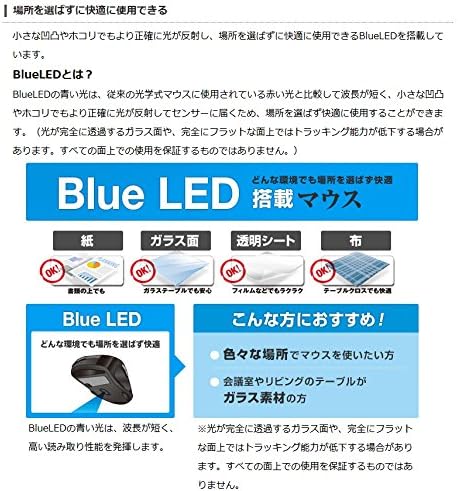
Figure 2.6: Explanation of BlueLED technology, demonstrating its versatility on different surfaces. Note: Tracking performance may decrease on completely transparent or perfectly flat surfaces.

Figure 2.7: Details on 2.4GHz wireless, battery indicator, and 2000 DPI resolution for smooth operation.

Figure 2.8: The ELECOM M-XGM10DBBK mouse is certified to work with Chromebooks.
3. Орнотуу
3.1 Батареяны орнотуу
- Чычкандын астыңкы жагынан батареянын капкагын табыңыз.
- Капкакты жылдырыңыз.
- Insert one AA alkaline, manganese, or nickel-metal hydride battery, ensuring correct polarity (+/-).
- Батареянын капкагын бекем жабыңыз.
3.2 Кабылдагычтын туташуусу
- Remove the USB receiver from its storage compartment on the bottom of the mouse.
- USB ресиверди компьютериңиздеги жеткиликтүү USB-A портуна сайыңыз.
- Компьютериңиз керектүү драйверлерди автоматтык түрдө таап, орнотуп алышы керек. Бул бир нече мүнөткө созулушу мүмкүн.
3.3 Күйгүзүү
- Slide the power switch on the bottom of the mouse to the "ON" position.
- Чычкан азыр колдонууга даяр.
4. Иштөө нускамалары
4.1 Негизги функциялар
- Сол чыкылдатуу: Негизги тандоо жана активдештирүү.
- Оң чыкылдатуу: Контексттик менюларды ачат.
- Жылдыруу дөңгөлөгү: Документтерди жылдырат жана web pages vertically. Can also be clicked for middle-click functionality.
4.2 Back/Forward Buttons
The dedicated back and forward buttons located on the side of the mouse allow for quick navigation in web браузерлер жана file изилдөөчүлөр.
- басыңыз Артка button to go to the previous page or folder.
- басыңыз Алга button to go to the next page or folder.
4.3 Customizing Buttons (ELECOM Mouse Assistant)
For advanced customization, download the free "ELECOM Mouse Assistant" software from the official ELECOM website. This software allows you to re-assign functions to the mouse buttons according to your preferences. Please note that this software is compatible with Windows and macOS only.
5. Техникалык тейлөө
5.1 Тазалоо
To maintain optimal performance and hygiene, regularly clean your mouse:
- Кубат баскычын колдонуп, чычканды өчүрүңүз.
- Чычкандын бетин сүртүү үчүн жумшак, кургак чүпүрөктү колдонуңуз.
- өжөр кир үчүн, бир аз гampчүпүрөктү суу же жумшак тазалоо эритмеси менен жууп, анан дароо кургатып сүртүңүз.
- Катуу химиялык заттарды, абразивдерди же эриткичтерди колдонуудан алыс болуңуз.
- Gently clean the optical sensor area on the bottom of the mouse with a cotton swab if tracking issues occur.
5.2 Батареяны алмаштыруу
When the battery indicator lamp flashes or the mouse performance degrades, replace the battery:
- Чычканды өчүрүңүз.
- Батареянын капкагын ачыңыз.
- Эски батареяны алып салыңыз жана жергиликтүү эрежелерге ылайык таштаңыз.
- Insert a new AA battery, ensuring correct polarity.
- Close the battery cover and turn the mouse back on.
6. Кыйынчылыктарды
Эгерде чычканыңыз менен көйгөйлөргө туш болсоңуз, төмөнкү кеңири таралган көйгөйлөрдү жана чечимдерди караңыз:
| Көйгөй | Мүмкүн себеп | Чечим |
|---|---|---|
| Чычкан жооп бербей жатат | Low battery; Power switch off; Receiver not connected; Receiver interference. | Replace battery; Turn power switch ON; Ensure receiver is firmly plugged in; Try a different USB port; Move closer to the receiver. |
| Курсордун туура эмес кыймылы | Кир оптикалык сенсор; Ылайыксыз бет; Интерференция. | Clean optical sensor; Use on a suitable mouse pad or surface; Reduce interference from other wireless devices. |
| Баскычтар иштебей жатат | Программалык камсыздоонун чыр-чатагы; драйвер көйгөйү. | Restart computer; Reinstall mouse drivers; Check for conflicting software. |
| Зымсыз байланыш көйгөйлөрү | Distance too far; Obstructions; Interference. | Ensure mouse is within range (10m); Remove obstructions between mouse and receiver; Avoid using near other 2.4GHz devices. |
7. Техникалык шарттар
| Өзгөчөлүк | Деталь |
|---|---|
| Модель номери | M-XGM10DBBK |
| Туташуу ыкмасы | 2.4 ГГц зымсыз (USB-A кабыл алуучу) |
| Сенсор түрү | BlueLED Optical |
| Buttons | 5 buttons (Left, Right, Scroll Wheel, Back, Forward) |
| Резолюция | 2000 DPI |
| Өлчөмдөрү (W x D x H) | 73.8 x 109.6 x 40.8 mm (M Size) |
| Салмагы | Болжол менен 151.95 г (батареяны кошкондо) |
| Power Source | 1 x AA battery (Alkaline, Manganese, or Ni-MH) |
| Болжолдуу батареянын иштөө мөөнөтү | Approx. 722 days (based on typical usage) |
| Шайкеш OS | Windows 11, 10, RT8.1, 8.1, 7, Vista; macOS High Sierra 10.13, OS X 10.10; Chrome OS |
| Түс | Кара |
8. Кепилдик жана колдоо
8.1 Кепилдик маалыматы
Бул продукт менен келет 6 айлык кепилдик Сатып алынган күндөн тартып. Кепилдик дооматтары үчүн сатып алганыңызды тастыктаган документти сактап коюңуз. Кепилдик кадимки колдонуудагы өндүрүштүк кемчиликтерди камтыйт. Ал туура эмес колдонуудан, кырсыктардан, уруксатсыз өзгөртүүлөрдөн же кадимки эскирүүдөн келип чыккан зыянды камтыбайт.
8.2 Кардарларды колдоо
For technical assistance, troubleshooting, or warranty inquiries, please visit the official ELECOM website or contact ELECOM customer support. Contact details can typically be found on the ELECOM website under the 'Support' or 'Contact Us' section.


