1. Продукт бүтүп калдыview
The ASUS AC3100 WiFi Router (RT-AC3100) is a high-performance dual-band wireless internet router designed to enhance network speed and coverage. It integrates advanced technologies to provide a stable and secure internet experience for multiple devices.
Негизги өзгөчөлүктөрү:
- Ultra-fast 802.11ac Wi-Fi: Combined dual-band data rate of 3167 Mbps for low latency online gaming, smooth 4K streaming, and fast file-sharing.
- Broadcom NitroQAM Technology: Boosts 5 GHz data rates up to 2167 Mbps and 2.4 GHz up to 1000 Mbps.
- Dual-band 4x4 MIMO Antenna Design: Features AiRadar universal beamforming for extensive wireless signal coverage.
- 1.4 GHz Dual-core Processor: Improves USB and WAN/LAN speed for efficient data handling.
- Шилтемелерди бириктирүү: Supports close to 2 Gbps wired transmission for faster access speed across multiple devices.
- MU-MIMO технологиясы: Provides multiple capacity Wi-Fi for simultaneous connections without slowdowns.
- AiProtection with Trend Micro: Offers advanced security features to protect your network.
- Ата-энелик көзөмөл: Allows monitoring and restriction of web activity for a safer online environment.
- AiMesh колдоого алынат: Compatible with other ASUS routers to create a powerful and flexible whole-home Wi-Fi network.
Продукт сүрөттөрү:

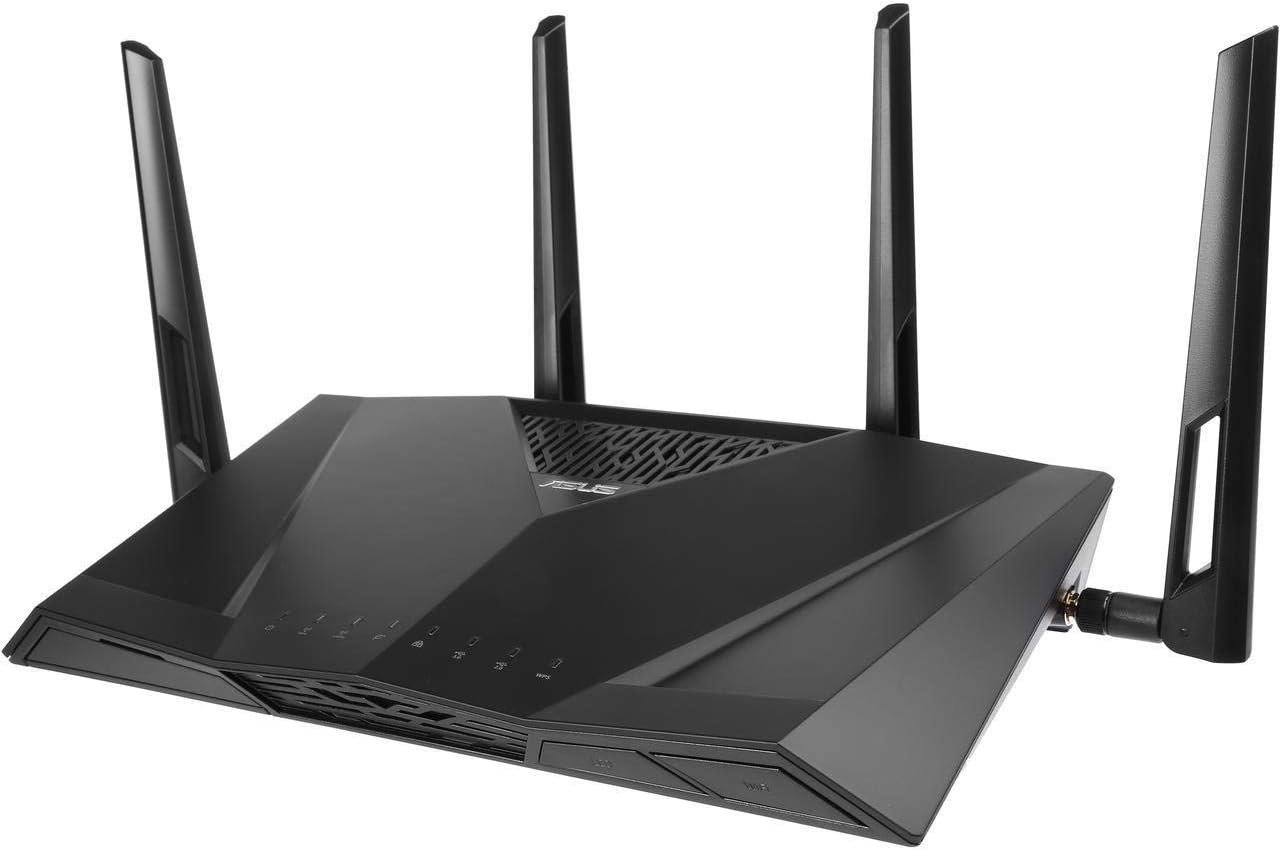

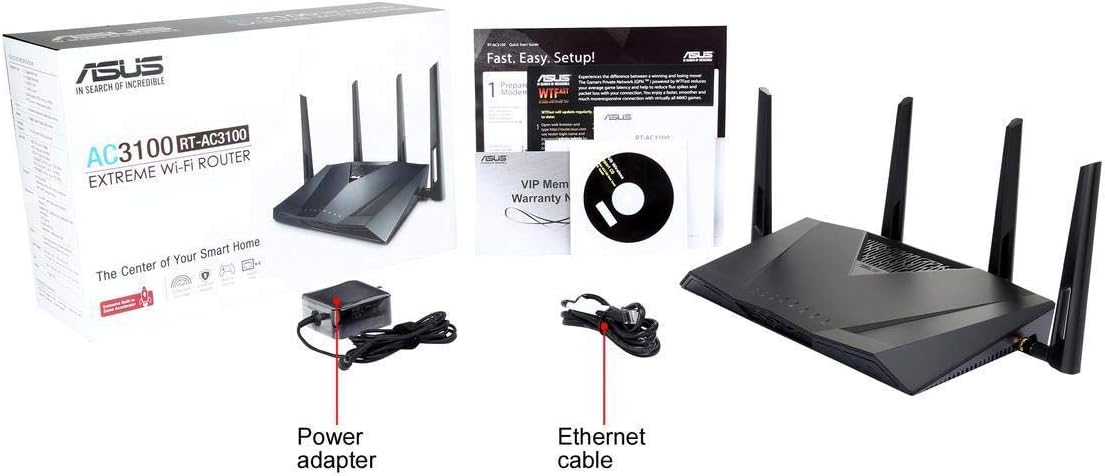
2. Орнотуу колдонмосу
Follow these steps to set up your ASUS AC3100 WiFi Router for optimal performance.
2.1 Unboxing and Initial Connections
- Таңылганын ачуу: Carefully remove the router, power adapter, Ethernet cable, and documentation from the box.
- Маршрутизаторду жайгаштырыңыз: Маршрутизаторду үйүңүздөгү борбордук жерге, тоскоолдуктарды жана тоскоолдуктарды жаратышы мүмкүн болгон башка электрондук шаймандардан алыс жайгаштырыңыз.
- Антенналарды туташтыруу: Ensure all external antennas are securely attached and oriented for best signal coverage.
- Модемге туташуу: Connect one end of the provided Ethernet cable to the WAN port (usually blue) on the router and the other end to your modem's LAN port.
- Күйгүзүү: Connect the power adapter to the router's DC-in port and plug it into a power outlet. Press the power button if available.
2.2 Power Cycling Your Modem (If Applicable)
If you are replacing an existing router, it is recommended to power cycle your modem to ensure it properly recognizes the new router.
- Unplug your modem from its power source.
- Жок дегенде 60 секунд күтө туруңуз.
- Plug your modem back into the power source and wait for it to fully boot up (usually indicated by stable lights).
2.3 Маршрутизатордун конфигурациясы
The ASUS Router App provides an easy-to-use interface for quick setup and management.
- Download the ASUS Router App: Издөө 'ASUS Router' in your device's app store (Google Play Store or Apple App Store) and install it.
- Колдонмону ишке киргизиңиз: Open the ASUS Router App and follow the on-screen instructions to set up your network, including Wi-Fi name (SSID) and password.
- Альтернатива Web Интерфейс орнотуу: If you prefer, you can connect a computer to one of the router's LAN ports via Ethernet cable or wirelessly to the default Wi-Fi network (details usually on a sticker on the router). Open a web браузер жана багыттоо
router.asus.comor192.168.1.1to access the setup wizard.
Орнотуу видео:
Бул видео визуалдык көрүнүштү камсыз кылатview of the ASUS RT-AC3100 router, including its physical features and port layout, which can assist with the initial setup process.
3. Иштөө нускамалары
Once your router is set up, you can begin utilizing its advanced features to optimize your home network.
3.1 Кош тилкелүү Wi-Fi
- The router operates on two frequency bands: 2.4 GHz and 5 GHz.
- The 2.4 GHz band offers wider coverage and better penetration through walls, suitable for general internet use and older devices.
- The 5 GHz band provides faster speeds and lower interference, ideal for bandwidth-intensive tasks like 4K streaming and online gaming.
- For optimal performance, connect newer devices to the 5 GHz band and older/less demanding devices to the 2.4 GHz band.
3.2 AiProtection with Trend Micro
- AiProtection provides commercial-grade network security to protect all connected devices from internet threats.
- Access AiProtection settings via the ASUS Router App or web interface to enable features like malicious site blocking, vulnerability protection, and infected device prevention.
3.3 Ата-эненин көзөмөлү
- Manage internet access for family members by setting time limits, blocking specific websites or applications, and filtering content.
- Configure parental control rules through the ASUS Router App or web интерфейс.
3.4 AiMesh
- If you have other AiMesh-compatible ASUS routers, you can create a seamless whole-home Wi-Fi system.
- Follow the instructions in the ASUS Router App to add AiMesh nodes and expand your Wi-Fi coverage.
4. Техникалык тейлөө
Үзгүлтүксүз техникалык тейлөө роутериңиздин натыйжалуу жана коопсуз иштешин камсыз кылат.
4.1 Микропрограмма жаңыртуулары
- Periodically check for and install firmware updates via the ASUS Router App or web интерфейс. Микропрограммалык камсыздоонун жаңыртуулары көбүнчө иштин натыйжалуулугун жакшыртууларды, коопсуздук жаңыртууларын жана жаңы функцияларды камтыйт.
4.2 Оптималдуу жайгаштыруу
- Ensure the router is placed in an open area, free from physical obstructions like large furniture or walls.
- Avoid placing the router near other electronic devices that emit electromagnetic interference, such as microwaves, cordless phones, or Bluetooth devices.
- Elevate the router if possible to improve signal dispersion.
4.3 Тазалоо
- Gently clean the router's exterior with a soft, dry cloth. Avoid using liquid cleaners or abrasive materials.
- Ensure ventilation slots are clear of dust and debris to prevent overheating.
5. Кыйынчылыктарды
Эгерде роутериңизде көйгөйлөр жаралса, төмөнкү көйгөйлөрдү чечүү кадамдарын колдонуп көрүңүз.
5.1 Интернет байланышы жок
- Кабелдерди текшерүү: Ensure all Ethernet cables are securely connected to the correct ports on both the router and the modem.
- Power Cycle: Unplug the power from your modem and router, wait 30 seconds, then plug the modem back in. Once the modem is fully online, plug the router back in.
- Модемдин абалын текшерүү: Verify that your modem's indicator lights show a stable internet connection. If not, contact your Internet Service Provider (ISP).
5.2 Жай Wi-Fi ылдамдыгы
- Маршрутизатордун жайгашуусу: Relocate the router to a more central and open area, away from obstructions and interference sources.
- Топтун тандоосу: Ensure high-bandwidth devices are connected to the 5 GHz band.
- Интерференция: USB 3.0 devices can cause interference on the 2.4 GHz band. If experiencing issues, try moving USB 3.0 devices away from the router or using shielded cables.
- Орнотулган программаны жаңыртуу: Роутериңиздин микропрограммасы жаңыртылганын текшериңиз.
5.3 Wi-Fi ажыратуулары
- Сигнал күчү: Check the Wi-Fi signal strength on your devices. If weak, consider repositioning the router or adding an AiMesh node.
- Канал кийлигишүүсү: Use the ASUS Router App to analyze Wi-Fi channels and select a less congested channel for your 2.4 GHz and 5 GHz networks.
5.4 Заводдук абалга кайтаруу
If other troubleshooting steps fail, you may need to perform a factory reset. This will revert all settings to their default values.
- With the router powered on, press and hold the Reset button (usually a small pinhole) on the back of the router for about 5-10 seconds until the power LED blinks.
- Release the button and wait for the router to restart. You will then need to reconfigure the router using the ASUS Router App or web интерфейс.
6. Техникалык шарттар
| Өзгөчөлүк | Спецификация |
|---|---|
| Бренд | ASUS |
| Модель аты | RT-AC3100 |
| Зымсыз түрү | 802.11a, 802.11ac, 802.11b, 802.11g, 802.11n |
| Жыштык тилкесинин классы | Кош тилкелүү |
| Бириктирилген маалымат ылдамдыгы | 3167 Mbps (2167 Mbps on 5 GHz, 1000 Mbps on 2.4 GHz) |
| Процессор | 1.4 ГГц эки ядролук |
| RAM | 512 MB |
| Flash эстутум өлчөмү | 128 MB |
| USB 3.0 порттордун саны | 1 |
| USB 2.0 порттордун саны | 1 |
| Операция системасы | ASUSWRT |
| Элемент Салмагы | 5.39 фунт |
| Продукциянын өлчөмдөрү | 15.9 x 10.2 x 5.1 дюйм |
7. Кепилдик жана колдоо
ASUS provides support for its products to ensure customer satisfaction.
7.1 Кепилдик маалыматы
Specific warranty details for the ASUS AC3100 WiFi Router are typically provided with the product documentation or can be found on the official ASUS website. Please refer to the 'VIP Member Warranty Notice' included in your product packaging for registration and full terms.
7.2 Техникалык колдоо
For technical assistance, product registration, or further information, please visit the official ASUS support website or contact their customer service. The ASUS Router App also provides support features and diagnostic tools.
Юридикалык баш тартуу: Actual data throughput and Wi-Fi coverage will vary from network conditions and environmental factors, including the volume of network traffic, building material and construction, and network overhead, resulting in lower actual data throughput and wireless coverage.


